
A Meta Quest headset is one of the most common holiday gifts for kids, and it ships with more parental controls than most parents realize. The catch is that the controls depend entirely on WHICH ACCOUNT the child uses. A preteen signed in to a parent’s adult account gets none of the protections Meta built for younger users. This guide walks through the right setup for each age group, the settings worth changing on day one, and the limits of what Meta’s tools can actually see.
Everything below is based on Meta’s own Family Center and Quest Help documentation, checked on October 29, 2026. Menu names can shift between software updates, so if a label looks slightly different on your headset, the setting is usually one screen away.
The short version
- Under 10: Meta does not allow it. Parents cannot create an account for a child under 10, according to Meta’s parent information page.
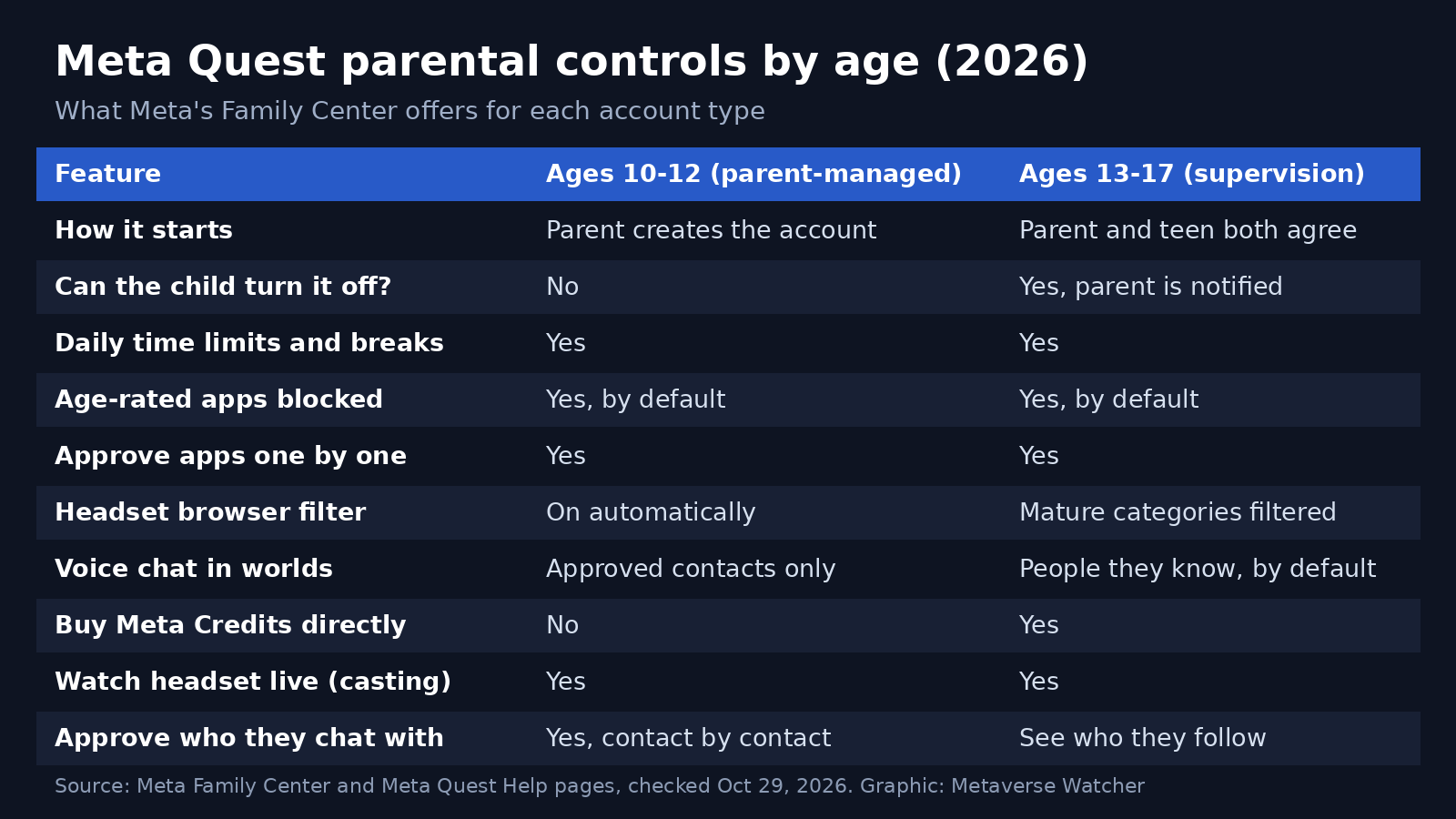
- Ages 10 to 12: the child needs a parent-managed Meta account, created by you in the Meta Horizon phone app. Supervision is switched on automatically and the child cannot remove it.
- Ages 13 to 17: teens manage their own account. Supervision is optional, and both parent and teen must agree to it.
- Shared headset: give every person their own profile and set a passcode on each one, so a child cannot simply pick the adult profile.
Ages can vary by country, and Meta notes this on each of its help pages.
Step 1: Create a parent-managed account (ages 10 to 12)
Do this before the headset is unboxed if you can, because it is far easier than migrating a child off an adult account later. Meta’s help article lists the steps:
- On your phone, open the Meta Horizon app.
- Tap Menu at the top of your Horizon Feed.
- Tap Family Center, then Get started.
- Choose Create an account for a child, then tap Continue.
- Follow the on-screen prompts to finish the account.
A parent-managed account uses your email and password. You sign in with your credentials and then choose to continue as the child. Meta says these accounts come with age-appropriate defaults that can only be changed with parental approval. Social features are limited, Communities are blocked, and the child’s data is not used to train AI models, according to Family Center.
Meta’s parent page notes that parent-managed accounts were launched for its Quest 2 and Quest 3 family of headsets, and that children under 13 cannot use Meta headsets where these accounts are not available. If you are setting up an older or unusual model, confirm support before handing it over.
Step 2: Set up supervision for a teen (ages 13 to 17)
Teens own their accounts, so supervision is an invitation rather than a lock. Per Meta’s supervision help page, the parent must be 18 or older, the teen must be 13 to 17, and both must agree. Either side can end it, and if the teen stops supervision, the parent is notified immediately, according to the Family Center supervision FAQ.
Send the invite from Family Center in the Meta Horizon app, or from the web version of Family Center. Two details matter here. First, a teen can only have ONE supervising parent, though a parent can supervise up to five accounts. Second, the web version of Family Center does not deliver notifications, so use the phone app if you want alerts.
Once connected, adjust settings in the app under Menu > Family Center > your teen’s profile > Supervision settings.
Step 3: Lock the headset with profiles and passcodes
This is the step most families skip, and it is the one that makes the rest work. If the headset only has your adult profile on it, every control above is irrelevant. A Quest can hold THREE additional profiles, according to Meta’s profiles help page. To add one:
- Press the Meta button on the right controller to open the universal menu.
- Select the clock on the left to open Quick settings.
- Select Settings, then Profiles.
- Enter the email for the account you want to add and select Send Link. The link expires after 15 minutes.
Then set a passcode on your profile so a child cannot switch into it. Meta’s passcode guide says the code is 4 to 16 digits and is set under Settings > Passcode > Create. Turn on Unlock headset so the profile locks whenever the headset sleeps or restarts. You can also use Locked apps to put specific apps behind the code.
Write the passcode down somewhere safe. Meta says forgotten passcodes cannot be recovered, and the only fix is a factory reset. The passcode is also separate from the 4-digit Store PIN used for purchases, which you should keep turned on as well.
Profiles also solve the “who bought what” problem. Each profile keeps its own payment details, saved passwords, messages and game progress, and additional profiles can play the owner’s games if App Sharing is on. If you are still picking a headset, our Quest 3 vs Quest 3S guide covers which model makes more sense for a family, and our Quest 3 and 3S setup guide covers the first boot.
Step 4: The settings worth changing on day one
Meta’s defaults are already conservative for younger users, but these are the controls parents most often adjust. All are documented on the supervision and Family Center pages.
| Control | What it does | Our suggestion |
|---|---|---|
| Daily time limit | Caps total Quest time per day, and world time across phones too | Start near 30 to 60 minutes; Meta advises breaks every 30 minutes for new users |
| Scheduled breaks | Blocks use on chosen days or hours | Block school nights after a set time |
| App access | Blocks apps rated above the child’s age; allow others one by one | Leave the default on and approve requests individually |
| Purchases | Card purchases, including Meta Credits, need approval | Keep approval on; gift credits instead of sharing a card |
| Social features | Block Horizon chats, calls and voice chat in worlds | Allow only approved contacts at first |
| Quest Link and Air Link | Stops the headset connecting to a PC without permission | Block it unless you supervise PC play |
| Developer mode | Stops sideloaded apps that skip the Store’s ratings | Block it |
| World ratings | Horizon worlds are rated 10+, 13+ or 18+ | Approve worlds by rating or one at a time |
The Link and developer mode settings are easy to overlook but important. Both are ways to run software that never passes through the Meta Horizon Store’s age ratings. Our guide on playing PC VR games on Quest explains what Link opens up, which is useful context for deciding whether to allow it.
Step 5: Watch what they see, in real time
Both account types let a parent watch the headset view live by casting it to a phone, according to Meta. For younger children, this is the single most useful habit: cast to a TV in the same room for the first few sessions. Our guide to casting Meta Quest 3 to a TV, phone or PC covers every method step by step.
What Meta’s tools cannot do
Parents should be clear about the limits, because Meta is. Its supervision FAQ says parents cannot read a teen’s private messages or chat history. Supervision shows time spent, apps used and who a teen follows, not the content of conversations.
Blocking social features in Meta’s own apps also does not reach inside third-party games. Meta’s help page states that blocking social features “does not prevent access to social features within other apps.” A multiplayer game the child is allowed to play may have its own voice chat, with its own settings. Check each popular game’s options menu, especially for social titles.
Finally, the headset browser. Meta says content filters switch on automatically for parent-managed accounts, and that categories such as gambling, weapons and sexual content are filtered for teens. Filters reduce exposure, but no filter is complete.
Is your child ready for VR at all?
Meta’s parent page gives a practical checklist. A child is ready if they meet the age requirement and can read and follow safety instructions, get a proper fit and clear vision in the headset, stay inside a boundary in a clear room, and stop when they feel uncomfortable. Meta also suggests starting with apps marked “Comfortable” on the Store’s comfort rating scale and using a Stationary boundary for the first sessions.
For context on the social side of Quest, including how worlds and age ratings work, see our explainer on what Horizon Worlds is.
Quick checklist
- Create a parent-managed account (10 to 12) or invite your teen to supervision (13 to 17).
- Add the child’s profile to the headset and set a passcode with Unlock headset on for your own profile.
- Keep the Store PIN on for purchases.
- Set a daily limit and scheduled breaks.
- Block Quest Link and developer mode unless you supervise their use.
- Cast to a TV for the first few sessions.
- Check voice chat settings inside each multiplayer game.
Sources: Meta Family Center, Horizon and Quest controls and supervision FAQ; Meta Quest Help articles on child accounts, supervision, profiles and passcodes; Meta’s parent information page. All checked October 29, 2026.