A Meta Quest 3 that suddenly goes silent is one of the most common support complaints, and in most cases the cause is a setting or an accessory rather than a failed speaker. Audio on the headset can be sent to the built-in speakers, a 3.5mm jack, the USB-C port, a Bluetooth device or, when you play PC VR over Link, to a Windows audio device. Any one of those paths can quietly take over. This guide walks through the checks in the order we recommend, using Meta’s own Help Center instructions, which we reviewed on November 21, 2026. The same steps apply to the Quest 3S, with one hardware difference covered below.
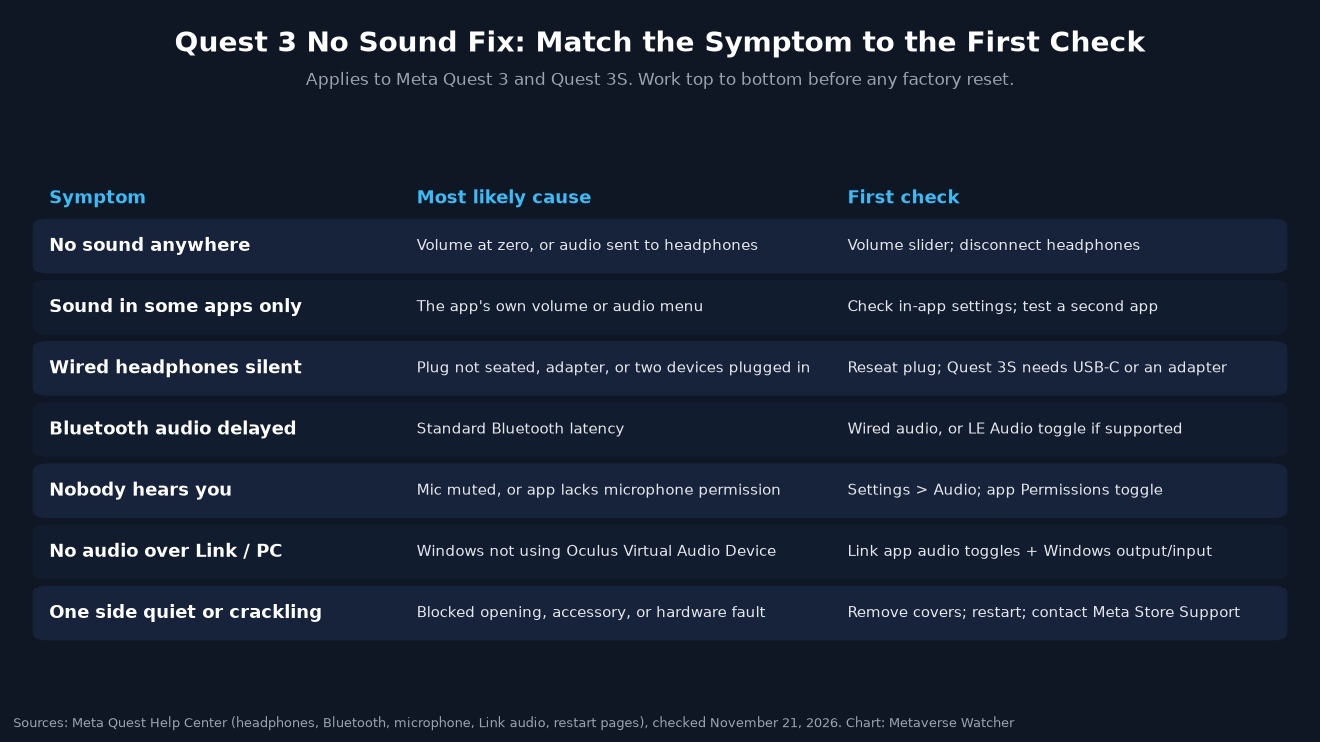
Quest 3 no sound: quick diagnosis table
Start by naming the symptom precisely. “No sound at all” and “no sound in one game” have different causes, and identifying which one you have can save you a factory reset you did not need.
| What you notice | Most likely cause | Go to |
|---|---|---|
| No sound from anything, including menus | Volume at zero, or audio routed to headphones | Steps 1 and 3 |
| Sound works in some apps only | The app’s own audio or voice settings | Step 2 |
| Wired headphones are silent | Plug, adapter or port conflict | Step 4 |
| Bluetooth audio lags behind the picture | Standard Bluetooth latency | Step 5 |
| Other players cannot hear you | System mic mute or missing app permission | Step 6 |
| No game audio or mic over Link on a PC | Windows audio device selection | Step 7 |
| One side quiet, distorted or crackling | Blocked opening, accessory or hardware fault | Steps 8 and 9 |
Step 1: Confirm the volume is actually up
It sounds obvious, but it is the most frequent fix. Press the physical volume-up button on the underside of the headset several times, then open the Navigator with the Meta button on the right controller, select the status bar at the top to reach Quick controls, and check that the volume slider is not at zero. Do this with no headphones connected so you know you are adjusting the built-in speakers.
Step 2: Test more than one app
Play a video in the browser, then open a second app or game. If sound works in one place and not another, the headset is fine and the problem sits inside the app. Many games have separate music, effects and voice-chat sliders, and some ship with voice chat turned off. Check the app’s audio menu before you change any system settings.
Step 3: Disconnect every audio accessory
A paired Bluetooth headset or a plugged-in pair of earbuds will take over the output, leaving the internal speakers silent even though the volume is up. Open Quick controls, select Bluetooth, and disconnect or turn off any connected headphones. Unplug anything in the 3.5mm jack and the USB-C port. Then test the speakers again. If the speakers now work, the issue is with the accessory, not the headset.
Step 4: Fix wired headphone problems
Meta’s headphone help page sets out a few rules that explain most wired failures:
- The Quest 3 accepts 3.5mm headphones in the audio port on the left side of the headset and USB-C headphones in the charging port just behind it.
- If two sets are plugged in at once, ONLY the pair in the 3.5mm port will play.
- USB-C headphones will not work while the Elite Strap with Battery is plugged in.
- Headset microphones are not currently compatible with the Quest 3 through the 3.5mm jack, so a gaming headset’s boom mic will not carry your voice that way.
Meta lists USB-C products it has tested: Pixel USB-C Earbuds, Samsung Type-C Headphones and OnePlus Type-C Bullets Earphones, plus the Google, Samsung and Apple USB-C to 3.5mm adapters. Other models may work, but Meta does not guarantee them, so an unlisted adapter is a sensible suspect.
Quest 3S owners: the 3S has NO 3.5mm headphone jack. Meta’s Quest 3S product page says it works with USB-C headphones, or with 3.5mm headphones through a 3.5mm-to-USB-C adapter sold separately. Because the USB-C port is also the charging port, you cannot charge through it while wired headphones are connected.
| Audio option | Quest 3 | Quest 3S |
|---|---|---|
| Built-in speakers | Yes | Yes |
| 3.5mm headphone jack | Yes (left side) | No |
| USB-C headphones | Yes | Yes |
| USB-C to 3.5mm adapter | Yes | Yes |
| Bluetooth headphones | Yes | Yes |
| USB-C audio with Elite Strap with Battery connected | No | No |
Step 5: Reduce Bluetooth delay or fix one-earbud audio
Bluetooth headphones work on both headsets, and our guide to connecting Bluetooth headphones to the Quest 3 covers pairing in detail. The limitation is latency. Meta’s Bluetooth help page warns that a Bluetooth audio device “may result in delayed audio unless using a product specifically made for Meta Quest,” and names the Anker Wireless VR Earbuds as an example.
If your headphones support Low Energy (LE) Audio, open Bluetooth settings, select the arrow next to the connected device and turn on the LE Audio toggle if it appears. Meta notes there may be a few seconds of silence when you enable it, and that entering an immersive game can cause a brief dropout while the link switches to low-latency mode. If only one earbud connects or plays, Meta’s suggested fix is to turn LE Audio off and back on for that device. If the toggle never appears, the headset has not detected the headphones as LE Audio compatible, and a wired connection is the dependable way to keep audio in sync.
Step 6: Fix a microphone nobody can hear
Microphone problems usually come down to one of three settings.
System mute. Open the Navigator, select the status bar to reach Quick controls, choose Settings, then Audio, and make sure the Mute microphone toggle is off. On the Quest 3S, also check whether the action button has been set to mute the mic. Since Horizon OS v85 the button can be assigned to Passthrough, Meta AI, Capture picture, Capture video or Mute microphone, with a separate long-press action, so a stray press can silence you without warning.
Quest 3S owners can now customize the headset’s unique action button with shortcuts for Meta AI, screenshots, video capture, or microphone mute:
— UploadVR (@UploadVR) April 15, 2026
App permission. Quest apps must be granted microphone access, and it is easy to dismiss the prompt the first time an app asks. In your library, point at the app, press and hold the trigger until a menu appears, open its permissions and turn the microphone on. Meta’s privacy indicator also shows a purple icon above Quick controls when an app is using the mic, and Settings > Privacy and safety > Permissions history shows which apps accessed the microphone in the past seven days. If a game never appears there, it is not receiving your voice.
In-game voice settings. Many multiplayer games have their own push-to-talk, voice chat or mic volume options. Check them after the system settings.
Meta also warns that unsupported third-party accessories such as covers or stickers can interfere with headset audio and the microphone. If your voice sounds muffled, remove any front cover or skin and test again.
Step 7: Fix sound and mic over Meta Horizon Link
When you play PC VR games over Link, audio runs through Windows, so the headset’s settings are only half of the picture. Meta’s Link audio help page gives two sets of checks:
- In the Meta Horizon Link app on your PC, click Devices, select your headset, and turn on Hear Computer Audio in VR and Hear VR Audio from Computer.
- In Windows, click the speaker icon in the taskbar, open the list of devices and set both output and microphone to Oculus Virtual Audio Device.
If you use third-party PC VR software, set the same Oculus Virtual Audio Device as its input and output as well. For more on wired and wireless PC setups, see our guide to playing PC VR games on the Quest 3.
Step 8: Remove accessories and inspect the speakers
The Quest 3’s speakers are built into the sides of the headset near your ears. Aftermarket facial interfaces, strap covers and stickers can block or redirect sound, and Meta’s own audio pages repeatedly name unsupported accessories as a cause of audio and mic trouble. Take them off and test again. Wipe the outside of the openings with a dry, soft cloth. Do not push liquid, compressed air or sharp objects into them.
If you are shopping for a replacement strap or interface, check audio clearance before you buy. Our best Quest 3 accessories list covers the main categories.
Step 9: Restart, update, then reset as a last resort
A restart clears many temporary audio faults. Meta’s instructions: hold the power button until the Power off screen appears and select Restart. If the headset is frozen, hold the power button for at least 30 seconds, wait 30 seconds, and press power again if it does not come back on by itself.
Next, make sure Horizon OS is current, since audio fixes often arrive in system updates. Our guide on how to update Meta Quest 3 software shows how to check and install the latest version.
Only consider a factory reset after everything above has failed. Meta notes that a reset removes all installed content and erases your account from the headset, so back up what you can first. Our Quest 3 and 3S factory reset guide explains the process step by step.
When it is probably hardware
Treat it as a likely hardware fault if the internal speakers stay silent or distorted across several apps after a restart, an update and the removal of all accessories, while headphones still work normally. The same applies if one side remains clearly quieter than the other after those checks. At that point, contact Meta Store Support from the Meta Quest Help Center rather than opening the headset. Our Meta Quest 3 warranty, repair and replacement guide explains what coverage applies and how to start a claim.
Bottom line
Most Quest 3 sound problems are routing problems: a volume slider at zero, a Bluetooth headset holding on to the output, a second set of headphones in the wrong port, or a microphone muted by a toggle, a permission or the Quest 3S action button. Work through the checks in order and keep the factory reset for last. If you are also seeing connection problems, our Quest 3 Wi-Fi fix guide follows the same step-by-step approach.
Sources
- Meta Quest Help: How to use headphones with Meta Quest (checked Nov 21, 2026)
- Meta Quest Help: Connect a compatible Bluetooth device to Meta Quest headsets (checked Nov 21, 2026)
- Meta Quest Help: How to mute and unmute your microphone on Meta Quest (checked Nov 21, 2026)
- Meta Quest Help: View and manage app permissions for Meta Quest (checked Nov 21, 2026)
- Meta Quest Help: How to fix sound and mic issues with Meta Horizon Link (checked Nov 21, 2026)
- Meta Quest Help: How to restart your Meta Quest headset (checked Nov 21, 2026)
- Meta Store: Meta Quest 3S product page (audio and USB-C headphone support)
- UploadVR: How To Customize Your Quest 3S Action Button (April 15, 2026)
- Android Central: Why no one can hear you in multiplayer Quest games (app permissions)