A Meta Quest 3 that will not join Wi-Fi is close to useless. Meta states plainly that all current Quest headsets require a Wi-Fi connection to use and access most features and content, from setup and software updates to the Horizon Store, casting and Air Link. The good news: almost every Quest 3 and Quest 3S Wi-Fi failure falls into one of a handful of patterns, and each has a known fix.
This guide pulls together Meta’s official troubleshooting steps from Quest Help (checked November 16, 2026), adds the network-side checks Meta only hints at, and orders everything from fastest to most drastic. It applies to Quest 3, Quest 3S, Quest 2 and Quest Pro; menu names can shift slightly between Horizon OS versions.
How to Connect Quest 3 to Wi-Fi (the Normal Way)
Before troubleshooting, confirm you are using the correct path. According to Meta’s connection guide:
- Press the Meta button on your right controller to open the Navigator.
- Select the status bar at the top of the Navigator to open Quick controls.
- Select Settings, then Wi-Fi.
- Make sure the Wi-Fi toggle is on.
- Select your network, choose Connect, and enter the password.
If you are setting up a brand-new headset, the Wi-Fi step happens inside the setup flow instead; our Meta Quest 3 setup guide walks through that process end to end.
Quick Checklist Before You Change Anything
Meta’s own checklist catches a surprising share of failures. Make sure that:
- The router is on and other devices (a phone or laptop) can get online through it.
- You have the exact network name (SSID) and password. Passwords are case-sensitive.
- The headset battery is at 20% or higher.
- You are close to the router. Meta suggests standing within about 10 feet while troubleshooting.
- For first-time setup, you are not on a hotel, airport or other public hotspot with a sign-in page.
Fix 1: Restart the Headset
Meta’s first instruction for any Wi-Fi failure is a restart. Hold the power button on the right side of the headset until the shutdown screen appears, then select Restart. This clears a stuck network stack more often than any setting change does.
Fix 2: Forget the Network and Re-Add It
A saved network profile with an old password or stale settings will fail silently. Go to Settings > Wi-Fi, select your network, choose Forget, then select it again and re-enter the password carefully. This is also Meta’s recommended fix when the headset shows “Cannot connect to internet” after a software update.
Fix 3: Switch Between 2.4 GHz and 5 GHz
If your router broadcasts separate 2.4 GHz and 5 GHz networks, Meta advises trying the other band. The trade-off is simple: 2.4 GHz reaches farther through walls, while 5 GHz is faster and less crowded. Quest 3 and Quest 3S are both certified for Wi-Fi 6E, according to Meta’s device comparison, so they can also use 6 GHz networks where routers and local regulations allow it. For setup, Meta specifically recommends a 5 GHz network if one is available.
Many modern routers merge all bands under one name (“band steering”). That is not inherently a problem, but if the headset keeps failing, temporarily splitting the bands into separate names in the router’s admin page is a clean way to isolate the issue.
Fix 4: Restart the Router
Unplug the router from power, wait 30 seconds, plug it back in, and give it 2–3 minutes to fully come back. Meta lists this as a standard step, and it resolves DHCP problems where the headset joins the network but never receives a working address, the classic “connected, no internet” symptom.
Fix 5: Install Pending Software Updates
Wi-Fi bugs do get fixed in Horizon OS releases. Once you have any connection at all, even a phone hotspot, go to Settings > System > Software Update and install whatever is waiting. Our guide on how to update Meta Quest 3 and 3S covers forcing a stuck update and Meta’s update tool.
Fix 6: Test a Different Network or a Phone Hotspot
This is the single most useful diagnostic step. Turn on your phone’s personal hotspot and connect the headset to it. If the Quest connects there but not at home, the headset is fine and the problem is your home network configuration. If it fails on two independent networks, the headset’s software state is the more likely culprit.
Watch your mobile data allowance: a single game download can run to many gigabytes. Use the hotspot to diagnose or to finish setup, not as a long-term connection.
Fix 7: Check MAC Filtering and Device Limits on Your Router
When the headset works elsewhere, Meta points to router-side settings such as MAC address filtering or a maximum device limit. Parental-control platforms and some ISP gateways also block unknown devices by default. Log in to your router’s admin page or app, look for a blocked or pending device, and allow the headset.
To find the headset’s MAC address, Meta’s MAC address article says: open Quick controls, select Settings > General > About, and look under Network.
Fix 8: Hotel, Dorm and Campus Wi-Fi
Networks that make you log in through a web page (a “captive portal”) are the most common reason a new Quest cannot finish setup. Meta Quest Support has said on its official Reddit account that initial setup is not possible on a network that uses a captive portal, though it may work after setup is done. The practical sequence:
- Complete setup on a phone hotspot or another private network. Meta notes that the phone used for pairing and the headset must be on the same network during setup.
- Once setup is complete, join the hotel or campus network and open the Quest browser to bring up the login page.
- If the network requires device registration instead (common in university housing), register the headset’s MAC address with the IT department’s device portal.
Enterprise-secured campus networks can be another obstacle. Carnegie Mellon’s XR lab, for example, notes that Quest 3 does not support the security protocol used by its main secure network, so headsets are registered on a separate device network by MAC address. If your school has a similar “devices” or “gaming” network, use that.
Fix 9: Hard Reboot
If the headset is frozen or the Wi-Fi menu will not respond, Meta’s troubleshooting page describes a hard reboot: hold the power and volume-down buttons together for 30 seconds, or until the device turns back on. Meta’s setup article also describes holding only the power button for 30 seconds. Either should be tried before anything more drastic.
Fix 10: Factory Reset (Last Resort)
Meta says a factory reset may be necessary if Wi-Fi stopped working after a software update and nothing else helped, or if the setup screen will not let you change networks. To reset from the boot menu: power off the headset, hold Power and Volume Down for 10–15 seconds until the boot menu appears, move to Factory Reset with the volume buttons, and confirm with the power button.
A reset erases everything on the headset that is not backed up to the cloud, including local saves and sideloaded apps. Read our Quest 3 factory reset guide first to see what you will lose and how to back it up.
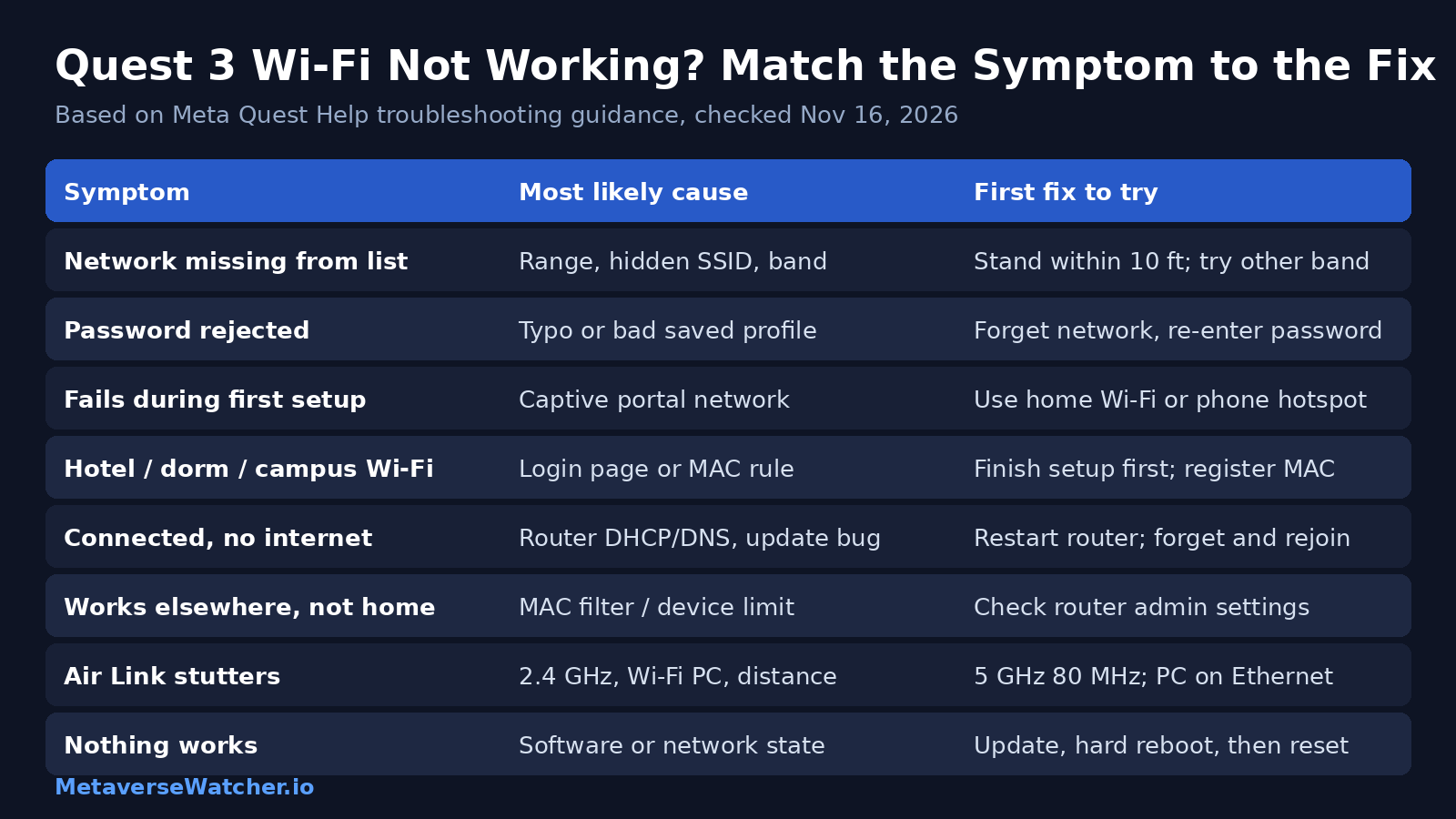
Quest 3 Wi-Fi Problems at a Glance
| Symptom | Likely cause | Best fix |
|---|---|---|
| Network not in the list | Distance, hidden SSID, unsupported band or channel | Move within 10 ft; try other band; check SSID broadcast |
| Password rejected | Typo, case error, stale saved profile | Forget network and re-enter password |
| Fails only during setup | Captive portal, phone and headset on different networks | Use a private network or hotspot for setup |
| Connected, no internet | Router DHCP/DNS issue, post-update bug | Restart router; forget and rejoin; update |
| Works on hotspot, not at home | MAC filtering, device limit, parental controls | Allow the headset in router settings |
| Keeps dropping | Weak signal, congestion, mesh hand-offs | Move closer; test a dedicated 5 GHz name |
| Fails everywhere | Headset software or network state | Update, hard reboot, then factory reset |
Wi-Fi Works but Air Link Is Laggy
A connected headset is not the same as a good PC VR stream. Air Link pushes a constant high-bitrate video feed, so it exposes network weaknesses that browsing never will. Meta’s Air Link troubleshooting article describes a built-in tool: open Quick controls, select Link, choose your computer, then select Troubleshoot. It grades five factors, and Meta’s recommendations for each are:
- Band: use 5 GHz rather than 2.4 GHz.
- Channel width: lock the router to 80 MHz on 5 GHz if it allows it.
- Ethernet: connect the PC to the router by cable so only the headset uses Wi-Fi.
- Latency: minimize the devices between PC and headset; consider a dedicated router.
- Signal: play in the same room as the router, with clear line of sight.
One accessory to avoid: Meta says D-Link’s VR Air Bridge stopped receiving firmware updates in December 2024 and is no longer supported on any Quest headset. For the full wired and wireless picture, including Steam Link and Virtual Desktop, see our guide to playing PC VR games on Quest 3. The same network rules also apply to casting your Quest to a TV or phone, where Meta asks that devices on a dual-band network share the same band.
When to Contact Meta Support
If your Quest 3 will not connect to any network, including a phone hotspot held next to the headset, even after a factory reset, the problem may be hardware. At that point, contact Meta Store Support; our Quest 3 warranty and repair guide explains coverage and the replacement process.
Frequently Asked Questions
Can I use a Quest 3 without Wi-Fi?
Meta says all current Quest headsets need Wi-Fi to use and access most features and content. Setup, updates and store downloads require a connection.
Does Quest 3 support 6 GHz Wi-Fi?
Yes. Meta lists both Quest 3 and Quest 3S as Wi-Fi 6E, which adds the 6 GHz band where your router and region support it.
Why does my Quest connect but say there is no internet?
Usually the router has not given the headset a working address or DNS. Restart the router, then forget and rejoin the network on the headset. If it began after an update, Meta recommends forgetting the network, restarting the headset, and reconnecting.
Can I set up a Quest 3 on hotel Wi-Fi?
Not reliably. Meta advises against initial setup on hotel or airport hotspots. Use a phone hotspot for setup, then join the hotel network afterward.
Related: Quest 3 controller not working? Tracking and drift fixes · How to free up storage on Quest 3