By MWContent, Metaverse Watcher. Published November 1, 2026. Steps checked against the Meta Quest Help Center on November 1, 2026.
Casting is the fastest way to let the people in the room see what the person in the headset sees. It turns a solo Meta Quest 3 or Quest 3S session into something a family, a classroom or a demo table can follow, and it is the easiest way for a parent to keep an eye on what a child is doing in VR. This guide covers every cast target Meta currently documents (a phone, a web browser, a Chromecast-enabled TV and a PC running Meta Quest Link), how to stop a cast, and what to check when the cast refuses to connect.
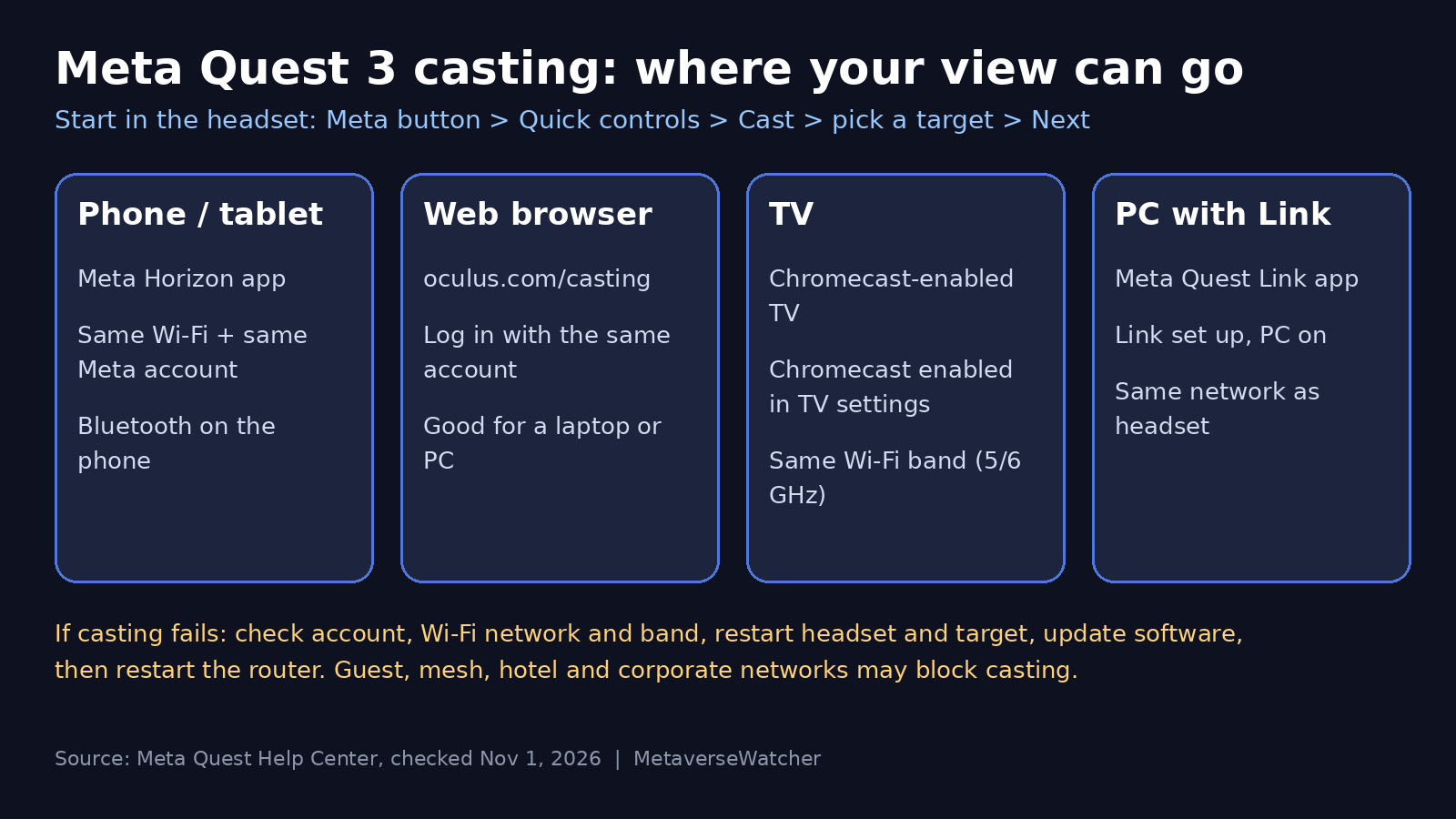
The short answer
In the headset, press the Meta button on the right controller to open the Navigator, select Quick controls, select Cast, choose Mobile, Web or a nearby device from the list, then select Next and follow the prompts. That is the same path for every target, according to Meta’s casting help article. What changes is the setup on the receiving side.
Two rules apply to every method, and they cause most failed casts. The headset and the receiving device must be on the SAME Wi-Fi network, and if your router broadcasts two bands, both devices should be on the same band. For phones and browsers, both must also be signed in to the same Meta account. Meta notes you can cast from either a primary or a secondary account on the headset.
Cast targets compared
| Target | What you need | Best for | Watch out for |
|---|---|---|---|
| Phone or tablet | Meta Horizon app, signed in to the same account, Bluetooth on, same Wi-Fi | Parents watching, quick demos | Leaving the app stops the cast |
| Web browser | A browser signed in at oculus.com/casting with the same account | Laptops, classroom projectors | Account mismatch is the usual failure |
| TV | A Chromecast device or a TV with Chromecast built in and enabled | Living-room viewing for a group | Meta says not every smart TV model is guaranteed to work |
| PC with Link | Meta Quest Link set up on a PC that is on and on the same network | Streaming or recording on a desktop | Link must already be installed and working |
How to cast Quest 3 to a phone
A phone is the most common target because nearly every Quest owner already has the companion app. You can start the cast from either device.
- Make sure the phone is on the same Wi-Fi network as the headset and that Bluetooth is turned on. Meta lists both as requirements.
- Open the Meta Horizon app and sign in with the same Meta account used on the headset.
- From the headset: open the Navigator, select Quick controls, select Cast, choose Mobile, then Next. Or from the phone: in the Meta Horizon app, tap Devices, select your headset, then tap Cast.
- The headset view appears in the app within a few seconds. Turn the phone sideways for a larger picture.
To end it from the phone, tap the casting display, tap the X and select Stop casting. Meta also notes that closing the Meta Horizon app or switching to another app on the phone ends the cast, so a phone that is being used for anything else is a poor receiver.
How to cast Quest 3 to a computer browser
Casting to a browser is the best option when you want the picture on a laptop, a monitor or a projector without installing anything.
- On the computer, go to oculus.com/casting and sign in with the same Meta account as the headset.
- Confirm the computer and headset are on the same Wi-Fi network.
- In the headset, open Quick controls, select Cast, choose Web (shown as Computer on some managed devices), then Next.
- The cast appears in the browser tab. Use the browser’s full-screen mode for a cleaner view.
Business Insider’s walkthrough recommends a Chromium-based browser such as Chrome or Microsoft Edge for this method. If the page loads but no picture appears, the first thing to check is that the browser is signed in to the same account, which is the single fix Meta lists for browser casting problems in its casting troubleshooting article.
How to cast Quest 3 to a TV
Quest casts directly to a TV only through Chromecast. That means either a TV with Chromecast built in (many Google TV and Android TV sets) or a Chromecast dongle plugged into the TV. AirPlay is not among the cast targets Meta documents, so an Apple TV will not show up in the headset’s device list on its own.
- Turn on the TV and confirm Chromecast is enabled in its settings.
- Put the TV or Chromecast on the same Wi-Fi network and, on a dual-band router, the same band as the headset. Meta recommends the 5GHz or 6GHz band over 2.4GHz for better performance.
- In the headset, open Quick controls, select Cast, and pick the TV from the list of nearby devices.
- Select Next and follow the prompts. The headset view appears on the TV.
Meta is careful to say that TVs with built-in Chromecast “may be supported, but compatibility isn’t guaranteed with all models.” If your TV does not appear in the list, Meta also suggests checking that the Chromecast device’s date and time are correct. When a TV simply will not cooperate, casting to a laptop browser and connecting that laptop to the TV over HDMI is a reliable fallback.
How to cast to a PC with Meta Quest Link
If you already use the Meta Quest Link app on a Windows PC, the PC can act as a cast target too. Meta’s troubleshooting guidance is short: Link must already be set up on the PC, and the PC must be on and connected to the same network as the headset. This route suits creators who want to capture the cast with desktop software. For recording inside the headset itself, see our guide on how to screenshot and record video on Meta Quest 3.
How to stop casting
In the headset, press the Meta button, open Quick controls, select Cast, then Stop casting. On a phone, tap the casting display, tap the X and choose Stop casting. On organization-managed headsets, Meta says a cast also ends when the device turns off, restarts or sleeps, loses Wi-Fi, has had no viewers for more than 30 minutes, or when the wearer signs out.
Quest 3 casting not working? Fix it in this order
Meta’s troubleshooting page says failures usually come down to “an account mismatch, a Wi-Fi network difference, or a network that blocks casting.” Work through these checks before assuming anything is broken:
- Same account. Confirm the headset, the Meta Horizon app and the browser are all signed in to the same Meta account.
- Same network and band. Check that both devices are on the same Wi-Fi network, and on dual-band routers the same band. A phone that has drifted to mobile data or a 2.4GHz network is a common culprit.
- Restart everything. Restart the headset, the phone and the device you are casting to.
- Update. Check for software updates on the headset, the app and the TV or Chromecast.
- Restart the router. Meta lists this as the last step for phone casting problems.
- Try another network. Meta warns that some mesh networks, guest networks, hotel, airport and corporate networks, and some phone hotspots block casting for security reasons. If none of the steps above work, the network itself may be the problem.
Two more known limits are worth knowing. Meta says you may run into problems if you cast and record at the same time, and that casting can increase battery use or reduce in-app performance. If a demanding game stutters while casting, end the cast or plug the headset into power. If the problem looks like tracking rather than video, our Quest 3 controller drift and tracking fix guide covers that separately.
Casting for parents, classrooms and demos
Casting is one of the most useful supervision tools on Quest. Meta lets parents and guardians watch a child’s or teen’s headset activity in real time; our Meta Quest parental controls guide explains how to link accounts first. For a first-timer, watching the cast also lets an experienced player coach them through a game, which can help with comfort. Our guide to preventing VR motion sickness has more on easing new players in.
For organization-managed headsets, Meta documents a browser cast that uses a URL and code shown in the headset, which can be shared so others can watch. Meta says up to 15 people can view one such cast at the same time, which makes it practical for training sessions and remote demos.
Good games to cast
Party-style and social games make the best casting material because the audience can follow along and take turns. Our Best Free Quest Games (2026) list is a good starting point that costs nothing to try. If you are still deciding which headset to buy for a household, see Quest 3 vs Quest 3S; both support the casting features described here.
FAQ
Can I cast Quest 3 to a TV without Chromecast? Not directly. Meta’s documented TV route is Chromecast. The workaround is to cast to a computer browser and connect the computer to the TV.
Do the phone and headset need the same Meta account? Yes. Meta lists matching accounts as a requirement for phone and browser casting, and an account mismatch is the first cause it names when casting fails.
Why does my cast stop when I switch apps on my phone? Meta says closing the Meta Horizon app or opening a different app on the phone ends the cast.
Can I cast on hotel or school Wi-Fi? Often not. Meta says guest, commercial, corporate and certificate-based networks commonly block casting. A home network or a different network is the fix.
Does casting hurt performance? It can. Meta says casting may increase battery use or degrade in-app performance, and casting while recording may cause problems.