
By Metaverse Watcher staff · Published October 29, 2026
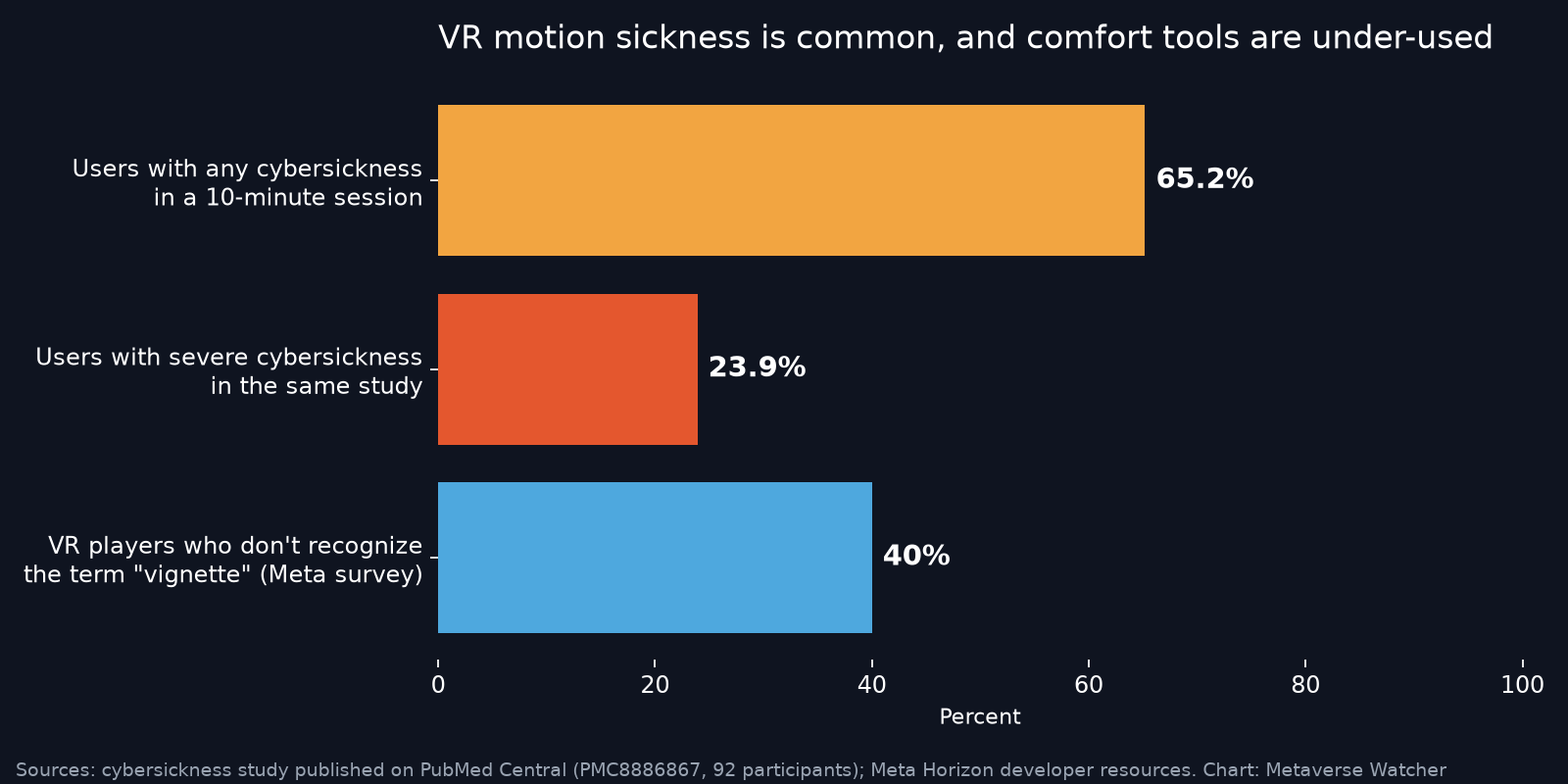
VR motion sickness is the single most common reason a new headset ends up back in its box. It is not a personal failing and it is not rare: in a peer-reviewed study of 92 adults published on PubMed Central, 65.2% reported cybersickness during a single 10-minute session, and 23.9% reported it severely. The good news is that most of it can be managed. This guide collects what actually works, drawn from Meta’s own design and safety guidance and from published research, and puts it in the order you should try it.
Why VR Makes You Feel Sick
Meta’s locomotion comfort guidance describes the core cause as a visual-vestibular mismatch: your eyes report motion that your inner ear does not feel, the same conflict as reading in a moving car. Three things make that mismatch worse:
- Artificial movement. Smooth turning, sliding locomotion, acceleration and camera movement you didn’t trigger.
- Display lag. A head-tracking study on PubMed Central found sickness rose as researchers added lag on top of a headset’s roughly 4 ms baseline, because the virtual view drifts from where your head actually points.
- Poor fit and low frame rates. IPD (interpupillary distance, the spacing between your pupils) mismatch, a wide unrestricted field of view during motion, and low frame rates are all linked to more symptoms.
Researchers also found that people who get carsick or seasick, and people with less headset experience, tend to suffer more. That second point matters: for many users, tolerance improves with short, regular exposure.
12 Proven Ways to Prevent VR Motion Sickness
1. Stop at the first sign of discomfort
This is the rule everything else depends on. Meta’s Quest 3 health and safety warnings say to stop if you feel nausea, dizziness, disorientation or impaired balance, rest, and not resume until you have fully recovered. Pushing through a wave of nausea tends to make the next session worse, not better. Avoid driving or other demanding tasks until symptoms are completely gone.
2. Keep early sessions short
Meta’s VR comfort and safety guide recommends starting with a few minutes at a time, building up gradually, and taking a break at least every 30 minutes when you’re new. A practical schedule is 10 to 15 minutes a day for the first week, extending only when a session ends with no symptoms at all.
3. Start with games rated Comfortable
Every app in the Meta Horizon Store carries a comfort rating: Comfortable, Moderate, Intense or Unrated. Meta recommends new users start with Comfortable titles, which generally avoid camera movement and player motion. In the headset, open the app’s Store page and scroll to More Information; in the Meta Horizon phone app, it sits below the age rating. Note that the rating describes the default settings, so a Moderate game can become much gentler once you change its comfort options.
4. Switch to teleport movement
Meta’s developer guidance calls teleportation the most comfortable way to move, because an instant jump removes the perception of continuous motion entirely. Many games default to smooth movement, so check the settings menu for a locomotion or movement option before you start playing.
5. Use snap turning instead of smooth turning
According to Meta’s locomotion preferences guide, snap turning rotates your view in fixed steps, typically 30, 45 or 90 degrees, and “minimizes motion sickness,” while smooth turning “can cause motion sickness.” If snap turns feel disorienting, try a smaller angle. Better still, stand and turn your body physically when the game and your space allow it.
6. Turn on the vignette
A vignette, sometimes labelled tunnel vision or comfort mode, darkens the edges of your view while you move. Peripheral motion is a major trigger, and research reviewed in the PMC study found that dynamically narrowing the field of view during movement reduces cybersickness. Meta’s own survey found 40% of VR players don’t recognize the term, so it is one of the most overlooked settings in VR.
7. Set your IPD correctly
Meta’s comfort design page says matching the headset’s IPD to your eyes makes content look more natural and reduces visual strain, and University of Wollongong research tied IPD mismatch to cybersickness. Quest 3 and 3S handle lens spacing differently, so follow the fit steps in our Meta Quest 3 and 3S setup guide. A blurry image is a sign the fit or spacing is off.
8. Prefer higher frame rates
A study in IEEE Transactions on Visualization and Computer Graphics compared 60, 90, 120 and 180 fps and identified 120 fps as an important threshold, with lower simulator-sickness symptoms above it. In practice, avoid dropping graphics settings that cause stutter on PC VR, and prefer games and modes that run smoothly. Rendering upgrades like the Half-Life: Alyx foveated rendering update help precisely because they free up performance for steadier frame rates.
9. Use mixed reality and passthrough as a bridge
Meta’s comfort guidance recommends showing the real world at the edges of the view because it gives the brain stable reference points. Mixed reality games that keep your room visible are a gentle on-ramp before fully immersive titles with artificial movement.
10. Play seated for movement-heavy games
The Wollongong research linked postural sway to cybersickness. Sitting in a stable, non-rotating chair, with a stationary boundary set, removes balance as a variable when you play driving, flying or smooth-locomotion games.
11. Control the room: airflow, temperature and timing
A fan pointed at you is a common VR community tip: it keeps you cool and gives a fixed sense of direction in the room. The PMC study also found that recent headaches and cognitive stress predicted worse symptoms, so skip VR when you are already tired, unwell or stressed.
12. Build tolerance gradually, then raise the intensity
Because less headset experience predicts more severe sickness, steady short sessions are the most reliable long-term fix. Once Comfortable titles cause no symptoms, move to Moderate ones with comfort settings on, then relax one setting at a time, for example snap turning first, then the vignette. Never change several at once, or you won’t know which one caused trouble.
Comfort Settings at a Glance
| Setting | Most comfortable choice | More immersive choice | Why it helps |
|---|---|---|---|
| Movement | Teleport | Smooth or slide locomotion | Removes continuous visual motion |
| Turning | Snap turn (30–90°) or physical turning | Smooth turn | Cuts rotational motion, a strong trigger |
| Vignette | On, strong | Off | Reduces peripheral visual flow |
| Play position | Seated, stationary boundary | Standing roomscale | Removes postural sway |
| Content rating | Comfortable | Moderate, Intense, Unrated | Less built-in camera and player motion |
| Session length | 10–15 minutes, breaks every 30 | Longer sessions | Allows gradual adaptation |
What About Ginger, Wristbands and Medication?
Players often try remedies borrowed from car and sea travel. The research cited in this guide did not test them, so Metaverse Watcher can’t recommend any specific product. If you are considering over-the-counter motion sickness medication, ask a pharmacist or doctor first, since many cause drowsiness. The settings and habits above carry no such side effects and should come first.
Advice for Parents
Meta’s family guidance recommends breaks every 30 minutes when starting out, starting on the Comfortable end of the ratings scale, and choosing between a stationary or roomscale boundary for each child. You can enforce time limits and app approvals through the tools covered in our Meta Quest parental controls guide, and casting the headset to a TV lets you spot discomfort early; see how to cast Meta Quest 3.
When to See a Doctor
Meta’s safety warnings say to consult a doctor if symptoms are serious or persist after you stop. Ordinary VR sickness fades within minutes to a few hours of rest. Symptoms that linger, or any seizure, loss of awareness or eye twitching, mean you should stop using VR and get medical advice before trying again.
The Bottom Line
VR motion sickness comes from a mismatch between what you see and what you feel, and every effective fix reduces that mismatch: teleport and snap turning, a vignette, a correct IPD, smooth frame rates, a stable seated position and short, regular sessions. Most players who follow that order can enjoy VR comfortably within a few weeks. New to headsets? Start with our Quest 3 and 3S setup guide, or read what the metaverse actually is in 2026.