
Updated October 28, 2026. Steps checked against Meta’s Quest Help Center the same day.
Casting is the fastest way to let the rest of the room see what a Meta Quest wearer sees, whether you are coaching a first-time player, keeping an eye on a child in VR, or streaming a session. Meta Quest 3 and Quest 3S can cast wirelessly to a phone, a Chromecast-enabled TV or a computer browser, and Quest 3 can also mirror over a USB-C cable. This guide walks through every method, what each one needs, and how to fix the problems that stop casting from working.
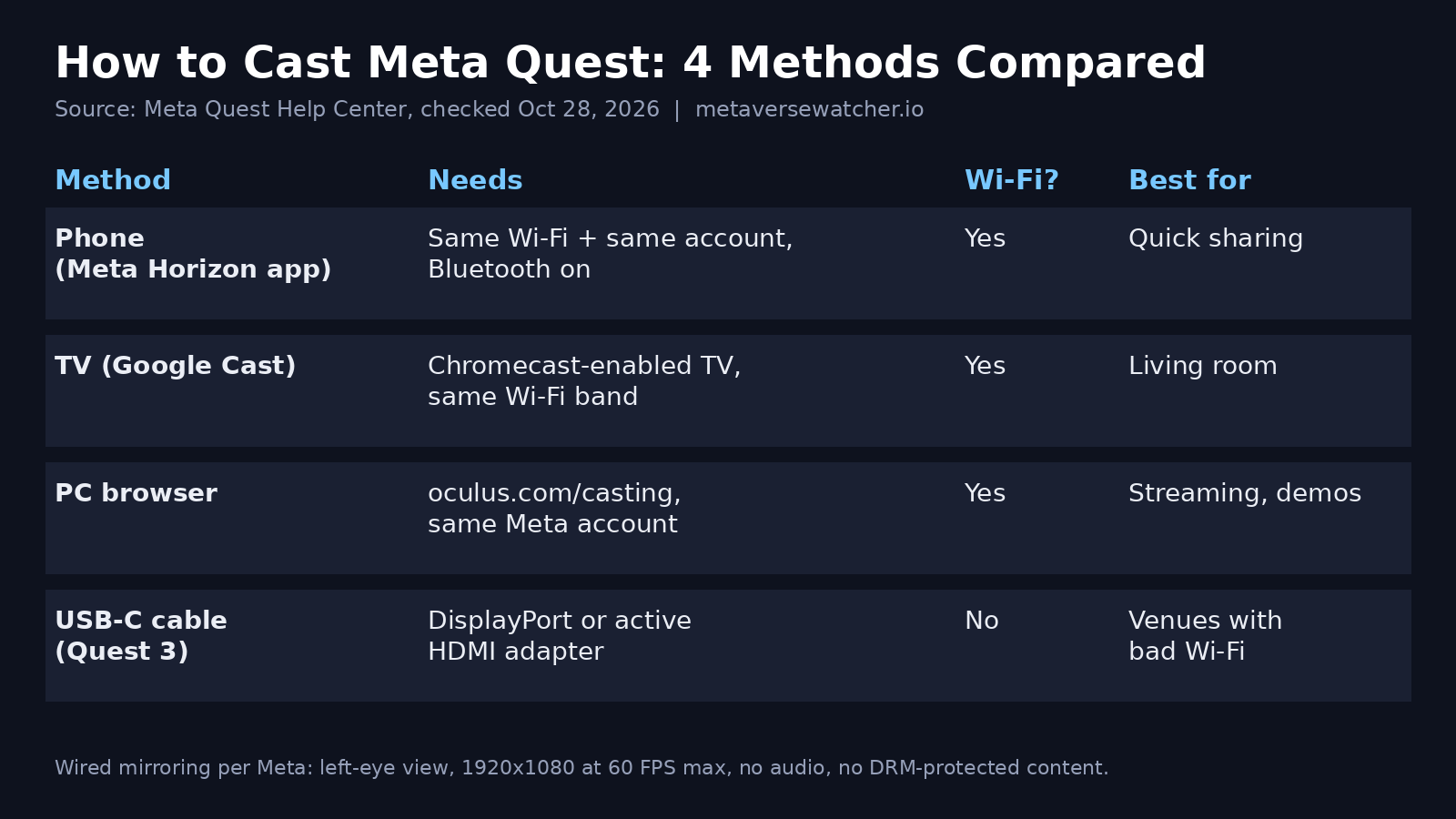
Quick answer
- Put the headset and the screen you want to cast to on the SAME Wi-Fi network (and the same band, if your router splits 2.4GHz and 5GHz).
- Make sure the phone app or browser is signed in to the same Meta account as the headset.
- In the headset, press the Meta button on the right controller to open the Navigator.
- Select Quick controls, then Cast.
- Choose Mobile, Web, or a nearby device such as your TV, then select Next and follow the prompts.
To stop, open the Navigator again and go to Quick controls, then Cast, then Stop casting. That path comes straight from Meta’s casting help page. Older Horizon OS builds put Cast under a Camera menu instead; if you do not see Quick controls, update the headset first.
Before you start: the three requirements
Almost every casting failure traces back to one of three things, according to Meta’s own casting troubleshooting page: an account mismatch, a Wi-Fi mismatch, or a network that blocks casting.
- Same network. The headset and the receiving device must be on the same Wi-Fi network. On dual-band routers, put both on the same band. Meta recommends 5GHz or 6GHz over 2.4GHz for smoother video.
- Same account. The phone app or browser must be logged in to the same Meta account as the headset. You can cast from a primary or a secondary account on the headset.
- A network that allows it. Guest networks, hotel and airport Wi-Fi, corporate or certificate-based networks, some mesh systems and some phone hotspots block the device discovery that casting depends on.
How to cast Meta Quest to a phone
Casting to a phone uses the Meta Horizon app (formerly the Meta Quest app) on iOS or Android. Turn Bluetooth on and join the same Wi-Fi as the headset. You can start the cast from either end.
From the headset: open the Navigator, select Quick controls, then Cast, choose Mobile, and follow the prompts.
From the phone: open the Meta Horizon app, go to Devices, select your headset and tap Cast. To end the session, tap the casting view, tap the X and choose Stop casting. Closing the app or switching to another app on the phone also stops the cast, so keep the phone on the Horizon app while you watch.
Phone casting is the best choice for quick, low-friction sharing, such as helping someone through their first setup. If you are setting up a new headset, our step-by-step Quest 3 and 3S setup guide covers the app pairing that casting relies on.
How to cast Meta Quest to a TV
Quest casts to TVs through Google Cast, the technology behind Chromecast. You do not need a separate Chromecast dongle if your TV has Google Cast built in, which is common on Google TV and Android TV sets. As Android Authority notes, Roku streamers also support Google Cast. Apple TV and AirPlay are not supported targets.
- Turn the TV on and confirm Chromecast or Google Cast is enabled in its settings.
- Check that the TV is on the same Wi-Fi network name (SSID) and band as the headset.
- In the headset, open the Navigator, then Quick controls, then Cast.
- Pick the TV from the list of nearby devices, select Next, and confirm.
Meta warns that TVs with built-in Chromecast may work, but compatibility “isn’t guaranteed with all models.” If your TV never appears, a standalone Chromecast or Google TV Streamer plugged into the same set is the most reliable fix. Meta also lists an inaccurate date and time on the Chromecast device as a cause of failed connections.
How to cast Meta Quest to a PC or Mac
Casting to a computer works through a browser, with no software to install.
- On the computer, open oculus.com/casting in Chrome or Edge and log in with the same Meta account as the headset.
- In the headset, open the Navigator, then Quick controls, then Cast.
- Select Web (it may be labeled Computer on some builds), then Next.
Browser casting is the simplest route for capturing gameplay into streaming software: add the browser window as a source in OBS. Meta also documents separate workflows for casting from Meta Quest Link to OBS and live-streaming to YouTube. If you mainly want to play PC games in the headset rather than show them, see our guide to playing PC VR games on Quest 3 and 3S.
How to cast Quest 3 with a cable (USB-C, DisplayPort or HDMI)
Quest 3 supports wired mirroring to an external display over its USB-C port using DisplayPort technology. Meta’s wired casting help page names Quest 3 specifically; it does not list Quest 3S, so 3S owners should plan on wireless casting. There is no setup step: plug in, power on both the headset and the display, and mirroring starts.
Meta lists these tested cable chains:
- USB-C to USB-C cable
- USB-C to DisplayPort cable
- USB-C cable to DisplayPort adapter to DisplayPort cable
- USB-C cable to DisplayPort adapter to ACTIVE HDMI adapter to HDMI cable
- USB-C cable to DisplayPort adapter to active DisplayPort-to-HDMI cable
The limits matter. A passive HDMI adapter will not work; you need an active one. Output shows the left-eye view only, in a rectangular format, capped at 1920×1080 at 60 FPS. There is NO audio over the cable, and DRM-protected content will not appear on the external display. Wired mirroring is still the best option for trade show booths, classrooms and any venue where Wi-Fi blocks casting.
Which casting method should you use?
| Method | What you need | Wi-Fi needed | Key limits | Best for |
|---|---|---|---|---|
| Phone (Meta Horizon app) | iOS or Android phone, same account, Bluetooth on | Yes | Stops if you leave the app | Quick sharing, coaching |
| TV (Google Cast) | Chromecast-enabled TV or dongle | Yes | No Apple TV; some built-in TVs unreliable | Living room, parties |
| PC browser | oculus.com/casting in Chrome or Edge | Yes | Needs same account login | Streaming, recording, demos |
| USB-C cable | Quest 3, DisplayPort or active HDMI adapter | No | Left eye only, 1080p60, no audio, no DRM content | Events, classrooms, bad Wi-Fi |
Quest casting not working? Fixes in order
Work through these in order. They follow Meta’s troubleshooting guidance, starting with the most common causes.
- Check the account. Log out and back in to the Meta Horizon app or oculus.com/casting with the same account as the headset.
- Check the network and band. Confirm both devices show the same SSID. If your router broadcasts separate 2.4GHz and 5GHz names, move both to the 5GHz or 6GHz network.
- Get off restricted Wi-Fi. Guest, hotel, office and some mesh or hotspot networks block casting. Try a different network, or use a cable with Quest 3.
- Restart everything. Restart the headset, the phone, and the TV or computer.
- Update software. Install pending Horizon OS, app, TV and browser updates.
- Restart the router if devices still cannot see each other.
- For TVs, confirm Chromecast is enabled and the Chromecast device’s date and time are correct.
- For PC casting through Link, make sure Meta Quest Link is set up and the PC is on the same network.
Two known side effects are worth knowing: Meta says casting can increase battery drain and reduce in-app performance, and casting while recording at the same time can cause problems. If a demanding game stutters while casting, stop the recording or lower the stream load.
Casting for parents
Casting is also a supervision tool. Meta’s help center notes that parents and guardians can watch a child’s or teen’s Quest activity in real time, and the phone method is the easiest way to do it in the same room. For buyers still choosing a family headset, our Quest 3 vs Quest 3S buying guide covers the trade-offs, including the wired display support only Quest 3 documents.
Frequently asked questions
Can I cast Meta Quest 3 to any TV? Only to TVs or streamers that support Google Cast (Chromecast). Meta does not support Apple TV or AirPlay as a casting target.
Do I need Wi-Fi to cast? For phone, TV and browser casting, yes; the headset and receiver must share a network. Quest 3 can mirror over a USB-C cable without Wi-Fi.
Why is my cast black when I play a movie? DRM-protected content does not appear on wired external displays, and some streaming apps block capture generally.
Can I cast from a secondary account? Yes. Meta says you can cast from either a primary or secondary account on the headset.
Related Metaverse Watcher guides
- How to Set Up Meta Quest 3 and 3S: Step-by-Step Guide
- Quest 3 vs Quest 3S: Which Meta Headset to Buy in 2026
- How to Play PC VR Games on Quest 3 and 3S (2026 Guide)
- Best VR Headsets of 2026: Quest 3, Steam Frame and More
Sources: Meta: How to cast your Meta Quest to a screen; Meta: What to do if you can’t cast; Meta: Casting to an external display with cables; Android Authority. Featured image: Meta Quest 3, Wikimedia Commons, CC BY-SA 4.0.