Updated October 23, 2026. Sources: Meta Quest Help, Valve’s SteamVR 2.18 release, MIXED, Road to VR and VRPupu, linked below.
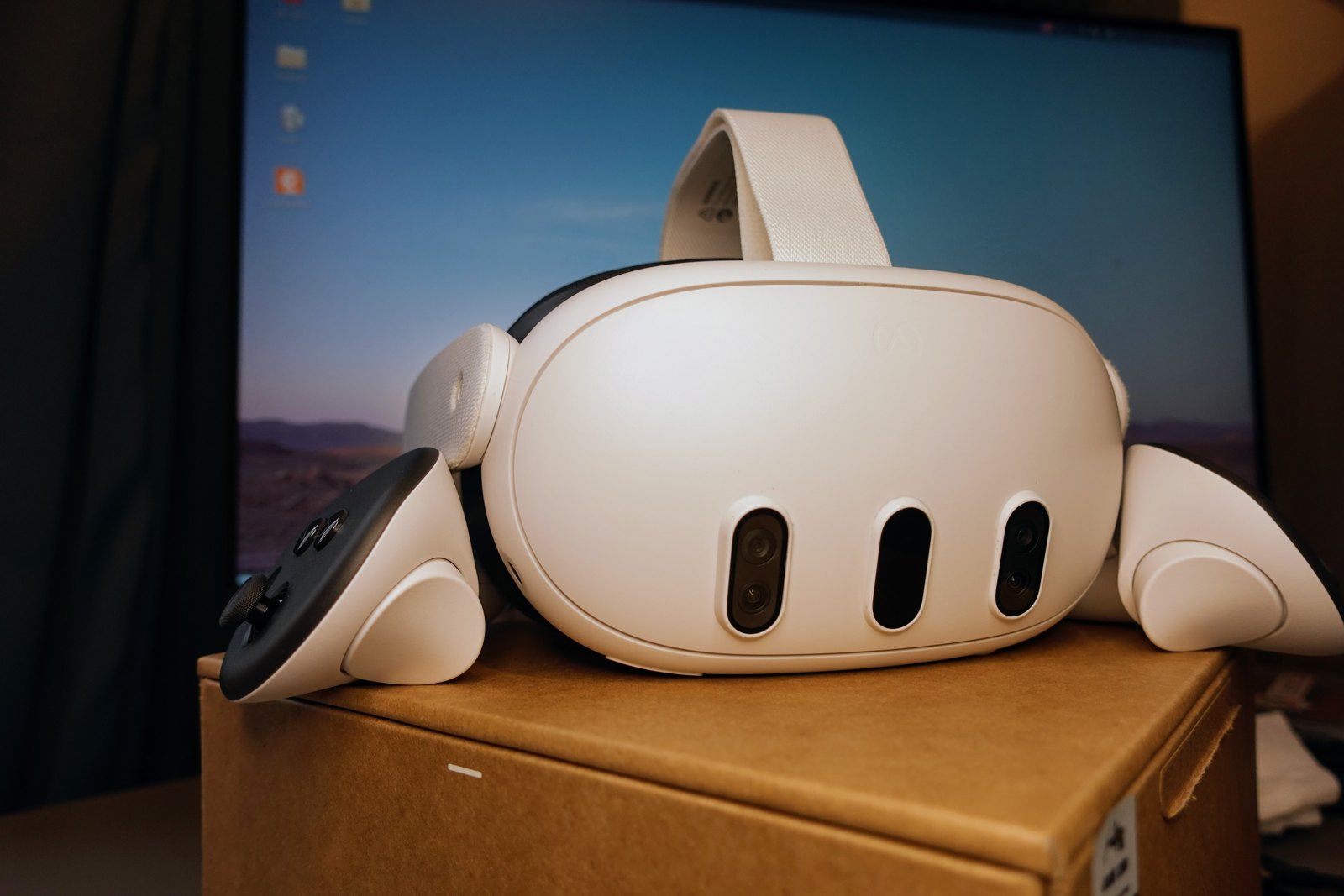
A Meta Quest 3 or Quest 3S is a standalone headset, but it can also act as a display for a Windows gaming PC. That opens up the PC VR catalog on Steam, including games such as Half-Life: Alyx that do not run natively on Quest. In 2026 there are four practical ways to do it: Meta’s Link cable, Meta’s Air Link, Valve’s Steam Link (which gained a wired USB mode in SteamVR 2.18 this week), and the paid Virtual Desktop app. This guide explains what each needs, what it costs and which one to choose.
The short answer
- Easiest and free: Steam Link, if your games are on Steam. Install the app on the headset, keep Steam and SteamVR open on the PC, and connect over Wi-Fi or, since SteamVR 2.18, over USB.
- Best image stability on a budget: Meta Horizon Link with a USB-C cable. It is free and avoids Wi-Fi problems altogether.
- Most features: Virtual Desktop, a paid app that adds fine-grained streaming settings, full desktop access and video playback.
- Built in: Air Link, Meta’s own wireless mode, which uses the same free Meta Horizon Link PC app as the cable.
What your PC needs
All four methods do the rendering on the PC, so the graphics card matters most. Meta’s official Link requirements list a minimum of an Intel i5-4590 or AMD Ryzen 5 1500X, 8 GB of RAM and Windows 10 or 11. The recommended tier is an Intel i7 or Ryzen 7, 16 GB of RAM and an Nvidia RTX 20 series or AMD Radeon RX 6000 series GPU.
A few cards are specifically excluded. Meta says Intel Arc GPUs are not supported by Link, and neither are the RTX 2050, the GTX 1650 (the Super model is supported), the 3 GB GTX 1060, the GTX 1050 Ti or the RX 560. Meta also says the RTX 3050 laptop GPU and 3050 Ti are not recommended. These are platform minimums; demanding games and VR mods need considerably more GPU headroom.
Method 1: Meta Horizon Link with a cable
Link is Meta’s free wired option. Install the Meta Horizon Link app on the PC, then connect the headset with a USB-C cable. Meta’s setup page calls for a USB-C 3.2 cable that supports at least 5 Gbps, plugged into a USB 3.2 port, and Meta recommends a cable of at least 3 meters (10 feet) for comfort.
- Plug the cable into the PC and the headset.
- Press the Meta button on the right controller to open the Navigator.
- Open Quick controls, select Link, choose your PC and select Launch.
- Start SteamVR on the PC to play Steam games, or use the Meta PC library for Rift titles.
The trade-off is the tether. The benefit is consistency: a good cable removes router quality, interference and distance from the equation, which is why cable is the first thing to try if wireless streaming stutters.
Method 2: Air Link over Wi-Fi
Air Link is the wireless mode of the same Meta app and is also free. In Quick controls, select Link, turn on Use Air Link, choose your PC, then confirm the pairing code shown in the headset against the one on the PC. Meta asks for a Wi-Fi network, “preferably 5GHz.” In practice, the PC should be connected to the router by Ethernet and the headset should be in the same room as the router.
If your home network is the weak point, a dedicated access point helps. We covered one example, Meta’s VR Air Bridge used as a standalone Wi-Fi 6 hotspot, earlier this month.
Method 3: Steam Link, now wireless or USB
Steam Link is Valve’s free streaming app for Quest. It skips Meta’s PC software entirely and talks directly to Steam and SteamVR on a Windows PC, which makes it the simplest route if your library is on Steam. Valve’s store listing recommends a 5 GHz router (Wi-Fi 5 or newer) with the PC wired to it.
The news this week is that the stable SteamVR 2.18 release, as reported by MIXED on October 23, lets Quest owners use Steam Link over a USB cable as well as Wi-Fi. It requires the latest Steam Link app on the headset. The same update fixes roughly 300-millisecond gaps in frame delivery after packet loss, addresses more causes of Error 17, improves automatic bitrate selection and corrects greyer-than-intended colors on some AMD graphics cards. Our full breakdown of SteamVR 2.18 covers the rest of the changes.
- Install Steam and SteamVR on the PC and keep Steam running.
- Install Steam Link from the Meta Horizon Store on the headset.
- Open Steam Link in the headset, select your PC and complete the pairing prompt shown on the PC.
- For a wired session, update both SteamVR and the Steam Link app, then connect the cable.
Method 4: Virtual Desktop
Virtual Desktop is a third-party app sold on the Meta Horizon Store. A January 2026 VRPupu setup guide lists it at $24.99; check the store page for today’s price. It streams both SteamVR and Rift games, shows the full Windows desktop across several virtual monitors, and plays video files stored on the PC. The desktop view also works on macOS, but PC VR games require Windows.
Its main advantage is control: codec, bitrate and frame rate can be tuned per setup, and many users find it the most reliable wireless option. The same Wi-Fi rule applies as for Air Link and Steam Link, with the PC on Ethernet and a strong 5 GHz or Wi-Fi 6 signal to the headset. Buy the Quest version from the Meta Horizon Store rather than another storefront to avoid installation problems.
Side-by-side comparison
| Method | Made by | Price | Connection | Best for |
|---|---|---|---|---|
| Link (cable) | Meta | Free | USB-C 3.2, 5 Gbps or faster | Stable image, weak Wi-Fi |
| Air Link | Meta | Free | Wi-Fi, 5 GHz preferred | Built-in wireless |
| Steam Link | Valve | Free | Wi-Fi or, since SteamVR 2.18, USB | Steam libraries |
| Virtual Desktop | Virtual Desktop, Inc. | Paid ($24.99 per VRPupu) | Wi-Fi, PC on Ethernet | Tuning, desktop use, video |
Which one should you use?
Start with Steam Link if your games are on Steam, because it is free and involves the fewest moving parts. If wireless play stutters, try a cable before buying anything else: either Meta’s Link or Steam Link’s new USB mode. Move to Virtual Desktop if you want detailed control over image quality, or if you also want to use the headset as a big-screen monitor for your PC.
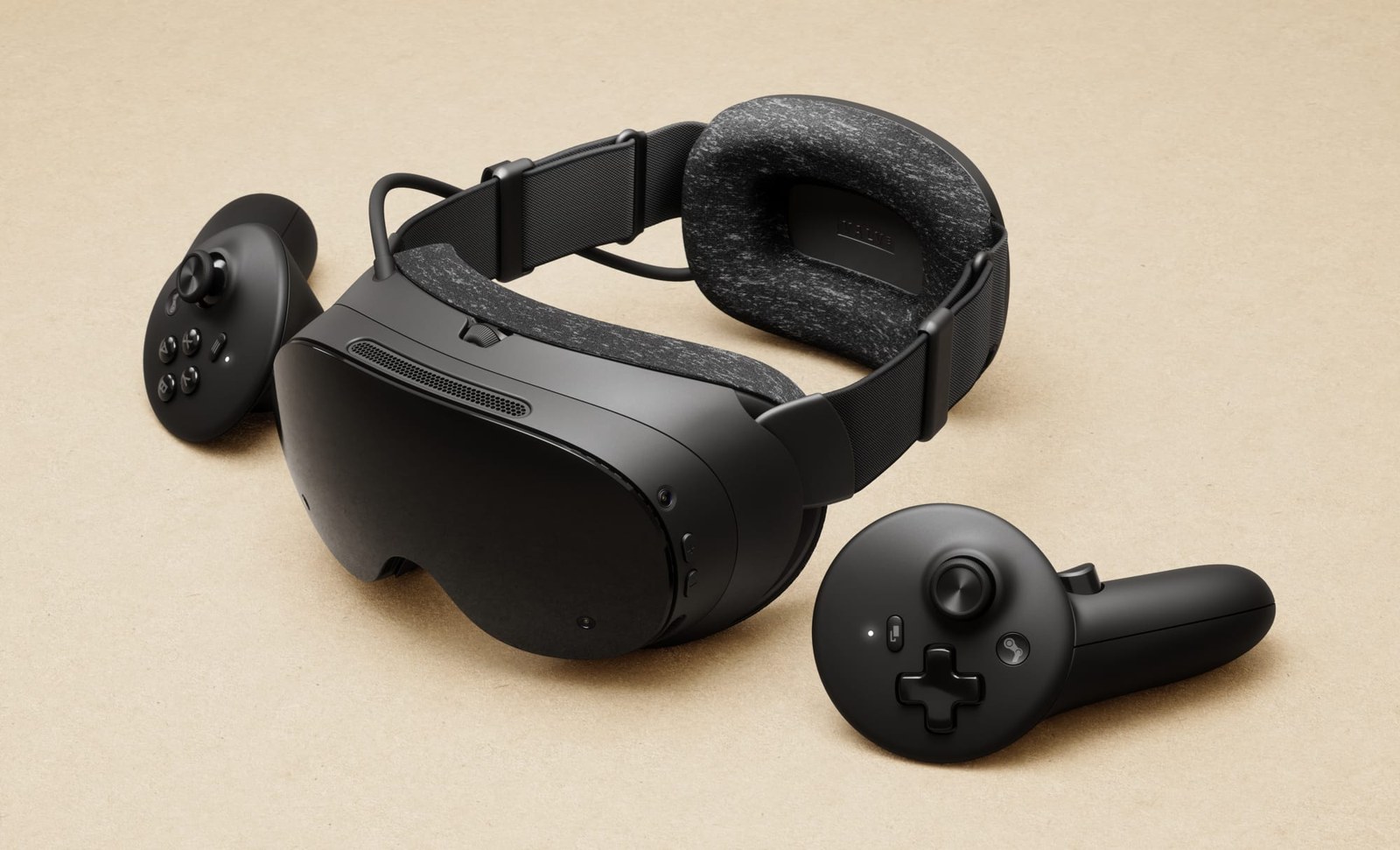
If you are still choosing hardware, PC VR is also where Valve’s own headset competes. Our Steam Frame vs Quest 3 comparison and best VR headsets of 2026 guide cover that decision.