Few things ruin a VR session faster than a virtual hand that floats away, a thumbstick that walks your character into a wall, or a controller that simply refuses to connect. The good news: most Meta Quest 3 and Quest 3S controller problems are fixable at home in under ten minutes, using steps Meta itself documents. This guide walks through the three failure types we see most often (tracking loss, thumbstick drift and pairing errors) in the order that actually solves them, and explains when it is time to stop troubleshooting and claim a warranty replacement instead.
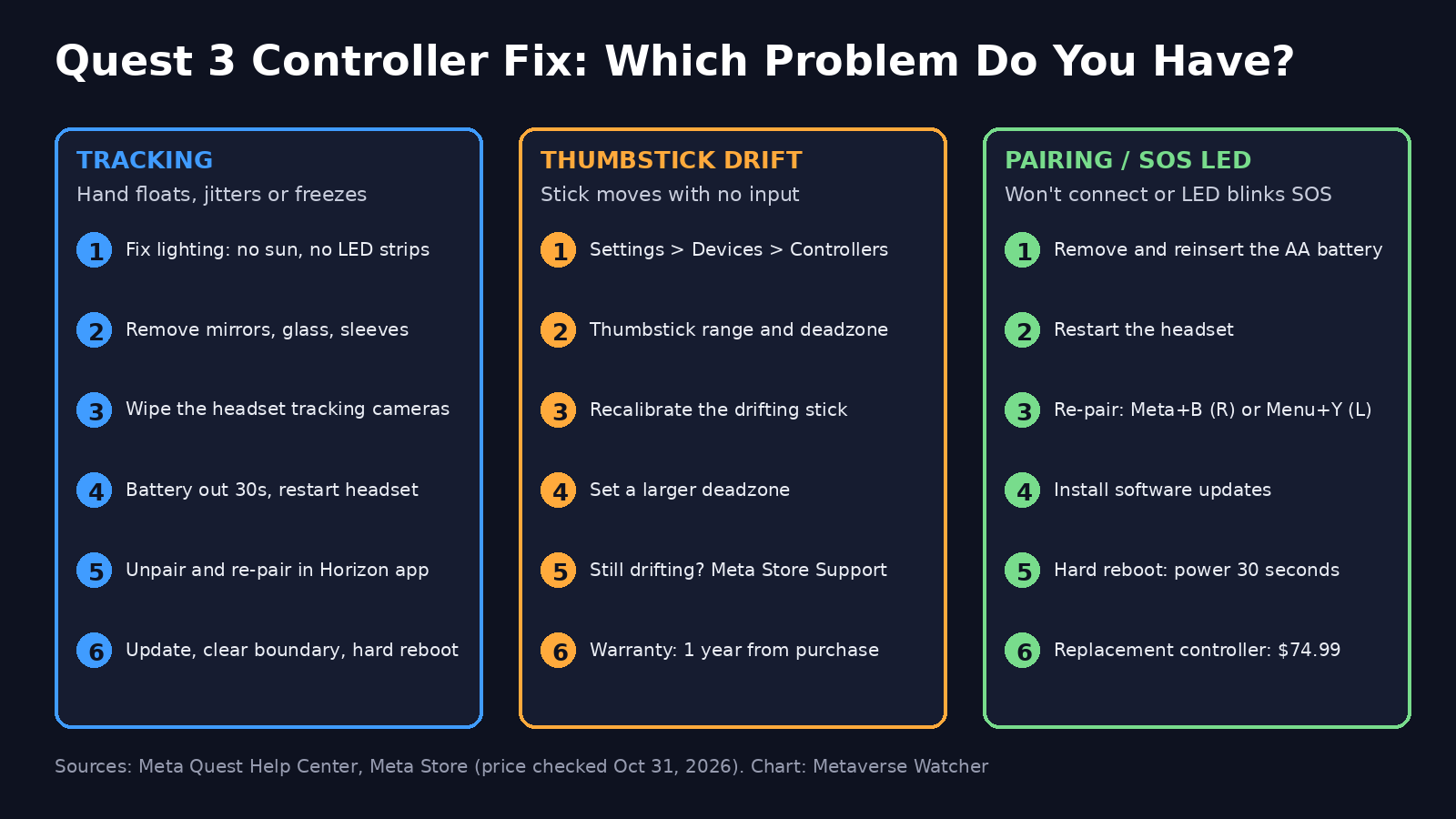
First, Identify Which Problem You Have
“Drift” gets used for two very different faults, and the fixes do not overlap. Diagnose before you start pressing buttons:
| Symptom | What it usually is | Where to start |
|---|---|---|
| Virtual hand floats, jitters, lags or freezes in mid-air | Tracking problem (the headset cameras cannot see the controller well) | Room lighting and camera cleaning |
| Character or cursor moves when you are not touching the stick | Thumbstick drift (stick input, not position) | Thumbstick recalibration in Settings |
| Controller will not connect, or LED blinks an unusual pattern | Pairing or firmware error | Battery reseat and re-pairing |
| Hand drifts only when held behind your back or out of view | Normal behavior, not a fault | Keep controllers in front of the headset |
That last row matters. Quest 3 and Quest 3S use Touch Plus controllers with no tracking ring; the headset tracks them with its cameras. Meta’s own developer documentation explains that when a camera-tracked controller leaves the cameras’ field of view, its internal motion sensor (IMU) can only estimate position briefly, and that estimate “drifts over time.” A hand that wanders while you reach behind your head is physics, not a broken controller.
How to Fix Quest 3 Controller Tracking Problems
Meta’s support article on fixing controller tracking issues lays out a clear order of operations. Work through it top to bottom and re-test after each step.
1. Fix the lighting
Tracking needs bright, even light, but not direct sunlight. Meta’s developer guidance notes that high-intensity light and sunlight wash out the controllers’ infrared LEDs, the main cause of degraded tracking on Quest 1, 2 and 3 controllers. Meta’s consumer guidance suggests roughly the light you would have “in the living room when you have guests over.” Close the blinds on a sunny window and switch on an overhead light in a dim room.
2. Remove small lights and reflective surfaces
Meta specifically calls out Christmas lights and LED strips, plus mirrors, glass and polished marble. With the holidays approaching, this is the single most common seasonal cause of sudden tracking trouble: a new string of lights behind the TV can confuse the cameras. Cover large mirrors or glass tables, and switch off LED strips while you play.
3. Clean the headset cameras and remove accessories
Wipe every external camera on the headset with a dry microfiber cloth. Then take off any third-party controller sleeves, covers, stickers or grips. Meta states that unsupported controller accessories can break tracking and pairing, that attachments which move the controller away from your hand are especially problematic, and that accessories which worked on Quest 2 controllers may not work on Quest 3 controllers. Touch Plus tracking relies on AI models that expect the controller to be held in-hand and visible, so a bulky grip can genuinely degrade it.
4. Reset the controllers and headset
- Remove the controller battery for at least 30 seconds, then reinstall it.
- Power off and restart the headset.
- Unpair and re-pair the controllers (steps below).
5. If the headset itself is losing tracking
If you also see “tracking lost” warnings or your view switches to 3DoF, the issue is headset tracking, which drags the controllers down with it. Meta’s headset tracking help page recommends clearing boundary history (Settings > Physical Space > Space Setup > Clear Boundary History; note this clears boundaries for every profile on the headset), installing updates under Settings > System > Software Update, and then a hard reboot by holding the power and volume-down buttons together for 30 seconds. A factory reset is the last resort, and it erases local data, so back up first.
How to Fix Quest 3 Thumbstick Drift
Thumbstick drift is when the stick reports movement you are not making. Meta added a built-in recalibration tool, documented in its controller drift help article, that works on Quest 3, Quest 3S, Quest 2 and Quest Pro:
- In the headset, open Settings.
- Select Devices, then Controllers.
- Under Thumbstick range and deadzone, choose the stick that is drifting.
- Follow the on-screen recalibration prompts.
- If it still drifts, set a larger deadzone, which tells the system to ignore small stick movements near center.
A larger deadzone is a trade-off: it removes phantom input but makes very fine stick movements less responsive. Increase it in small steps and test in a game you know well. If drift persists even with a generous deadzone, the stick hardware is likely worn, and Meta’s guidance at that point is to contact Meta Store Support rather than keep tweaking.
How to Fix Pairing Problems and the SOS Light

Each Touch Plus controller has a status LED on its top edge. Press the Meta button (right) or Menu button (left) once to check it. According to Meta’s Touch Plus controller guide:
| LED pattern | Meaning |
|---|---|
| Two blinks, repeating | Pairing mode |
| Three blinks | Controller is awake |
| One blink | Paired and connected |
| No light | Battery is dead |
| 3 fast, 3 slow, 3 fast, repeating | SOS: an error has occurred |
For an SOS light or a controller that will not connect, Meta’s sequence is: remove and reinsert the battery while the light is flashing, restart the headset, unpair and re-pair the controller, install any software updates, then perform a hard reboot by holding the power button for 30 seconds. If none of that works, contact support.
How to re-pair Quest 3 controllers
- Turn on the headset and open the Meta Horizon app on your phone.
- Tap Menu, then Devices, and select your headset.
- Tap Headset settings, then Controllers, then Pair new controller.
- Choose left or right.
- Hold Meta + B on the right controller, or Menu + Y on the left, until the LED blinks and then stays lit.
Once paired, controllers reconnect automatically whenever the headset is on and nearby.
Quick Wins People Overlook
- Fresh batteries first. A weak battery causes intermittent dropouts that look like tracking faults. Swap in a new one before anything else.
- Test in a different room. If tracking is perfect elsewhere, your original room’s lighting or reflections are the culprit, not the hardware.
- Use hand tracking as a stopgap. While you wait on a replacement, hand tracking (in Settings under Movement tracking) keeps menus, media apps and many games usable.
- Keep the software current. Meta notes that tracking improvements frequently ship in firmware updates, and its warranty excludes defects caused by not running the latest Meta-issued software.
Warranty, Replacement and Cost
If troubleshooting fails, you have three routes:
| Option | Who it is for | Details |
|---|---|---|
| Limited warranty claim | Within 1 year of purchase or delivery | Meta repairs, replaces or refunds qualifying defects. Proof of purchase required; normal wear and third-party accessory damage are excluded. Warranty terms |
| Out-of-warranty program | Outside warranty, or excluded damage | One-time replacement for a fee, subject to eligibility and availability. Program terms |
| Buy a replacement controller | Anyone | Touch Plus controller, left or right sold separately: $74.99 each on the Meta Store (checked Oct 31, 2026) |
You can check whether your headset is still under warranty from the devices page of your Meta account, and Meta’s service help page links to the claim form. Before you file, note which steps above you already tried; support will ask. Replacement units under warranty may be new, refurbished or remanufactured, and carry coverage for the rest of the original warranty or 90 days, whichever is longer.
The Bottom Line
Most “broken” Quest 3 controllers are environmental: sunlight, holiday LED strings, a mirror, a smudged camera or a third-party grip. Fix the room, reseat the battery, re-pair, and recalibrate the sticks before assuming hardware failure. If a stick still drifts with a large deadzone, or the SOS light survives a hard reboot, stop and use the warranty; a $74.99 replacement is the fallback, not the first move.