Free up Quest storage when downloads stall, updates fail, or the headset warns that memory is full. Meta Quest 3 ships in 128GB and 512GB configurations; Quest 3S ships in 128GB and 256GB. None of these headsets accepts a microSD card or external drive for apps, so the only reliable fix is to reclaim space on the device. This guide walks through Meta’s official Storage screen, uninstall options, media cleanup, per-app data, and the cases where a “full” warning is misleading. Steps follow Meta’s Manage your storage space and Manage apps and games help articles, checked on November 6, 2026.
If you are still setting the headset up, start with our Quest 3 and 3S setup guide. For recordings that often fill the drive, see how to screenshot and record video on Meta Quest 3. A last-resort wipe is covered in how to factory reset Meta Quest 3 and 3S.
Quick answer
- Press the Meta button on the right controller to open the Navigator.
- Select Quick controls, then Settings, then General, then Storage.
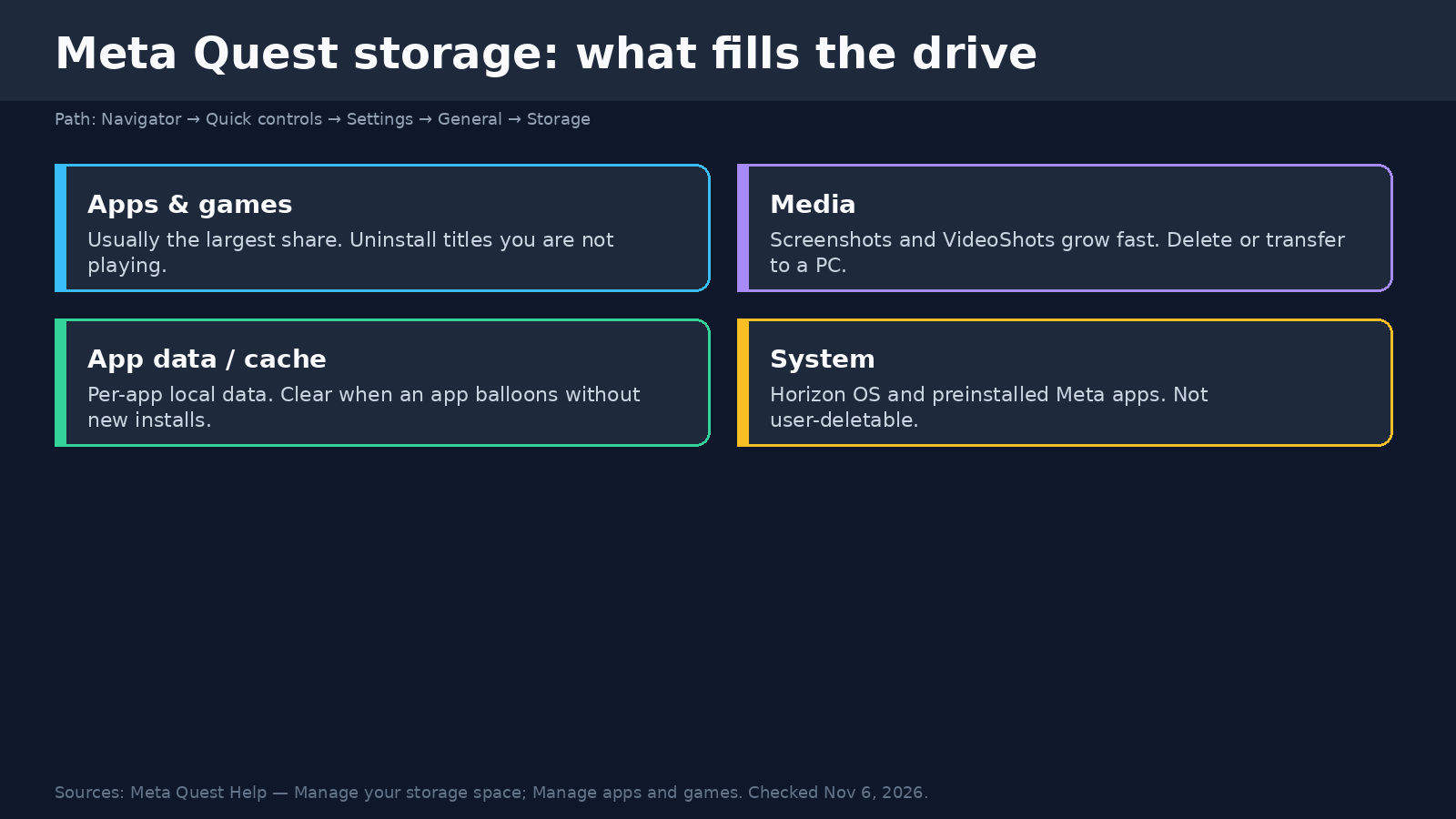
- Review the breakdown of apps, media and other files.
- Select Delete next to items you no longer need, or uninstall large games from the App library.
- Before buying a new title, open its Meta Horizon Store page, scroll to Information, and check Install size.
That path is Meta’s documented route. Older Horizon OS builds put Storage under different Settings groups; if you do not see General, use the Settings search box and type Storage.
How much storage you actually get
The number on the box is not the free space you see after setup. Horizon OS, preinstalled Meta apps and reserved system partitions consume a slice of every SKU. UploadVR’s storage analysis of Quest 3 found the 128GB model lands near the low-100GB range of usable space after system software, while the 512GB model retains the large majority of its label. Treat those figures as approximate, not a lab measurement for your exact build, and always trust the live Storage screen on your headset.
Current retail SKUs as listed by Meta:
| Headset | Advertised capacities | Expandable? |
|---|---|---|
| Meta Quest 3 | 128GB and 512GB | No microSD or USB app storage |
| Meta Quest 3S | 128GB and 256GB | No microSD or USB app storage |
Because you cannot add a card, planning matters more on the 128GB models. Large single-player games, multiplayer shooters with frequent content updates, and long VideoShots recordings are the usual culprits. Battery accessories and straps do not add storage; for hardware that does help comfort and endurance, see our best Quest 3 accessories (2026) list and the Quest 3 battery life guide.
Step 1: Open the Storage screen
Meta’s help page lists this exact sequence:
- Press the Meta button (or Oculus button on older controllers) on the right controller to open the Navigator.
- Select Quick controls.
- Select Settings.
- Select General.
- Select Storage.
The Storage view shows total capacity, used space and a breakdown of what is consuming it. Work from the largest categories downward. Re-check the free-space number after each major deletion so you know when you have enough room for the next install.
Step 2: Uninstall apps and games you are not playing
Apps and games are almost always the biggest block. Meta documents three library actions:
| Action | What it does | Frees storage? |
|---|---|---|
| Hide | Removes the icon from the default library view; app stays installed | No |
| Uninstall | Removes the install from the headset; icon remains for easy reinstall | Yes |
| Uninstall and remove | Removes the install and the library icon; reinstall from the Meta Store | Yes |
To uninstall from the App library:
- Open the Navigator and select App library.
- Find the title, then long-press its icon.
- Choose Remove from library, then Uninstall or Uninstall and remove.
You can also delete from Settings → General → Storage by selecting Delete next to a listed item. Purchased games stay tied to your Meta account, so uninstalling does not forfeit ownership. Titles that support cloud saves can usually be removed and restored later without losing progress; confirm cloud save support inside each game’s settings before you wipe a long campaign.
Sideloaded APKs and Unknown Sources installs also count against the same pool. If you use SideQuest or Meta Quest Developer Hub, audit those titles the same way you audit Store games. Our sideload Quest 3 games guide covers how those installs appear in the library.
Step 3: Clear screenshots and VideoShots
Media is the second most common surprise. A few minutes of high-bitrate gameplay video can cost more space than a small indie game. On the Storage screen, look for media entries and delete what you do not need. You can also open the Files or Gallery experience on the headset and remove screenshots and recordings there.
Better habit: transfer keepers to a computer, then delete the headset copies. Connect the Quest with a USB-C data cable, allow file access when prompted, and copy the media folders to your PC before you clear them. Do not delete system folders you do not recognize. If you mainly need clips for sharing, cast or record with a plan instead of leaving weeks of VideoShots on the device.
Step 4: Clear per-app data when one title balloons
Some apps accumulate local data, caches and downloaded extras long after the base install. On the Storage screen, open the individual app entry when Meta exposes app-level controls, and remove that app’s local data if you are willing to re-download caches and lose local-only files. This is stronger than Hide and softer than a full uninstall: the app binary may remain while its working data is wiped, depending on the Horizon OS build.
If a single multiplayer title keeps reclaiming tens of gigabytes after every update, uninstall it between seasons and reinstall when you are ready to play again. That pattern is normal on 128GB headsets and is preferable to living one failed download away from a full disk.
Step 5: Check install size before you buy
Meta’s storage help article notes that every Meta Horizon Store listing shows Install size under Information. Open the store page for a candidate game, scroll to Information, and compare that number with the free space on your Storage screen. Leave a buffer for the download itself, temporary unpacking and the next system update. A headset that shows only a few hundred megabytes free will often fail mid-download even when the listed install size looks smaller than remaining space.
When “storage full” looks wrong
Meta’s community forums have documented cases where the headset reports memory full even after large deletions. Work through this order before assuming a hardware fault:
- Restart the headset after big deletions so the Storage total refreshes.
- Cancel or clear interrupted downloads that may have left partial files.
- Uninstall the largest remaining games, not only media.
- Install pending system updates once you have clear space; updates themselves need free room.
- If free space never returns after uninstalls, contact Meta Support. A factory reset is the last local option and erases local data, so back up media first.
Factory reset steps and account caveats are in our dedicated reset guide linked above. Do not factory reset solely to free a few gigabytes if uninstalling two large games would solve it.
A practical maintenance routine
You do not need a perfect library. You need enough free space for the next title and the next Horizon OS update.
- Weekly: Delete disposable VideoShots and screenshots after you transfer keepers.
- Monthly: Open Storage, sort by size, and uninstall anything you have not launched in weeks.
- Before a big purchase: Confirm Install size on the Store page and keep a multi-gigabyte buffer.
- On 128GB models: Rotate a short “active” playlist of large games instead of keeping the whole catalog installed.
- After sideloading: Remove test APKs and abandoned ports the same day you decide you will not finish them.
Clarity settings and refresh rate also affect how comfortable long sessions feel once storage pressure is gone; see Quest 3 best settings for clarity and comfort once the drive is healthy again.
What this guide does not claim
Meta does not publish a public, model-by-model table of exact usable bytes after every Horizon OS build, and third-party usable-space figures shift when system apps grow. This guide therefore sticks to Meta’s documented menus and actions, plus the retail capacity labels Meta advertises for Quest 3 and Quest 3S. Game install sizes change with patches and DLC, so always re-check the Store listing on the day you download.
There is also no supported path today to move installed Quest apps onto a USB stick or SD card. Accessories marketed as “storage” for Meta’s upcoming glasses line are a different product category and do not expand Quest 3 or Quest 3S app storage.