Steam Frame streaming is how most owners get PC VR games onto Valve’s headset after unboxing. The Frame can play standalone titles, but the heavy Steam library still runs on a Windows gaming PC and reaches the headset as a video stream. This guide covers three supported paths checked on November 6, 2026: Valve’s bundled 6 GHz wireless adapter, Wi-Fi-only streaming through a 5 GHz router wired to the PC, and vrOS 3 streaming with desktop panels on top. Requirements come from Valve’s Steamworks setup docs, Valve’s SteamVR-for-Linux tracker reply, the vrOS 3.0.0–3.0.2 Steam patch notes, and the live Steam store listing for vrOS.
If you already own a Quest and want the parallel setup, see our Quest 3 PC VR methods compared. For games that run on the Frame without a PC, use the best Steam Frame games (2026) list. Outlet scores for the headset itself are in our Steam Frame reviews roundup.
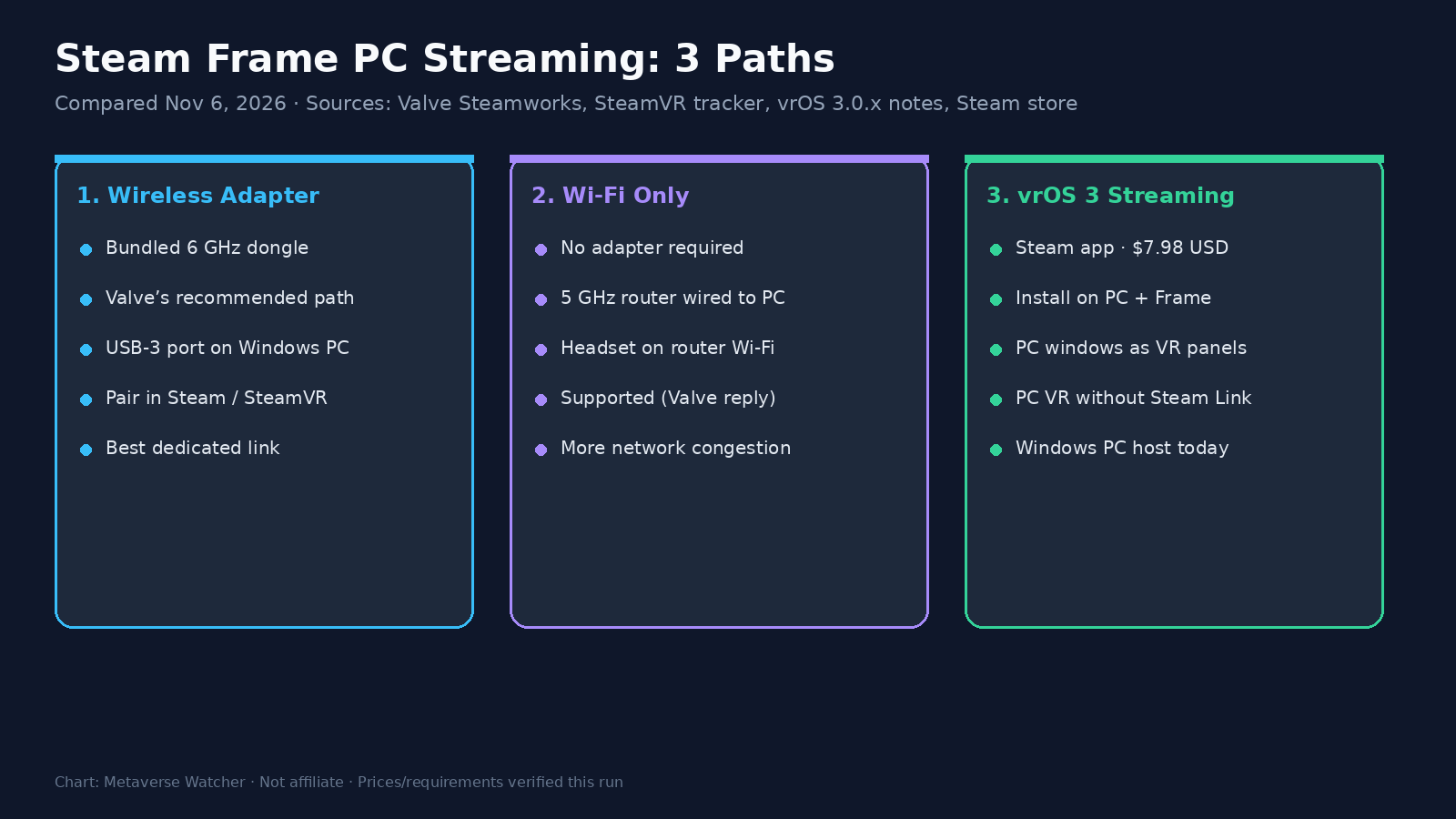
The short version
- Use the bundled 6 GHz wireless adapter for Valve’s intended PC streaming path. Plug it into a USB 3 port on a Windows PC, install the driver when SteamVR prompts, pair with a code, then connect from the Frame’s Steam menu.
- You can also stream without the adapter if a 5 GHz router is wired directly to the PC and the headset joins that router’s Wi-Fi. Valve confirmed this on its SteamVR-for-Linux tracker on October 3, 2026.
- vrOS 3 (Steam app 3873610, $7.98 USD on November 6, 2026) installs on both the Windows PC and the Frame. It can open PC windows as panels and stream PC VR games without Steam Link, with HEVC as the default game codec.
- Valve still documents full wireless-adapter streaming support as Windows-only for now. Plan around a Windows host if you need the adapter path today.
| Path | Extra hardware | Software cost | Best for |
|---|---|---|---|
| Wireless adapter | Bundled 6 GHz dongle, USB 3 port | Free (Steam + SteamVR) | Lowest-friction dedicated link |
| Wi-Fi only | 5 GHz router wired to PC | Free (Steam + SteamVR) | Adapter unavailable or mid-session fallback with Multi-Link |
| vrOS 3 streaming | Same network path as above | $7.98 on Steam | PC desktop panels + PC VR with overlays |
What you need before any path
Every PC VR stream still needs a gaming PC that can run the title at a stable frame rate. SteamVR does the compositor work on the PC; the Frame decodes the video and sends tracking and controller data back. A weak GPU will look soft and hitch on every path below.
- Headset: Steam Frame, updated and signed into the same Steam account you use on the PC.
- PC OS for full adapter support: Windows. Valve’s own Steam Frame support wording, which we covered when the guide updated in early October, still limits full wireless-adapter SteamVR streaming to Windows, with expanded support framed as forthcoming.
- Steam + SteamVR on the PC. For development and early fixes, Valve’s Steamworks Frame setup page recommends the Steam client beta, SteamVR beta, and the Frame’s System Update Channel set to Beta.
- Play space: clear floor space and charged controllers. Controllers pair when turned on; if they do not appear, Valve’s docs say to hold the Steam button plus View/Menu until the controller beeps, then use VR Settings → Controllers → Pair Controllers.
Valve’s October 2026 Steam Hardware Survey put Steam Frame at 5.49% of surveyed VR headsets in its first full month—useful context if you are deciding how much time to invest in PC streaming versus standalone. Our breakdown: Steam Frame hits 5.49% in the October Steam Survey.
Path 1: Valve’s 6 GHz wireless adapter
This is the path Valve documents first for development and day-to-day streaming. The headset ships with a dedicated wireless adapter meant as a direct link for VR and non-VR streaming. Valve’s public support text still recommends it for the “intended experience,” and the Steamworks setup page walks through pairing in a few steps.
Setup steps (Windows PC)
- Plug the included wireless adapter into a USB 3 port on the PC.
- Launch SteamVR and accept the prompt to install the adapter driver.
- Choose Pair when prompted, then enter the code shown on the PC using the Frame’s virtual keyboard.
- In the headset Steam menu / VR dashboard, find your PC’s name and connect. That launches SteamVR on the PC and treats the Frame like a wireless SteamVR headset.
- For normal library play, Valve notes you can also press Stream on a game in the headset Steam Library rather than forcing the developer-style direct connect every time.
If the pairing prompt never appears, Valve’s Steamworks page says to confirm Steam Beta Update participation, reboot the PC after driver install, restart the headset, and verify both ends are on the same Steam account. If a wired headset is still plugged into the PC, unplug it first so SteamVR does not keep that as the active device.
Valve’s consumer guide (as quoted in contemporaneous reporting) also asks owners to stay within about 20 feet of the adapter and notes the adapter performs best with a clear line of sight to the headset. Treat those as practical placement rules, not marketing fluff.
Path 2: Wi-Fi only (no adapter)
On October 3, 2026, Valve developer danwillm replied on SteamVR-for-Linux issue #946 that Wi-Fi streaming is supported on its own, “Similar to Quest,” as long as you use a 5 GHz router plugged directly into your PC. We covered that confirmation here: Valve confirms Steam Frame streams over a wired 5 GHz router.
Read the cable condition carefully. The PC must be on Ethernet to the router. The headset joins the router’s 5 GHz Wi-Fi. Putting the PC on Wi-Fi as well forces the stream across the air twice and is the opposite of what Valve asked for.
Setup checklist
- Connect the PC to the router with Ethernet.
- Put the Steam Frame on the same router’s 5 GHz SSID (not a guest network with client isolation).
- Leave the wireless adapter unplugged if you are testing Wi-Fi-only mode on purpose.
- Start SteamVR on the PC or use Stream from the headset library the same way you would with the adapter.
Valve does not claim Wi-Fi-only matches the adapter on bitrate, latency or resolution. The same tracker reply also describes Multi-Link: when both the adapter path and Wi-Fi are available, packets can ride multiple interfaces so a drop on one side does not kill the stream. That is a redundancy feature when both are live, not a promise that Wi-Fi alone equals the dongle.
Path 3: vrOS 3 PC panels and PC VR streaming
vrOS is a Steam Early Access overlay/streaming utility from catnet systems (app ID 3873610). On November 6, 2026, the U.S. Steam store listed it at $7.98, with Windows as the supported PC host and SteamOS ARM64 / Steam Frame called out in the SteamOS + Linux requirements block. Version 3.0.0 shipped November 3, 2026; bug-fix builds 3.0.1 / 3.0.2 followed through November 5, according to the SteamDB-mirrored patch notes.
vrOS 3’s headline for Frame owners is not just another Steam Link skin. The 3.0.0 notes say vrOS on the Frame connects to vrOS on the Windows PC over the Frame’s dongle or home Wi-Fi, opens the PC’s displays and windows as panels (including without SteamVR running for desktop panels), and can stream PC VR games through a SteamVR headset driver with those panels on top. Codec choice for games is HEVC by default, with PyroWave as the fallback when a GPU cannot encode HEVC. Foveated streaming defaults to Strong and uses the Frame’s eye tracking.
Install and first connect
- On the Windows PC, install vrOS from Steam (search for vrOS or open app 3873610). Steam installs the app and its SteamVR driver files; there is no separate offline installer.
- On the Steam Frame, install the same Steam app so the headset build matches. The store’s SteamOS ARM64 requirements block lists Steam Frame as the verified device for that build.
- Launch vrOS on the PC and complete first-run driver setup if prompted (the older 2.x first-run flow installs or registers the vrOS SteamVR driver while SteamVR is closed).
- On the Frame, open vrOS and use the PC tab. Press Connect, or enable “Connect automatically when your PC is available” (off by default per the 3.0.0 notes).
- Complete pairing when the welcome / pairing card appears. The 3.0.2 notes say pairing is its own large-text screen and stays front-and-center until you pair a PC or choose standalone-only mode.
- For desktop use, connect without starting SteamVR to get the PC’s main display as a panel; add more displays or windows from the ADD list.
- For PC VR games, use vrOS Streaming / Start SteamVR controls from the headset or PC side. The notes place START STEAMVR, EXIT STEAMVR, RESTART STEAMVR and STOP STREAMING beside each other, each with a confirmation. USE STEAM LINK remains available as a one-step return to Valve’s Steam Link path.
Picture, audio and known limits (as of 3.0.2)
- Picture: frame-rate shortcuts, a bitrate slider whose ceiling follows frame rate, resolution per eye, and codec choice (HEVC or PyroWave). A codec change applies the next time PC VR starts; there is no Auto choice yet.
- Foveation: Off, Gentle or Strong. On GPUs that cannot foveate HEVC, HEVC streams with even detail; PyroWave still foveates (called out in 3.0.2 known issues).
- Eye tracking share: “Share eye tracking with PC apps” is off by default; turn it on when you need gaze/eyelids on the PC (for example VRChat face tracking through vrOS).
- Audio: “Hear the PC’s sound in the headset” and “Use the headset’s mic on the PC.” Until a signed vrOS audio driver ships in a later 3.x update, sound and mic use Steam Streaming Speakers/Microphone when installed, or the PC’s default devices.
- Host OS: Streaming needs a Steam Frame and a Windows PC today. Linux PC hosts and other headsets are listed as later work in the 3.0.x known issues.
Older public install documentation still describes native Frame support as “in development.” Treat the 3.0.x Steam patch notes and the live Steam store requirements as the current product state for Frame↔PC pairing, and expect the prose docs to catch up. If a step on your headset does not match a screenshot in an older blog post, trust the in-headset welcome card and the version you actually installed.
Which path should you pick?
| Situation | Start with |
|---|---|
| First PC VR night on a Frame | Wireless adapter on a Windows PC |
| Adapter missing, RMA’d, or flaky | Wi-Fi only with PC wired to a 5 GHz router |
| You want Discord, browsers or tools as panels while in VR | vrOS 3 after the adapter or Wi-Fi path works |
| You mainly want Valve’s default Steam Link behavior | Adapter or Wi-Fi; keep USE STEAM LINK as the escape hatch inside vrOS |
| Linux-only gaming PC today | Read Valve’s Windows-only adapter limit first; Wi-Fi and Linux host support remain evolving |
Network habits that save evenings
- Wire the PC. Every serious wireless PCVR stack asks for this. Valve’s Wi-Fi-only sentence and Quest Steam Link guidance agree.
- Prefer 5 GHz (or cleaner 6 GHz bands for the adapter). Crowded 2.4 GHz SSIDs are a poor plan for a real-time headset stream.
- Avoid guest / client-isolated Wi-Fi. The headset and PC must see each other.
- Keep other big downloads paused while you stream.
- Update in pairs. When Valve or vrOS ships a streaming fix, update the Frame build and the PC SteamVR / app build together so you are not debugging a version skew.
Troubleshooting quick hits
No pairing prompt for the adapter. Steam Beta Update on the PC, reboot after driver install, restart the headset, same Steam account on both ends (Valve Steamworks setup).
Wi-Fi stream looks worse than the adapter. Expected. Move the router closer, confirm Ethernet to the PC, and drop competing traffic before chasing bitrate sliders.
vrOS connects but audio is wrong. Check whether Steam Streaming Speakers/Microphone are installed; the signed vrOS audio driver is still listed as forthcoming in 3.0.x known issues.
You want Steam Link back inside a vrOS session. Use the confirmed USE STEAM LINK control so SteamVR restarts onto Valve’s path instead of fighting two streamers at once.
Windows-only surprise on Linux. Re-read Valve’s adapter support line before buying around a Steam Machine or desktop Linux host. Our earlier note: Steam Frame adapter streaming is Windows-only for now.
The bottom line
Start with Valve’s 6 GHz adapter on a Windows PC. Keep Wi-Fi-only as a documented backup when the PC is wired to a 5 GHz router. Add vrOS 3 when you want PC windows as panels and a Steam Link alternative for PC VR, knowing audio driver polish and Linux PC hosts are still on the known-issues list. Once streaming is stable, fill the library from our best Steam Frame games picks, and compare headset scores in the reviews roundup if you are still deciding whether the Frame’s streaming story is worth the hardware.
Sources: Valve Steamworks “Setting up your Steam Frame for development,” Valve reply on SteamVR-for-Linux issue #946 (October 3, 2026), vrOS 3.0.0–3.0.2 Steam patch notes (November 3–5, 2026), Steam store app 3873610 price and requirements checked November 6, 2026. No affiliate links.