A physical keyboard and mouse make Meta Quest 3 and Quest 3S far more practical for browsing, messaging and work in 2D apps. Meta supports both through Bluetooth, and it also offers two alternatives: using the keyboard and mouse already attached to your computer through Virtual Display, or an experimental virtual keyboard and touchpad that appear on a desk or table. This guide explains how to set up each option, what keyboard tracking does, and what to check when something does not work. Every step below comes from Meta’s own help center, developer documentation and release notes, checked on November 28, 2026.
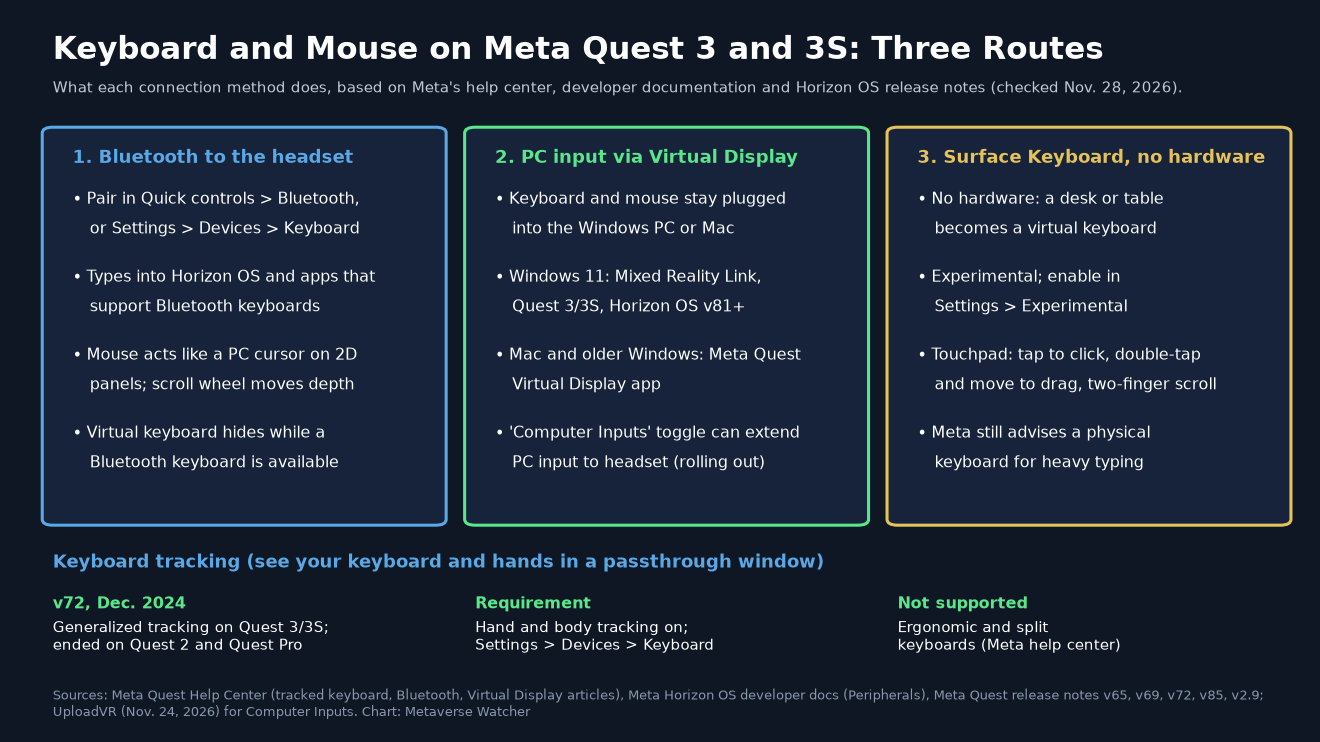
Which Option Fits Your Setup
| Method | What you need | Best for | Limits |
|---|---|---|---|
| Bluetooth keyboard or mouse paired to the headset | Any Bluetooth keyboard or mouse | Browser, messaging, 2D apps on the headset itself | Works only in Horizon OS and apps that support Bluetooth input |
| PC keyboard and mouse through Virtual Display | Windows 11 PC with Mixed Reality Link, or a Mac or older Windows PC with the Meta Quest Virtual Display app | Working on your computer on large virtual monitors | Input normally controls the computer; extending it to headset apps depends on a newer setting that is still rolling out |
| Surface Keyboard and Touchpad | A flat desk or table; Quest 3 or 3S | Short text entry and cursor control without extra hardware | Experimental, basic key set; Meta still recommends a physical keyboard for heavy typing |
If you mainly want to use apps that run on the headset, pair directly over Bluetooth. If you want to work on your computer in VR, keep the keyboard and mouse connected to the computer and use Virtual Display. For setting up the headset itself, see our Quest 3 and 3S setup guide.
How to Connect a Bluetooth Keyboard to Quest 3
Meta’s tracked keyboard help article describes the keyboard-specific path, which also lets you turn on keyboard tracking at the same time:
- Press the Meta button on your right controller to open the Navigator.
- Select the status bar at the top of the Navigator to open Quick controls.
- Select Settings, then Devices, then Keyboard.
- If you want to see the keyboard in a passthrough window while in an immersive environment, turn on Show my keyboard.
- Select Bluetooth settings and put the keyboard in pairing mode.
- Select the keyboard from the list of available Bluetooth devices.
After the first connection, Meta says the headset will ask whether you want to see your keyboard in VR whenever you turn it on and the keyboard is in range.
Once a Bluetooth keyboard is paired and available, Horizon OS stops showing the virtual on-screen keyboard when you select a text field, according to Meta’s developer documentation on peripherals. You can still open the virtual keyboard from its floating button, which is useful for emoji. Text goes to whichever field you select with your hand, controller or mouse.
How to Connect a Bluetooth Mouse to Quest 3
A mouse uses the general Bluetooth pairing flow in Meta’s Bluetooth accessories article:
- Press the Meta button on your right controller to open the Navigator.
- Select the status bar to open Quick controls.
- Select Bluetooth and turn on the Bluetooth toggle.
- Put the mouse in Bluetooth pairing mode.
- Select Connect when the mouse appears in the list.
Since the v69 release in September 2024, Horizon OS can also offer quick pairing. Meta’s release notes say that with Get nearby device notifications turned on in Bluetooth settings, the headset notifies you when a supported headphone, keyboard, mouse or gamepad in pairing mode is nearby, and you can select the notification to pair.
On the headset, the mouse cursor behaves like a PC cursor on 2D app panels. Meta’s developer documentation says the cursor follows an invisible extension of the panel surfaces when you move it into empty space, so you can move between windows. To move a window closer or farther away, click and hold the panel’s handle and use the scroll wheel.
The same Bluetooth menu handles headphones and gamepads. If you also use wireless audio, our guide on connecting Bluetooth headphones to Quest 3 covers latency and LE Audio.
How Keyboard Tracking Works
Keyboard tracking shows your physical keyboard, and your hands over it, through a passthrough window when you are in a fully virtual environment. Meta’s help center says it works with most common keyboards, but not with ergonomic or split designs.
Tracking changed in Horizon OS v72 (December 2024). According to Meta’s release notes, Quest 3 and 3S moved away from supporting specific keyboard models to a more general approach that can track more keyboards. The same notes say tracked keyboards are no longer supported on Quest 2 and Quest Pro, and that hand and body tracking must be enabled for the passthrough cutout to appear as your hands approach the keyboard. When your hands are near the keyboard, Horizon OS hides your virtual hands and ignores their input to avoid accidental taps.
If you have not enabled hand tracking yet, follow our guide to turning on hand tracking on Quest 3, then return to Settings > Devices > Keyboard.
| Headset | Bluetooth keyboard and mouse | Keyboard tracking (current) | Surface Keyboard and Touchpad |
|---|---|---|---|
| Meta Quest 3 | Yes | Yes, generalized tracking since v72 | Yes, experimental |
| Meta Quest 3S | Yes | Yes, generalized tracking since v72 | Yes, experimental (since v2.9 notes) |
| Meta Quest 2 / Quest Pro | Yes | No longer supported as of v72 | Not listed by Meta |
Using Your Computer’s Keyboard and Mouse With Virtual Display
You do not have to pair anything to the headset if your keyboard and mouse are already attached to a computer. Meta’s tracked keyboard article notes that a keyboard connected to a device streaming to the headset, such as through Virtual Display (formerly Remote Desktop), can still be tracked and shown in passthrough once Show my keyboard is on.
Meta’s Virtual Display help article lists two setup paths:
- Windows 11: install Mixed Reality Link from the Microsoft Store. Meta lists a Quest 3 or 3S, Windows 11 version 22H2 or newer, Horizon OS v81 or newer, and a PC and headset on the same network using 5 GHz or 6 GHz Wi-Fi (802.11ac or higher). With the PC unlocked, a pairing prompt should appear above your keyboard; otherwise open Virtual Display and select Add computer.
- Mac and older Windows versions: use the Meta Quest Virtual Display app.
Meta says you can open up to three virtual displays and choose between portrait, 16:9, 21:9 and 32:9 formats.
Two recent changes matter for keyboard and mouse users. UploadVR reported on November 24, 2026 that Virtual Display and Mixed Reality Link now support wired USB streaming, and that a currently undocumented setting called Computer Inputs is rolling out. With it on, your PC’s mouse and keyboard can move beyond the Windows desktop and control headset apps as if they were connected to the headset. UploadVR also noted that turning the toggle off does not affect a keyboard or mouse paired directly to the headset. Meta has not yet documented this setting, so it may not appear on every headset. We covered the USB option in more detail in our report on Mixed Reality Link USB streaming.
Surface Keyboard and Touchpad: No Hardware Needed
Meta introduced Surface Keyboard and Touchpad as an experimental Quest 3 feature in Horizon OS v85 (January 2026). It turns a desk or table into a virtual keyboard and touchpad. According to the release notes, the keyboard has a basic key set, and the touchpad supports moving the cursor, tapping to click, double-tapping and moving to drag, and two-finger scrolling with the index and middle fingers.
The v2.9 release notes (October 2026) say the feature now works in fully virtual environments as well as passthrough, lists Quest 3 and 3S, and adds controls beside the grab bar to open settings, set it up again or close it. You turn it on in Settings > Experimental. Meta’s own notes say a physical keyboard is still advised for high-volume writing.
Troubleshooting: Keyboard or Mouse Not Working
- The device does not appear in the list. Make sure Bluetooth is on in Quick controls and that the keyboard or mouse is in pairing mode, not connected to another device. Multi-device keyboards often need to be switched to a free Bluetooth channel first.
- The keyboard does not show in passthrough. Check that Show my keyboard is on in Settings > Devices > Keyboard and that hand and body tracking are enabled. Ergonomic and split keyboards are not supported for tracking.
- The on-screen keyboard does not appear. This is expected while a Bluetooth keyboard is paired. Use the floating keyboard button to bring it back, or turn the physical keyboard off.
- Typing works in some apps but not others. Meta says Bluetooth keyboards work in Horizon Home and in applications that support Bluetooth keyboards. Some immersive games do not accept keyboard input.
- Settings are missing. Menu names and locations change between releases. Update the headset first; our guide to updating Quest 3 software explains how.
- USB keyboards and dongles. Meta’s help pages describe Bluetooth connections only. Wired keyboards and USB receivers are not covered in its documentation, so treat them as unsupported.
Frequently Asked Questions
Does Meta Quest 3 support a mouse?
Yes. Meta’s developer documentation says Meta’s headsets support physical mice over Bluetooth, with a PC-style cursor on 2D panels and the scroll wheel used to move windows in depth.
Can I use any keyboard?
Any Bluetooth keyboard can be paired for typing. Keyboard tracking works with most common keyboards on Quest 3 and 3S, but Meta excludes ergonomic and split keyboards.
Does keyboard tracking still work on Quest 2?
No. Meta’s v72 release notes say tracked physical keyboards are no longer supported on Quest 2 and Quest Pro. Bluetooth typing itself is not affected.
Do I need a keyboard to use Quest 3 for work?
Not strictly. The experimental Surface Keyboard and Touchpad covers light typing, and voice dictation is built in. For long documents, Meta recommends a physical keyboard. If you are building a desk setup, our list of the best Quest 3 accessories covers other add-ons worth considering.
Sources: Meta Quest Help Center: Set up a tracked keyboard, Connect a compatible Bluetooth device, Use your computer in VR with Meta Virtual Display and Meta Quest release notes (v65, v69, v72, v85, v2.9); Meta Horizon OS Developers: Peripherals; UploadVR, November 24, 2026. All checked November 28, 2026.