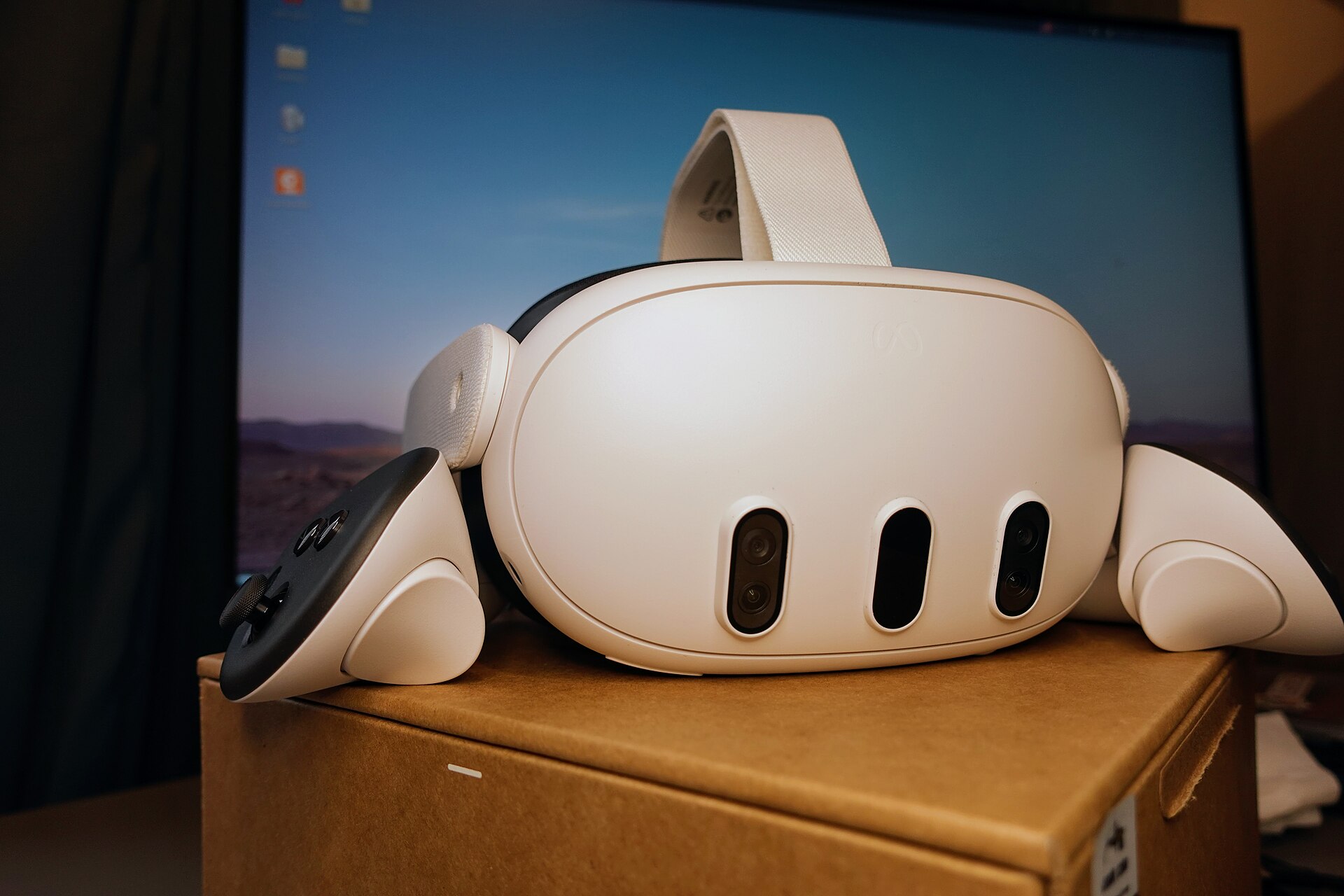
By the Metaverse Watcher newsroom. Published Sunday, November 8, 2026.
Quest 3 hand tracking lets you put the controllers down and run the headset with your bare hands: open apps, scroll, type, grab windows and, since Horizon OS 2.4, even move around your virtual Home. It works on Quest 3, Quest 3S, Quest Pro and Quest 2. This guide covers how to turn it on, every system gesture Meta supports, how to switch quickly between hands and controllers, which apps support it, and what to do when tracking gets jumpy. The steps come from Meta’s own Quest Help Center and Horizon OS release notes.
If you just unboxed a headset, start with our Meta Quest 3 setup guide, then come back here.
How Hand Tracking Works on Quest
Meta says Hand and Body Tracking “works by using the cameras on Meta Quest headsets,” with software that analyzes images of your hands and body in real time to estimate their position and orientation. There is NO extra hardware to buy. The same feature also drives your avatar’s arm and body movement, which is why Meta now groups it under a single Hand and Body Tracking setting. Because it is camera-based, lighting and line of sight matter a lot more than they do with controllers, which we cover in the troubleshooting section below.
How to Turn On Hand Tracking
On current Horizon OS builds with the new Navigator, Meta lists these steps:
- Press the Meta button on your right controller to open the Navigator.
- Select Quick controls.
- Select Settings.
- Select Hands & body.
- Turn on the toggle next to Hand and Body Tracking.
On older software the same switch lives under Settings > Movement Tracking, which is where most older tutorials send you. If you do not see Hands & body, look there instead. Once the toggle is on, set your controllers down and hold your hands up in front of the headset. After a moment your virtual hands appear and a pointer ray extends from each one.
Every System Gesture, Explained
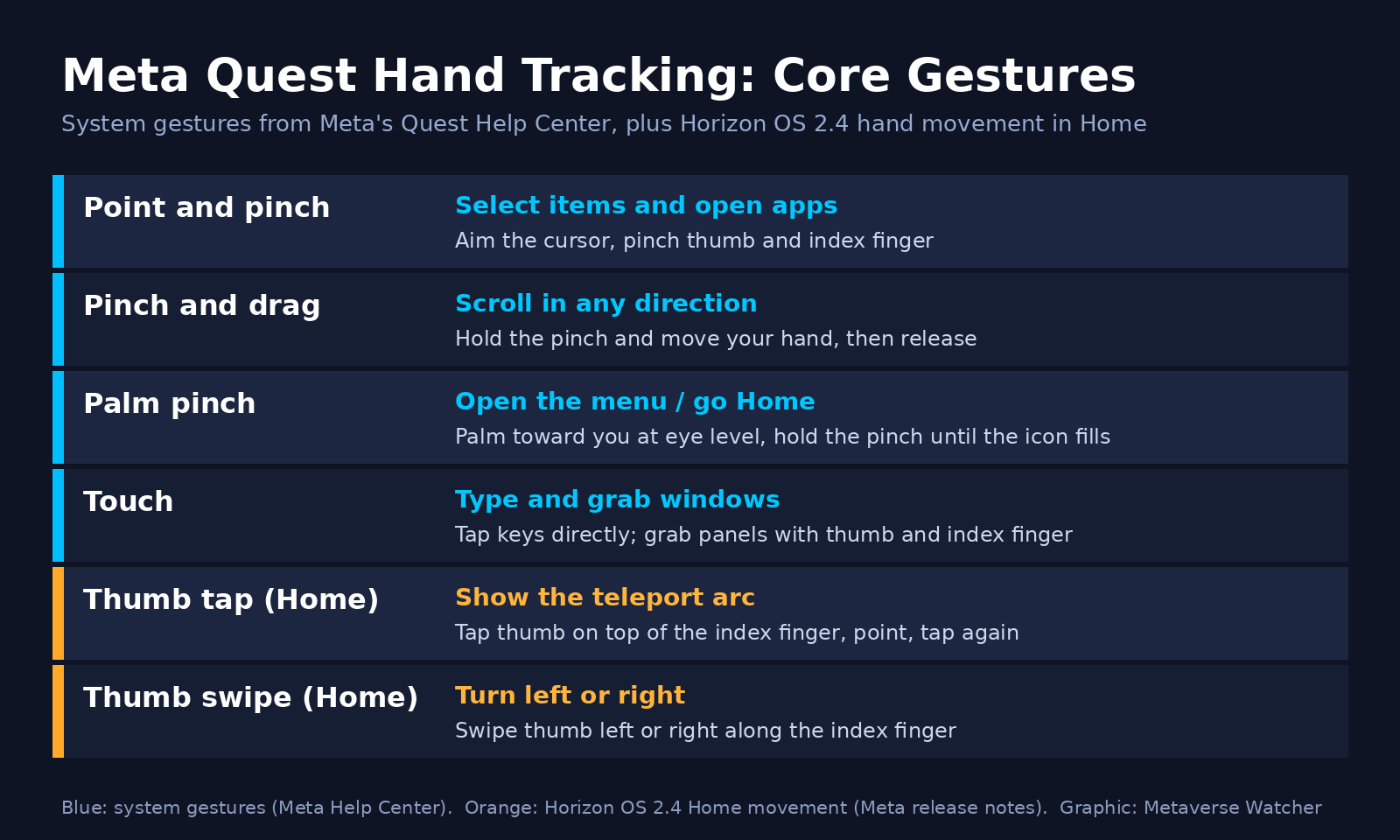
Meta’s Help Center lists four core gestures for the system interface. Learn these and you can do almost everything in the menus without controllers.
| Gesture | What it does | How to do it |
|---|---|---|
| Point and pinch | Select items, open apps | Point your hand so the cursor lands on the target, then pinch thumb and index finger together |
| Pinch and drag | Scroll up, down, left or right | Pinch, keep holding, move your hand in the direction you want, then release |
| Palm pinch | Return to the menu | Look at your palm at eye level and hold a thumb-index pinch until the Meta icon fills, then release |
| Touch | Type and interact directly | Tap on-screen keys and buttons with your fingertip, or grab a window with thumb and index finger to move it |
Two practical notes. First, pinches register best when the other three fingers are relaxed rather than splayed. Second, direct touch is usually faster than pointing for the virtual keyboard: bring the keyboard close, then type on it like a tablet.
Move Around Home With Your Hands (Horizon OS 2.4)
Horizon OS 2.4, which Meta began rolling out the week of May 18, 2026, added controller-free movement in your virtual Home. According to Meta’s release notes:
- Teleport: tap your thumb against the top of your index finger to bring up the teleport arc, point where you want to go, and tap again.
- Turn: swipe your thumb left or right along the top of your index finger.
These are what Meta’s developer documentation calls microgestures: small thumb taps and swipes on the side of the index finger that act like a D-pad. Meta’s developer docs say they are supported on Quest 2, Quest Pro and the Quest 3 family, and developers can use them in their own apps through an OpenXR extension, so expect more games to adopt them. When UploadVR tested the feature in the Public Test Channel, it found it “very reliable” and noted the movement layout can be previewed in the Settings app. If you want new Horizon OS features like this before everyone else, our guide to the Quest Public Test Channel explains how to join and leave safely.
How to Switch Between Hands and Controllers
You do not have to pick one input for good. Quest offers three ways to switch, all controlled from the same hand tracking settings page:
- Auto switch: put both controllers down and the headset switches to your hands after a short pause. Pick a controller up and press a button to switch back.
- Double-tap controllers: with this option enabled, tap the two controllers together to jump straight to hand tracking without waiting for them to go idle. Android Central calls it one of the most useful settings in the menu.
- Manual toggle: if auto switch is off, use the hand tracking button in the quick settings panel.
While you are in that menu, look for Expanded Quick Actions. Android Central reports that it adds buttons to the palm menu for muting your microphone, recentering, recording video, opening the menu and showing your surroundings in passthrough. That makes a quick mic mute possible without reaching for a controller.
Which Apps and Games Support Hand Tracking
Meta does not keep a single public list. Instead, its Help Center says to check each app’s Meta Horizon Store page: if hand tracking is supported, it appears among the listed input methods. Support has grown quickly in 2026 as developers prepare for Meta’s lighter VR glasses. Recent hand tracking additions Metaverse Watcher has covered include:
| Game | Hand tracking support | Our coverage |
|---|---|---|
| Synth Riders | All 200-plus songs playable without controllers on Quest 3 and 3S | Read |
| Walkabout Mini Golf | Experimental pinch-to-putt mode, added October 8 | Read |
| Just Hoops 2.0 | Natural Shot and Pointer Shot hand modes | Read |
| Real VR Fishing | Hand tracking added in the October 13 update | Read |
| Mothergunship: Forge | Quest hand tracking added October 15 | Read |
| Beat Saber | Flux, a hand-first mode, planned for spring 2027 | Read |
For a broader shortlist of what to play, see our best Quest 3 games of 2026 and best free Quest games. Fast action games still play better with controllers, because cameras cannot track a hand that is behind your back or out of view, and there are no buttons or haptics. Hand tracking shines in rhythm games, puzzles, social apps, media and casual sports.
Hand Tracking Not Working? Try These Fixes
Most hand tracking problems come down to the cameras not seeing your hands clearly. Work through these in order:
- Confirm the setting is on. Software updates and factory resets can leave Hand and Body Tracking off. Check Hands & body (or Movement Tracking) first.
- Put the controllers fully down. If a controller is still awake in your lap, auto switch may not hand over. Set them on a table or use the double-tap shortcut.
- Fix the lighting. Dim rooms, strong backlight from a window and very bright direct sun all hurt camera tracking. An evenly lit room works best.
- Keep hands in view. Tracking drops when hands move outside the cameras’ field of view, overlap each other, or sit too close to the headset. Gloves, large rings and sleeves over the wrist can also interfere.
- Clean the cameras. Wipe the external tracking cameras gently with a dry microfiber cloth. Smudges affect hands and headset tracking alike.
- Restart the headset. A full restart clears most temporary glitches. If problems remain after an update, joining or leaving the PTC is not a fix; contact Meta Support.
If your hands work but your controllers are the problem, our Quest 3 controller drift and tracking fix guide covers pairing, drift and repair options. Room-level tracking issues are often a Boundary problem, which our Quest Boundary setup guide explains.
Privacy: What Meta Collects
Because hand tracking processes camera images of your body, it is worth knowing the data rules. Meta points users to its Hand and Body Privacy Notice and Supplemental Meta Platforms Technologies Privacy Policy for details on what it collects. If you share a headset with family, each person’s settings and data are tied to their own profile; our guide to Meta Quest profiles and app sharing explains how that works.
The Bottom Line
Hand tracking is no longer a demo feature. With four system gestures, quick switching and the new thumb-based movement in Home, you can run most of Quest 3 without touching a controller, and a growing list of games now supports it. Turn it on, learn the palm pinch and the double-tap switch, and keep the controllers for fast action games. Then tune the rest of the headset with our Quest 3 best settings guide.