Meta now calls the old Guardian walls a Boundary, but the job is the same: a virtual fence that appears when you walk too close to the edge of your play area. Getting it right is the difference between a clean session and a controller into a lamp. This guide covers Stationary versus Roomscale, the official menu path on Horizon OS, suggested boundary and assisted Space Setup, the settings worth changing, and the fixes Meta documents when the headset forgets your space.
Steps below come from Meta’s Quest Help Center articles linked in the sources section. They apply across current Quest hardware running Horizon OS, including Quest 3 and Quest 3S. If you are still deciding how much floor space you actually need for a game, pair this with our seated vs standing vs room-scale comparison and the Quest 3 clarity and comfort settings guide.
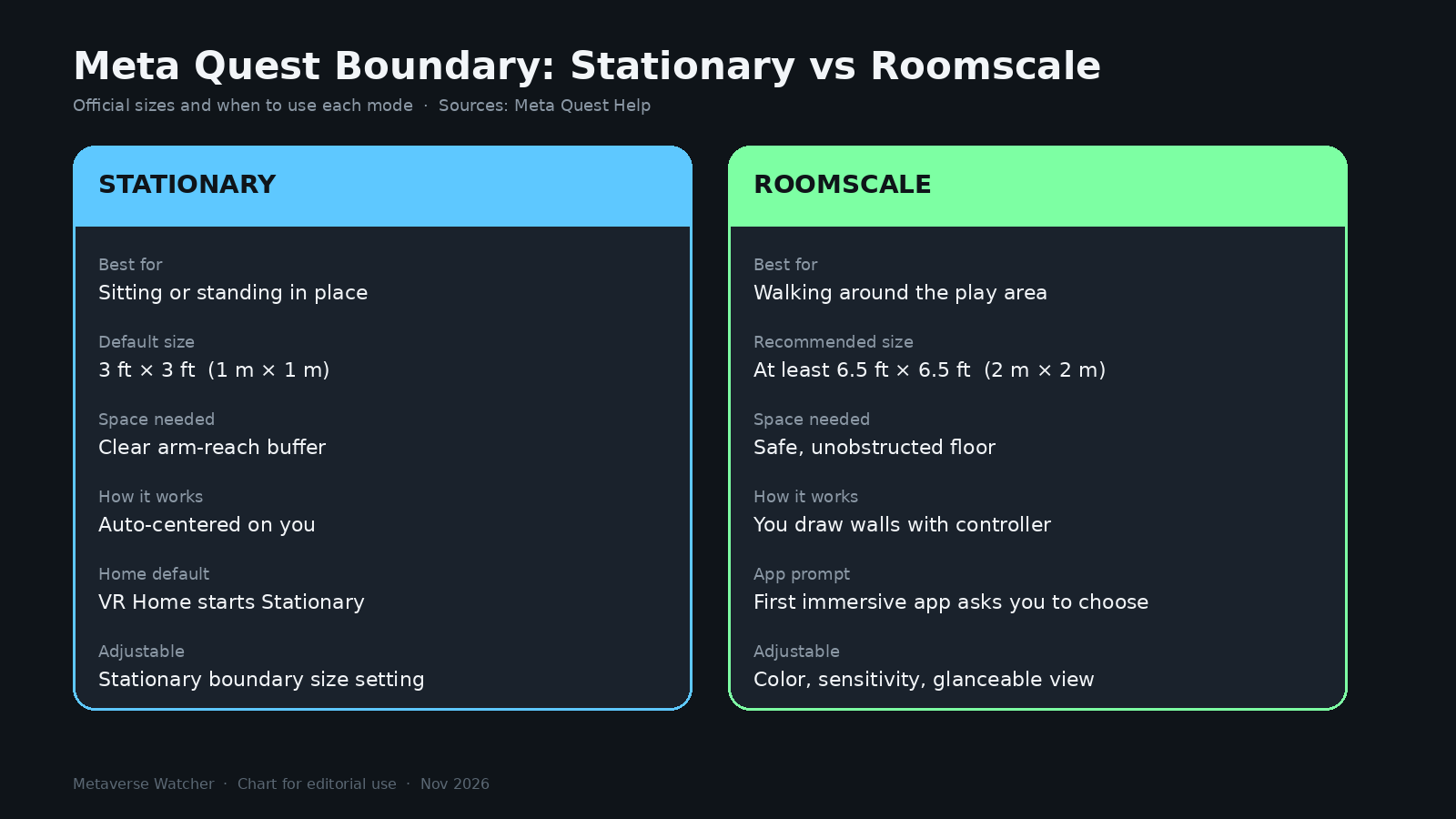
Stationary vs Roomscale: Which Boundary to Use
Meta offers two boundary modes. Pick the one that matches how you play and how much clear floor you have, not the name of the game on the box.
| Mode | Best for | Official size | How it is created |
|---|---|---|---|
| Stationary | Sitting or standing in place | Default 3 ft × 3 ft (1 m × 1 m) centered on you | Headset creates it automatically; size is adjustable |
| Roomscale | Walking around inside a cleared play area | At least 6.5 ft × 6.5 ft (2 m × 2 m) recommended | You draw the walls on the floor with a Touch controller |
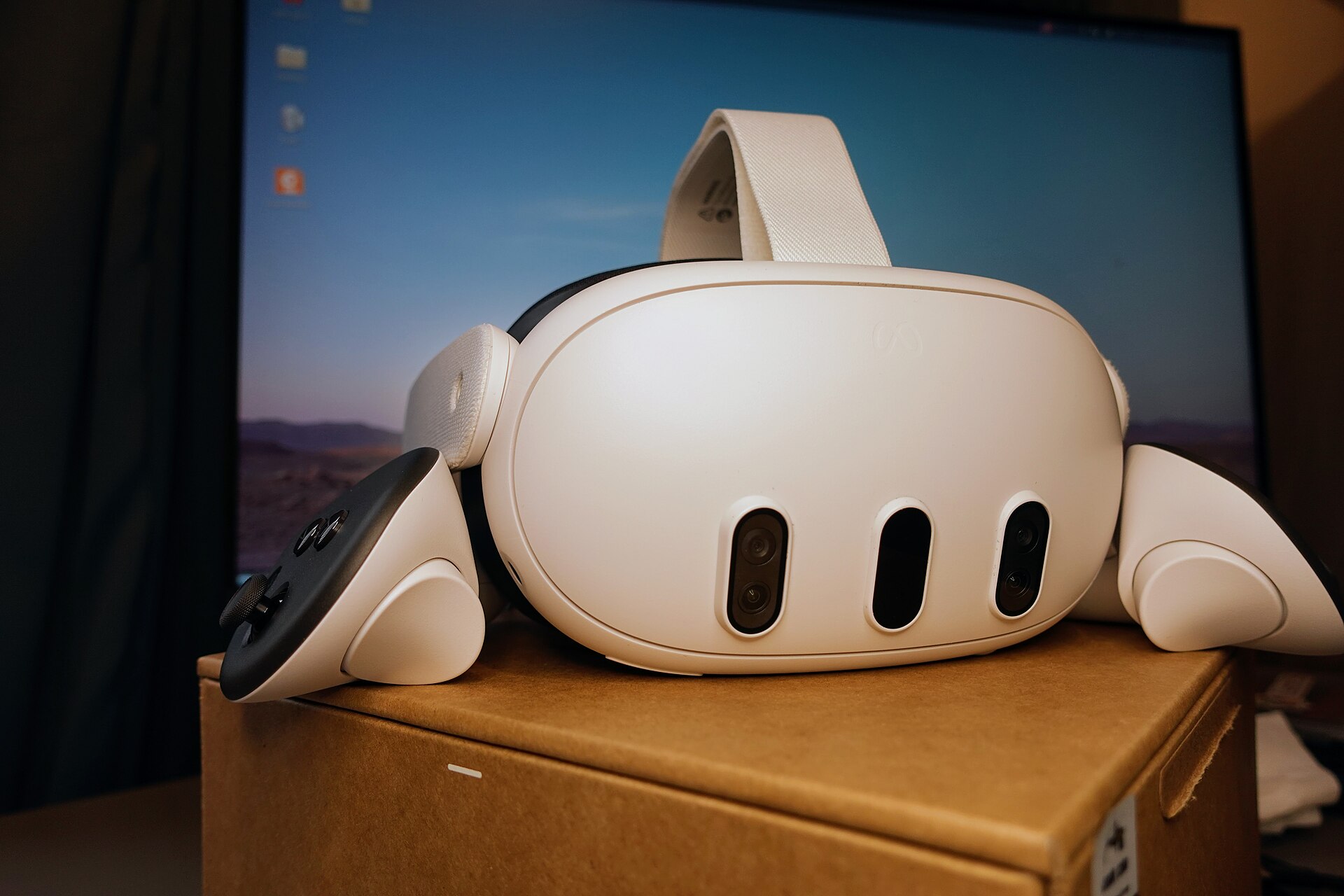
If your room is smaller than about 6.5 by 6.5 feet of unobstructed space, Meta’s own roomscale article says to use Stationary Mode instead and choose seated or standing experiences. That is not a soft suggestion: Roomscale is a walking safety feature, not a graphics setting.
Before You Draw: Clear the Play Area
Meta’s Safety Hub is blunt about prep. Clear objects you will not interact with, leave a buffer around the activity space, check for obstacles within arm’s reach, and watch for overhead hazards such as ceiling fans and light fixtures. Meta also states that Quest is not recommended for outdoor use, and that the boundary does not detect people or pets. Keep the floor clear even after the walls are drawn.
Lighting matters as much as furniture. Meta’s tracking guidance says the playspace should be bright and even — roughly the light level of a living room with guests over. Avoid direct sunlight (bad for tracking and for the lenses), very dim rooms, and flickering lights. Large mirrors, glass tables and blank white walls can also confuse the cameras. Wipe the external tracking cameras with a dry microfiber cloth before a fresh setup if the headset has been collecting dust.
How to Create or Redraw a Boundary
Meta documents this menu path for adjusting modes or redrawing:
- Press the Meta button (or Oculus button) on the right controller to open the Navigator.
- Select Quick controls.
- Select Settings, then Environment setup.
- Select Boundary, then Create new boundary.
- From there, draw a Roomscale boundary or adjust a Stationary boundary.
When you draw Roomscale, stand near the center of the intended play area and look around the room while you trace the edge on the floor. Meta’s boundary troubleshooting page says those two habits — center standing and looking around — make it much more likely the headset will recognize the space next time. Leave a margin away from walls, furniture and doorways; controllers reach farther than your elbows feel like they do.
Confirm floor level when prompted. If the virtual floor sits too high or too low, reaching for virtual objects feels wrong and you can hit the real floor. Use Set floor level in Boundary settings if a later session feels off.
Switch From Stationary to Roomscale Inside an App
You do not have to quit a game that wants more space. Meta’s steps while already in an app:
- Press the Meta button to open the Navigator.
- Select Quick controls.
- Select Boundary, then Switch to Roomscale.
- Draw a Roomscale boundary or adjust Stationary from that screen.
Boundary preferences are saved separately for VR Home and for VR apps. Home defaults to Stationary. The first time you enter an immersive app, the headset prompts you to choose Stationary or Roomscale. Toggling passthrough does not change those preferences, and changing the boundary only sticks for the context you are in (Home versus apps).
Suggested Boundary and Assisted Space Setup
On current Horizon OS builds, Meta can also propose a boundary for you. Suggested boundary estimates free space around you when you launch an app and no boundary is available. You can edit the suggestion before accepting it, draw your own walls, or fall back to Stationary. It is also reachable from Environment setup → Boundary.
Assisted Space Setup is separate and matters for mixed reality. Spaces let apps collide with or hide behind real furniture. Assisted Space Setup runs a quick 3D scan so the headset builds a simple representation of walls, tables and other surfaces without you placing every piece by hand. It can run automatically when you launch an app that uses Spaces, or you can open Space Setup from Environment setup in Settings.
Boundary Settings Worth Changing
Inside Boundary settings Meta lists several toggles that are easy to miss:
| Setting | What it does |
|---|---|
| Set floor level | Recalibrates where the virtual floor sits relative to the real floor |
| Roomscale boundary color | Changes the wall color so it stands out against busy game art |
| Stationary boundary size | Expands or shrinks the default 3×3 ft Stationary area to match cleared space |
| Glanceable roomscale boundary | Looking down at an angle briefly shows where you are in the playspace |
| Roomscale boundary sensitivity | Controls how early the wall alert appears as you approach the edge |
| Clear Boundary History | Clears boundary anchors on the device and in the cloud for the current account; does not clear scenes, tracking or maps |
When the Headset Forgets Your Boundary
Meta’s boundary troubleshooting article lists two main reasons a saved boundary fails to load: the physical space changed, or the lighting changed. Furniture moves, wall decor changes, and crowds walking through the play area can all make the room look new to the cameras. Daytime window light versus evening lamps is a common lighting mismatch; so is a lamp that used to sit on one side of the room and now sits on the other.
To help the headset remember the space next time:
- Stand as close as possible to the center while drawing.
- Look around the whole room, not in one direction.
- Use even indoor light; Meta’s rule of thumb is that if you can comfortably read a book in the space, the light is enough. Avoid direct sunlight.
- Keep the area inside the walls clear of hazards.
Boundary Will Not Draw or Tracking Is Lost
Boundaries need full six-degrees-of-freedom (6DoF) tracking. If the headset drops to rotation-only (3DoF), Meta shows a tracking-lost message and the boundary tools stop behaving. Meta’s headset tracking article walks through recovery in this order:
- Fix the environment. Add lights or move to a brighter room. Remove mirrors, glass and other large reflective surfaces from the cameras’ view.
- Clean the cameras. Wipe the front and side tracking cameras with a dry microfiber cloth. Remove face covers or accessories that may block a camera.
- Confirm tracking is on. Quick controls → Settings → Movement tracking → make sure Headset tracking is enabled.
- Clear boundary history. Meta points to Settings → Physical Space / Space Setup → Clear Boundary History (wording varies slightly by software build; the same action also lives in Boundary settings). Note that clearing history on a shared headset affects all profiles, and you will need to redraw.
- Restart. Hold the power button, select Restart, then test again.
- Update software. Settings → System → Software Update. Tracking fixes often ship in Horizon OS updates.
If controllers refuse to draw walls, Meta’s older controller troubleshooting page still applies in practice: make sure the play area is at least 3×3 feet, move furniture that blocks the path, hold the trigger while drawing, do not cover the tracking ring with your hand, and replace low controller batteries. Controller drift after a good boundary is a separate problem — see our Quest 3 controller drift and tracking fix guide.
Clearing Space History for Mixed Reality Drift
When mixed reality objects drift relative to furniture, Meta recommends clearing physical space history:
- Press the Meta button → Quick controls → Settings.
- Select Privacy and safety → Device permissions.
- Select Clear next to Clear physical space history.
That wipe includes boundaries, Spaces and spatial anchors. The next MR app will ask you to set up the space again, and the next immersive session will ask for a new Stationary or Roomscale boundary. Meta also suggests shrinking very large playspaces, improving lighting, reducing reflective surfaces and cleaning cameras if drift continues.
Safety Notes Meta Still Emphasizes
A few rules from Meta’s Safety Hub and boundary docs are easy to skip and expensive when ignored:
- Leave extra buffer near walls and objects you will not interact with.
- The boundary does not detect people or pets.
- If you turn off 6DoF tracking, Meta says you should only use the headset seated or standing in place.
- Outdoor play is not recommended.
- Direct sunlight can damage lenses; keep the headset away from windows when it is off your head.
If a software problem persists after clearing history and redrawing, escalate through Meta’s safer ladder — restart, force restart, then a factory reset only as a last resort. Our Quest 3 and 3S factory reset guide covers that sequence. Motion-sensitive players should also keep sessions short and use comfort options from our VR motion sickness prevention guide once the boundary is solid.
Quick Checklist
- Clear the floor, check overhead hazards, set even indoor lighting.
- Open Navigator → Quick controls → Settings → Environment setup → Boundary.
- Choose Stationary (small space / seated) or Roomscale (walkable 6.5×6.5 ft+).
- For Roomscale, stand in the center, look around, and leave a wall buffer.
- Set floor level, pick a visible boundary color, and enable glanceable boundary if you want a quick floor map.
- If the headset forgets the space, improve lighting first, then clear boundary history and redraw.
- For MR object drift, clear physical space history and rebuild Space Setup.
Sources
- Meta Quest Help: Set up your boundary
- Meta Quest Help: Recommended space for Roomscale
- Meta Quest Help: Suggested boundary and assisted Space Setup
- Meta Quest Help: Troubleshoot Boundary
- Meta Quest Help: How headset tracking works
- Meta Quest Help: Object drift in mixed reality
- Meta Quest Help: Trouble setting a boundary with Touch controllers
- Meta Quest Safety Hub