A single Meta Quest can serve a household, but only if each person has their own Meta Horizon profile. Meta does not offer a Guest Mode. The official limit is UP TO 4 profiles on one headset: the device owner plus three others. This guide covers how to invite those profiles, how App Sharing works, what stays private, and how to remove someone later. Steps are taken from Meta’s Quest Help articles, checked on November 5, 2026.
If you are still unboxing the headset, start with our Quest 3 and 3S setup guide. Families with kids should also read the parental controls setup guide before sharing a device; a child signed into an adult profile does not get Meta’s age protections.
The short version
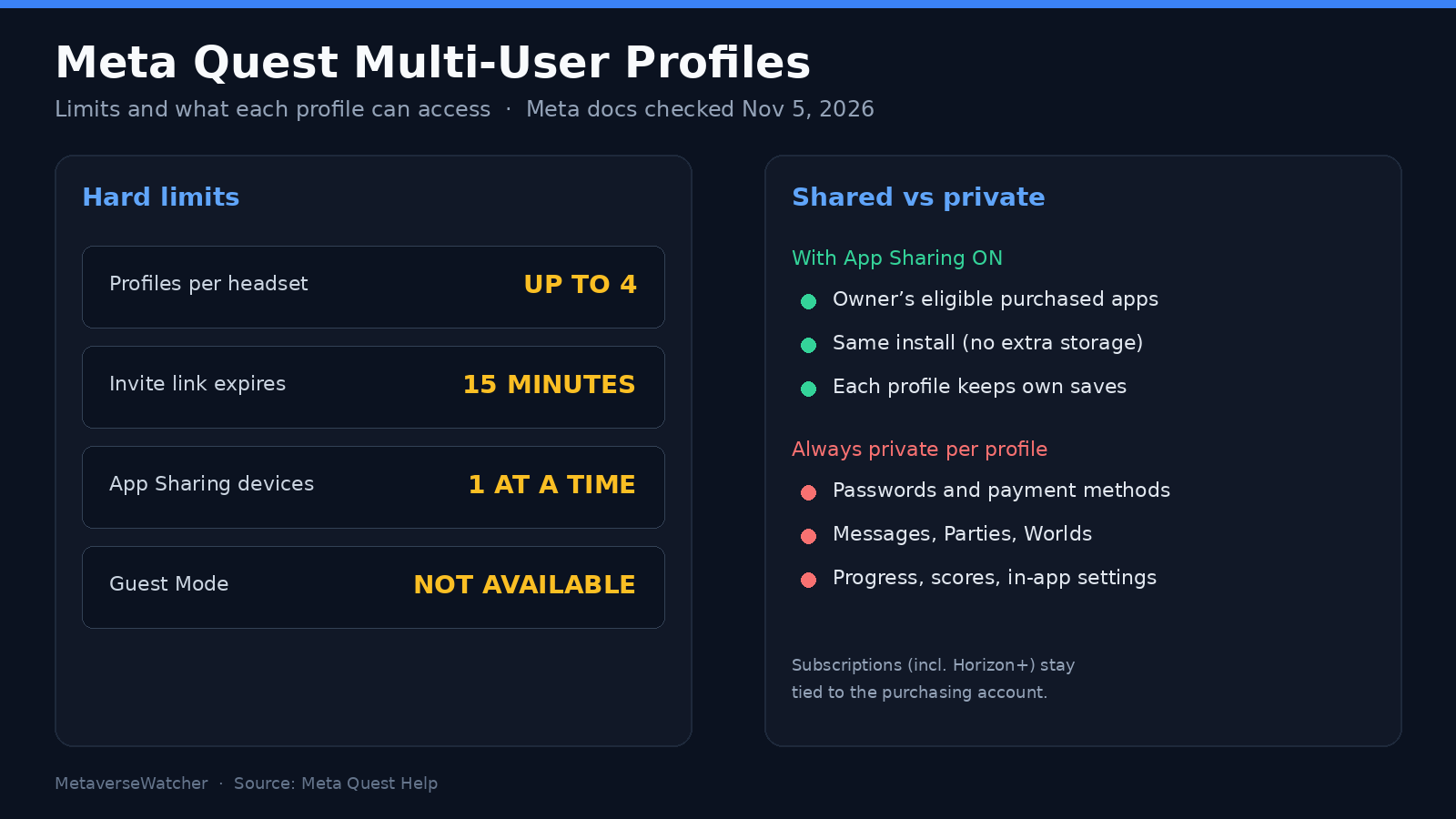
- One Quest holds UP TO 4 Meta Horizon profiles.
- Invite from Settings → Profiles with the other person’s email; the link expires in 15 MINUTES.
- Turn on App Sharing so additional profiles can play eligible apps the owner bought. It works on ONE DEVICE at a time.
- Each profile keeps its own progress, messages, payments and passcode.
- There is no Guest Mode. A visitor either gets a profile or uses someone else’s (which you should avoid).
| Question | Answer (Meta docs, Nov 5, 2026) |
|---|---|
| How many profiles? | Up to 4 per headset |
| Guest Mode? | Not available |
| Invite link life | 15 minutes |
| App Sharing scope | One headset at a time |
| Shared apps use extra storage? | No, if the owner already installed them |
| Progress shared? | No — each profile saves separately |
Before you invite anyone
Every additional profile needs its own Meta Account and Meta Horizon profile. Meta’s troubleshooting article states that the person should create those first if they do not already have them. They do NOT need Facebook or Instagram. Logging in with email or phone is enough, according to Meta’s login help page.
Decide who is the device owner. That is the first account set up on the headset. Only the owner can manage App Sharing and remove other profiles from the Meta Horizon phone app. Everyone else is an “additional profile.”
For children and teens, do not use a second adult profile as a shortcut. Ages 10–12 need a parent-managed account; ages 13–17 can use supervised teen accounts. Details and country notes are in our parental controls guide.
How to add a Meta Quest profile
Meta documents these steps for Quest headsets, including Quest 3 and Quest 3S:
- Put on the headset and press the Meta / Oculus button to open the Navigator.
- Select Settings, then Profiles.
- Enter the email address of the person you want to add, then select Send Link.
- Have them open the email or message promptly. Meta says the link expires 15 MINUTES after it is sent.
- They finish account or profile setup on their phone or computer, then put on the headset and choose their profile from the switcher.
If the headset already has additional profiles, Meta shows a profile switcher at startup. You can also switch later from the universal menu by selecting your profile icon and choosing Switch profile.
Turn on App Sharing
Adding a profile does not automatically share your library. The device owner must enable App Sharing. Meta’s App Sharing help article gives these steps:
- Press the Meta / Oculus button to open the universal menu.
- Hover over the clock on the left until Quick Settings appears, then open it.
- Select Settings (top right), then Profiles.
- Toggle App Sharing on.
Important limits from Meta’s “Learn about App Sharing” page:
- You can share on ONE HEADSET at a time. If you own a Quest 3 and a Quest 3S, pick which device shares.
- To move sharing, turn it off on the current headset, then turn it on on the new one.
- Eligible apps the owner purchased become available to additional profiles on that headset.
- Apps an additional profile buys travel with that person if they later use a different headset. Shared copies from the owner do not.
- If the owner already installed an app, another profile installing it does not consume extra storage for a second copy.
App Sharing is about store purchases on that device. It is not a substitute for a family game-pass style subscription. Treat Horizon+ and other subscriptions as account-bound unless Meta’s store page for that product explicitly says otherwise; when in doubt, check the product’s own terms before assuming a second profile can use it. Our Horizon+ worth-it guide covers how that catalog works for a single account.
What stays private between profiles
Meta’s multi-profile article is clear: each profile stores its information separately. Other profiles on the same headset do NOT get access to:
- Saved passwords
- Social features such as Messaging, Parties and the Horizon Worlds app
- Payment information
- In-game progress
- High scores
- In-app settings
Each profile can set its own passcode. On a shared family headset, set one. Without a passcode, anyone who picks up the headset can open any unlocked profile from the switcher. That is the most common privacy miss we see when a Quest lives in a living room.
How to switch profiles
- At startup: when multiple profiles exist, Meta shows the switcher after you put the headset on.
- During a session: open the universal menu, select your profile, then choose Switch profile.
Switching logs you out of the current profile’s social and app session context. Saves stay with the profile that created them, so a second player starting the same game from a shared install begins their own progress unless that game has a local couch co-op mode of its own.
How to remove a profile
Meta documents removal from the Meta Horizon mobile app for the device owner:
- Open the Meta Horizon app and tap Menu (top left).
- Tap Devices, then your headset.
- Tap Manage profiles.
- Select the profile to remove and follow the on-screen steps.
A factory reset also removes every profile and returns the headset to its out-of-box state. Only use that path if you are wiping the device entirely. Our factory reset guide covers the safer pre-checks first.
Troubleshooting invite and profile errors
Meta’s profile troubleshooting article lists the most common blocks:
- Username is not available: pick another. Usernames must be 3–30 characters, include at least one letter, start and end with a letter or number, and use only letters, numbers, underscores and periods without consecutive underscores or periods.
- There is already a profile associated with this email: use a different email, or have that person accept the invite with the existing account.
- Something went wrong: often missing fields or a flagged username; retry with a simpler name.
- Link expired: send a new invite; the 15-minute window is strict.
- Apps and data look missing after login: Meta warns that choosing “Use mobile number or email” when the profile was originally linked through Facebook or Instagram can create a second, empty Horizon profile. Use the same continue-with method you used originally, or follow Meta’s Accounts Center repair steps in that help article.
If the invite never arrives, check spam, confirm the email spelling, and make sure the headset is online. Restarting the headset and reopening Profiles is enough in most cases before you contact Meta Store Support.
Practical setups that work
Two adults, one headset. Owner plus one additional profile, App Sharing on, passcodes on both. Each person keeps chat, payments and game saves separate while sharing the same library.
Parents and one teen. Owner profile for a parent, supervised teen profile for the child, App Sharing on for eligible games, parental supervision enabled as described in Meta Family Center. Do not let the teen use the parent profile “just this once.”
Roommate or visiting friend. Add a temporary profile if you expect repeat visits. Remove it from Manage profiles when they leave. Handing them your unlocked profile shares messages and payment methods you probably do not intend to share.
Two headsets in one home. Remember App Sharing is one device at a time. Pick the headset that sees the most shared play, or have each person buy titles they care about on their own account so libraries travel.
What this guide does not replace
Multi-user profiles solve account separation. They do not fix fit, comfort or motion sickness for a second wearer. Have each person adjust the lens spacing wheel and straps; our motion sickness prevention guide covers comfort settings inside apps. Clear guardian boundaries still matter when someone new stands in a different spot in the room.
Frequently asked questions
Is there a Guest Mode on Meta Quest?
No. Meta’s documented path is additional Meta Horizon profiles, up to four total on the headset.
Can additional profiles use my purchased games?
Yes, for eligible titles, after the device owner turns on App Sharing on that headset. Shared installs do not take a second copy of storage if the owner already has the app.
Will we share save files?
No. Meta lists in-game progress, high scores and in-app settings as private to each profile.
Can I share App Sharing across two Quests?
Not at the same time. Meta limits App Sharing to one device. Turn it off on the first headset before enabling it on the second.
How do I delete someone from my Quest?
Use Manage profiles in the Meta Horizon phone app while signed in as the device owner, or factory-reset the headset if you intend to wipe everything.
Sources
Primary references: Meta Quest Help — Add additional Meta Horizon profiles, Turn on App Sharing, Learn about App Sharing, Share apps on a different Meta Quest, Remove a profile, How to log in, and Profile setup troubleshooting. Checked November 5, 2026.