A Meta Quest 3 that will not charge usually is not broken. In most cases the problem is the power source, the cable, heat, an accessory, or a headset stuck in a frozen state that only looks like a dead battery. This guide puts Meta’s official charging guidance and its support team’s troubleshooting steps in one place, ordered from the fastest check to the last resort.
Sources: Meta’s How to charge your Meta Quest headset and status light colors help pages (checked November 19, 2026), plus steps Meta’s support accounts have posted for Quest 3 owners. The steps apply to Quest 3 and Quest 3S; Quest 2 and Quest Pro owners can follow the same order with their own wattage.
Quick Answer: The 60-Second Checklist
- Use the included 18W adapter and USB-C cable, plugged into a wall outlet, not a PC port or hub.
- Turn the headset off or let it sleep while it charges.
- Remove the facial interface, battery straps and any third-party accessories, then try again.
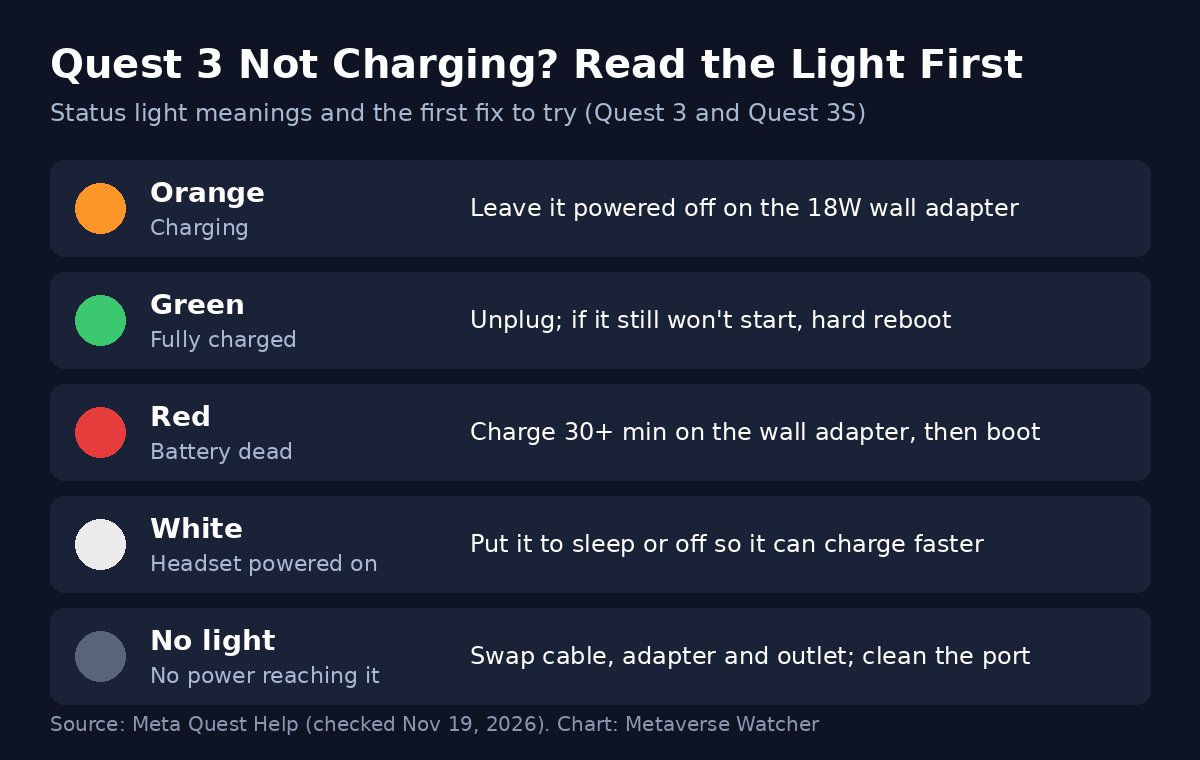
- Check the status light: orange means charging, green means full, red means a dead battery, no light means no power is getting in.
- Leave it on the charger for at least 30 minutes, then hard reboot with Power + Volume Down.
If none of that works, skip to the support and warranty section at the end.
How Quest 3 Charging Is Supposed to Work
Knowing what normal looks like makes the fault easier to spot. According to Meta, Quest 3 and Quest 3S charge through the USB-C port on the left side of the headset, using the included power adapter and USB-C cable. Plugged into a wall outlet that way, the headset should fully charge in about 2½ hours.
| Headset | Required charger wattage (Meta) |
|---|---|
| Meta Quest 3 | 18W |
| Meta Quest 3S | 18W |
| Meta Quest Pro | 45W |
| Meta Quest 2 | 10W |
Meta lists four status light colors on the side of Quest 3 and Quest 3S:
| Status light | What it means | What to do |
|---|---|---|
| Orange | Battery charging | Leave it alone, ideally powered off |
| Green | Battery fully charged | Unplug; if it won’t start, see the reboot step |
| Red | Dead battery | Keep it on wall power for at least 30 minutes |
| White | Headset powered on | Turn it off or let it sleep to charge faster |
| No light | No power reaching the headset | Swap cable, adapter and outlet; inspect the port |
Fix 1: Use the Right Charger and a Wall Outlet
This is the most common cause. Meta says a power adapter rated below 18W slows charging, and a laptop or PC port that is not USB Power Delivery (PD) capable of 18W or more also slows it down. Meta’s support team has gone further, telling owners that computer USB ports may not provide enough power to charge Quest 3 at all, and that Apple product chargers will not work with Quest 3.
Meta also warns that using a USB-C cable other than the included USB-C PD cable may lead to poor charging performance, injury or damage. So the first test is simple: original adapter, original cable, a wall outlet you know works. If you have a second Quest 3 adapter, try it, and test the cable and adapter separately to find the faulty part.
Fix 2: Stop Using It While It Charges
Quest 3 can use power faster than it takes it in. Meta’s support guidance says the headset should be left powered off or in sleep while charging. Meta’s help page adds that when you charge during use, the headset may adjust the charge rate based on temperature, and the battery may not fully charge if it gets too warm. Once the headset cools and is no longer in use, it resumes charging to 100%.
If your battery percentage falls while plugged in during a long session or a PC VR stream, that is expected behavior, not a fault. Our Meta Quest 3 battery life guide covers how long a charge should last and how to stretch it.
Fix 3: Let a Hot Headset Cool Down
Because charging is limited by temperature, a headset that just came off a long session, sat in a sunny window, or was packed in a tight case may charge slowly or stall. Unplug it, leave it on a desk in a cool room for 15 to 20 minutes, then plug it back into the wall adapter with the headset off.
Fix 4: Remove the Facial Interface and Accessories
This one surprises people. Meta’s support team advises charging without the facial interface, the Elite Strap with Battery or any third-party accessories, because some can block the proximity sensor and affect how the headset handles power. External battery packs and cooling fans also draw power and can mask whether the headset itself is charging.
If you use the Elite Strap with Battery, note Meta’s own caveat: the strap must verify the headset is not on your head before it charges to 100%, and it can only do that when plugged into the headset and connected to an adapter of 18W or more. If you shop for a replacement strap or dock, our best Quest 3 accessories list covers the options.
Fix 5: Inspect and Clean the USB-C Port
Lint and dust packed into the USB-C port can stop the cable from seating fully, which often shows up as a light that flickers, or charging that works only when the cable is held at an angle. Shine a flashlight into the port. If you see debris, power the headset off and remove it gently with a wooden toothpick or a dry, soft brush. Never use metal tools or liquid in the port.
If you charge with a dock, also check the dock’s contacts and the matching contacts on the headset. Wipe them clean and dry, then try the plain USB-C cable to rule the dock out.
Fix 6: Revive a Fully Drained Battery
A deeply drained Quest 3 can look dead even when it is charging. A red light, a battery icon or a Meta logo that flashes and disappears all point to a battery too low to boot. Plug it into the wall adapter and leave it untouched for at least 30 minutes. Meta’s support team suggests a full 2 hours with the headset off before deciding it will not charge.
Fix 7: Hard Reboot the Headset
Sometimes the battery is fine and the headset is frozen in a black-screen or sleep state, so it seems not to charge or turn on. A normal shutdown is not enough here. Meta documents two stronger options:
- Force restart: hold the power button for at least 30 seconds, wait 30 seconds, then press power again to turn the headset on.
- Boot menu: hold the power and volume down (–) buttons together until the boot screen appears. Use the volume buttons to highlight Boot device and press power to select it.
Meta’s support team describes the same hard reboot (power plus volume down held for around 30 seconds until the boot sound) and says that if you do not hear the sound, you should enter USB Update Mode and choose Boot device. The boot menu also offers Factory Reset, but that erases the headset, so treat it as a last resort. Our Quest 3 factory reset guide explains what you lose and how to back up first.
Fix 8: Update the Software Once It Boots
If a reboot brings the headset back, charge it to green, then check for a Horizon OS update. Charging and power management are handled partly in software, and Meta notes that the headset may limit charging below maximum capacity to slow battery wear. Being on the current release rules out a known bug. See how to update Meta Quest 3 software.
Symptom Finder
| What you see | Most likely cause | Try first |
|---|---|---|
| No light at all when plugged in | Cable, adapter, outlet or port | Fix 1, then Fix 5 |
| Charges very slowly | Adapter below 18W or PC port | Fix 1 |
| Battery drops while plugged in | Using it while charging, heat | Fix 2 and Fix 3 |
| Stops at partial charge | Heat, accessory, battery management | Fix 3, Fix 4, Fix 8 |
| Works only at a cable angle | Debris or worn port | Fix 5 |
| Logo flashes, then battery icon | Deeply drained battery | Fix 6, then Fix 7 |
| Green light but black screen | Frozen software state | Fix 7 |
What About the Controllers?
Quest 3 Touch Plus controllers run on standard AA batteries and do not charge from the headset, so a dead controller is a battery swap, not a charging fault. If a controller still misbehaves with fresh batteries, see our Quest 3 controller troubleshooting guide.
When to Stop and Contact Meta
Stop charging right away if the headset swells, gets very hot while idle, or smells of burning, and do not try to open it. If you have worked through every step above with a known-good 18W adapter and the headset still will not charge, use the “Headset won’t charge” option in the Meta Quest Help Center. Our Quest 3 warranty and repair guide explains what is covered and how replacements work.
Frequently Asked Questions
How long does a Quest 3 take to charge?
About 2½ hours from a wall outlet using the included adapter, according to Meta. Slower adapters and PC ports take longer.
Can I charge Quest 3 with a phone charger?
Only if it is a USB-C PD charger rated 18W or more. Meta says lower-rated adapters slow charging, and Meta support has said Apple product chargers will not work with Quest 3.
Why won’t my Quest 3 charge to 100%?
Usually heat or use during charging. Meta also says the headset may limit charging below maximum capacity to slow battery wear over time.
What does a red light on Quest 3 mean?
Meta lists red as a dead battery. Leave the headset on wall power for at least 30 minutes before trying to turn it on.
Related: Quest 3 Wi-Fi not working? How to fix it · Meta Quest 3 setup guide