By the Metaverse Watcher newsroom. Published Saturday, November 7, 2026.
The Meta Quest Public Test Channel (PTC) is the official way to get new Horizon OS features weeks before everyone else. Right now it is how testers are trying the new Theater mode and Simplified Navigator in Horizon OS 2.10. This guide explains how to join the PTC, how to leave it, what happens to your headset when you do, and whether it is worth the risk. Every step below comes from Meta’s own Quest Help Center and release notes.
What the Quest Public Test Channel Is
Meta describes the PTC as “an early access program for Meta Quest version software.” Once you sign up, your headset becomes eligible for the latest unreleased Horizon OS build ahead of the public release. Meta usually starts each version in the PTC and then pushes it to the stable channel a few weeks later. For example, Meta’s release notes list the Horizon OS 2.9 PTC for the week of September 28, 2026, and the stable 2.9 release for the week of October 19, 2026, about three weeks apart.
Two limits matter before you start. First, the program is first-come, first-served, and Meta says there is no waitlist. Second, features in a test build are not guaranteed: some roll out to only a small share of testers, and some change before the stable release.
How to Join the PTC (Meta Horizon Phone App)
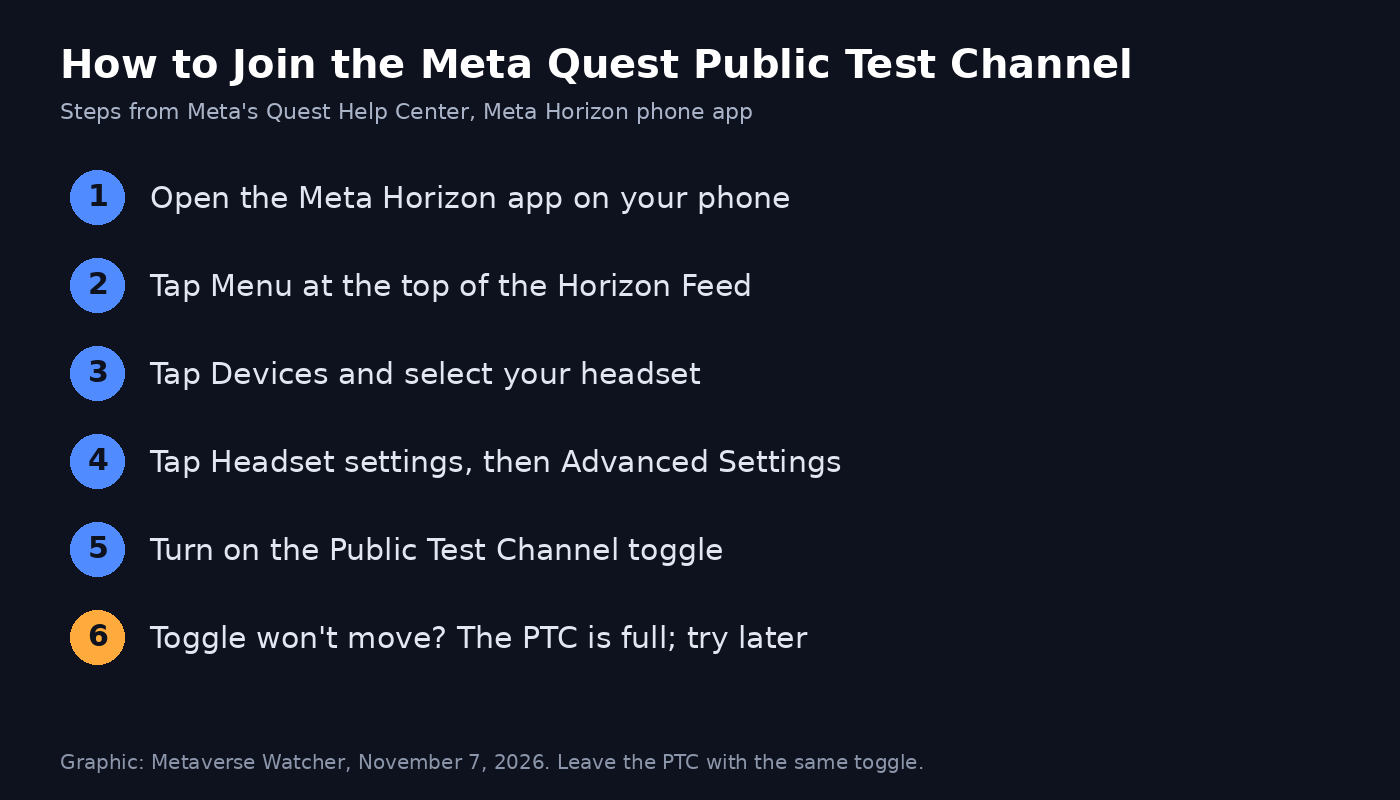
According to Meta’s Meta Quest PTC help page, you enroll from the Meta Horizon app on your phone:
- Open the Meta Horizon app on your phone.
- Tap Menu at the top of your Horizon Feed.
- Tap Devices.
- Select the headset you want to enroll.
- Tap Headset settings, then Advanced Settings.
- Tap the toggle next to Public Test Channel.
If the toggle will not turn on, Meta says the PTC is currently full. There is no queue, so the only option is to check back later.
The PC Route (Older Instructions)
Meta also keeps an older enrollment page that describes a toggle in the Meta Quest Link PC app under Settings, then the Beta tab. Meta has since renamed that app Meta Horizon Link, and the headset PTC instructions on its current help page use the phone app. That PC toggle may only control the beta of the PC app itself, so treat the phone app as the reliable path for headset updates.
Getting the Update After You Enroll
Enrolling makes your headset eligible; it does not install anything instantly. Meta says PTC builds “gradually roll out” to enrolled headsets. To speed things up, put on the headset, open Settings, go to System and open Software update to check for the new build. Keep the headset charged and on Wi-Fi. Meta’s release notes say automatic updates are on by default and that you can delay an update for up to 30 days, which is useful if you enroll but want to wait for early bug reports.
How to Leave the PTC
Leaving uses the same toggle: Meta Horizon app, Menu, Devices, your headset, Headset settings, Advanced Settings, then turn off Public Test Channel. Read Meta’s fine print first:
- You do not roll back. Leaving stops future PTC updates, but your headset stays on its current test build until a newer public release arrives.
- You may not get back in. If the program is at capacity, Meta warns you may not be able to re-enroll.
In practice, if a test build breaks something you depend on, leaving the PTC will not fix it immediately. You are waiting for the next stable version either way.
PTC vs Stable: Quick Comparison
| Public Test Channel | Stable release | |
|---|---|---|
| Timing | Weeks earlier (2.9: three weeks earlier) | After PTC testing |
| Stability | Beta; Meta warns of issues “ranging from minor issues to app crashes” | Finished build |
| Feature access | Some features reach only a share of testers | Gradual rollout to all supported headsets |
| Availability | Limited spots, first-come, first-served | Everyone |
| Undo | Leaving keeps you on the test build until the next public release | Not applicable |
Reporting Bugs While You Test
Meta expects testers to report problems. You can file a bug from the headset itself; Meta’s release notes describe a shortcut of pressing the Meta button on the right Touch controller five times in a row. For general questions Meta points to its forums, and for anything urgent, to customer support. Meta also says that if an issue causes discomfort or stops a safety feature such as the boundary from working, you should stop using the test build or use it with caution. Our Quest boundary setup guide explains how the boundary should behave so you can spot problems.
Is the PTC Worth It?
The PTC is a good fit if you have a spare or secondary headset, enjoy trying features early, and can live with occasional glitches. Test builds have caused real trouble before: during the 2.9 cycle, Quest v2.9 testers reported an audio regression and a boot failure. It also delivered features such as the Quest 3 QR scanner and the new window manager weeks ahead of the stable release.
Skip it if the headset is a child’s main device, a shared family headset, or used for work, fitness tracking or anything you cannot afford to lose for a few weeks. If you just unboxed a headset, finish the basics in our Meta Quest 3 setup guide before you think about beta software. Owners of Quest 2 or Quest Pro should also keep in mind that Meta is winding down support for those headsets, so new test features may not reach them at all.
Bottom Line
Joining the Quest PTC takes about a minute in the Meta Horizon app, but spots are limited and leaving does not roll you back. Enroll a headset you can afford to have misbehave, check for the update manually, report what breaks, and remember that what you see in a test build may still change.
Sources: Meta Quest PTC: Early Access Program; Learn how to enroll in the Public Test Channel; Meta Quest release notes.