Bought a VR game that made you queasy, ran poorly, or just was not what you expected? The Meta Quest refund system can return your money for most games and apps from the Meta Horizon Store, but only if you act quickly and stay within two firm limits. This guide covers who qualifies, the exact steps on the web, phone and headset, what cannot be refunded, and how Meta’s rules compare with Steam’s for PC VR players.
Everything below is based on Meta’s own Quest Help Center article on app and game refunds and its Meta Quest/Rift Content Refund Policy, both checked on November 8, 2026. Policies can change, so treat Meta’s pages as the final word if anything differs.
Meta Quest refund rules at a glance
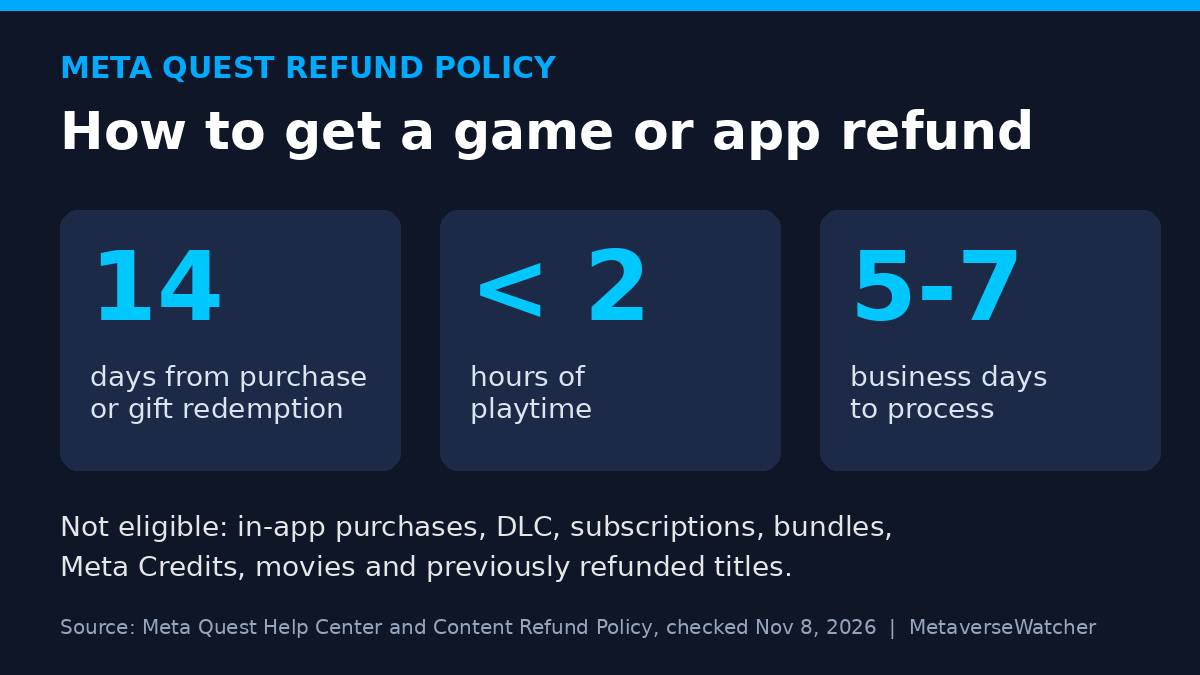
Meta runs an automated refund program for digital content bought for Quest headsets (and older Rift headsets). To qualify, two conditions must BOTH be true:
- Time: you request the refund WITHIN 14 DAYS of purchase (or within 14 days of redeeming a gift).
- Playtime: Meta determines that you have used the content for LESS THAN TWO HOURS.
Miss EITHER one and the automated system will decline the request. The policy says the refund can be for “any reason,” so you do not need to prove the game is broken. You simply need to be inside both limits.
| Question | Answer from Meta |
|---|---|
| Refund window | 14 days from purchase or gift redemption |
| Playtime limit | Less than 2 hours |
| Processing time | 5-7 business days (Help Center); policy says typically no more than five days |
| Where the money goes | Original payment method, or Quest cash for a faster refund |
| Access during review | You lose access to the app until the request is decided |
| Where to request | meta.com, the Meta Horizon mobile app, or the headset |
Before you request: three things to check
A few details trip people up, so check these BEFORE you start the request.
- Do NOT clear the app’s data. Meta’s policy states that to stay eligible, you cannot have cleared your data after buying or redeeming the app and before requesting the refund. If you are trying to free up space, uninstall other titles first. Our guide to freeing up storage on Meta Quest 3 covers safer ways to do that.
- Watch idle time. The two-hour limit is based on how long Meta determines you engaged with the content. If you leave a game open in the background while you take a break, that time may count. Close titles you are unsure about rather than leaving them running.
- Confirm where you bought it. Meta’s program only covers purchases made through Meta’s VR platform. A game bought on Steam and streamed to a Quest follows Steam’s rules, not Meta’s.
How to request a Meta Quest refund on meta.com
The web form is the method Meta documents step by step, and it is the most reliable route if you cannot find the option elsewhere.
- Sign in to meta.com with the Meta account that made the purchase and open the refund request page linked from Meta’s Help Center article on app and game refunds.
- Select a reason for your request, then select Game or app refunds.
- Select the app or game you want to refund, then select Continue.
- Select a reason for requesting the refund, then select Continue.
- Choose how you want to receive the refund (original payment method or Quest cash), then select Continue.
- Select Request refund to submit.
How to request a refund in the Meta Horizon phone app
If your phone is closer than your PC, the Meta Horizon app works too. Meta’s purchase history instructions describe this path:
- Open the Meta Horizon app on your phone.
- Tap Menu at the top of your Horizon Feed.
- Scroll down and tap Transaction history under Payment and subscriptions.
- Tap Options next to the game or app, then choose to request a refund and follow the prompts.
Meta also says you can request a refund from inside the headset. Menu layouts change between Horizon OS releases, so if you cannot find the option in VR, use the meta.com form above. It covers the same purchases.
What you cannot refund
The automated system will NOT refund the following, unless local law requires it:
- Movies (TV app rentals and purchases fall under separate video terms)
- Bundles, or any content bought as part of a bundle
- DLC and in-app purchases, such as add-ons, cosmetics and in-game currency
- Subscriptions, or content you received through a subscription (you can still cancel the subscription itself)
- Meta Credits, or content accessed through Meta Credits
- Content bought outside the Meta VR platform
- Any title you have already refunded once before
The subscription rule matters if you are weighing a monthly service. Our breakdown of whether Meta Horizon+ is worth it explains what the subscription includes, and canceling before renewal is the main way to avoid paying for a month you will not use.
The “previously refunded” rule also matters. If you refund a game, buy it again later and change your mind a second time, the automated system will not refund it again.
Gift refunds and purchases for a child’s account
Gifts follow special rules under Meta’s policy, which is worth knowing heading into the holiday season:
- If you sent a gift and the recipient does not redeem it within 30 days, you receive a refund automatically.
- Gift purchasers cannot request a refund themselves. Once a gift is redeemed, ONLY the recipient can request a refund, under the same 14-day and two-hour rules, counted from the redemption date.
- In all cases, the money goes back to the person who bought the gift, not the recipient.
For purchases made for a child’s Meta account, Meta says the parent or guardian must first access the child’s account (log in with your own details, then continue as your child) and then follow the normal refund steps. The same terms apply. If you manage a family headset, our Meta Quest parental controls setup guide explains how to require approval for purchases so fewer refunds are needed in the first place.
Meta Quest refund vs Steam refund: how they compare
Many Quest owners also play PC VR games through Steam, and Steam Frame owners buy most of their library there. The core rule is the same on both stores, but the details differ, especially for add-ons and bundles.
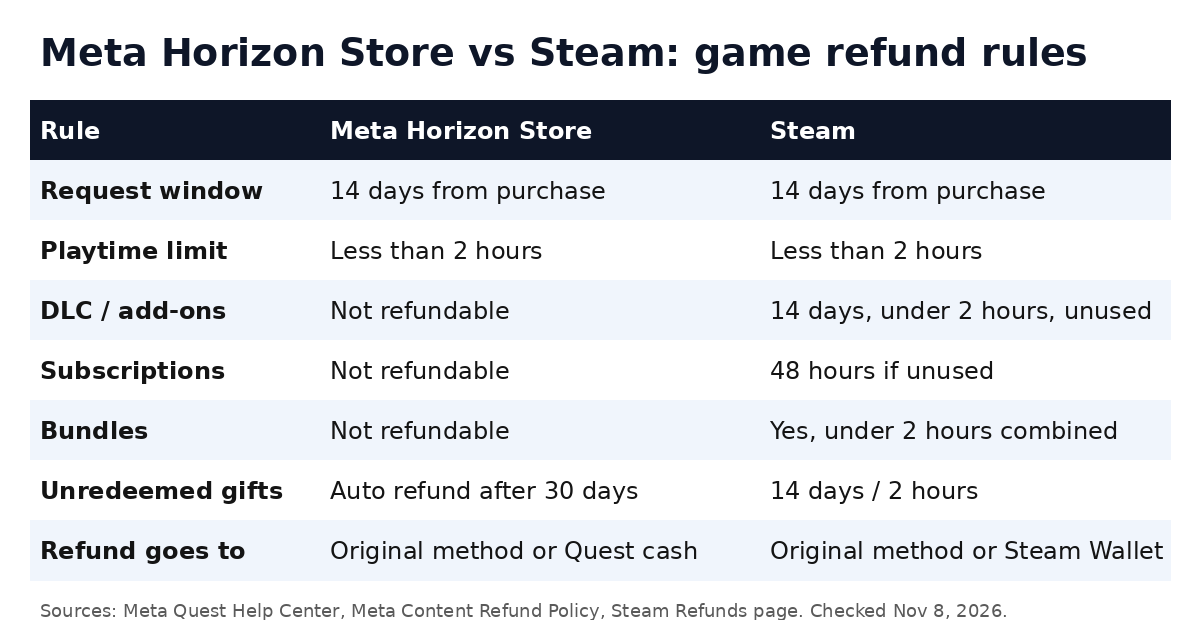
| Rule | Meta Horizon Store | Steam |
|---|---|---|
| Base window | 14 days from purchase | 14 days from purchase |
| Playtime limit | Less than 2 hours | Less than 2 hours |
| DLC | Not refundable via automated system | Within 14 days if the base game has under 2 hours since the DLC purchase and the DLC is unused |
| In-game purchases | Not refundable via automated system | Valve games: 48 hours if unused; third-party games only if the developer opts in |
| Subscriptions | Not refundable (can cancel) | 48 hours after purchase or renewal if unused that cycle |
| Bundles | Not refundable via automated system | Refundable if combined use is under 2 hours and nothing was transferred |
| Pre-orders | Not specified in the policy | Refundable any time before release; 14-day window starts at release |
| Refund destination | Original method or Quest cash | Original method or Steam Wallet |
One practical difference: Steam explicitly says it does not consider it abuse to refund a game bought just before a sale and immediately rebuy it at the sale price. Meta’s policy does not address that scenario, and it warns that it may deny requests when it detects “potential abuse,” such as repeated attempts to return content over time. With Black Friday on November 27, it is worth keeping that in mind before buying a title at full price this month. Our running list of early Black Friday VR deals tracks discounts as they appear.
What happens after you submit
As soon as you submit, you LOSE ACCESS to the game or app while Meta reviews the request. If the request is denied, access is restored. Meta’s Help Center says reviews take 5-7 business days; the policy document says it typically takes no more than five days, and that your bank statement may take longer to show the credit.
To check the status, open your app and game purchase history on meta.com. It shows the last three months by default. If you do not see the returned title, change the Ordered filter in the top right from “Last 3 months” to “Anytime.” Meta recommends contacting your payment provider if an approved refund has not arrived within seven business days.
Choosing Quest cash gets the money back faster, but it can only be spent in Meta’s store. Pick your original payment method if you are unsure you will buy another Quest title.
If your refund request is denied
Meta says the automated system will decline requests that fall into any of the exceptions above, and it may also decline requests when it detects irregularities. If you think you are entitled to a refund, or the title falls outside the automated program, Meta’s policy directs you to contact Customer Support through the Meta Help Center. The policy states that you may still be eligible for a refund outside the automated rules, and that these rules are separate from any legal rights you have if content is faulty or misdescribed.
When you contact support, have the game name, purchase date, an estimate of your playtime and a short, factual reason ready. A clear description of a technical problem (for example, a crash on launch on your specific headset) is more useful than a general complaint.
Tips to avoid needing a refund
- Test inside the first session. Use your first hour to check comfort, performance and controls. If you already know motion makes you uneasy, check the comfort rating on the store page first.
- Use demos and trials. Many Quest titles offer free demos or trials, which do not use up your refund window.
- Read recent reviews. Store reviews often flag performance issues on a specific headset model.
- Watch the calendar (14 DAYS goes fast). Set a reminder for day 12 after a purchase if you are unsure about a game, so you do not miss the 14-day window.
- Check curated lists. Lists such as our best VR puzzle games ranked with prices can help you choose titles that fit your taste before you spend money.
Frequently asked questions
Can I refund a Quest game after 14 days?
NOT through the automated system. Meta says you can contact Customer Support to check eligibility, but a refund is not guaranteed.
Does uninstalling the game reset my playtime?
NO. Playtime is what Meta records for your account. Clearing app data after purchase can also make you ineligible, so avoid it.
Can I refund in-app purchases or DLC on Quest?
NOT through the automated program. Meta’s policy excludes DLC and in-app purchases unless the law where you live requires otherwise.
Does the refund policy apply to Quest headsets?
NO. This policy covers digital content only. Headset and accessory returns depend on where you bought the hardware, so check the retailer’s return policy.