Gaussian SPLATS turn places into explorable PHOTOGRAPHS. On Quest they finally feel like places you can VISIT — if you pick the RIGHT viewer.
An UploadVR GUIDE published today by Alan Truly ranks the practical ways to VIEW Gaussian splats on Meta Quest 3. The takeaway is blunt: splats are compelling in VR, but the TOOLCHAIN is fragmented. Some apps browse CLOUD libraries. Others demand USB file drops. Sharing works in some pipelines and DISAPPEARS in others.
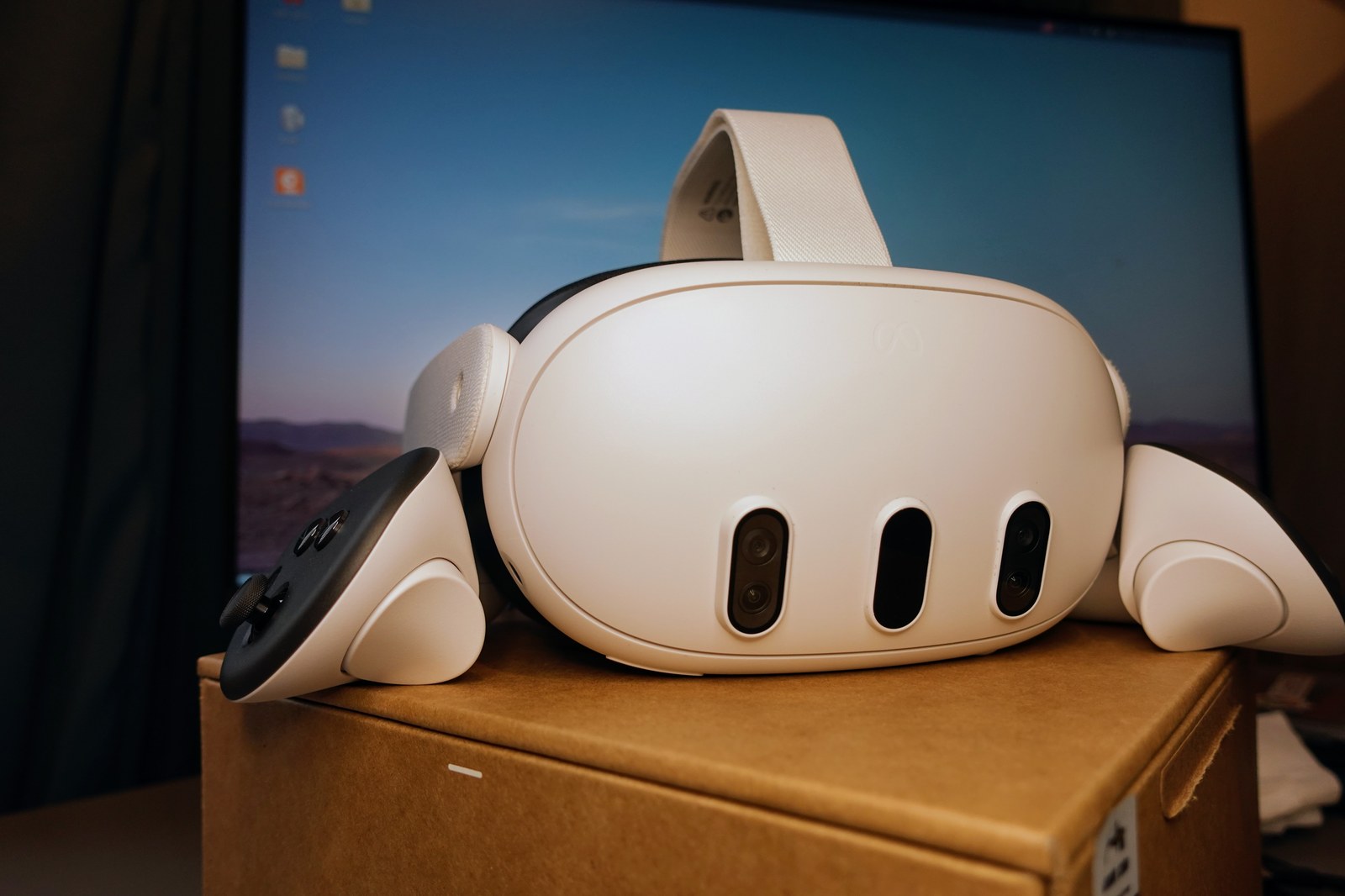
AirVis Wins Flexibility. Hyperscape Wins Looks.
Truly’s strongest overall recommendation is AIRVIS, a native Quest app that browses PUBLIC cloud scenes and personal UPLOADS. Free cloud storage is currently 5GB, with a SUBSCRIPTION for more. Controls feel like flying a drone through the capture, and physical WALKING still works. Medium quality held up well; many scenes ran comfortably at the HIGHEST setting. Capture paths include phones, drones, and 360 VIDEO, plus a community LIBRARY worth browsing.
For pure image QUALITY and SMOOTHNESS, Horizon HYPERSCAPE looked BEST in the same tests. Navigation is TELEPORT or walk only — no fly mode — and capture requires wearing a Quest 3 or 3S. Meta REMOVED friend invites and shared visits for personal captures in MAY 2026, so revisiting a scene stays locked to your account. That limit is the trade that accompanies the sharpest STANDALONE look.
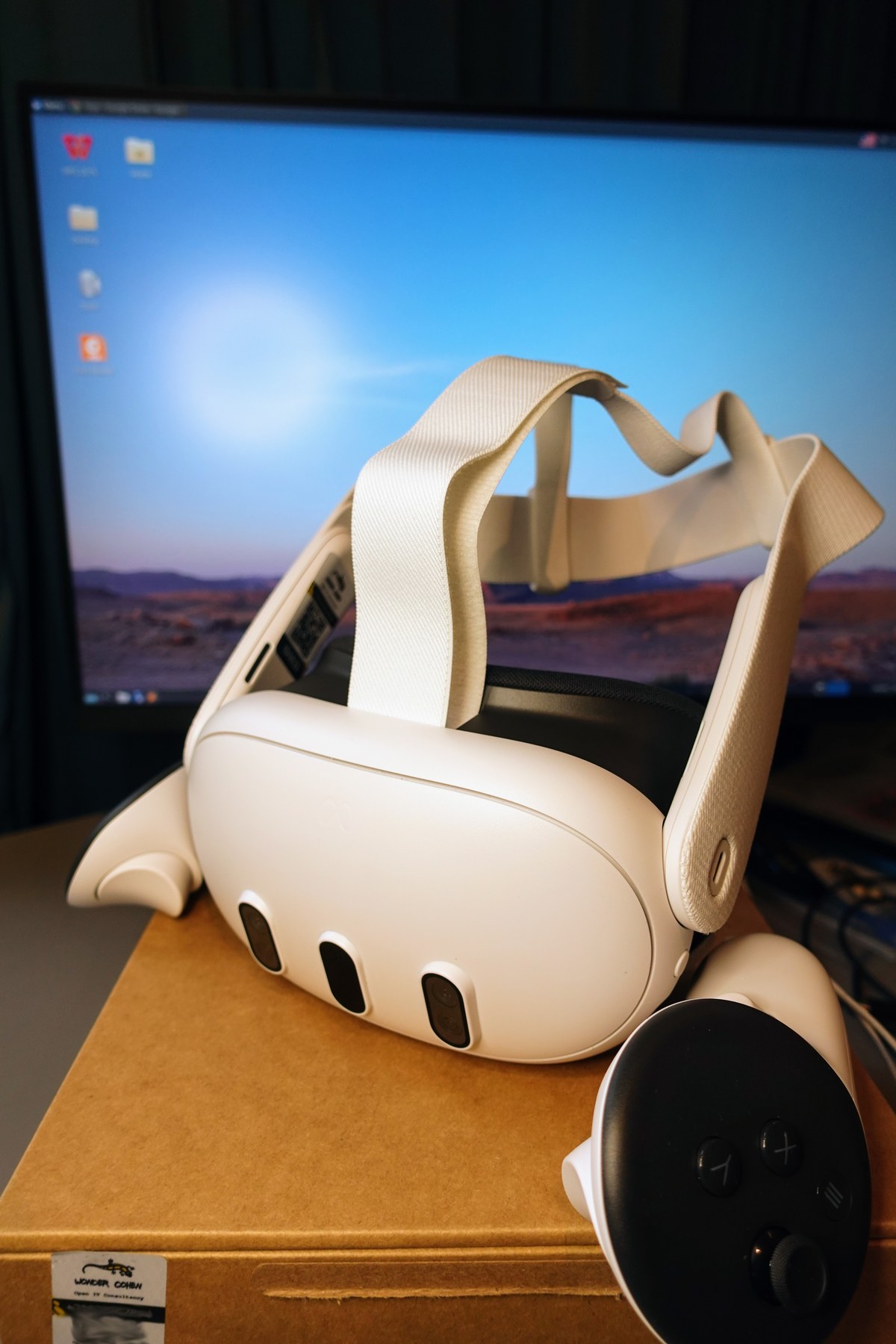
Local Files, Browser Libraries, and Moving Subjects
GSVision Viewer on the Meta Store is the practical pick for PLY files copied over USB. The app recommends about 700,000 SPLATS; lag became NOTICEABLE around 1.2 MILLION. Sorting every 20th frame improved smoothness. A fixed gray platform cannot be disabled and can obscure parts of a scene. Splatviewer VR did not fix those limits and required SIDELOADING.
SuperSplat runs in the Quest BROWSER with a LARGE community library, but many scenes forced PERFORMANCE mode and still caused lag severe enough to risk motion sickness. Into the Scaniverse bridges phone captures to Quest viewing and sharing, yet scenes looked LOWER detail; Niantic Spatial told UploadVR it is NOT actively developing Quest support for its newer processing stack. Marble’s AI-generated worlds and Gracia’s MOVING subject splats both performed well in-browser and show the format is already bigger than static LOCATION captures.
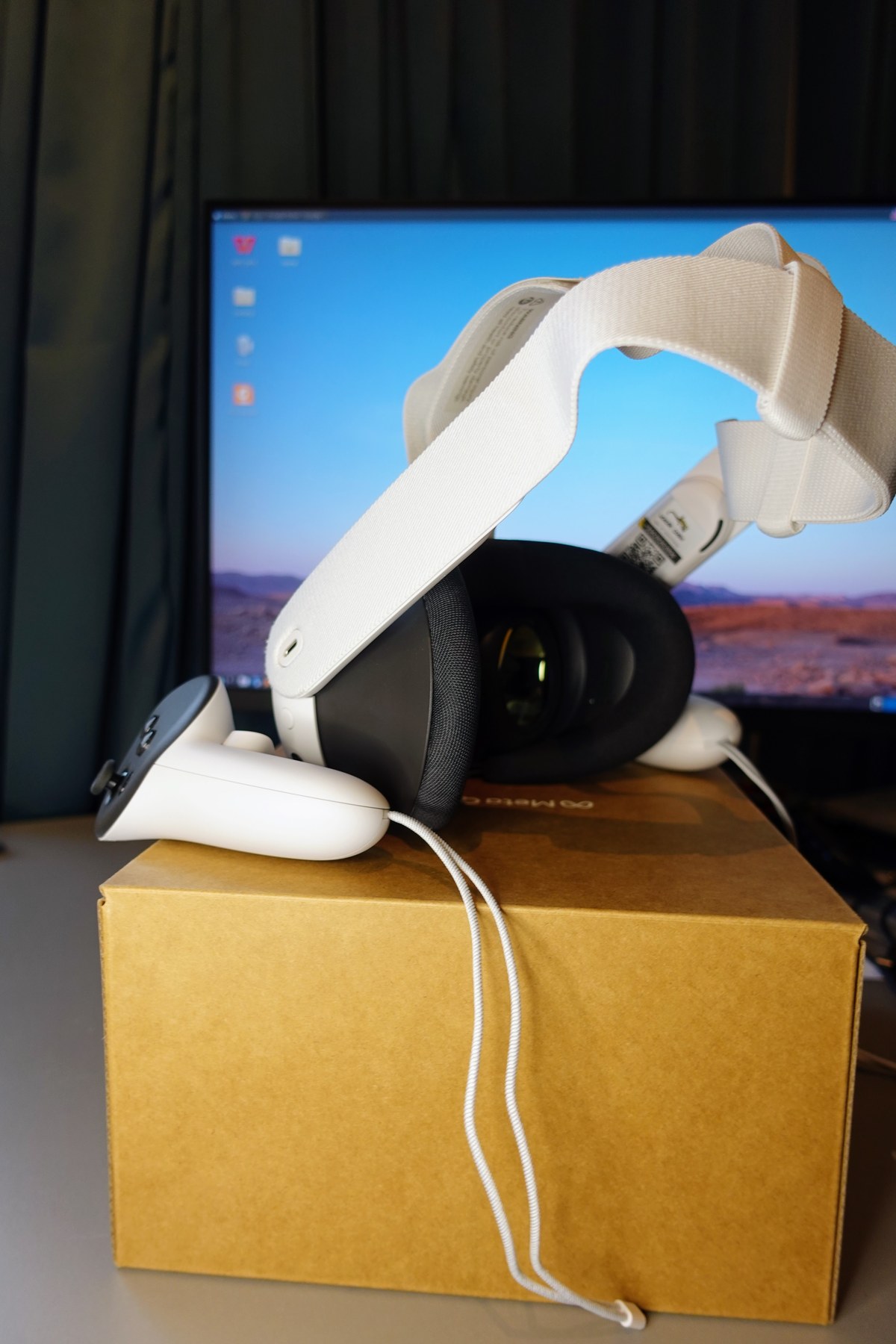
Where to Start on Quest Today
For flexible viewing and SHARING, start with AIRVIS. For the sharpest standalone look inside Meta’s walls, try HYPERSCAPE and accept the capture LOCK-IN. Use GSVision when you already have LOCAL files. Treat SuperSplat as a browser catalog with PERFORMANCE caveats. AirVis PC streaming via CloudXR helped large scenes on an RTX 4070 Super in Truly’s tests, reporting about 30–40 FRAMES per second on a 5 MILLION splat capture — useful if you already own fast hardware, not required to BEGIN.
Gaussian splats are no longer a lab DEMO on Quest. They are a STACK of apps with different RULES for storage, sharing, and performance. Pick the viewer that matches how you CAPTURE — then walk the SCENE.
Sources: UploadVR — The Best Ways To View Gaussian Splats On Quest (Alan Truly); Meta Store — GSVision Viewer.