By MetaverseWatcher Staff · Updated November 13, 2026
Ray-Ban Meta glasses make capturing a photo as easy as tapping a button on the frame. Getting that photo onto your phone is where many owners get stuck. Nothing you shoot appears in your camera roll until the Meta AI app (the app formerly called Meta View) imports it. This guide covers how that transfer works, how to set it up so it runs automatically, how to import manually, and what to check when an import fails. The steps apply to Ray-Ban Meta, Oakley Meta HSTN and Meta’s other camera glasses unless noted.
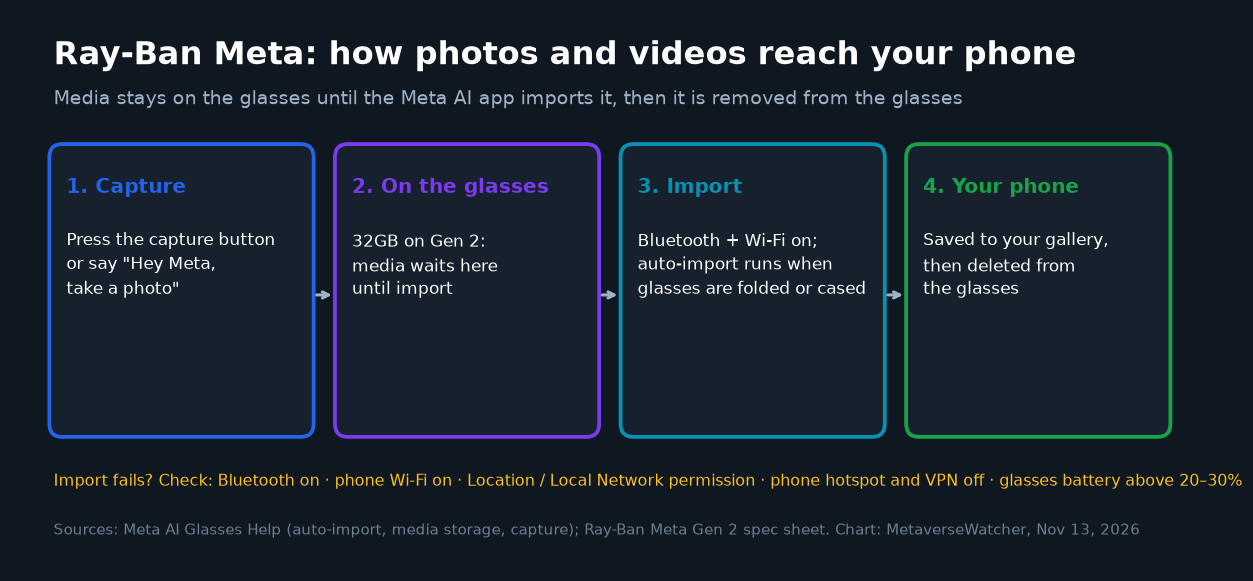
The short version
- Photos and videos stay on the glasses until the Meta AI app imports them.
- Importing moves each file to your phone’s photo app and deletes it from the glasses. It is a move, not a copy.
- Auto-import is on by default on iPhone and on Android 13 or later. It runs when the glasses are switched on and folded or sitting in the charging case, with your phone’s Bluetooth and Wi-Fi turned on.
- To import right away, open the Meta AI app, tap Glasses and tap Import next to Photos.
- Most failed imports come down to Wi-Fi, Bluetooth or a missing app permission.
How Ray-Ban Meta stores photos and videos
According to Meta’s media storage help page, everything you capture is saved on the glasses until you import it into the Meta AI app. While a file transfers, the app keeps a temporary copy in its cache, which clears itself shortly after the import. Once the import finishes, the file is removed from the glasses and saved to your phone’s photo app.
One consequence surprises people. The Meta AI app’s Photos view is a window into your phone’s photo library, not a separate copy. Meta says edits you make in the app are also applied to the file in your phone’s photo app. Deleting a file in the Meta AI app also deletes it from your phone. If you delete the file from your photo app, or take away the app’s access to your photos, it stops showing up in Meta AI.
Ray-Ban Meta (Gen 2) has 32GB of storage. Ray-Ban’s spec sheet says that holds 1,000+ photos (in three-frame bursts) and 100+ 30-second videos. Files are saved in a format that depends on your phone: according to Meta’s capture help page, photos are JPEG on Android and HEIC on iPhone, and videos are MP4 on Android and HEVC on iPhone.
| Ray-Ban Meta (Gen 2) capture spec | Value |
|---|---|
| Camera | 12MP ultra-wide |
| Photo size | 3024 × 4032 pixels (portrait orientation) |
| Video modes | 3K at 30fps; 1080p+ at 30/60fps; 720p+ at 120fps |
| Storage | 32GB (1,000+ photos or 100+ 30-second videos, per Ray-Ban) |
| Photo / video format | JPEG / MP4 on Android; HEIC / HEVC on iPhone |
| Connectivity used for import | Bluetooth 5.3 plus the glasses’ Wi-Fi 6 link |
Because images stay on the glasses until they are imported, anything you haven’t transferred is lost if the glasses are lost. That is the best reason to leave auto-import on.
How to turn on auto-import
Meta’s auto-import help page says the feature is on by default on iPhones and on Android 13 or later. It runs when your glasses are switched on and either sitting in the charging case or folded with the hinges closed, and your phone’s Bluetooth and Wi-Fi are on. Meta recommends keeping the glasses above 30% battery for the best results. To check or change the setting:
- Open the Meta AI app and tap Glasses in the top right.
- Tap Device settings. If you have more than one device paired, swipe left or right to pick the right one first.
- Under Glasses, tap your glasses.
- Tap Media.
- Turn the Auto-import media toggle on.
Auto-import doesn’t run while you’re wearing the glasses. In practice, files transfer when you fold the glasses or put them in the case near your phone, for example on a desk or nightstand.
How to import photos manually
A manual import gets a clip onto your phone right away, and it is the only way to transfer when auto-import is off. Meta’s sharing help page lists the steps:
- Turn on Bluetooth and make sure your glasses are paired with your phone in the Meta AI app.
- In the Meta AI app, tap Glasses in the top right.
- If any captures haven’t been imported, an Import button appears next to Photos. Tap it.
- On an iPhone, allow the request to join the glasses’ Wi-Fi network. As FramesDirect’s support FAQ explains, the glasses briefly create their own Wi-Fi network for fast transfers such as imports and firmware updates.
- When the Import button disappears, open your phone’s photo app. Your newest captures should be there.
If you upgraded from the Meta View app, Meta says your paired devices, settings and media carried over automatically. Imported photos are also saved in a “Meta AI” folder in your phone’s gallery. If you back up your phone with Google Photos or another cloud service, Meta advises adding that folder to your backup settings (Meta’s app transition FAQ).
How to share straight from the glasses
Once a capture has been imported, you can share it from the app: tap Glasses, then Photos, choose the capture, and tap Share. You can also share by voice to Messenger, WhatsApp, Facebook and Instagram stories, or your phone’s messaging contacts, once those services are connected under Communication in Device settings. Meta lists phrases such as “Hey Meta, send my last picture to [contact name].” Note that voice sharing sends the file without a preview or a chance to edit it first.
Video length, resolution and orientation
Press and hold the capture button to record video, or say “Hey Meta, take a video.” Meta’s capture page says frame rate, stabilization, resolution and maximum video length are changed in the app’s video settings, under Device settings and then Media. Resolution can’t be changed on the original Ray-Ban Meta (Gen 1). The default clip length is 30 seconds. FramesDirect’s FAQ says it can be raised to 60 seconds or 3 minutes. Longer 3K clips are bigger files, which means slower imports.
There is no landscape mode. Digital Camera World’s Gen 2 review notes that photos and video are captured in portrait orientation only. That suits Stories and Reels, but plan to crop if you want a widescreen frame.
Meta’s v21 glasses update in December 2025 added adjustable stabilization, plus Hyperlapse and Slow Motion modes on supported models. David Woodland summarized the changes on X:
Ray-Ban Meta photos not importing? Check these in order
Meta’s retail partners hand out a Meta AI app troubleshooting sheet (published by America’s Best). The checklist below follows it.
| Symptom | What to check |
|---|---|
| No Import button | Either nothing is waiting, or the app can’t see the glasses. Confirm the glasses are on, paired in the Meta AI app, and that Bluetooth is on. |
| Import starts, then fails | Phone Wi-Fi on; glasses at 20% battery or more; glasses kept next to the phone; storage space free on the phone. |
| Fails on iPhone | Allow Bluetooth access, allow Local Network access, and accept the “Join Wi-Fi network” prompt. |
| Fails on Android | Set location permission for the Meta AI app to at least “Allow while using,” with Location services on. |
| “Turn off VPN or Wi-Fi hotspot” | Owners on Reddit report this message. Turn off your phone’s VPN and personal hotspot, then try again. |
| “Media can’t be imported while glasses are updating” (Android) | Go to Settings, then Apps, then Meta AI, tap Force stop, and retry. |
| Still stuck | Update the app and the glasses. Unpair the glasses from any other phone’s Bluetooth menu. Power-cycle, then force restart. Let warm glasses cool. Don’t capture while an import is running. |
Two warnings from the same sheet. First, the Meta AI app only supports phones, not tablets. Second, don’t delete the app to fix an import before you have saved everything to your camera roll, because deleting the app also deletes its photos and videos. A factory reset of the glasses is the last resort on Meta’s list. Make sure everything is imported before you try it.
Meta’s glasses software also matters here. Our coverage of Meta glasses update 130 covers recent fixes. Updating the glasses is one of the first steps Meta recommends when imports misbehave.
Privacy: what others see when you capture
The white capture LED lights up whenever the glasses take a photo or video, so people around you can see you’re recording. If the LED is covered, the glasses notify you to uncover it. Because files pass through your phone’s photo library, they also follow that library’s backup and sharing rules. That makes it worth knowing where your cloud backup sends them before you capture anything sensitive.
Bottom line
For most owners, the best setup is simple: leave auto-import on, fold the glasses or put them in the case near your phone at the end of the day, and back up the “Meta AI” gallery folder. When you need a clip right away, use the Import button. When an import fails, start by checking Wi-Fi, Bluetooth and app permissions before trying anything drastic.
Related coverage
- Ray-Ban Meta glasses setup guide
- Ray-Ban Meta vs Oakley Meta vs Meta Glasses: which to buy
- Best smart glasses (2026)
- Best smart glasses for prescription wearers in 2026
Sources
- Meta: How to use auto-import with the Meta AI mobile app
- Meta: How media storage works with AI glasses
- Meta: How to share photos and videos with AI glasses
- Meta: How to capture photos and videos with AI glasses
- Meta: Meta View app is now the Meta AI mobile app
- Ray-Ban: Ray-Ban Meta specs and features
- America’s Best: Meta AI app troubleshooting sheet (PDF)
- FramesDirect: Ray-Ban Meta and Oakley Meta FAQs
- Digital Camera World: Ray-Ban Meta Gen 2 Headliner review
Menu names in the Meta AI app change between updates. Steps were checked against Meta’s help pages on November 13, 2026.