By the Metaverse Watcher newsroom. Published Sunday, November 22, 2026. Every step below was checked against Meta’s AI Glasses Help Center on November 22, 2026. We will update this guide as Meta changes the setup flow.
This Meta Ray-Ban Display setup guide covers the whole process: pairing the glasses and the Meta Neural Band with the Meta AI app, getting the band size and fit right, learning the gestures, and fixing the problems owners report most often. Meta Ray-Ban Display costs $799 in the US with the band included, and it differs from other Meta glasses in ONE important way. You control it with two devices, a full-color display in the right lens and an EMG wristband that reads the muscle signals in your wrist. Both have to be paired, charged and worn correctly before the experience works.
If you own the camera-only Ray-Ban Meta or Oakley Meta glasses instead, our Ray-Ban Meta setup guide covers those models. The buttons, LEDs and reset steps on the Display model are different.
What You Need Before You Start
Meta lists the same requirements for the glasses and the band in its Neural Band guide and the Ray-Ban Display FAQ:
| Requirement | Details |
|---|---|
| Phone | Android 10 or later with location services enabled, or iOS 14.4 or later |
| App | Meta AI mobile app from the App Store or Google Play (phone only; required to use the glasses and band) |
| Account | A Meta account, which you can create with an email address, Facebook or Instagram |
| Internet | Wi-Fi for Meta AI, importing captures and installing updates; gestures still work without it |
| Hardware | Meta Ray-Ban Display, its charging case, Meta Neural Band and the band’s own charger |
Meta says both devices should arrive charged and ready for setup. Keep the Neural Band charger nearby anyway, because Meta’s pairing fixes ALL start with the band on its charger.
How to Set Up Meta Ray-Ban Display, Step by Step
These steps follow Meta’s official article, How to set up Meta Ray-Ban Display and Meta Neural Band, which Meta updated in early November.
- Scan the QR code inside the box. It opens the App Store or Play Store listing for the Meta AI app. If the app is already installed, the code goes straight to the setup screen.
- Open the Meta AI app and tap Set up a device.
- Log in with your Meta account, or create one with email, Facebook or Instagram.
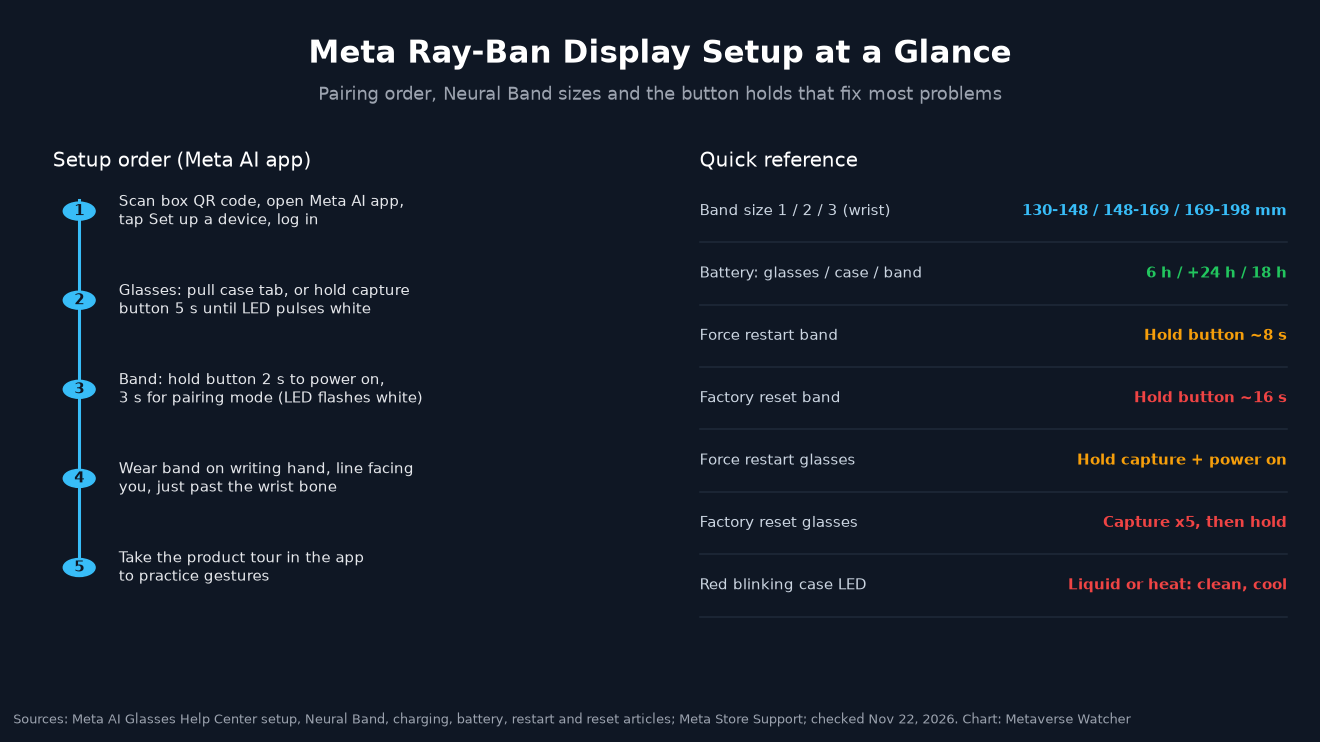
- Put the glasses in pairing mode. On first setup, leave the glasses in the case and pull the tab; the notification LED pulses white. If that does not happen, slide the power switch toward the lenses, close both arms, then press and hold the capture button for 5 seconds. Release when the LED starts rapidly pulsing white.
- Follow the in-app prompts to finish pairing the glasses.
- Pair the Neural Band. On first power-on, press and hold the band’s button for 2 seconds until the LED flashes white and you feel a vibration; the band enters pairing mode automatically. If it does not, hold the button for 3 seconds until the LED flashes white.
- Finish the band pairing in the app, and let any updates complete before you unplug anything.
To add a band later, Meta’s pairing article gives a separate route: tap Glasses in the top right of the Meta AI app, tap Add device, choose Meta Ray-Ban Display and Meta Neural Band, put the band in pairing mode, then tap “Light is pulsing white” when prompted.
ONE ownership rule matters if you buy secondhand or share a household. The glasses and the band can each pair with only one Meta account at a time. The previous owner, or you, has to factory reset each device before another account can pair it.
Meta Neural Band Sizing and Fit
Fit is the most common reason gestures fail, and Meta treats it seriously. The band comes in three sizes. Meta Store Support posted the official wrist ranges in the r/MetaRayBanDisplay subreddit:
| Neural Band size | Dominant-wrist circumference |
|---|---|
| Size 1 (small) | 130–148 mm |
| Size 2 (medium) | 148–169 mm |
| Size 3 (large) | 169–198 mm |
Meta’s advice is the same in every source: if you fall between sizes, choose the SMALLER one. For online orders, Meta’s online sizing tool uses your phone’s rear camera, two photos of your bare dominant hand and a standard 85.6 × 54 mm card for scale. Meta recommends a card without personal information, such as a gift card. If repeated measurements give different results, Meta says to trust the measurement you took most carefully, or size down. A participating store can also fit you in person.
Once you have the right size, Meta’s guide lists FIVE rules for wearing it:
- Wear it on the hand you write with.
- Keep the line on the band facing you.
- Position it just past your wrist bone.
- Close the clasp so the band is snug but comfortable.
- Keep the compute module on top of your wrist.
Worn correctly, the band picks up gestures with your hand resting at your side or in your lap. You do not need to hold your arm out. Reviewer Nathie noted when in-store fitting rules eased that a Neural Band fitting was still part of the purchase:
You can now buy the Meta Ray-Ban Display glasses without a demo. Just head to a store, try on the glasses, get fitted for the Neural Band and you’re good to go!
— Nathie (@nathie) October 1, 2026
Prescription wearers should note that lenses can ONLY be added at purchase. According to Meta’s buying FAQ, prescription Display lenses add $200, support a total power of -4.00 to +4.00 diopters (SPH plus CYL) with up to 4.00 of cylinder, and cannot be swapped in later because they are integrated with the in-lens display. Our guide to smart glasses for prescription wearers compares that range with other models.
Every Meta Neural Band Gesture
These are the gestures Meta documents in its Neural Band guide. The touchpad on the right frame of the glasses offers a second way to control the display.
| Action | Gesture |
|---|---|
| Wake or sleep the display | Double tap middle finger on thumb |
| Select | Tap index finger on thumb |
| Go back | Tap middle finger on thumb |
| Scroll | Swipe thumb along index finger, or hold index finger to thumb and move your arm |
| Zoom (Capture, Gallery, Maps) | Hold index finger to thumb and turn wrist clockwise to zoom in, counterclockwise to zoom out |
| Volume | Hold index finger to thumb and turn wrist clockwise for louder, counterclockwise for quieter |
| Start or exit Meta AI | Double tap thumb on side of index finger |
| Open or close the app switcher | Hold middle finger to thumb |
The fastest way to practice is the built-in tour: in the Meta AI app, tap Glasses, scroll to Learn and explore, tap See all, then Take the full tour. Since the v5 update in May, Meta’s release notes also list neural handwriting for all users, which lets you write replies with your finger on any surface. For spoken commands, our Ray-Ban Meta voice commands list covers the “Hey Meta” phrases shared across Meta’s glasses.
Charging and Battery Life
The glasses and band have separate batteries and chargers. Meta’s battery article rates the glasses at up to 6 hours per charge, with up to 24 more hours from the case, and the band at up to 18 hours.
- Glasses: close the arms and slide them into the case so the nose bridge touches the case contacts. The inner LED lights to confirm charging.
- Case: charge it with a USB-C cable in the port on the side. The outer LED shows the case’s own level.
- Band: attach the Neural Band charger to the compute module under the band and plug it into a wall adapter. Meta warns that plugging the band’s cable into the glasses case will NOT charge the band.
| LED | Green solid | Orange solid | Orange blinking | Red blinking |
|---|---|---|---|---|
| Case inner LED (glasses) | Above 95% | 20–95% | Under 20% | Charging error |
| Case outer LED (case) | Above 75% | 20–75% | Under 20% | Charging error |
| Neural Band LED | Above 80% | 20–80% | Under 20% | Not listed |
Source: Meta, How to charge Meta Ray-Ban Display and How to charge Meta Neural Band. The band also turns itself off after an hour without detected motion; press and hold its button for 1 second to wake it. Our Ray-Ban Meta battery life guide has habits that extend runtime on Meta’s other glasses.
Troubleshooting Meta Ray-Ban Display and Neural Band
The glasses will not enter pairing mode
Slide the power switch toward the lenses, close both arms, and hold the capture button for 5 seconds until the LED pulses white rapidly. If the glasses were previously paired to another account, they need a factory reset first.
The Neural Band will not turn on or will not pair
If the battery is too low, Meta says to charge the band for at least 15 minutes and leave it on the charger until setup finishes. For other pairing failures, connect the band to its charging cable, hold the button for 3 seconds until the LED pulses white, and keep it on the charger until pairing and updating complete.
Gestures are unreliable
Check fit BEFORE anything else: writing hand, line facing you, just past the wrist bone, snug, compute module on top. If the band still misreads gestures, Meta’s sizing guidance suggests the size may be wrong. Also clean the band: Meta’s cleaning article says skincare products, sweat and debris can interfere with charging and other functions. Power the band off, wipe the band and compute module with a soft, damp cloth, and dry it fully. Avoid alcohol, solvents, soap and steam. The band is rated IPX7, but Meta says not to hold it under running water.
The case blinks red
Meta lists two causes for a red blinking LED on the Display case: liquid on the charging contacts, or a case or pair of glasses that is too hot. Wipe the contacts on the nose bridge and inside the case, or move both somewhere cooler and wait.
Something is frozen: force restart first
A force restart does NOT delete captures or require pairing again, according to Meta’s force restart article.
- Glasses: close both arms, slide the power switch away from the lenses until the red line shows, then hold the capture button while sliding the switch back on. Release when the LED turns red. The glasses are ready after about 17 seconds.
- Band: hold the button until the LED fades out completely, about 8 seconds, then release.
Last resort: factory reset
A factory reset of the glasses erases every photo and video stored on them, so import your captures first. Meta’s reset article gives these steps: with the glasses out of the case, charged and powered on, fold both arms, press the capture button rapidly 5 times until the LED turns orange, then press and hold it and release when the LED pulses white and orange. The Display case has its own reset: open it, then insert and remove the USB-C cable 3 times within 11 seconds; the LED next to the port blinks white when it works.
To factory reset the Neural Band, hold its button for about 16 seconds and release when the LED flashes white and orange. Afterward, remove the band from both the Meta AI app and your phone’s Bluetooth menu, then pair it again. If neither reset fixes the problem, Meta directs owners to Meta Store Support.
Settings Worth Checking After Setup
Meta’s recent Display updates added features that are easy to miss during setup. The April v4 release introduced adaptive display, which adjusts contrast to the lighting around you, and the May v5 release added display recording, call captions and timers, according to Meta’s release notes. At Connect 2026, Meta also announced cycling and transit directions in the US and Canada, calendar controls and Dolby Atmos video capture, with mirrored phone notifications described as coming soon. Availability varies by country and language, so check the Meta AI app for what your region supports.
Because the Display has a camera, also review your capture and data-sharing options. Our Ray-Ban Meta privacy settings guide walks through the Meta AI app controls shared across Meta’s glasses.
The Bottom Line
Most Meta Ray-Ban Display problems come down to three things: the band is the wrong size or worn incorrectly, a device is low on charge during pairing, or the glasses are still tied to another account. Pair the glasses first, keep the band on its charger during setup, follow Meta’s fit rules, and use a force restart before a factory reset. If you are still deciding whether a display-equipped pair is right for you, our Meta Ray-Ban Display vs Even G2 comparison and our best smart glasses of 2026 list set out the alternatives.
Sources: Meta AI Glasses Help Center: setup, Neural Band pairing, how to use Meta Neural Band, online sizing tool, battery life, charging the glasses, charging the band, cleaning the band, force restart, factory reset of glasses and case, factory reset of the band, release notes; Ray-Ban Meta Ray-Ban Display FAQ; Meta Store product page; Meta buying FAQ; Meta Newsroom (September 23, 2026); Meta Store Support on r/MetaRayBanDisplay (all checked November 22, 2026).