Ray-Ban Meta privacy settings decide how much of what you say and see through the glasses ends up on Meta’s servers, and the defaults favor collection. Since April 29, 2025, U.S. owners can NO LONGER switch off storage of Meta AI voice recordings, and camera-based AI is on whenever the “Hey Meta” wake word is on. Several controls do remain, though, and most sit on ONE screen in the Meta AI app. This guide covers the SIX that matter, what each one actually changes, and what none of them can change. It is based on Meta’s own help pages and privacy notice, checked November 21, 2026.
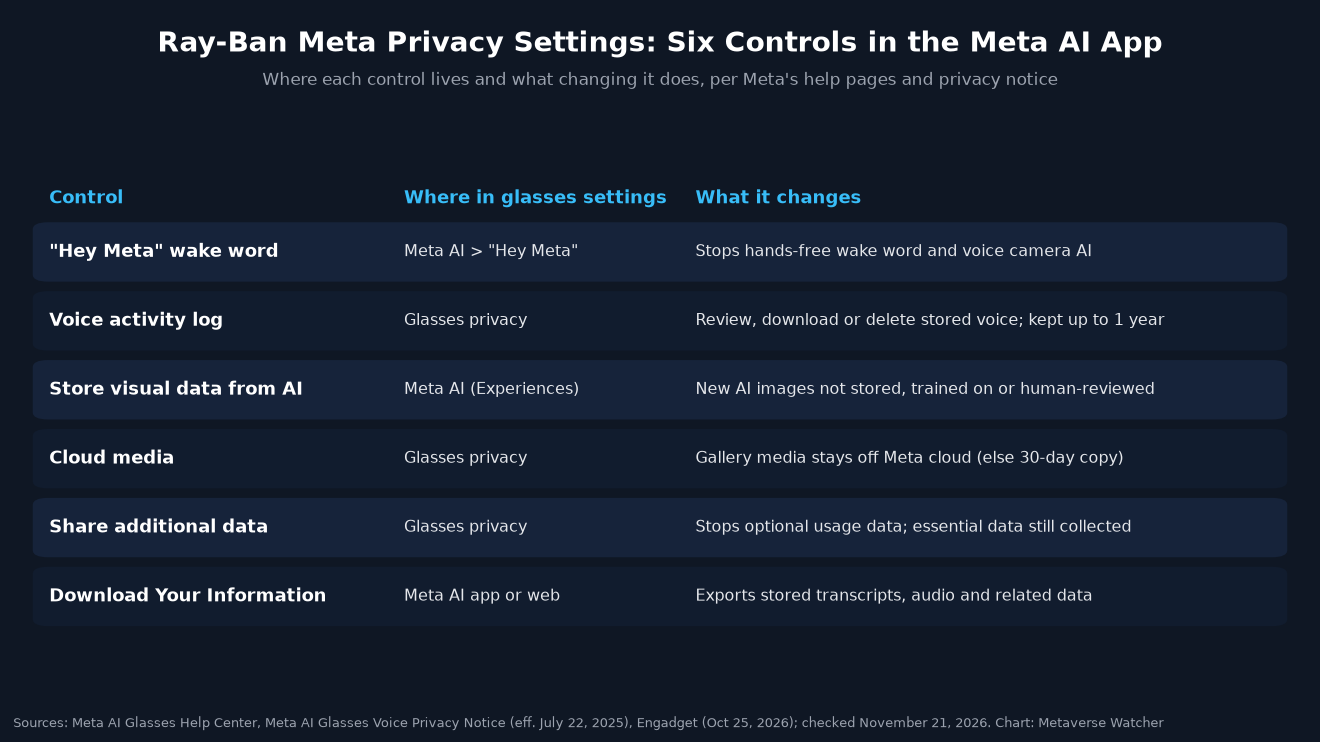
Quick Answer: The Settings to Check First
Open the Meta AI app, tap Glasses in the top right, tap Device settings, choose your glasses, and scroll to Glasses privacy. That is the path Meta gives in its help article on data sharing. If you have more than one pair linked to the app, swipe left or right to pick the right device first.
| Control | Location in the Meta AI app | What changing it does | What it does NOT do |
|---|---|---|---|
| “Hey Meta” | Glasses settings > Meta AI | Turns off the wake word and hands-free camera AI | Does not stop processing when you start Meta AI with the touchpad |
| Voice activity log | Glasses privacy | Lets you review, download and delete stored voice interactions | Cannot stop voice storage for Meta AI in the U.S. |
| Store visual data from AI experiences | Glasses settings > Meta AI (Experiences) | New AI images are not stored, used for training or human-reviewed | Does not cover voice, metadata or data already processed |
| Cloud media | Glasses privacy | Keeps gallery photos and video off Meta’s cloud | Does not affect images sent to Meta AI |
| Share additional data | Glasses privacy | Stops optional usage data used for product development | Essential device data is still collected |
| Download Your Information | Meta AI app or web | Exports stored transcripts, audio and related data | Does not delete anything by itself |
Menu labels can shift between app versions, glasses models and regions. If a label below does not match what you see, Meta’s current help page is the authority. New owners can find the full pairing walkthrough in our Ray-Ban Meta glasses setup guide.
1. Turn Off “Hey Meta” to Limit Accidental Activations
With voice activation on, the glasses listen for the wake word. Meta’s AI Glasses Voice Privacy Notice (effective July 22, 2025) says voice interactions include things said after the wake word, some commands that work without it, accidental activations, and “any background sound that happens when you are interacting with our voice services.”
The wake word also controls camera AI. When the Meta View app became the Meta AI app, Meta’s help page on the change said that for requests about what you see, “an image may be captured to help provide a response,” and that “disabling ‘Hey Meta’ will deactivate this feature.”
How: with the glasses connected, open the Meta AI app, select your glasses, go to Meta AI > “Hey Meta” and turn the toggle OFF. According to Engadget’s October 25, 2026 walkthrough, the touchpad on the right temple can still start the assistant, and the microphones still work for calls and video. The trade-off is that you lose hands-free commands. Our Ray-Ban Meta voice commands list shows what that means in practice.
Accidental activation is not a hypothetical. In October, we reported on an issue that saved conversations to Meta AI history without “Hey Meta”, which Meta said was resolved without explaining the cause.
2. Review and Delete Your Voice Activity Log
This is the setting most owners never open. Meta’s privacy notice states that for Meta AI on Ray-Ban Meta and Oakley Meta glasses, “text transcripts and audio recordings of your voice interactions are stored by default.” The option to turn that storage off was removed. In an April 29, 2025 email to owners, reported by The Verge, Meta wrote: “The option to disable voice recordings storage is no longer available, but you can delete recordings anytime in settings.”
Meta’s notice sets out these retention rules:
| Type of voice data | How long Meta keeps it |
|---|---|
| Transcripts and stored audio recordings | Up to ONE YEAR, unless you delete them sooner |
| Detected “false wakes” or misactivations | Deleted within 90 DAYS of detection |
| Recordings you delete in the app | No longer used to improve Meta products; associated data is also deleted |
Stored recordings may be processed with machine learning and by “trained reviewers,” people who check, for example, whether the glasses really played the next song after a command. Meta says reviewers work in controlled, monitored systems and that it changes the pitch of recordings before review.
How: in the Meta AI app, tap Glasses > Device settings, select your glasses, scroll to Glasses privacy and tap Voice activity log, as described in Meta’s voice activity log help page. Deleting entries on a regular schedule is the ONLY way to keep less than a year of voice history.
Region matters. Meta’s Irish (en-IE) version of the notice still says “you can choose to store your voice recordings” and that “even with voice recording storage off, you can still use the Meta AI service.” European owners may therefore see a storage toggle that U.S. owners do not. Our guide to smart glasses recording laws explains why European rules differ.
3. Stop Meta Storing Visual Data From AI Experiences
When you ask Meta AI about something you are looking at, or use Live AI, the glasses send images to Meta. Meta’s help page on visual data says it “stores the resulting visual data” and may use it to train AI models, a process that “may be automated or manual (human).” Meta added a toggle in September 2026, which we covered at the time.
How: open the Meta AI app, go to your glasses Settings, tap Meta AI in the Experiences section, and turn Store visual data from AI experiences OFF. Engadget notes the glasses must be out of the case and connected, and that each pair needs to be changed separately.
With it off, Meta says your visual data “will not be available for human review,” will not be used for training, and “will not be stored.” Visual reminders may stop working. The setting only applies going forward. Meta also lists what it does NOT cover:
- Voice interactions with Meta AI (those follow the voice rules above)
- Images shared with Meta AI on other surfaces such as Messenger or Instagram
- Content that may violate Meta’s terms, such as possibly illegal material
- Metadata, including “AI-generated textual descriptions of an image” and camera exposure settings
- Visual data processed before you turned storage off
The METADATA exception is the one to note. The image may not be kept, but a machine-written description of what was in it can be.
4. Keep Photos and Videos Off Meta’s Cloud
Photos and videos you take on purpose, with the capture button or “Hey Meta, take a picture,” are separate from AI visual data. Meta says they “are stored privately on your glasses” until you import them. Cloud media changes that. Meta’s cloud media help page says some features, such as voice sharing (“Hey Meta, send a photo”), may send media to Meta’s cloud, where it is “temporarily stored in the cloud for 30 days before being automatically deleted.” That is a 30-DAY copy on Meta’s servers. Meta’s autocapture page lists cloud media processing as a requirement for that feature.
How: go to Device settings > your glasses > Glasses privacy and turn Cloud media OFF. You can still shoot and import media. You lose voice-controlled sharing and autocapture. Two caveats: this does not stop images being sent when you ask Meta AI a visual question, and once imported, files follow your phone’s own backup settings, such as iCloud or Google Photos. Our guide on transferring photos from Ray-Ban Meta glasses to your phone covers the import step.
5. Turn Off “Share Additional Data”
Meta divides device data into two groups. Essential Data is collected automatically. Meta’s examples include Bluetooth and Wi-Fi status, battery condition, software version, crash reports, device temperature and how often you use the device. Additional Data covers how you use the glasses, and Meta uses it mainly “to develop and improve new Meta Products and features.”
How: under Glasses privacy, turn Share additional data OFF. Meta says the choice “applies to all devices that you pair with the app” and “does not include the photos and videos captured by your glasses.” Engadget notes that turning it off does not delete data already collected.
6. Download What Meta Has Stored
Before deleting anything, you can see what Meta holds. Meta’s voice notice says the Download Your Information tool, available “from the App or on the web,” exports stored transcripts and related data, such as your glasses’ serial number and the general category of each voice interaction. The help page adds that audio recordings are included. This is also the most direct way to check whether your deletions worked.
What No Setting Changes
Some protections are built into the hardware and cannot be changed in the app. Meta’s AI glasses privacy page says the white Capture LED blinks briefly for a photo and keeps blinking for as long as you record video. If the glasses detect that the LED is covered or tampered with, “they’ll automatically disable the camera.”
That light is tied to captures for your gallery. As our report on the Capture LED and camera AI gap found, AI camera queries on newer models do not necessarily light it. U.S. senators have since asked Meta about bystander protections and AI training, which we covered in our report on the Wyden and Markey letter. For a comparison with Google’s newer rules, see Android XR glasses privacy vs Ray-Ban Meta.
A Five-Minute Privacy Checklist
- Decide whether you need “Hey Meta.” If not, turn it off and use the touchpad.
- Open the Voice activity log and delete old entries. Set a reminder to do it again each month.
- Turn off “Store visual data from AI experiences” on each pair you own.
- Turn off Cloud media unless you rely on voice sharing or autocapture.
- Turn off “Share additional data.”
- Check your phone’s photo backup settings, since imported media follows them.
- Run Download Your Information once to confirm what remains stored.
These steps reduce what Meta keeps. They do not reduce what Meta must process to answer a request. EVERY voice command and visual question still goes through Meta’s servers. Shoppers weighing alternatives can compare current models in our best smart glasses of 2026 list.
Sources
- Meta, AI Glasses Voice Privacy Notice (effective July 22, 2025) and the en-IE version
- Meta AI Glasses Help: voice activity log, visual data storage, cloud media, additional data, Meta AI app transition, autocapture
- Meta, AI glasses privacy page (Capture LED)
- The Verge, Meta tightens privacy policy around Ray-Ban glasses (April 30, 2025)
- Engadget, 4 Ray-Ban Meta privacy settings you should change (October 25, 2026)
All sources checked November 21, 2026. Settings and labels may vary by glasses model, app version and region.