Setting up a PlayStation VR2 on a PS5 takes one cable, two controller pairings and a short series of on-screen calibration steps. This PS VR2 setup guide follows the order Sony publishes on its own support pages, adds the settings worth changing after the first boot, and lists the fixes Sony recommends when something does not work. If you picked up a headset during this week’s sales, this is the sequence to follow before your first game. All Sony support pages cited below were checked on Nov. 27, 2026, at about 8:20 a.m. ET.
What You Need Before You Start
PS VR2 works only with PS5 consoles. Sony’s compatibility page states that it is not compatible with PS4, cannot play original PS VR games, and does not support PlayStation Move or the PS VR Aim controller. Every current PS5 model will work, including the standard, Slim and Pro consoles, because each has the required port on the front.
- A PS5 console with the latest system software installed.
- The PS VR2 headset and its attached USB Type-C cable.
- Two PS VR2 Sense controllers and the USB cable included in the box, used for pairing and charging.
- The stereo earphones that come with the headset, or other supported headphones.
- A DualSense controller, which you use to move through the first part of setup.
- Clear floor space: at least 1 m by 1 m (3 ft 4 in. by 3 ft 4 in.) for seated or standing games, and 2 m by 2 m (6 ft 7 in. by 6 ft 7 in.) for roomscale games.
Which PS5 USB Port to Use
This is the most common setup mistake. According to Sony’s PS5 USB ports guide, PS VR2 must be connected to the front SuperSpeed USB-C port (10Gbps). On the CFI-2000 (Slim) and CFI-7000 (Pro) model groups, the front panel has two USB-C ports, and only one of them is the SuperSpeed port. The other is a slower Hi-Speed port that will not run the headset.
| PS5 model group | Front ports | Port for PS VR2 |
|---|---|---|
| CFI-1000 (launch model) | 1 USB-A (Hi-Speed), 1 USB-C (SuperSpeed 10Gbps) | The single front USB-C port |
| CFI-2000 / CFI-7000 (Slim and Pro) | 1 USB-C (Hi-Speed), 1 USB-C (SuperSpeed 10Gbps) | The SuperSpeed USB-C port only |
How to Set Up PS VR2: Step by Step
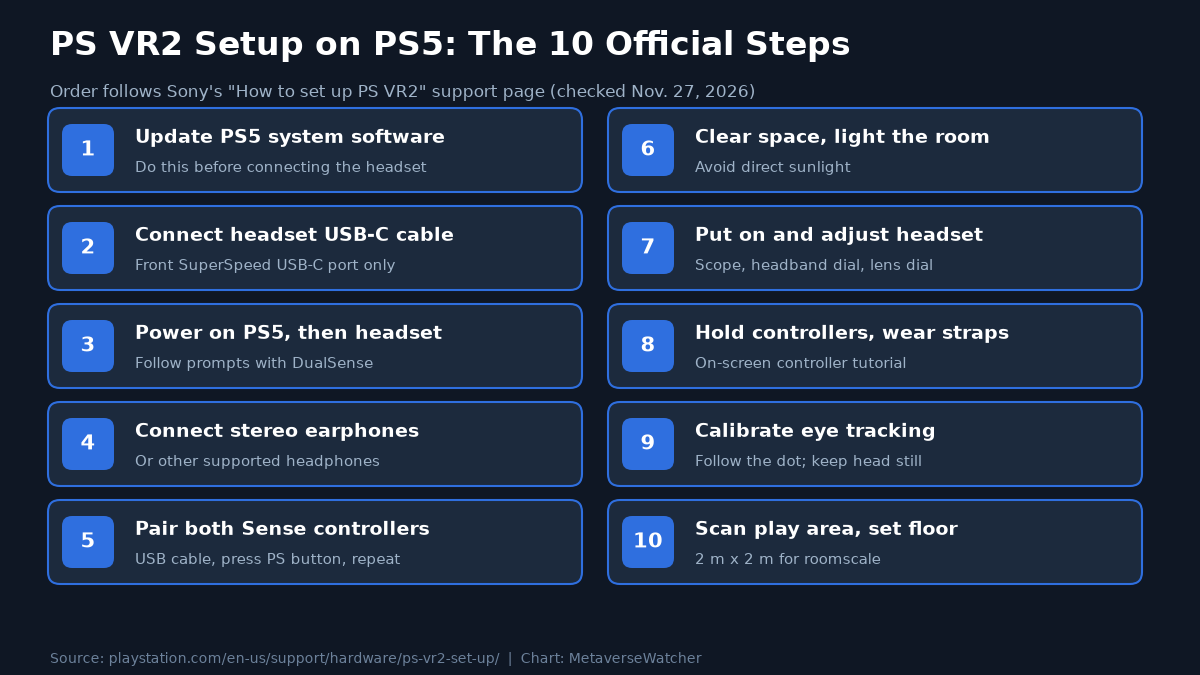
The steps below follow Sony’s official How to set up PS VR2 page. Most of the process is guided on screen once the headset is connected.
- Update the PS5. Make sure the console’s system software is up to date before you connect the headset. Sense controller firmware updates are also delivered through PS5 system updates.
- Connect the headset. Plug the headset’s USB Type-C cable into the correct front USB-C port. Check that the cable between the scope and the headband is firmly inserted.
- Power on. Press the power button on the PS5, then the power button on the headset. Use the DualSense controller to follow the on-screen instructions.
- Connect audio. Plug the included stereo earphones, or other supported headphones, into the headset.
- Pair the Sense controllers. Connect the right controller to the PS5 with the USB cable and press its PS button, then repeat with the left. Once both are paired and charged, unplug the cable and press the function button on the headset.
- Prepare the room. Clear anything you could bump into or trip over. Turn the lights on so the headset cameras can track the room, and close curtains to avoid direct sunlight. Press the function button to check light levels.
- Put on the headset. Pull the scope out, release the headband, put the headset on, tighten it and then adjust the scope.
- Adjust the lenses. Set the lens distance so your eyes sit in the middle of the lenses, then press the function button.
- Hold the controllers. Fasten the wrist straps and follow the short on-screen controller tutorial.
- Calibrate eye tracking. Follow the dot on screen without moving your head.
- Set the play area. Scan the room with the headset cameras and adjust the floor height if needed. Then set the power-saving options described below.
How to Get a Comfortable, Sharp Fit
Sony’s headset adjustment page describes a fitting order that avoids most blur complaints. Clean the lenses first. Press the scope adjustment button and pull the scope all the way out. Then hold the headband release button on the back, slide the band over your head so it sits on the lower back of your head, and turn the adjustment dial clockwise to lock it. Bring the scope back toward your face and set the lens distance with the lens adjustment dial.
- Lens range: the lens spacing adjusts from 59 mm to 72 mm.
- Glasses: Sony says you can keep glasses on inside the headset. The focal distance is about 2 m. If your glasses do not fit, our VR prescription lens inserts guide explains the alternatives.
- Position: keep the headband close to your ears. Sony notes that the headset is not stable if it is worn high on the head, and that hair should not cover the lenses.
- Fine-tuning: press the PS button, open the PlayStation VR2 card in the control center and select Adjust Visibility, then move the headband and scope until the image is clearest.
Play Area and Play Styles
You need a play area before you can enter VR mode. To change it later, go to Settings > Accessories > PlayStation VR2 > Play Area. This menu also includes Set Floor Height, Boundary Display Sensitivity and Clear Play Area Data. Sony suggests clearing the stored data and scanning again if a game does not proceed as expected after a reset. If you step outside the boundary, the game pauses and the headset switches to a view of your surroundings, as described on Sony’s play area page.
| Play style | Minimum play area | Notes |
|---|---|---|
| Sitting | 1 m x 1 m (3 ft 4 in. x 3 ft 4 in.) | Leave room to swing the Sense controllers |
| Standing | 1 m x 1 m (3 ft 4 in. x 3 ft 4 in.) | Same footprint as sitting |
| Roomscale | 2 m x 2 m (6 ft 7 in. x 6 ft 7 in.) | Needed for games that require walking around |
Each game lists the play styles it supports on its PlayStation Store details page or on the disc packaging. For help choosing a mode, see our explainer on seated vs. standing vs. room-scale VR.
Settings Worth Changing After Setup
Most PS VR2 options are under Settings > Accessories > PlayStation VR2. Press the PS button while you are in the headset to open the quick settings card. The options most new owners adjust are listed below.
| Setting | Where to find it | What it does |
|---|---|---|
| Eye Tracking | PlayStation VR2 > Eye Tracking | Turn tracking on or off and recalibrate it with Adjust Eye Tracking |
| Function Button Assignment | PlayStation VR2 > VR Headset | Set the headset button to View Surroundings (default) or Mute Microphone |
| Tracking Camera Calibration | PlayStation VR2 > VR Headset | Recalibrate the cameras that track your surroundings |
| Screen Brightness, Vibration | VR Headset menu or quick settings | Change display brightness and headset haptics |
| Boundary Display Sensitivity | PlayStation VR2 > Play Area | “High” shows boundaries earlier; “Low” shows them only near the edge |
| Auto power-off | Settings > System > Power Saving | Set how long an unworn headset stays on (disabled during VR games) |
| Custom Button Assignments | Settings > Accessibility > Controllers | Remap Sense controller buttons or swap the left and right sticks |
Non-VR PS5 games and media apps can also be played on a large virtual screen in cinematic mode. According to Sony’s cinematic mode page, you can change the screen size, lock the audio position, and choose 120 Hz or HDR output. You can recenter the screen by holding the options button on a Sense controller. The TV image is disabled while cinematic mode is active.
Charging and Caring for the Hardware
Each Sense controller charges separately over USB while the PS5 is on. Sony’s controller page says the status light blinks white slowly while charging and turns off when charging is complete. You cannot use a controller while it is charging. Battery levels are shown under Accessories in the control center, and Sony also sells an optional charging station (CAU-ZSS series). Each controller can be paired with only one PS5 at a time.
For cleaning, Sony’s care guide recommends a soft, dry lens cloth for the lenses and warns against alcohol, thinner, benzine and chemically treated wipes. The light shield can be removed and rinsed with water, then air-dried before you reattach it. Dust in the vents can be cleared with a handheld vacuum.
Common PS VR2 Setup Problems and Official Fixes
- Headset not detected or no image: confirm that the cable is in the SuperSpeed USB-C port, that the cable between the scope and headband is fully seated, and that the PS5 software is current.
- Controller will not pair or respond: Sony’s troubleshooting page says to turn off the PS5, press the small reset button on the back of the controller with a pin, then reconnect it by USB and press the PS button.
- Blurry image: refit the headband lower on your head, reset the lens distance, and run Adjust Visibility. Clean the lenses with a dry lens cloth.
- Tracking drift or play area errors: brighten the room, block direct sunlight, run Tracking Camera Calibration, and clear and rescan the play area if a game behaves unexpectedly.
- Eye tracking inaccurate: select Eye Tracking > Adjust Eye Tracking and calibrate again while keeping your head still.
New users who feel discomfort in the first sessions should start with seated games and short play times. Our guide on how to prevent VR motion sickness covers settings and habits that help.
What to Play First
After the play area is set, our ranked list of the best PS VR2 games of 2026 is a good starting point. Holiday discounts on PC VR titles are in our Steam VR Black Friday deals roundup. If you also own a gaming PC, the headset can be used with SteamVR through Sony’s adapter, as explained in our PS VR2 on PC guide. If you are still deciding which headset to buy, read our PS VR2 vs. Quest 3 comparison.
FAQ
Does PS VR2 work with PS4 or play original PS VR games?
No. Sony states that PS VR2 is compatible only with PS5 consoles, and that PS VR and PS VR2 content is not cross-compatible.
Can I use a DualSense instead of the Sense controllers?
Some PS VR2 games support or require a DualSense controller. Check each game’s PlayStation Store page. Sense controllers work only with PS5 and PS VR2.
Can I wear glasses with PS VR2?
Yes. Sony says glasses can stay on. Pull the scope fully out before you put the headset on, then bring it back toward your face.
How much space does PS VR2 need?
At least 1 m by 1 m for sitting or standing games, and 2 m by 2 m for roomscale games.
How do I see my room without taking the headset off?
Press the function button on the headset. By default, it switches to the see-through view of your surroundings.
Sources: Sony Interactive Entertainment support pages for PS VR2 setup, headset adjustment, play area, Sense controllers, compatibility, PS5 USB ports, cinematic mode, care and troubleshooting, all accessed Nov. 27, 2026, about 8:20 a.m. ET.