By Metaverse Watcher staff. Published October 28, 2026.
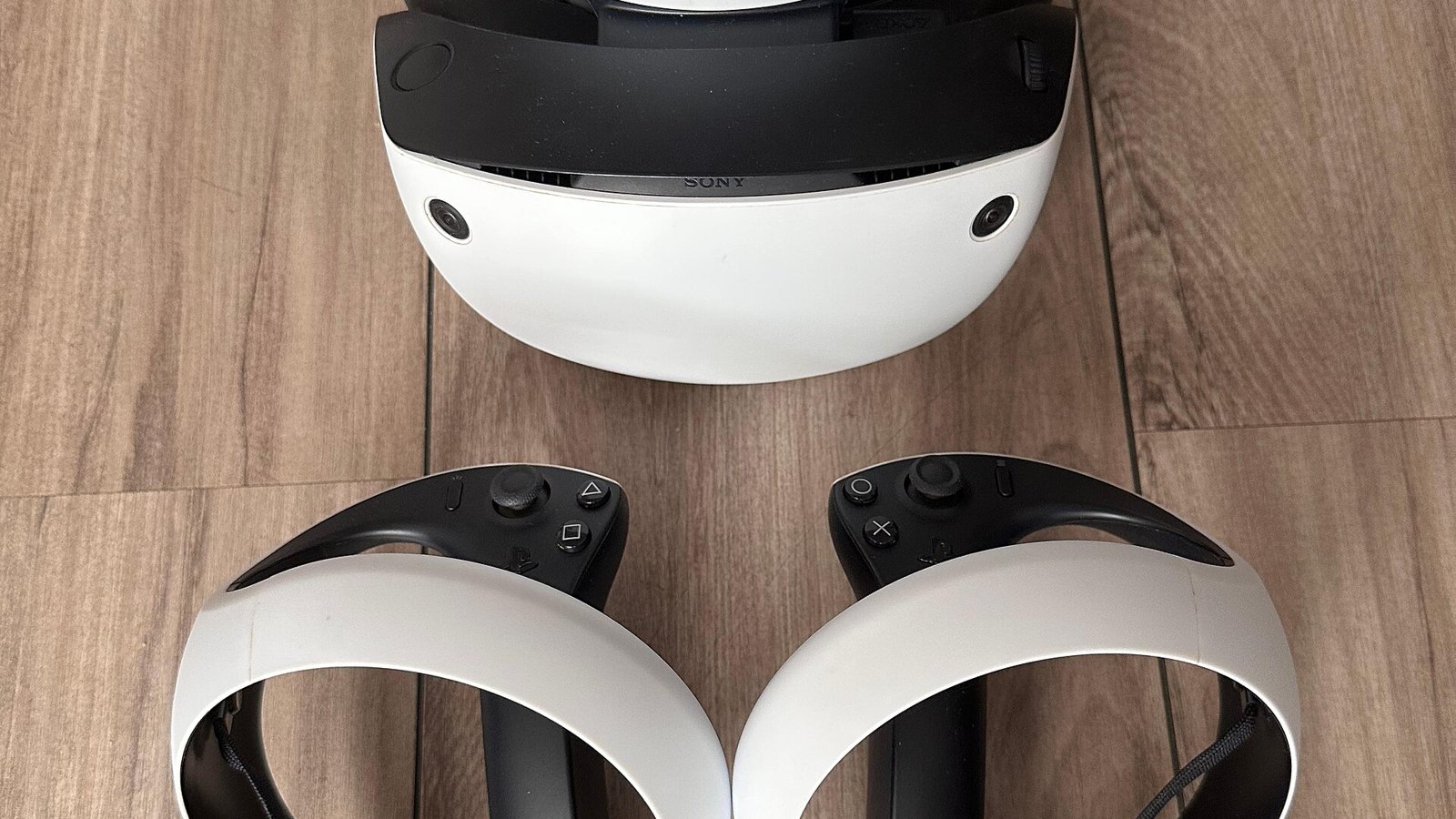
Using PS VR2 on PC takes one official accessory, one cable and two free apps. Sony’s PlayStation VR2 PC adapter, which launched on August 7, 2024 at $59.99 (£49.99 in the UK), turns the PS5 headset into a SteamVR headset for Windows. It is also one of the few ways left to get PS VR2 into the Steam library, given that new headsets have been missing from the US PlayStation Direct store for weeks, as we reported on October 24.
This guide covers what you need, how to connect everything in the right order, how to pair the Sense controllers, which PS5 features you give up, and what the unofficial PSVR2Toolkit mod changes. Every requirement below comes from Sony’s own support pages, linked in the sources.
What you need to use PS VR2 on PC
- The PlayStation VR2 PC adapter. It ships with an AC adapter and power cord. It is a small box, about 79 x 79 x 17 mm and 110 g.
- A DisplayPort 1.4 cable, sold separately. Sony does not include one.
- A free Steam account, plus the free SteamVR app and the free PlayStation VR2 App from Steam. The PlayStation app handles setup, play area and headset firmware updates.
- Bluetooth 4.0 or later on the PC for the Sense controllers, built in or via a USB adapter.
Minimum PC requirements
| Component | Sony’s minimum |
|---|---|
| Operating system | Windows 10 or Windows 11, 64-bit |
| Processor | Intel Core i5-7600 or AMD Ryzen 3 3100 (Zen 2 or later) |
| Memory | 8 GB RAM or more |
| Graphics | NVIDIA GeForce GTX 1650 or later (Turing or later), any RTX card, AMD Radeon RX 5500 XT or RX 6500 XT or later. Sony recommends an RTX 3060 or RX 6600 XT for best performance. |
| Video output | A dedicated DisplayPort 1.4 or Mini DisplayPort port on the PC |
| USB | A USB 3.0 Type-A port, connected directly |
| Bluetooth | Bluetooth 4.0 or later |
Two requirements trip up the most buyers. First, DisplayPort over USB-C is NOT compatible, so many thin laptops that only output video over USB-C will not work. The cable must run straight to a real DisplayPort or Mini DisplayPort output, ideally on the graphics card itself. Second, the adapter must plug directly into the PC’s USB port: Sony says not to use a hub or extension cable.
How to set up PS VR2 on PC, step by step
- Install the software. Install Steam and sign in, then install SteamVR and the PlayStation VR2 App from the Steam store.
- Charge and pair both Sense controllers (see the next section). Unplug any USB cables from the controllers first.
- Connect the adapter to the PC. Plug its USB cable into a USB 3.0 Type-A port on the PC.
- Connect video. Run a DisplayPort 1.4 cable from the adapter to the PC’s DisplayPort output.
- Connect power last. Attach the AC power cord to the AC adapter, plug that into the adapter’s DC IN connector, and only then plug the cord into the wall. The adapter’s status light turns solid red.
- Connect the headset. Plug the PS VR2’s USB-C cable into the adapter’s USB-C port and press the headset’s power button. The adapter light and the headset light both turn solid white.
- Run first-time setup. Open the PlayStation VR2 App and follow the prompts: connect headphones, clear your play space, turn on the room lights (the headset tracks with its cameras, so avoid direct sunlight), put the headset on, adjust the lens dial so your eyes sit in the middle of the lenses, then map your play area.
Once setup finishes, SteamVR launches games as it would with any other PC VR headset.
How to pair PS VR2 Sense controllers with a PC
Each controller pairs separately over Bluetooth. Turn on Bluetooth on the PC, then put a controller into pairing mode by holding two buttons until its status light blinks:
- Left controller: PS button plus the Create button.
- Right controller: PS button plus the Options button.
While the light is blinking, open Windows Bluetooth settings, choose to add a device and select the controller. If the light stops blinking first, start again. You can check battery levels from the SteamVR dashboard by pressing a controller’s PS button.
Built-in Bluetooth on some PCs causes tracking or connection drops. Sony tested four USB adapters for compatibility in July 2024, without guaranteeing them: the TP-Link UB500, Buffalo BSBT5D205BK, ASUS USB-BT500 and IO-DATA USB-BT50LE. If you add one, disable the built-in Bluetooth in Device Manager first. Sony also suggests plugging the Bluetooth adapter into a USB 2.0 port as far as possible from the headset adapter’s USB 3.0 port, using a USB 2.0 extension cable to give it a clear line of sight, turning off a PS5 the controllers were paired with, and keeping Wi-Fi on the 5 GHz band.
What works on PC and what you lose
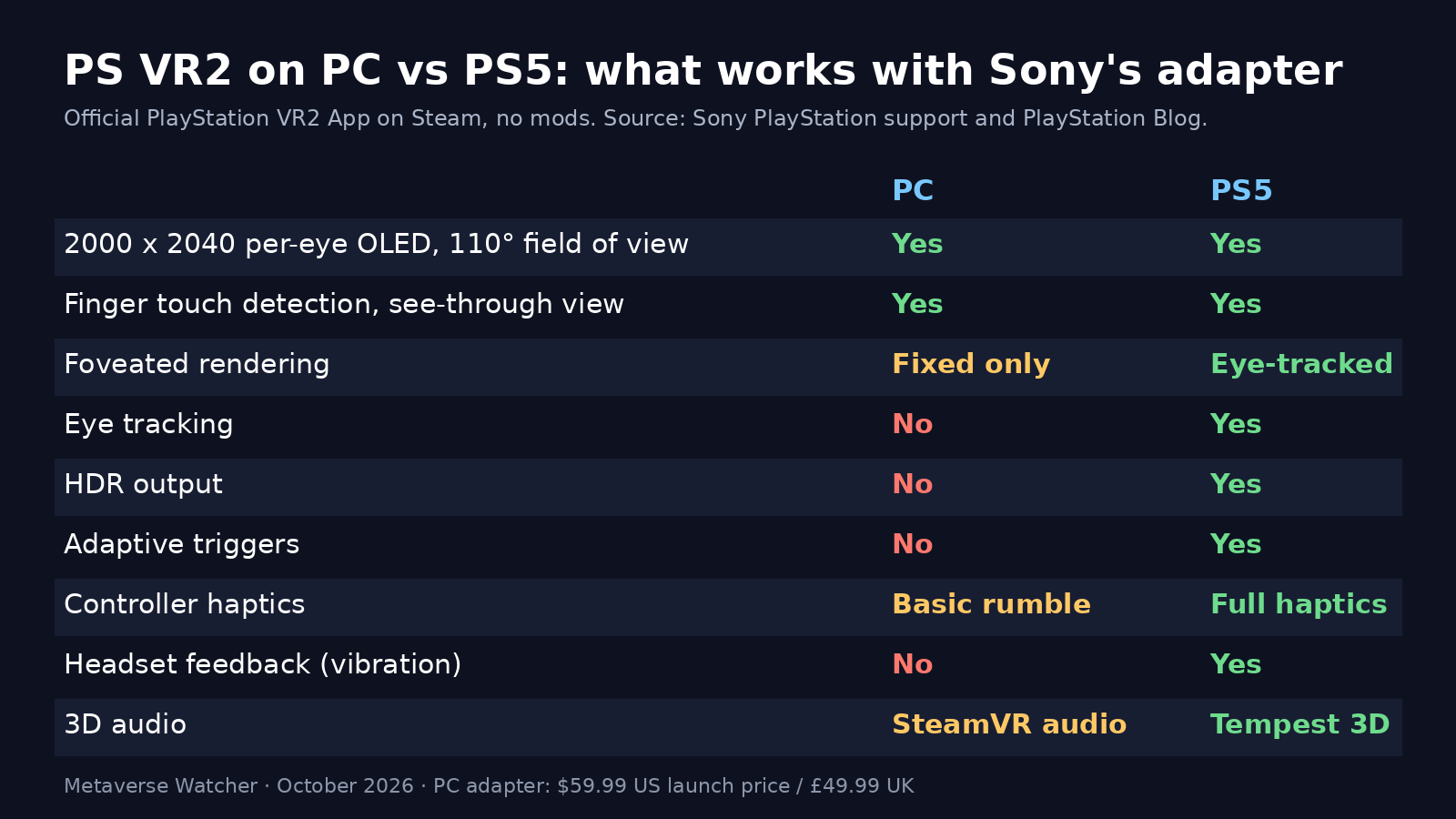
The core hardware carries over. On PC you still get the 2000 x 2040 per-eye display, the 110-degree field of view, finger touch detection, the passthrough see-through view, foveated rendering (fixed, not eye-tracked) and 3D audio in supported games, which on PC uses SteamVR’s audio rather than Sony’s Tempest 3D AudioTech.
Sony lists five features that are not supported on PC: HDR output, Sense controller haptic feedback (basic rumble still works), adaptive triggers, headset feedback and eye tracking. The play area also behaves differently. On PC the headset does not switch to see-through mode automatically when you step outside the boundary, and the PS5’s preset play styles are not available, so you choose the right room size per game.
Eye tracking is the biggest loss, because it is what lets PS5 games render sharply only where you are looking. Some PC titles are adding fixed foveated rendering that works without it, such as the Half-Life: Alyx foveated rendering update.
The PSVR2Toolkit mod: eye tracking and adaptive triggers on PC
PlayStation VR2 Toolkit is a free, unofficial, mostly open-source modification of Sony’s SteamVR driver. Its developers say it adds eye tracking with calibration, adaptive triggers, improved controller prediction, tracking and haptics, SteamVR Room View passthrough and Linux support. Installation means renaming Sony’s driver file inside the PlayStation VR2 App folder and dropping the toolkit’s files beside it, per the project’s own instructions.
Treat it as an enthusiast option. It is not affiliated with or endorsed by Sony, its current release is labeled experimental, and some features, such as headset vibration and the eye camera feed, require jailbreaking the headset, which the developers warn carries a risk of damage. Games must also support the toolkit’s interfaces, so eye tracking is not automatic in every title. UploadVR reported that eye tracking worked in VRChat through a companion module, but did not yet reach OpenXR for eye-tracked foveated rendering, and heise noted that full HDR is still not possible because SteamVR lacks the required luminance support. The project also warns that anyone who paid for it was scammed, because it is free.
Where to buy the PS VR2 PC adapter
When Metaverse Watcher checked on the morning of October 28, 2026, Sony’s US PlayStation Direct listing showed the adapter at $59 and marked it “Currently Unavailable,” with the page’s product data reporting it out of stock. The UK PlayStation Direct listing showed it in stock at £49.99. Third-party retailers may still carry it, but check that the seller is reputable and that the box includes the AC adapter.
Is PS VR2 on PC worth it?
If you already own PS VR2 and a desktop with a DisplayPort output, yes. A roughly $60 adapter plus a cable opens the full SteamVR catalog, including Half-Life: Alyx, on a headset with sharp OLED panels. The trade-offs are a wired connection, the loss of PS5-exclusive sensory features and Sony’s uncertain US retail support for the headset itself.
If you are buying a headset for PC from scratch, compare the alternatives first. Our best VR headsets of 2026 guide and Steam Frame vs Quest 3 comparison cover standalone headsets that also stream PC games, and our guide on how to play PC VR games on Quest 3 and 3S explains that route. Recent SteamVR changes are covered in our SteamVR 2.18 report.
Sources
- PlayStation Support: How to prepare for using PS VR2 with PC
- PlayStation Support: How to set up PS VR2 on PC
- PlayStation Support: Bluetooth adapters compatible with PS VR2 on PC
- PlayStation Support: Differences between PS VR2 on PC and on PS5
- PlayStation Blog: PS VR2 PC adapter announcement, June 3, 2024
- PlayStation Direct US and PlayStation Direct UK adapter listings
- PSVR2Toolkit on GitHub, UploadVR, heise online