A Quest 3 black screen is common enough that Meta’s Quest Help Center lists “Black screen but lights are on” among its top troubleshooting topics, and in most cases it is not a dead headset. The display can go dark because an update is still installing, the system has hung, the proximity sensor thinks nobody is wearing the headset, the battery is completely drained, or a PC streaming session has stalled. Only a minority of cases point to a display or board fault that needs a replacement.
This guide follows the order Meta itself recommends on its “What to do if your Meta Quest screen is black” help page, then adds the charging, restart, Link and warranty steps from Meta’s other Help Center pages and public Meta Store Support replies. All sources were checked on November 29, 2026. The same steps apply to the Quest 3S, which shares the Quest 3’s buttons, status light and 18W charging requirement.
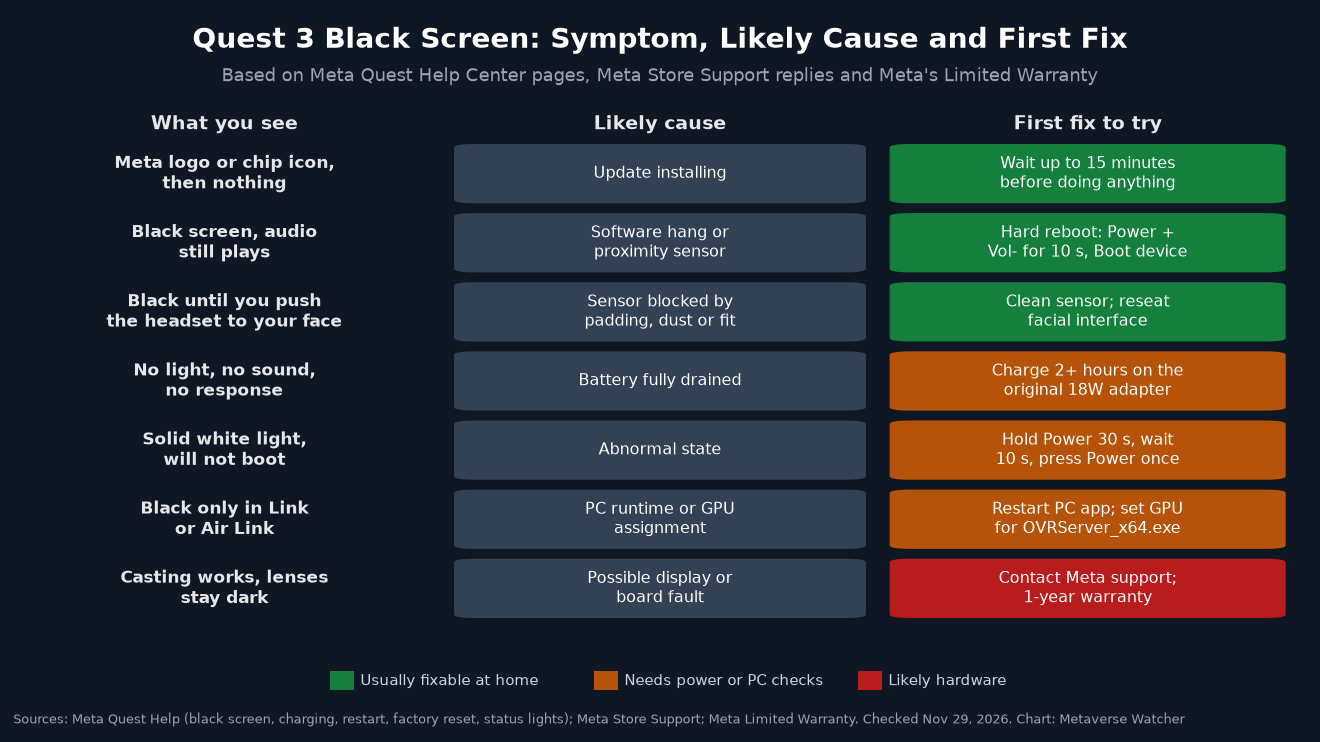
Quick Answer: The Fix Order Meta Recommends
Meta’s black screen article tells owners to work through these steps in order, stopping as soon as the picture returns:
- WAIT. If the headset is stuck on the Meta logo or a computer chip icon, it may be installing an update. Meta says to wait up to 15 minutes before trying anything else.
- HARD REBOOT. Hold the power and volume down buttons for at least 10 seconds, or until the boot screen loads, then use the volume buttons to highlight Boot device and select it with the power button.
- UPDATE the software. In the Meta Horizon app on your phone, go to Menu > Devices > your headset > Headset settings > Software update (or Advanced settings > Software update) and tap Update now if an update is offered.
- FACTORY RESET, as a LAST RESORT. This erases everything stored on the headset.
- Request a replacement or contact Meta Store Support if the headset is still unresponsive, since the problem may be hardware-related.
The rest of this guide explains how to tell which situation you are in, so you do not wipe a headset that only needed a charge.
Step 1: Read the Status Light Before Anything Else
The small STATUS LIGHT on the side of the headset is the fastest diagnostic you have. Meta’s status light guide for Quest 3 and Quest 3S and its headset and controller indicator page define the colors as follows:
| Status light | What Meta says it means | What to do with a black screen |
|---|---|---|
| Solid white | Headset powered on (screen is on) | The headset is running. Check the proximity sensor, then hard reboot. |
| Blinking white | Rebooting or turning on | Wait. If it loops, follow the update and boot menu steps below. |
| Blinking purple | Performing factory reset | Leave it alone until the reset finishes. |
| Orange (plugged in) | Battery charging | Let it charge before testing again. |
| Green (plugged in) | Battery fully charged | Power is not the problem. Move to the reboot steps. |
| Red | Dead or low battery | Charge on the original adapter for at least two hours. |
| No light (plugged in) | Battery is not charging | Follow the charging checks in Step 4. |
Listen as well. Meta’s article separately mentions the case where the screen is black but you still hear audio. That combination means the system is running and the problem lies with the display path, the proximity sensor or a hung app, not with power.
Step 2: Give a Stuck Update 15 Minutes
If the last thing you saw was the Meta logo or a chip icon, the headset is most likely applying a system update. Interrupting it repeatedly can make things worse, so Meta’s guidance is to wait up to 15 minutes with the headset charging before moving on. Once it boots, confirm you are on the latest build using our guide to updating Meta Quest 3 software.
Step 3: Hard Reboot or Force Restart
Meta documents two ways to restart a headset that will not respond, and they are worth knowing apart:
- Boot menu reboot: hold power and volume down together for at least 10 seconds until the boot screen appears, highlight Boot device with the volume buttons and press power. This is the method in the black screen article.
- Force restart: Meta’s restart guide says to hold the power button for at least 30 seconds, wait 30 seconds, then press power if the headset does not turn back on by itself.
Before rebooting, unplug anything attached to the USB-C port. In a public reply to a black screen report, Meta Store Support asked the owner to remove unsupported third-party accessories such as external battery packs and USB-C add-ons that may affect boot, before trying the hard reboot.
Step 4: Rule Out a Fully Drained Battery
A headset left in standby can drain completely, and a fully flat Quest 3 looks exactly like a dead one: no light, no sound, no picture. Meta’s charging help page lists the steps:
- Plug the headset into the original power adapter with the original USB-C cable and check the light after five minutes.
- Use a wall outlet, not a power strip, USB hub or computer port. Quest 3 and Quest 3S need at least 18W.
- Check the USB-C port for lint and clean it with compressed air or a dry, soft brush. Do NOT insert metal objects.
- If the light comes on but the headset still will not power up, leave it charging for at least TWO HOURS without trying to turn it on, then hold power for two to three seconds.
- If a solid white front light stays on and the headset will not boot, hold power for 30 seconds, release, wait 10 seconds and press power once.
Meta adds that if the charging port looks damaged, melted or discolored, you should stop using the headset and contact support. If charging itself is the problem, our Quest 3 not charging fix goes deeper on cables, adapters and battery behavior.
Step 5: Check the Proximity Sensor and Facial Interface
The Quest 3 turns its displays off when a small PROXIMITY SENSOR between the lenses, above the nose cutout, decides nobody is wearing it. Meta’s developer documentation describes the sensor’s job plainly: it “ensures the headset goes to sleep when not in use” (Meta developer docs). When that sensor is blocked or dirty, you can get a black screen while the headset is on your face, or a screen that only lights up when you press the headset closer.
In a reply to a Quest Pro owner whose display went dark when their eyes came close to the lenses, Meta Quest Support said it “sounds like the sensor within your headset is being blocked.” Owners in the same threads report that a drooping facial interface pad or dust over the sensor caused the problem. Practical checks:
- Wipe the area between the lenses with a dry microfiber cloth.
- Remove and refit the facial interface, especially a third-party one, so no padding hangs over the sensor.
- Test by covering the sensor with a fingertip while holding the headset: the display should wake.
Separately, the screen turning off seconds after you take the headset off is normal sleep behavior, NOT a fault. The display-off timer sits under Settings > General > Power, as Campfire’s Quest setup notes describe.
Step 6: Black Screen Only in Quest Link or Air Link
If the headset works normally in standalone mode but goes black when you connect to a PC, the fault is almost always on the PC SIDE. Restart both devices, make sure the Meta Quest Link app is open and signed in, update your graphics driver, and turn Air Link off when testing a cable, as Online Tech Tips’ Link troubleshooting guide summarizes.
For a Link black screen on laptops, Meta Store Support has publicly recommended assigning the runtime to a specific GPU: open Windows Settings > System > Display > Graphics, add C:\Program Files\Oculus\Support\oculus-runtime\OVRServer_x64.exe, set it to Power Saving, save and restart the PC. If that fails, Meta’s reply says to try Performance mode instead. Our guide on playing PC VR games on Quest 3 covers cable and Wi-Fi requirements in more detail.
Step 7: Factory Reset From the Boot Menu
ONLY reset once the steps above have failed. According to Meta’s factory reset page, a reset is IRREVERSIBLE and removes account information, downloaded games and content from the headset, though purchases stay on your account. Meta recommends at least 50% battery and turning on cloud backup first if the headset is still usable. To reset with the buttons:
- Turn the headset off.
- Hold power and volume down together until the boot screen loads. If it does not load, charge the headset and try again.
- Highlight Factory reset with the volume buttons and press power.
- Highlight Yes and press power.
Because you cannot see the screen, the boot menu may not be visible to you. That is a strong sign the issue is the display itself rather than software, so contact support BEFORE resetting blind. Our full Quest 3 and 3S factory reset guide covers the phone-app method as well.
Step 8: Signs of a Hardware Fault and Your Warranty
One useful test is CASTING. If you can cast the headset to your phone or TV and the cast shows a working menu while the lenses stay dark, the operating system is running and the displays are not showing it. In a public thread where casting worked but the lenses were black, Meta Store Support suggested the standard reboot steps and then contacting its team if the problem persisted.
Two other hardware causes are worth knowing. Meta warns on its sunlight damage page that the lenses can be permanently damaged by less than a minute of direct sunlight, even indoors. And Meta’s care guide notes that the limited warranty does not cover normal wear and tear or physical damage.
For genuine defects, the Meta Limited Warranty runs for ONE YEAR from the date of purchase or delivery, whichever is later, and Meta says it does not affect longer statutory rights consumers may have, such as those in the EU. It does not apply to products bought in Australia, Canada, France or Italy, which have country-specific terms. Meta’s replacement page explains that you can start a request online and choose Advanced replacement, which ships a unit before you return the faulty one, or the standard process, which ships after Meta receives your device.
FAQ
Why is my Quest 3 screen black but I can hear sound?
The headset is running but the image is not reaching you. Meta’s first steps are a hard reboot (power plus volume down for 10 seconds, then Boot device) and a software update. A blocked proximity sensor can also cause it.
Will a hard reboot delete my games?
No. Selecting Boot device restarts the headset. Only Factory reset in the same menu erases data, and it asks you to confirm with Yes.
How long should I charge a Quest 3 that will not turn on?
Meta says to leave it on the original adapter for at least two hours without trying to power it on, then hold the power button for two to three seconds. A full charge takes about 2.5 hours.
Is a Quest 3 black screen covered by warranty?
If it is a defect, yes, within one year of purchase or delivery under Meta’s Limited Warranty. Physical damage, including sun damage, is not covered.
Related Quest 3 Fixes
- Quest 3 controller not working or drifting: how to fix it
- Quest 3 Wi-Fi not working: fixes that work
- Quest 3 no sound: how to fix it
- Meta Quest 3 battery life guide
Methodology: Steps are taken from Meta Quest Help Center articles, Meta developer documentation, the Meta Limited Warranty and public replies from Meta’s verified support accounts, all checked November 29, 2026. Where a tip comes from owners rather than Meta, we say so. Meta updates its help pages regularly, so menu names may differ slightly on your headset.