By MetaverseWatcher Staff · Updated November 3, 2026
The Meta Quest 3 is a standalone headset, but it is also one of the most common ways people play PC VR games such as Half-Life: Alyx, flight sims and racing titles from Steam. Getting there takes one of four connections: Meta’s wired Link cable, Meta’s wireless Air Link, Valve’s free Steam Link app, or the paid Virtual Desktop app. This guide explains how to play PC VR games on Quest 3 with each method, what your PC and network need, and how to pick the right one. Every requirement below comes from Meta’s, Valve’s or the Meta Store’s own listings, checked on November 3, 2026.
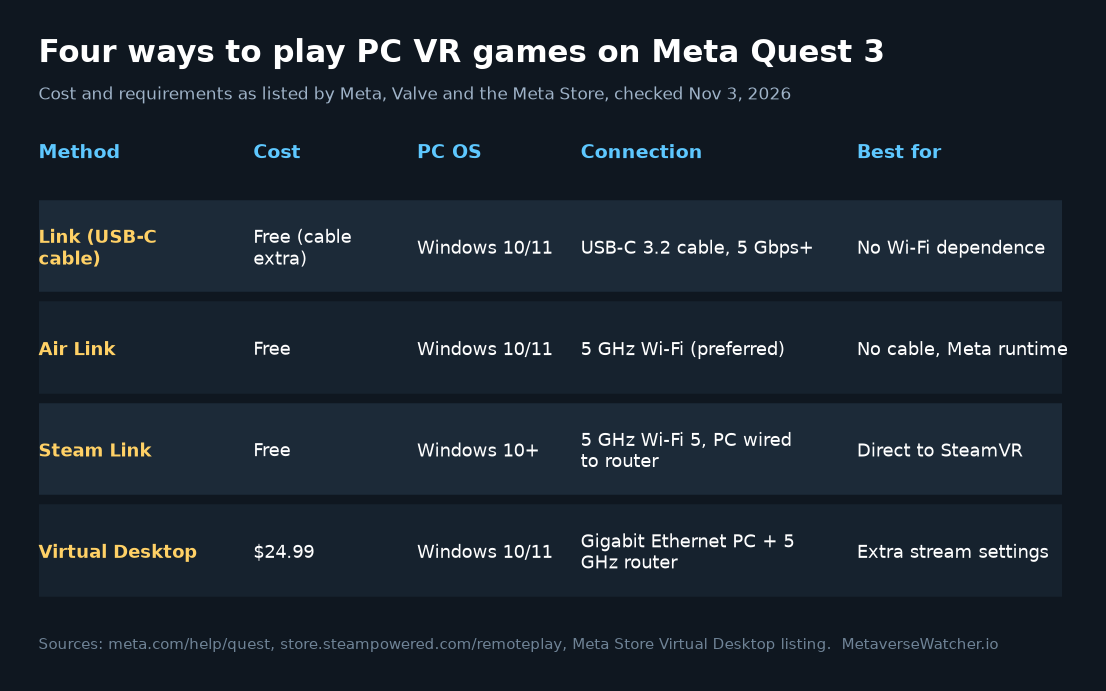
Quick answer: which method should you use?
- Want the simplest, most predictable setup? Use a USB-C Link cable. It does not depend on your Wi-Fi at all.
- Want wireless for free and mostly play Meta’s PC store titles? Use Air Link.
- Mostly play Steam games? Try Steam Link first. It is free and drops you straight into SteamVR.
- Want more control over stream quality, or a giant virtual monitor for your desktop too? Virtual Desktop costs $24.99 on the Meta Store and is the most configurable option.
All four methods do the same basic job. The game runs on your Windows PC’s graphics card, and the headset receives a video stream and sends your head and controller movement back. That means the PC does the heavy lifting, and the Quest 3’s own chip only decodes the stream. A weak PC will look and run poorly no matter which connection you choose.
What your PC needs
Every route to PC VR on Quest needs a Windows gaming PC: Meta’s Link app is Windows-only, and Valve lists Windows 10 or newer for Steam Link. Meta’s published requirements for Meta Horizon Link are the best baseline:
| Component | Meta minimum | Meta recommended |
|---|---|---|
| Processor | Intel i5-4590 / AMD Ryzen 5 1500X or better | Intel i7 / AMD Ryzen 7 |
| Graphics card | Must be on Meta’s supported GPU list (e.g. GTX 970, GTX 1060 6GB, GTX 1650 Super) | Nvidia RTX 20 series / AMD Radeon RX 6000 series |
| Memory | 8 GB RAM | 16 GB DDR4 RAM |
| Operating system | Windows 10 or 11 | Windows 10 or 11 |
| USB | 1 USB port | 1 USB-C port |
Meta’s list has some traps worth checking before you buy anything. The GTX 1060 3GB, the laptop GTX 1060M, the GTX 1650 (non-Super), the GTX 1050 Ti, the RX 560 and the RTX 2050 are all listed as unsupported. Meta also says the laptop RTX 3050 and 3050 Ti are not recommended, and that Intel Arc GPUs and workstation cards are not currently supported. The Link PC app also needs at least 9 GB of free disk space, according to Meta’s Link troubleshooting page.
Valve’s minimum for Steam Link is similar: an Nvidia GTX 970 or better, Windows 10 or newer, and Steam plus SteamVR installed, per the Steam Remote Play page. Its Meta Store listing recommends 16 GB of RAM and an RTX 2070 or AMD RX 6600 or better for a smoother stream.
Method 1: Link with a USB-C cable
A wired connection is the most predictable way to play PC VR on Quest 3, because Wi-Fi congestion and distance from the router stop mattering. Meta says you need a USB-C 3.2 cable that supports at least 5 Gbps, plugged into a USB 3.2 port on the PC, and recommends a high-quality cable at least 3 meters (10 feet) long so you can move comfortably.
- Install the Meta Horizon Link app on your Windows PC from meta.com/quest/setup, sign in, and let it update.
- Make sure your Quest 3 is on the latest software.
- Plug the cable into a USB 3.2 port on the PC, then into the headset.
- In the headset, press the Meta button to open the Navigator, choose Quick controls, then Link.
- Select your PC and choose Launch.
Once you are in Link, you can open Meta’s PC library or launch SteamVR from the virtual desktop. If Windows reports a USB 3 cable as USB 2, Meta suggests checking that any USB-A to USB-C adapter supports USB 3, flipping the USB-C plug to the other orientation, or trying a different port. Meta also notes the headset can only use one connection at a time, so turn Air Link off when you use the cable.
Method 2: Air Link over Wi-Fi
Air Link uses the same Meta Horizon Link PC app, but sends the stream over your home network. Meta asks for the same PC specs plus a Wi-Fi network, preferably 5 GHz. According to Meta’s setup guide:
- Open the Navigator, choose Quick controls, then Link.
- Turn on the Use Air Link toggle.
- Select your computer and choose Pair.
- Check that the pairing code in the headset matches the one on the PC, then click Confirm in the PC app.
- Put the headset back on and choose Launch.
If Air Link stutters, Meta’s first fixes are to restart the headset, PC and router, confirm both devices are on the same network, update your graphics drivers, and temporarily disable firewall or antivirus software that might block the connection. Meta also warns that Link may not work if your headset is enrolled in the Public Test Channel.
Method 3: Steam Link (free, from Valve)
Valve’s Steam Link app for Quest skips Meta’s PC software and streams SteamVR directly. For players whose library lives on Steam, that removes a layer and a second store from the process. Valve’s minimum requirements are:
- A Windows 10 or newer PC running Steam and SteamVR
- An Nvidia GTX 970 or better graphics card
- A 5 GHz, Wi-Fi 5 router
- A wired (Ethernet) connection between the PC and the router
- A Meta Quest 2, Quest 3 or Quest Pro
Valve recommends a Wi-Fi 6 or 6E router. Setup is short. Install Steam Link from the Meta Store in the headset, make sure Steam and SteamVR are running on the PC, open Steam Link on the Quest, and follow the prompts to pair with your computer. Valve also notes that Remote Play Together is not supported in VR.
Method 4: Virtual Desktop ($24.99)
Virtual Desktop is a paid third-party app, listed at $24.99 on the U.S. Meta Store on November 3, 2026, with a 4.3-star rating from more than 10,000 users. It does two jobs. It mirrors your Windows or Mac desktop onto a large virtual screen, and on a VR-ready Windows 10 or 11 PC it streams PC VR games.
Its developer is stricter about networking than Meta is. The store listing says the computer must be wired to a 5 GHz router with a Gigabit Ethernet cable. In return, the listing promises support for multiple monitors, Bluetooth keyboards, mice and gamepads, microphone passthrough, and remote connections over the internet if you enable UPnP on your router. That makes it the strongest pick of the four if you also want a virtual monitor for work, films or flat games.
Side-by-side comparison
| Link cable | Air Link | Steam Link | Virtual Desktop | |
|---|---|---|---|---|
| Software cost | Free | Free | Free | $24.99 |
| Extra hardware | USB-C 3.2 cable, 5 Gbps+, 3 m+ recommended | 5 GHz Wi-Fi preferred | 5 GHz Wi-Fi 5 router, PC on Ethernet | 5 GHz router, PC on Gigabit Ethernet |
| PC software | Meta Horizon Link app | Meta Horizon Link app | Steam + SteamVR | Virtual Desktop PC app |
| Plays SteamVR games | Yes | Yes | Yes | Yes |
| Depends on Wi-Fi quality | No | Yes | Yes | Yes |
Network tips that matter for wireless PC VR
- Wire the PC to the router. Valve lists it as a Steam Link minimum, and the Virtual Desktop listing requires Gigabit Ethernet. If the PC is also on Wi-Fi, the same airwaves carry the stream twice.
- Use 5 GHz (or 6 GHz on Wi-Fi 6E). The 2.4 GHz band is more crowded and slower.
- Keep the router close and in line of sight of your play space where possible. Walls and floors cut signal quality quickly at 5 GHz.
- Avoid guest and client-isolated networks. Streaming needs the headset and PC to see each other on the network, which many workplace, school and hotel networks block.
- Close background downloads and streaming on other devices while you play.
Troubleshooting common problems
The headset doesn’t see the PC. Confirm both are on the same network, the PC app (Link, Steam with SteamVR, or the Virtual Desktop PC app) is open, and your firewall is allowing it. The image is blocky or stutters. Lower the stream bitrate or game resolution, update graphics drivers, and move closer to the router. Controllers or tracking feel off in PC games. The headset still handles tracking itself, so see our Quest 3 controller drift and tracking fixes. You feel queasy. Frame drops make motion sickness worse; our VR motion sickness guide covers settings that help. The battery runs down. Wireless streaming still drains the headset; see our Quest 3 battery life guide, or use a Link cable, which Meta specifies should carry both data and power.
What about Steam Frame?
Valve’s own Steam Frame headset can also stream games from a Steam PC over Wi-Fi, so the same networking advice applies to it. If you are deciding whether to keep streaming with a Quest 3 or wait for new hardware, our tracker of upcoming VR headsets for 2026–2027 lists release dates and prices, and our analysis of Valve’s VR strategy explains where Steam Frame fits.
The bottom line
If your PC meets Meta’s list, start with a free option. Use the Link cable if your Wi-Fi is weak or the router is in another room, and use Air Link or Steam Link if you can wire the PC to a nearby 5 GHz or Wi-Fi 6 router. Spend the $24.99 on Virtual Desktop when you want finer stream controls or a virtual monitor as well. New to the headset? Start with our Quest 3 and 3S setup guide, and when you want standalone games too, see our best Quest 3 games of 2026 and our guide to sideloading Quest 3 games.
Sources: Meta PC requirements for Link, Meta Link and Air Link setup, Meta Link troubleshooting, Valve Steam Remote Play, Steam Link on the Meta Store, Virtual Desktop on the Meta Store. Prices and requirements checked November 3, 2026.