By Metaverse Watcher staff. Published November 9, 2026. Steps checked against Meta’s Quest Help Center articles on headphones and Bluetooth accessories on November 9, 2026. Menu names can change between Horizon OS versions.
Yes, you can connect Bluetooth headphones to a Meta Quest 3 or Quest 3S, and pairing takes about a minute. The catch is latency: ordinary Bluetooth earbuds can lag behind what you see, which is fine for video but distracting in shooters and rhythm games. This guide covers how to pair them, how to turn on Bluetooth LE Audio, and which wired and wireless alternatives avoid the delay on each headset.
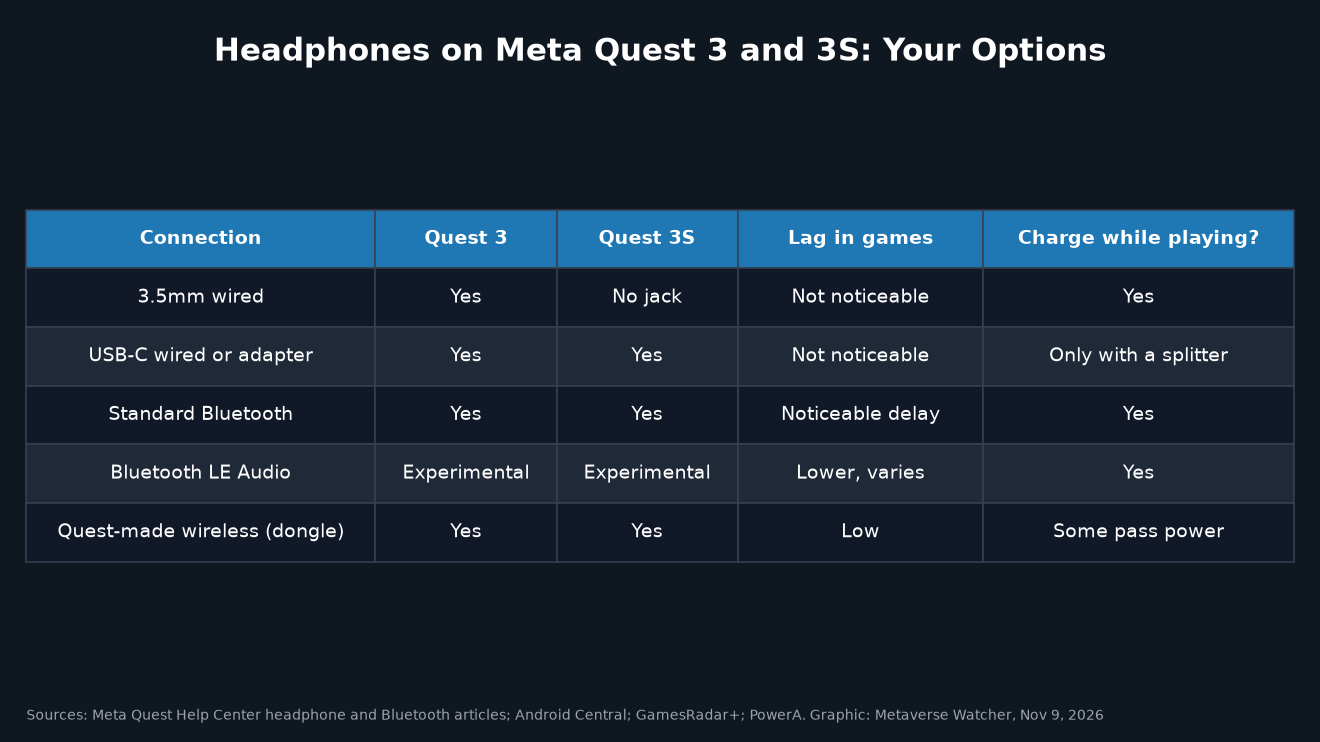
The short version: Pair through Quick controls, then Bluetooth. Use Bluetooth for videos, browsing and casual apps. For games where timing matters, use wired headphones (3.5mm on Quest 3, USB-C on either headset) or earbuds built for Quest that use their own USB-C wireless adapter. The Quest 3S has no 3.5mm headphone jack, so 3S owners need USB-C or wireless.
How to connect Bluetooth headphones to Meta Quest 3 or 3S
These are the steps from Meta’s help article on connecting a compatible Bluetooth device to Meta Quest headsets:
- Put your headphones or earbuds in pairing mode. On most models you hold the power or Bluetooth button for a few seconds until a light flashes or a voice prompt says “pairing.” Check the maker’s instructions if you are unsure.
- In the headset, press the Meta button on your right controller to open the Navigator.
- Select Quick controls.
- Select Bluetooth to open Bluetooth settings.
- Turn on the toggle next to Bluetooth.
- When your headphones appear in the list of devices, select Connect.
Test the connection with a video before starting a game, so you can hear whether the delay will bother you. If the headphones were recently paired to your phone, turn off Bluetooth on the phone or disconnect them there first; many earbuds reconnect to the last device they used.
How to turn on Bluetooth LE Audio on Quest
Quest headsets also support Bluetooth Low Energy (LE) Audio, a newer standard. Meta added it as an experimental feature in its v77 software update in 2025, and its release notes warned that implementations vary between headphone brands. Android Central reports the feature can reduce latency in games. To use it:
- Pair the headphones using the steps above.
- In Bluetooth settings, select the arrow next to the connected device to see more details.
- If the Quest detects the headphones as compatible with LE Audio, a toggle appears. Turn it on.
Meta says there may be a few seconds of silence after you turn it on. When you enter an immersive game, you may hear a brief disconnection while the connection switches to low latency mode; the headphones should reconnect within a couple of seconds. If only one earbud connects or plays sound, Meta’s fix is to turn LE Audio off and back on for that device.
LE Audio only works with headphones that support it, which still rules out many older models. If the toggle does not appear, your headphones do not qualify, and standard Bluetooth is your only wireless option with them.
Why Bluetooth headphones lag on Quest
Meta itself warns that using a Bluetooth audio device “may result in delayed audio unless using a product specifically made for Meta Quest.” Standard Bluetooth audio compresses and buffers sound before sending it, which adds delay. On a phone that is easy to hide, because video apps shift the picture to match. In VR, sound has to line up with your own hand and head movements in real time, so the gap is far easier to notice.
In a hands-on test, GamesRadar+ tried three pairs of wireless earbuds and a wireless gaming headset with Quest 3 and found the audio lag was still a “massive issue” in games, while video streaming was fine. Its tester pointed out that rhythm games such as Beat Saber and Pistol Whip suffer the most. Some earbuds have a low-latency mode, but it is usually switched on in a phone app and does not carry over when the earbuds connect to the headset.
Our rule of thumb: Bluetooth is fine for YouTube, Netflix, browsing and slow-paced apps. For anything on our best Quest 3 games list that involves timing, use one of the options below.
Wired headphones: Quest 3 vs Quest 3S
| Connection | Quest 3 | Quest 3S | Notes |
|---|---|---|---|
| 3.5mm headphone jack | Yes, on the left side | No jack | Leaves the USB-C port free for charging |
| USB-C headphones | Yes | Yes | Uses the charging port |
| USB-C to 3.5mm adapter | Yes | Yes | The standard route for 3S owners with wired headphones |
| Standard Bluetooth | Yes | Yes | Delay in games |
| Bluetooth LE Audio | Experimental | Experimental | Compatible headphones only |
Quest 3
According to Meta’s guide on how to use headphones with Meta Quest, Quest 3 supports both 3.5mm and USB-C headphones. The 3.5mm audio port is on the left side of the headset (as you wear it), and the USB-C charging port sits just behind it. Three details from Meta’s guide are worth knowing:
- If you plug in two sets of headphones, only the pair in the 3.5mm port will work.
- USB-C headphones will not work while the Elite Strap with Battery is plugged in, because the strap uses that port.
- Headset microphones are not currently supported over the 3.5mm jack. Voice chat uses the Quest’s built-in microphone instead.
Meta lists Pixel USB-C Earbuds, Samsung Type-C Headphones and OnePlus Type-C Bullets Earphones as tested USB-C headphones, and Google, Samsung and Apple USB-C to 3.5mm adapters as tested adapters. Other models may work, but Meta does not guarantee them.
Quest 3S
The Quest 3S dropped the 3.5mm jack, one of the trade-offs we cover in our Quest 3 vs Quest 3S buying guide. Your wired options are USB-C headphones or a USB-C to 3.5mm adapter. Both occupy the only port on the headset, so you cannot charge at the same time unless you use a splitter adapter with charging passthrough. Battery-strap users face the same conflict; our Quest 3 battery life guide explains how much play time each setup gives you.
Low-latency wireless: earbuds made for Quest
If you want wireless audio without the Bluetooth delay, look for earbuds that ship with their own USB-C wireless adapter. These connect over a dedicated link rather than standard Bluetooth. Meta’s help article names the Anker Wireless VR Earbuds as an example of a product made for Quest that avoids the delay.
PowerA sells officially licensed Wireless Earbuds for Meta Quest 3 / 3S. The company says they use a low-latency USB-C wireless adapter for the headset and can switch to Bluetooth for a phone. It quotes up to 10 hours of battery life plus 12 more from the case, and the adapter has a USB-C port so you can charge the headset while it is plugged in. Android Central notes that charging speed through some older dongles has been reported as too slow, so check that passthrough charging is listed before you buy. We have not tested these earbuds ourselves.
For more add-ons worth buying, including straps and charging docks, see our best Quest 3 accessories list.
Troubleshooting Bluetooth headphones on Quest
- The headphones do not appear in the list: make sure they are in pairing mode, not just switched on, and disconnect them from your phone or laptop first. Then turn Bluetooth off and on in Quick controls and scan again.
- Sound still comes from the headset speakers: open Bluetooth settings and check that the headphones say Connected. If they do, disconnect and reconnect them.
- Only one earbud plays: if LE Audio is on, turn it off and back on for that device, as Meta recommends. If it is off, remove the device and pair again.
- Audio drops when a game starts: with LE Audio, a short drop while the headset switches to low latency mode is expected. If it does not come back within a few seconds, reconnect.
- Audio is out of sync in games: this is the normal Bluetooth delay. Switch to wired headphones, LE Audio if your headphones support it, or Quest-made wireless earbuds.
- No sound when playing PC VR games: when you stream from a PC, game audio comes from the PC. Check the audio output in Windows sound settings and in the streaming app. Our guide to playing PC VR games on Quest 3 covers Link and Air Link setup.
- Nothing works at all: restart the headset. If the problem began after a software update, check our best Quest 3 settings guide for other options that may have changed.
Frequently asked questions
Do AirPods work with Meta Quest 3?
AirPods pair like any other Bluetooth headphones through Quick controls, then Bluetooth. Put them in pairing mode by holding the button on the case with the lid open. Expect the same delay as other standard Bluetooth earbuds in games.
Can I use Bluetooth headphones and the Quest microphone together?
Meta’s guides do not say whether a Bluetooth headset’s microphone is used for voice chat. They only say that headset microphones are not supported over the 3.5mm jack. If people cannot hear you, check the microphone settings in the app you are using.
Does the Quest 3S have a headphone jack?
No. The Quest 3S has only a USB-C port, so use USB-C headphones, a USB-C to 3.5mm adapter, or wireless audio. The Engadget review lists the missing jack as one of the 3S’s downsides.
Are Bluetooth headphones bad for VR motion sickness?
Audio lag is not a known main cause of motion sickness, but mismatched sound and movement can make VR feel less natural. If you are prone to discomfort, our guide to preventing VR motion sickness covers settings that help more.
New to the headset? Start with our Meta Quest 3 setup guide, and for watching your Quest on a bigger screen, see how to cast Meta Quest 3 to a TV, phone or PC.