By MetaverseWatcher Staff | November 9, 2026
Microsoft’s Mixed Reality Link app can now stream a Windows 11 desktop to a Meta Quest 3 or Quest 3S over a USB cable, giving owners a wired option for working in mixed reality when Wi-Fi is slow, crowded, or simply not available. Until now, the app relied on a network connection between the PC and the headset. Microsoft announced the change on its Mixed Reality Link blog on November 5, and the headset side of the feature is rolling out from Meta over roughly a week.
What changed
Mixed Reality Link is the Windows app that turns a Quest headset into a private, multi-monitor view of your PC. It pairs with the Windows App on the headset and, until this update, needed both devices on the same network. Microsoft’s own support page lists gigabit networking, 5GHz or 6GHz Wi-Fi, and a Windows signal strength of at least 75% for a good wireless session. Those are demanding conditions in a hotel, an office with a locked-down network, or a café where public Wi-Fi blocks devices from talking to each other.
The USB option removes that dependency. In Microsoft’s words, USB is “particularly useful when traveling: once set up, you can use your PC in mixed reality even without internet access.” Microsoft also says first-time pairing is simpler over a cable, with no QR code to scan and no PIN to type.
Requirements
According to Microsoft’s announcement and its Mixed Reality Link support page, a wired connection needs:
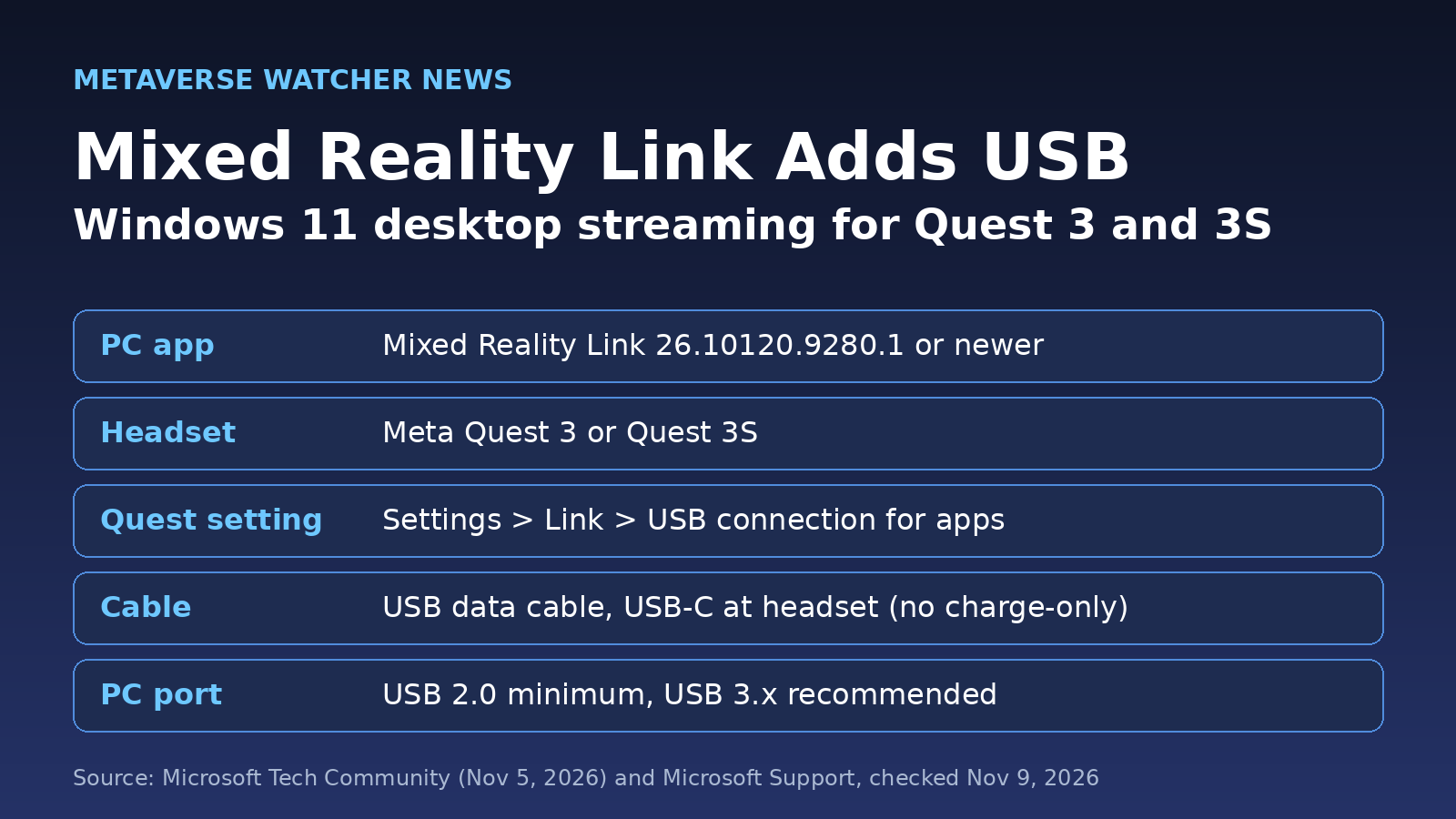
- A Windows 11 PC (version 22H2 or newer) running Mixed Reality Link version 26.10120.9280.1 or newer.
- A Meta Quest 3 or Quest 3S. No other headsets are listed.
- A USB port rated USB 2.0 (480 Mbps) or faster on the PC. Microsoft recommends USB 3.x at 5 Gbps or faster.
- A USB data cable rated for USB 2.0 or faster, with a USB-C connector on the headset end. Charge-only cables are not supported.
The PC hardware floor is unchanged from the wireless version: Intel 8th-gen Core with UHD 620 graphics or newer, AMD Ryzen 3000-series APUs or Radeon RX 5000-series cards, NVIDIA GeForce GTX 9xx-series or newer, or a Snapdragon X-series ARM PC.
How to connect over USB
Microsoft lists four steps once the feature reaches your headset:
- Install or update Mixed Reality Link on your PC from the Microsoft Store.
- On the Quest, open Settings, then Link, and turn on USB connection for apps.
- Plug the headset into the PC with a USB cable that supports data.
- Open Virtual Display on the headset and follow the prompts to pair a new PC or reconnect to one you have already paired.
If the USB setting is missing, that is expected for now. Microsoft says Meta is rolling out the headset-side support “over the next week,” so a Quest may not have it yet even when the PC app is current. Keeping the headset on the latest Horizon OS build is the simplest way to pick it up as soon as it arrives. Our Horizon OS 2.10 breakdown covers the newest system update features.
Why it matters
Productivity has been one of the clearest arguments for using a Quest beyond games, and Mixed Reality Link is Microsoft’s first-party answer for it. Wireless desktop streaming works well on a strong home network, but it has been the weak point everywhere else. A cable trades a little freedom of movement for a connection that does not depend on the room’s Wi-Fi, which is exactly what a traveler or a corporate user needs.
It also keeps Microsoft’s app in step with the rest of the PC-to-headset field. Wired connections are already the default fallback for PC VR gaming. Our guide to playing PC VR games on Quest 3 walks through Link cable and Air Link setups, and Valve has kept improving PC streaming on its own hardware, as covered in our report on the Steam Frame SteamOS 0.5.8 beta. Mixed Reality Link is for the Windows desktop itself, not SteamVR games, so it complements those tools rather than replacing them.
According to Windows Report, the USB option follows an earlier Mixed Reality Link addition that let Windows applications use the Quest’s built-in camera and microphone.
Tips before you plug in
- Check the cable. Many cables bundled with chargers are charge-only. If the PC does not see the headset, try a cable sold for data transfer. Our best Quest 3 accessories list covers cable and battery options.
- Use a faster port if you have one. USB 2.0 is the minimum, but Microsoft recommends USB 3.x.
- Unlock the PC. Microsoft’s support page notes a headset cannot connect to a locked or sleeping PC, for security reasons.
- RTX 50-series owners: Microsoft lists a known “There was an issue updating your display” error (ID -2015.2 or -2100.2) with NVIDIA driver 616.56. The fix is driver 616.86 or later.
Still deciding between headsets? Both models support the feature, and our Quest 3 vs Quest 3S comparison covers the other differences. If you only want to show what is in your headset on a monitor, see how to cast Meta Quest 3 to a TV, phone, or PC.
FAQ
Does Mixed Reality Link over USB need an internet connection?
Microsoft says that once it is set up, you can use your PC in mixed reality over USB even without internet access.
Which headsets support it?
Microsoft lists Meta Quest 3 and Quest 3S.
Why don’t I see the USB option on my Quest?
Meta is rolling out headset support over about a week from Microsoft’s November 5 announcement, so it may not have reached your headset yet.
Sources: Microsoft Tech Community and Microsoft Support, checked November 9, 2026.