By the Metaverse Watcher newsroom. Published Tuesday, November 17, 2026. Steps checked against Meta’s Quest Help Center on November 17, 2026. We will update this guide if Meta changes how travel mode works.
A Meta Quest headset can turn a cramped economy seat into a private cinema, but only if you set it up correctly. Use a Quest on a plane without travel mode and the headset’s tracking gets confused by the aircraft’s motion, so menus and virtual screens drift away from you. Meta built travel mode to fix exactly that.
With Thanksgiving and holiday travel coming up, this guide covers how to turn travel mode on, which headsets support it, what to download before you leave, how to make the battery last, and the airline and safety rules worth knowing.
The short answer: press the Meta button on your right controller, select the status bar at the top of the Navigator to open Quick controls, and select Travel mode. It works on Quest 3, Quest 3S and Quest 2 on planes and trains, NOT in cars, and not on Quest Pro.
Which Headsets Support Meta Quest Travel Mode?
| Headset | Travel mode | Notes |
|---|---|---|
| Meta Quest 3 | Supported | Color passthrough makes mixed reality use practical |
| Meta Quest 3S | Supported | Longest Meta-rated battery life of the three |
| Meta Quest 2 | Supported | Meta is winding down Quest 2 software support; see below |
| Meta Quest Pro | Not supported | Touch Pro controllers are also not supported |
Quest 2 owners should note that Meta is winding down support for older headsets; our report on Quest 2 and Quest Pro end of support explains what that means for features like this one.
How to Turn On Travel Mode on Quest 3 and Quest 3S
- Sit down and fasten your seatbelt before putting the headset on.
- Press the Meta button on your right controller to open the Navigator.
- Select the status bar at the top of the Navigator to open Quick controls.
- Select Travel mode. The same toggle turns it off.
- Look for the travel mode icon between the Wi-Fi and battery symbols. Meta added that indicator so you can confirm the mode is active.
On older software, travel mode first had to be enabled under Experimental features in Settings before the toggle appeared in Quick Settings, and Meta’s original instructions required software v65 or later. If you do not see the toggle, update your Quest software at home, then restart the headset.
Meta also says that, depending on your airline, the headset may detect that you are on a plane and suggest turning travel mode on.
What Travel Mode Actually Changes
A Quest tracks your head by combining camera data with motion sensors. On a moving aircraft those sensors feel acceleration that has nothing to do with your head, which is why virtual screens can slide away. Meta says it “specially tuned” its algorithms to account for the motion of an airplane, so you get a stable view “even when looking out the window.”
The trade-off is that the normal safety system no longer behaves as usual. Meta warns that in travel mode you should NOT rely on your boundary to define a clear activity space. That is the main reason Meta recommends seated media and games that need minimal movement.
Before You Fly: A Five-Minute Checklist
Most travel mode problems happen because something was not prepared on the ground. Do these at home on your own Wi-Fi:
- Update everything. Install system and app updates before you leave so nothing tries to download at 35,000 feet.
- Check which apps need internet. Meta notes that some Quest experiences require Wi-Fi, which you may need to buy from the airline, and that performance depends on the speed and reliability of that connection. Launch each app you plan to use with Wi-Fi turned off to confirm it works offline.
- Load offline video. Streaming apps need a connection. You can copy your own video files to the headset over USB-C from a computer before you travel. Our guides to Netflix on Quest 3 and Disney+ 3D movies on Quest 3 explain how each service works on the headset.
- Free up space. Large games and video files fill storage quickly; our guide to freeing up Quest storage shows what to remove.
- Pack spare AA batteries for the Touch Plus controllers, which use one AA each.
- Charge to 100%. Meta rates a full charge at about 2.5 hours from a wall outlet.
How to Make the Quest Battery Last a Whole Flight
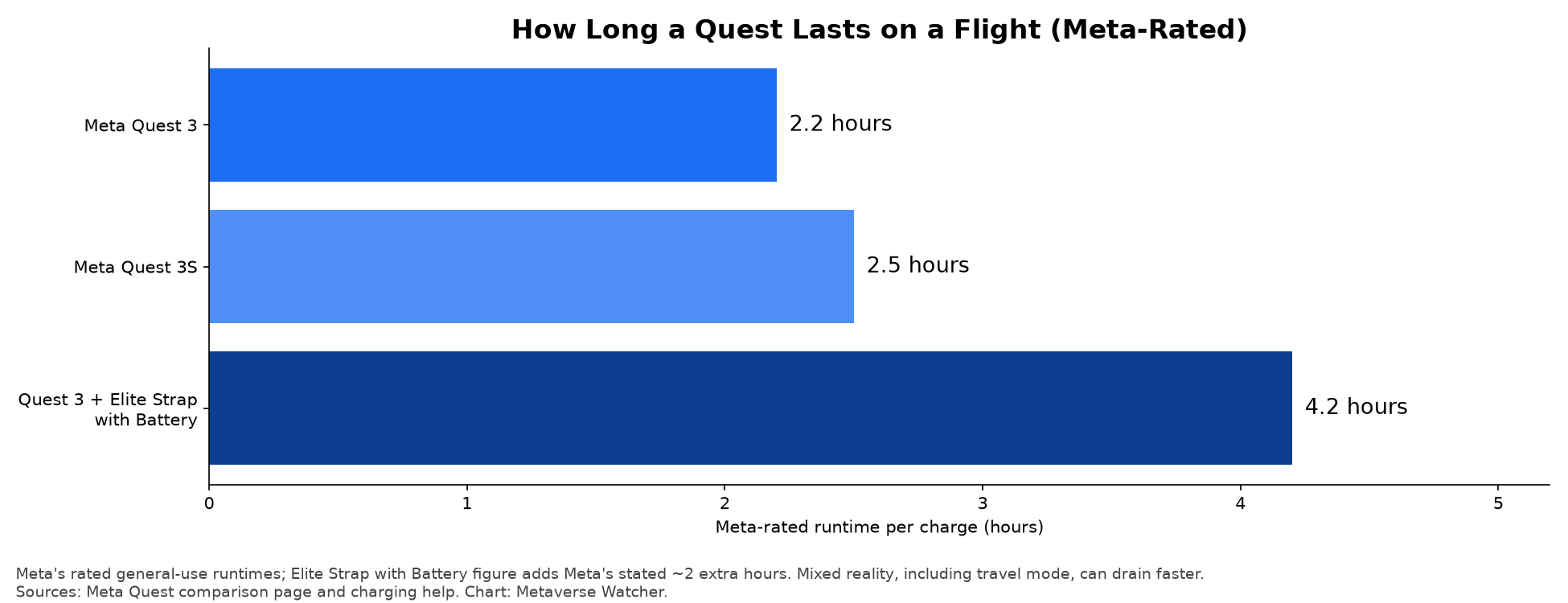
Meta rates the Quest 3 at about 2.2 hours of average use and the Quest 3S at 2.5 hours. That covers a domestic hop, not a transatlantic flight, and Meta warns that mixed reality, which travel mode relies on, can drain the battery faster than average. To stretch it:
- Turn on Battery Saver from Quick controls. It lowers brightness, refresh rate and edge resolution.
- Use a power bank. The Quest charges over USB-C, so a power bank in your pocket or bag can top it up between sessions or keep it running.
- Consider a battery strap. Meta says its Elite Strap with Battery adds about two hours.
- Power off fully between sessions. Sleep mode still drains the battery, only more slowly.
Our full Meta Quest 3 battery life guide covers every setting that saves power, and our best Quest 3 accessories list includes battery straps and cases.
Airline Rules for Power Banks and Headsets
The headset itself counts as a portable electronic device with an installed battery. Power banks are different. The FAA says spare lithium batteries, including power banks, “must be carried in carry-on baggage only,” and if your carry-on is checked at the gate you must remove them and keep them with you in the cabin. Lithium-ion batteries are limited to 100 Wh each without airline approval, which covers typical phone and headset power banks.
The FAA also notes that many airlines set stricter limits on how many power banks you can bring, so check your carrier’s rules before you fly. Individual airlines also decide when electronics can be used, so follow crew instructions.
Safety and Etiquette on a Plane
Meta’s own guidance is sensible and worth following:
- Stay seated whenever you wear the headset.
- Stow the headset during takeoff and landing.
- Take a break during turbulence or if you feel discomfort; Meta says travel mode works best in smooth conditions.
- Pick content that fits your space and stay aware of passengers and crew in the aisle.
- Listen for announcements. Wired or Bluetooth headphones help keep your audio private; see how to connect Bluetooth headphones to Quest 3.
If you are prone to motion sickness, a moving vehicle and a headset can be a difficult mix. Stick to a fixed virtual screen rather than games with artificial movement, and read our VR motion sickness guide before you fly.
Does Any Airline Offer Quest Headsets?
Lufthansa is the best-known example. Meta announced a pilot with the airline that offers Quest 3 headsets running travel mode to passengers in Lufthansa’s Allegris Business Class Suite on selected flights, with content and device management handled by Meta partner MSM.digital. Meta later said nearly 4,000 travelers had used the service, and Meta, Lufthansa and MSM.digital received the 2025 APEX Award for Best Inflight Entertainment. On every other flight, you bring your own headset.
Meta Quest Travel Mode: Quick Answers
Can I use a Quest in a car? No. Meta says travel mode is supported only on airplanes and trains and should not be used in a car.
Does travel mode work on trains? Yes. Meta extended support to trains after the feature launched on planes.
Why does my virtual screen drift on a plane? Travel mode is probably off. Turn it on from Quick controls.
Do I need in-flight Wi-Fi? Only for apps that require a connection. Downloaded games and local video files work offline.
Can I bring a power bank for my Quest? Yes, in your carry-on only, under the FAA’s lithium battery rules and your airline’s limits.
New to the headset? Start with our Meta Quest 3 setup guide.