Meta Quest headsets are rarely used by just one person. A Quest 3 or Quest 3S in a family living room usually ends up shared by a parent, a partner and one or two kids, and the worst way to share it is to hand everyone the same login. Shared logins mix up game saves, expose payment details and mean every friend request, message and purchase lands on one account.
Meta’s built-in answer is multiple profiles plus App Sharing. Each person gets their own Meta Horizon profile on the same headset, with their own saves and privacy, while the headset owner can still share the games they already paid for. This guide walks through the whole setup, the limits Meta documents, and the problems people run into most often. Every step below was checked against the Meta Quest Help Center on November 12, 2026.
Quick answer
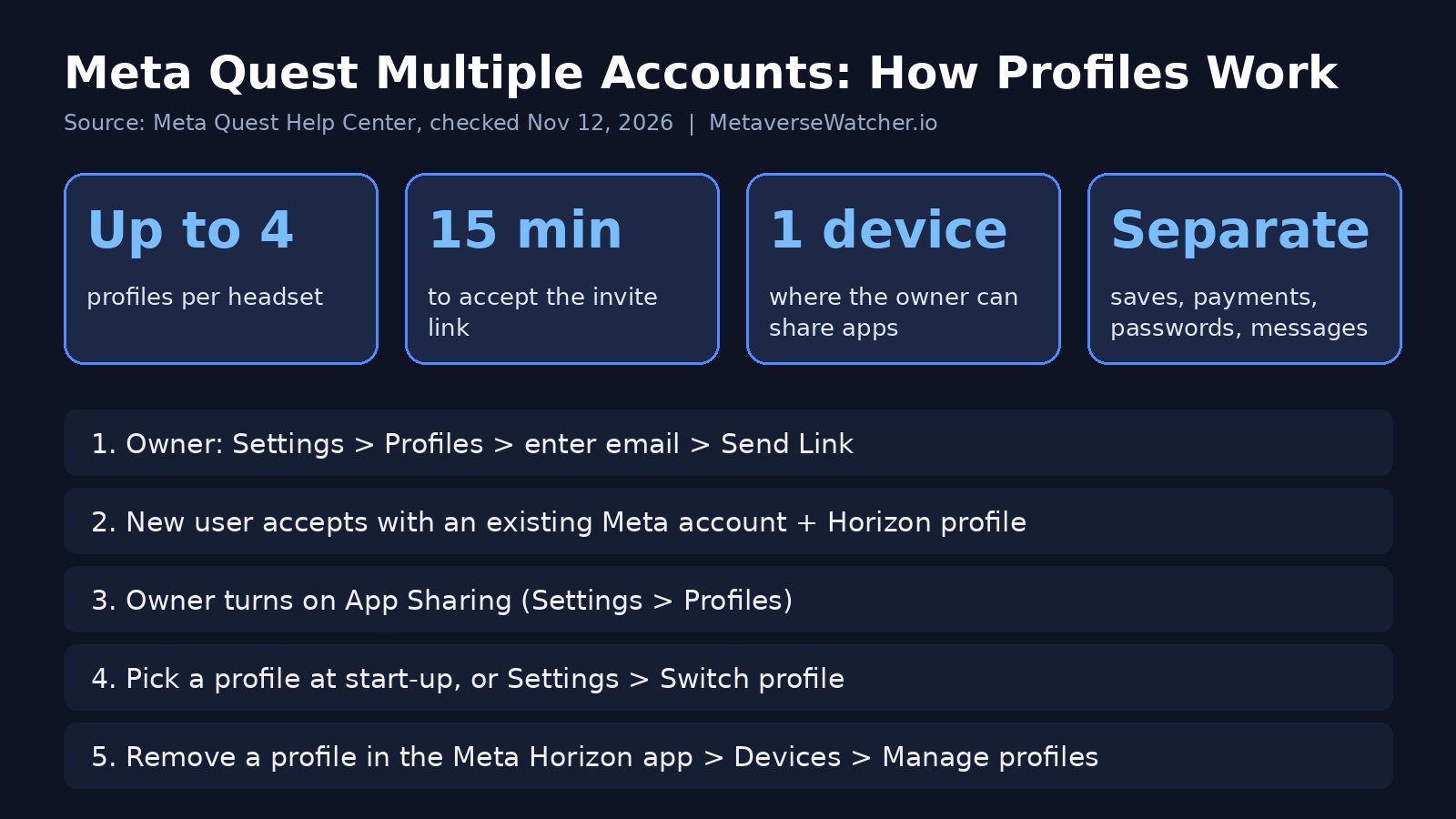
- A Meta Quest headset supports up to FOUR profiles: the owner plus three additional people.
- The owner adds someone in the headset under Settings > Profiles by entering that person’s email and selecting Send Link. The link expires after 15 minutes.
- To let other profiles play the owner’s purchased games, the owner turns on App Sharing in the same Profiles menu.
- App Sharing can be active on only ONE headset at a time.
- Each profile keeps its own saves, passwords, payment details, messages and settings.
Before you start: what each person needs
The person you are adding must already have a Meta account and a Meta Horizon profile. Meta’s help page on profile problems states that the person “will need to create an account and Meta Horizon profile, if they don’t already have them” before they can be added. The easiest way to do that is in the Meta Horizon mobile app on their own phone.
For children and teens, use the right account type rather than an adult account. Meta offers separate child and teen accounts with parental supervision, and the rules differ by age. Our guide to Meta Quest age requirements for kids explains which account type applies, and our Meta Quest parental controls setup guide covers supervision, app approvals and time limits.
Also make sure the person adding the profile is the headset owner, meaning the account that first set up the device. If you are still setting up a new headset, finish our Meta Quest 3 setup guide first.
Step 1: Add a second profile to your Meta Quest
According to Meta’s help article “Add additional Meta Horizon profiles to your Meta Quest”, the process takes place in the headset:
- Put on the headset and press the Meta button on your right controller to open the Navigator.
- Select Settings, then Profiles.
- Enter the email address of the person you want to add, then select Send Link.
- The other person opens the email or message and accepts the invitation.
Timing matters here. Meta says the link expires 15 minutes after it is sent, so have the other person ready with their inbox open before you tap Send Link. If the link lapses, simply send a new one.
Repeat the process for each additional person, up to the four-profile limit. Once a headset has more than one profile, Meta shows a profile switcher every time the device starts up.
Step 2: Turn on App Sharing so others can play your games
Adding a profile does not, by itself, give that person access to the owner’s library. Additional profiles can install apps they bought themselves, but the owner’s purchases only appear for them once App Sharing is on. Meta’s App Sharing instructions are:
- While signed in as the headset owner, press the Meta button on the right controller to open the universal menu.
- Hover over the clock on the left side of the menu and select it to open Quick Settings.
- Select Settings in the top right, then Profiles.
- Select the toggle next to App Sharing.
Meta describes shared content as “eligible apps and games,” so not every title in a library is guaranteed to appear for other profiles. If a specific game is missing for a secondary profile after App Sharing is on, that title may simply not be eligible.
One useful detail if you bought the headset in a bundle: Meta says owners who received content through a promotion or bundle should turn on App Sharing to share that redeemed content with additional profiles too.
Step 3: Switch between profiles
There are two ways to change users. The headset shows a profile picker at start-up, or you can open Settings, select your profile and choose Switch profile, according to Meta’s profile troubleshooting page. Each profile can also set its own passcode, which is worth doing if younger family members share the headset with adults.
What is shared and what stays private
The main benefit of separate profiles over a shared login is privacy. Meta lists the information each profile keeps to itself:
| Item | Shared between profiles? | Notes |
|---|---|---|
| Owner’s purchased games | Yes, if App Sharing is on | Eligible apps only; on one headset at a time |
| Installed game files | Yes | Meta says a shared app installed by the owner does not take extra storage for other profiles |
| Game progress and high scores | No | Each profile saves its own progress |
| In-app settings | No | Comfort and control settings stay per person |
| Payment information | No | Other profiles can’t spend on the owner’s card |
| Saved passwords | No | Stored separately per profile |
| Messaging, Parties, Horizon Worlds | No | Social features are tied to each profile |
| Avatar, groups, leaderboards, achievements | No | Each profile has its own |
The storage point is important on 128GB Quest 3S units. Because a game installed by the owner isn’t duplicated for every profile, adding family members doesn’t multiply the space your library takes. If you are running short anyway, see our guide on how to free up storage on Meta Quest 3.
The one-headset rule: households with two Quests
The most common surprise is the limit on where sharing works. Meta’s App Sharing overview says device owners “can only share apps and games on one headset.” It adds that if content was shared with your profile on one headset, it won’t be accessible to you on a different headset. In contrast, anything an additional profile buys with their own account follows them to any headset.
In practice, that means a family with two headsets can’t use App Sharing to give both devices the owner’s full library at the same time. If you upgrade, for example from a Quest 2 to a Quest 3, you will want to move sharing to the new device. Meta’s instructions for sharing on a different Quest are to turn App Sharing OFF on the current headset, then turn it on in Settings > Profiles on the new one. Our guide on moving from Quest 2 to Quest 3 without losing games covers the rest of that upgrade, including cloud saves.
For multiplayer, the cleaner option is for each person to own the game on their own account. If you want to give someone their own copy rather than rely on sharing, our guide on how to gift a Meta Quest game explains the process. Many popular multiplayer titles are free to play anyway; see our list of the best free Quest games and the best co-op VR games of 2026.
How to remove a profile
Only the headset owner can remove profiles, and it is done from the phone rather than the headset. According to Meta’s profile removal guide:
- Open the Meta Horizon mobile app and tap Menu in the top left.
- Tap Devices, then your headset.
- Tap Manage profiles.
- Select the profile you want to remove and follow the prompts.
A factory reset also removes every profile, but it wipes everything else on the headset at the same time. Use it only if you are selling or giving the device away; our Quest 3 and 3S factory reset guide explains what to back up first.
Troubleshooting common profile problems
The invite link doesn’t work
The most likely cause is the 15-minute expiry. Send a fresh link while the other person is ready. Also check that the email belongs to an account that already has a Meta Horizon profile.
“There is already a profile associated with this email”
Meta’s guidance for this error is to choose a different email address.
A profile’s apps and data are missing
This usually means the person signed in a different way than before and created a new, empty profile. Meta notes that if a profile is linked to Facebook or Instagram through Accounts Center, the person should use Continue with Facebook or Continue with Instagram, not “Use mobile number or email,” which can create a separate profile without their purchases. The same Meta help page lists steps to recover the original profile.
Something else is broken
Meta’s general fixes are to restart the headset and reconnect it to the Meta Horizon app with Bluetooth on, log out and back in, remove and re-add a problem profile from Accounts Center, or perform a hard reboot by holding the power button for 30 seconds. If none of that works, contact Meta Store Support.
Is it worth setting up profiles?
For any headset used by more than one person, yes. Setup takes a few minutes and costs nothing. In return, everyone keeps their own saves and settings, kids can be placed under proper supervision, and the owner’s payment details stay private, while the household still gets the value of the games already purchased. The main trade-off to plan around is the one-headset limit on App Sharing in homes that have more than one Quest.
FAQ
How many accounts can a Meta Quest 3 have?
Up to four profiles per headset, according to Meta.
Do additional profiles need their own Meta account?
Yes. Each person needs their own Meta account and Meta Horizon profile before they can be added.
Can other profiles buy games with my card?
No. Meta says payment information isn’t shared between profiles. Additional profiles buy apps with their own account, and those purchases follow them to other headsets.
Can I share my games on two headsets?
Not with App Sharing. Meta allows App Sharing on one headset at a time. You can move it to another headset by turning it off on the first and on in the second.
Sources: Meta Quest Help Center articles on adding profiles, turning on App Sharing, how App Sharing works, sharing on a different Quest, removing a profile and profile setup problems, all checked November 12, 2026. Menu names can change with Horizon OS updates.