By Metaverse Watcher Staff · Published October 30, 2026 · Sources: Meta AI Glasses Help Center, Ray-Ban FAQ, Meta product disclosures
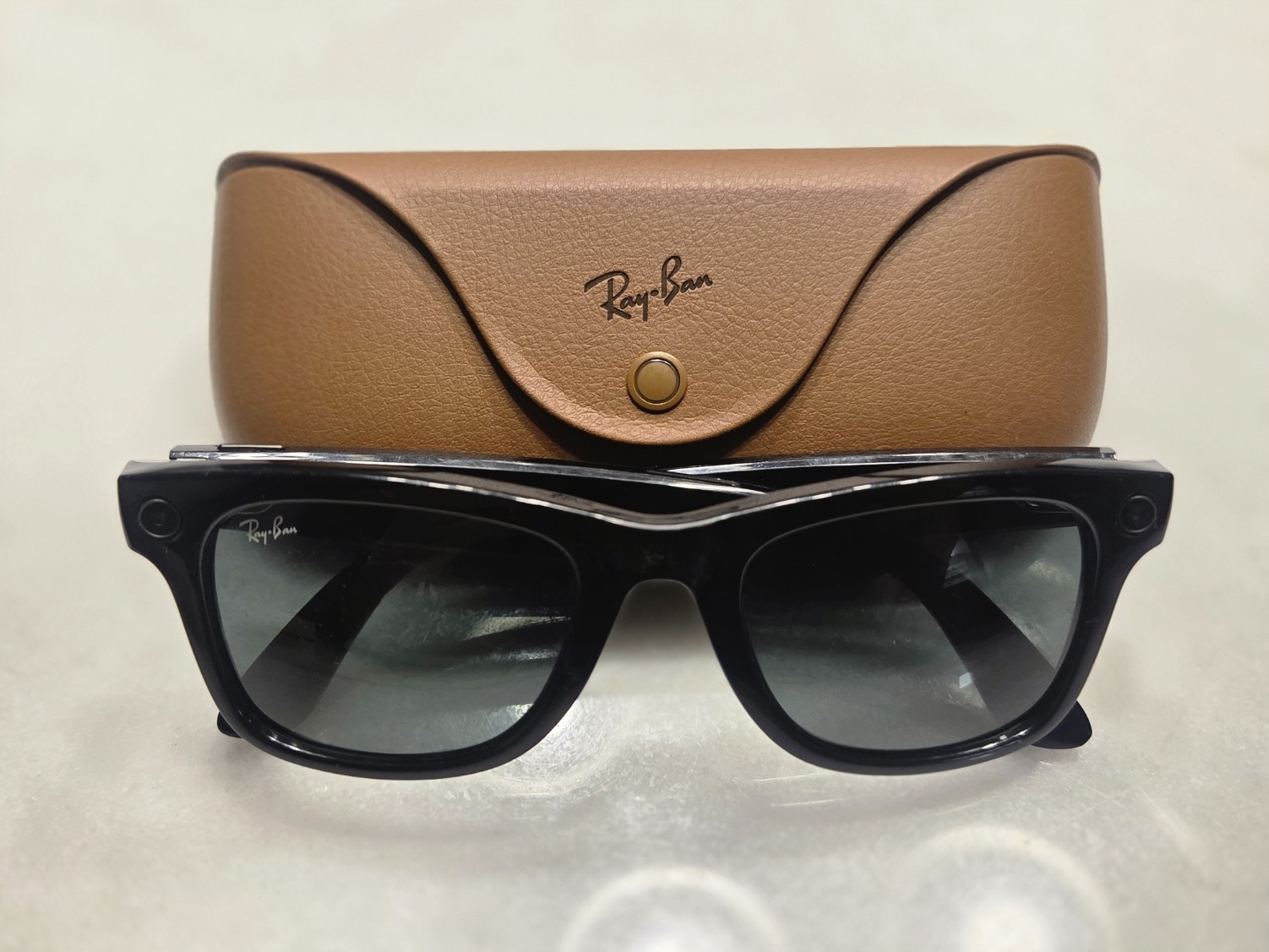
Ray-Ban Meta glasses are the best-selling AI glasses on the market, and with the holiday season close, a lot of new pairs are about to come out of the box. Setup is short, but a few steps trip people up: the plastic tab in the case, the pairing button most owners never notice, and the Wi-Fi update the glasses want before they work properly. This guide walks through setup, the controls, the settings worth changing, and the fixes Meta itself recommends when something goes wrong. Every step below comes from Meta’s AI Glasses Help Center and Ray-Ban’s official FAQ.
What You Need Before You Start
Meta lists four requirements for Ray-Ban Meta glasses:
- A supported phone: Android 10 or later with location services enabled, or iOS 14.4 or later.
- A Meta account: you can create one with email, or sign in with Facebook or Instagram.
- The Meta AI app from the App Store or Google Play. This is the app formerly known as Meta View, and it is required to run the glasses.
- Wi-Fi: the glasses can take photos and handle some voice controls offline, but Meta says you need Wi-Fi for Meta AI, for importing captures and for software updates.
One rule matters if you are buying used or giving a pair as a gift: the glasses can only pair with ONE Meta account at a time. A previous owner must factory reset them (steps below) before a new account can take over.
How to Set Up Ray-Ban Meta Glasses, Step by Step
- Remove the plastic tab between the glasses and the charging case. Until it is out, the glasses will not charge or connect.
- Install the Meta AI app and sign in with your Meta account. Turn on Bluetooth on your phone.
- Turn the glasses on by sliding the power switch on the left arm toward the front of the frame.
- Dock the glasses in the case. Press gently on the top of the frame so the bottom of the nose bridge touches the charging contact inside the case.
- Wait for the case LED to flash blue. That means the glasses are in pairing mode. If they do not enter it on their own, press and hold the button on the back of the case for at least 5 seconds. Meta’s accessibility FAQ says the button sits about half an inch (1 cm) below the USB-C port and has a raised, embossed symbol you can feel.
- In the Meta AI app, tap Glasses in the top right, then Add, and follow the prompts.
- Accept the permissions the app asks for, including Bluetooth. When your phone shows a Bluetooth pairing code, Meta says it is safe to simply tap Pair.
- Connect the glasses to Wi-Fi and install the update if the app offers one. Leave the glasses in the case until the update finishes.
- Put them on and take the tour. At the end of pairing, the app tells you to remove the glasses and walks you through the main features.
Once pairing is complete, the glasses become your phone’s audio output, so calls and music play through the open-ear speakers instead of the phone. The Meta AI app supports up to two pairs of glasses on one account; add the second pair from the Glasses tab the same way.
Ray-Ban Meta Controls: Capture Button and Touchpad
There are two physical controls: the capture button on top of the right arm, and the touchpad along the side of the right arm. Ray-Ban’s FAQ lists these defaults:
| Action | What it does |
|---|---|
| Press capture button once | Take a photo |
| Press and hold capture button | Start recording video (press again to stop) |
| Tap touchpad once | Pause or resume audio |
| Double tap touchpad | Skip forward |
| Triple tap touchpad | Skip back |
| Swipe forward / back on touchpad | Volume up / down |
| Tap and hold touchpad | Default shortcut (often Meta AI); can be remapped |
| Close the arms | Pauses audio playback |
If you wear a helmet or a hat, or have wet hair, Ray-Ban suggests remapping the tap-and-hold gesture to “none” to stop accidental triggers. Meta also added quick connect, which lets a one-finger hold on the touchpad send a message, place a call or share a capture without speaking.
Features to Try in Your First Week
- “Hey Meta” voice commands: ask questions, take photos, send messages and make calls hands-free.
- Ask about what you see: Meta AI can use the camera to answer questions about the scene in front of you.
- Live AI: say “Hey Meta, start Live AI” for an ongoing conversation without repeating the wake word. Ray-Ban’s Gen 2 brochure says a session lasts about 30 minutes on a full charge, so treat it as a battery-heavy feature.
- Live translation: back-and-forth conversation translation across English, French, Italian, Spanish, German and Portuguese, including in airplane mode if you download the language pack first, according to Meta.
- Conversation focus: uses the open-ear speakers to boost the voice of the person you are talking to in noisy places. Meta announced it for Ray-Ban Meta and Oakley Meta HSTN as a software update.
- Music and podcasts: connect Spotify or other supported apps in the Meta AI app.
Feature availability varies by country and language, and Meta ships new features through regular firmware updates. We track those updates as they land, including the v28 release that added walking directions.
Battery Life and Storage by Generation
| Spec | Ray-Ban Meta (Gen 1) | Ray-Ban Meta (Gen 2) |
|---|---|---|
| Battery per charge | Up to 4 hours | Up to 8 hours |
| Extra charge from case | Up to 32 hours | Up to 48 hours |
| Total with case | Up to 36 hours | Up to 56 hours |
| Fast charge | Not stated in these sources | 50% in about 20 minutes |
| Top video mode | 1080p | 3K at 30 fps |
| Storage | 32 GB | 32 GB |
If you bought the newest model, see our coverage of Ray-Ban Meta Gen 3 at $449, which Meta rates at about nine hours. Pairing follows the same Meta AI app flow, but follow the app’s prompts if a control differs on your frame.
Settings Worth Changing on Day One
- Check for updates: in the Meta AI app, go to your glasses’ settings and open Glasses update. New features arrive this way.
- Review voice and privacy settings: decide whether voice recordings are stored and review the capture LED rules on Meta’s AI glasses privacy page. The white capture LED lights up when you record, and it is there so people around you know. Our report on unprompted “Hey Meta” recordings explains why this setting matters.
- Turn on Verified Sessions if you want hands-free commands to require identity confirmation on your phone. It is opt-in.
- Set up auto-import so photos and videos move to your phone over Wi-Fi. The glasses hold roughly 1,000 photos or 100 30-second videos before they fill up, according to Ray-Ban.
Troubleshooting: Pairing, Updates and Resets
The glasses will not pair
- Charge the glasses in the case for at least an hour, or until the case LED turns green.
- Hold the case’s back button for 5 seconds and release when the LED pulses blue.
- If the glasses already appear in your phone’s Bluetooth list (as “RBM” plus a number), tap Forget and try again.
- Delete and reinstall the Meta AI app.
- If the app cannot find the glasses 10 to 15 seconds after you press the case button, Meta’s FAQ suggests tapping “Yes, I already removed the tab,” then “No case?” and following those instructions, even though you have a case.
The LED keeps blinking white
Force restart: slide the power switch off, then press and hold the capture button while sliding the switch back on. Keep holding until the LED turns on, then continue pairing.
A software update keeps failing
A Luxottica retail troubleshooting guide lists the fixes: charge the glasses to at least 75%, keep them next to your phone, turn on both Bluetooth and Wi-Fi, and check phone permissions. On iPhone, the Meta AI app needs Local Network access; on Android, it needs Location Services and location permission. Then force restart the glasses and try again.
The touchpad or capture button does nothing
This is usually wear detection. If the glasses think they are not on your face, the controls stop responding. Take them off and put them back on, restart them, or turn off Wear Detection in the app’s settings. Turning it off disables auto-pause for music and Verified Sessions.
How to factory reset Ray-Ban Meta glasses
A reset erases every photo and video stored on the glasses, so import first. Per Meta’s reset instructions:
- Take the glasses out of the case, make sure they are charged and on, and fold both arms closed.
- Press the capture button 5 times. The LED turns orange.
- Press and hold the capture button, and release when the LED flashes.
- Wait for the LED to cycle through white and then green before it turns off, then pair again in the Meta AI app.
You can also reset from the app under the glasses’ General settings. To reset the charging case itself, remove the glasses and hold the case’s back button for more than 16 seconds. Meta Ray-Ban Display glasses reset differently and have their own help page.
The Bottom Line
Most Ray-Ban Meta setup problems come from three things: the tab left in the case, a phone permission that was denied, or a battery too low for the first update. Get those right and setup takes about ten minutes. If you are still choosing a pair, compare them against the field in our Best Smart Glasses of 2026 list, look at the camera-free Ray-Ban Meta Audio, or see what is coming next in our upcoming smart glasses tracker.