Knowing how to factory reset a Meta Quest 3 or Quest 3S is useful in two situations: the headset has a software problem that nothing else fixes, or you are selling, gifting or returning it and need your account and data off the device. In both cases, the reset is the last step, not the first. Meta’s own help center describes a factory reset as “a last resort method for solving device issues,” and it is IRREVERSIBLE. This guide walks through the safer fixes to try first, how to back up, and the exact button sequence Meta documents for wiping the headset, including the remote option for a lost or stolen device.
All steps below come from Meta’s Quest Help Center articles, linked in the sources section. Meta writes these pages for the Quest line as a whole, so the same procedure applies to the Quest 3 and Quest 3S. If you are still deciding between the two headsets, see our Meta Quest 3 vs Quest 3S buying guide.
What a Factory Reset Does and Does Not Remove
Before you touch the buttons, be clear on what you lose. According to Meta, a factory reset “will remove all account information, downloaded games and content” from the headset. It does NOT remove anything you bought from your account; purchased apps can be downloaded again once you sign back in.
| Item | After a factory reset |
|---|---|
| Meta account sign-in on the headset | Removed from the device |
| Downloaded games, apps and other content | Removed from the device |
| Purchases tied to your Meta account | Kept; re-download from your library |
| App data and settings with cloud backup on | Restorable, if the app supports cloud backup |
| App data with no cloud backup | Lost |
Anything you installed outside the Meta Horizon Store also lives only on the headset, so plan to reinstall it afterward. Our guide to sideloading Quest 3 games covers that process.
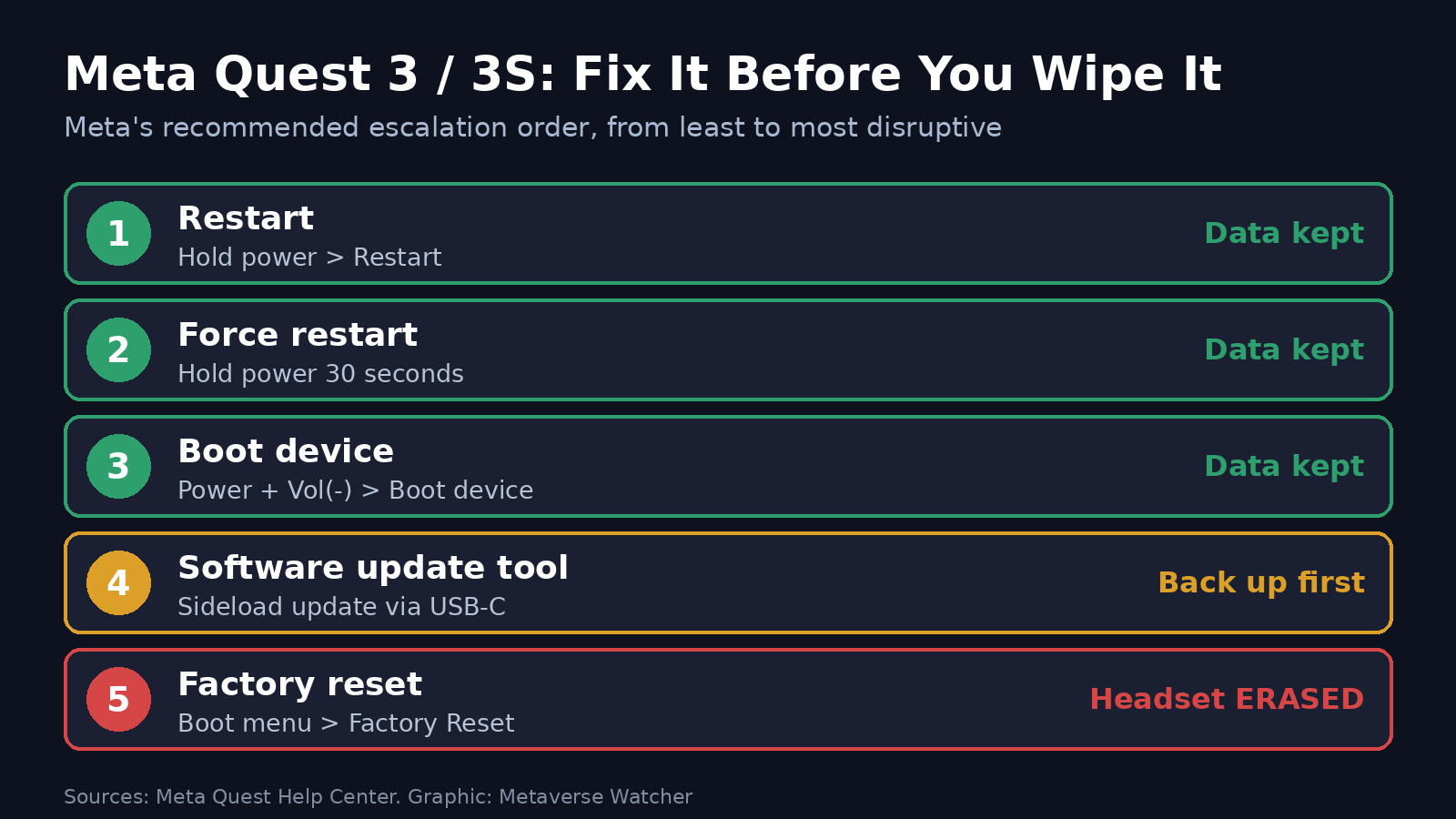
Step 1: Try These Fixes Before You Reset
If you are troubleshooting rather than selling, work through these in order. Each one keeps your data on the headset.
- Standard restart. With the headset on, press and hold the power button until the Power off screen appears, then select Restart.
- Force restart. If the headset is frozen or unresponsive, press and hold the power button for at least 30 seconds, wait 30 seconds, then press power again if it does not turn back on by itself.
- Boot from the boot menu. For a black screen, Meta suggests holding the power and volume down buttons for at least 10 seconds until the boot screen loads, then using the volume buttons to select Boot device and confirming with the power button.
- Wait out an update. If the headset is stuck on the Meta logo or a computer chip icon, it may be installing software. Meta says to wait up to 15 minutes before trying anything else.
- Update the software. In the Meta Horizon phone app, tap Menu > Devices, select your headset, tap Headset settings, then Software update (or Advanced settings > Software update). The headset must be on, on the same Wi-Fi network as your phone, and connected to your Meta account.
If the headset cannot update itself, Meta offers a browser-based software update tool that works even when the device is unresponsive. Meta’s support team describes the process as: back up, power off, hold power and volume down until the USB update mode menu appears, choose Sideload update with the volume buttons, then connect the headset to a computer with the USB-C cable that came in the box and click Connect device in Chrome, Edge or Opera.
Some problems are not software at all. If your issue is controllers wandering or losing position, start with our Quest 3 controller drift and tracking fixes; a reset rarely helps there.
Step 2: Back Up Your Headset
Meta recommends turning on cloud backup before you erase the device. When it is on, app data such as game progress and app settings is saved to the cloud, so you can pick up where you left off after a reset or on a new headset.
- Press the Meta button on your right controller to open the Navigator.
- Select Quick controls, then Settings, then General.
- Select Cloud backup and make sure the toggle is on.
Three caveats matter here. First, cloud backup is opt-in for developers, so some games do not support it; you can check which of your apps are covered, with last backup time and size, at secure.oculus.com/my/cloud-backup. Second, Meta’s developer documentation notes that users can trigger a manual backup from the Cloud Backup panel in device settings, which is worth doing right before a reset. Third, if you protected your backups with an end-to-end encryption PIN, you will need that PIN to restore them. Meta states it cannot reset the PIN or restore the backup for you if you forget it and have no recovery device set up.
Finally, charge the headset. Meta asks for at least 50% battery before a factory reset.
Step 3: How to Factory Reset Meta Quest 3 Using the Headset
This method works even when the headset will not load the normal home environment. You navigate with the physical buttons on the headset; the controllers do not work in the boot menu.
- Turn the headset off. If it is unresponsive, hold the power button for 30 seconds to force a shutdown.
- Open the boot menu. Press and hold the power and volume down (−) buttons together for 10 to 15 seconds, until the boot menu appears on the display.
- If you see a green Android robot with “No command.” Press and hold the power button for 3 seconds, then, while still holding power, press volume up (+) once and release both buttons.
- Select Factory Reset. Use the volume buttons to highlight Factory Reset and press the power button.
- Confirm. Highlight Yes, erase and factory reset with the volume buttons and press the power button.
Leave the headset alone until it finishes and restarts into first-time setup. If you plan to keep using it, follow our step-by-step Meta Quest 3 and 3S setup guide to sign back in, pair the controllers and restore your apps.

Step 4: Remote Factory Reset for a Lost or Stolen Quest
If the headset is gone for good, Meta lets you wipe it from your account without physical access:
- On a computer or phone, go to auth.meta.com/settings/my/devices.
- Choose the headset from your list of devices.
- Select Delete device data or Factory reset. If the option is missing, Meta says the device’s software version may not support remote reset.
- Complete the identity verification steps.
The device disappears from the list once the reset is complete, and the headset itself is wiped the next time it comes online. That last point is important: a powered-off headset with no connection keeps its data until it reconnects.
Which Method Should You Use?
| Situation | Best option | Erases headset? |
|---|---|---|
| Laggy, glitchy or a single app misbehaving | Standard restart | No |
| Frozen, buttons not responding | Force restart (hold power 30 seconds) | No |
| Black screen, audio still playing | Boot menu > Boot device, then update | No |
| Stuck in an update loop or will not boot | Software update tool on a computer | Back up first |
| Problem persists after all of the above | Factory reset from the boot menu | Yes |
| Selling, gifting or returning | Factory reset from the boot menu | Yes |
| Lost or stolen | Remote reset from Meta account settings | Yes, when it next connects |
Before You Sell or Hand Down Your Headset
A factory reset from the boot menu removes your account from the device, which is the main requirement before it changes hands. Confirm your cloud backup is current first, and note any non-store apps you will want on your next headset. If the headset is going to a child, set up supervision after the new owner signs in; our Meta Quest parental controls guide covers the current options.
If you only need to remove another person’s profile rather than wipe the whole device, a reset is unnecessary. Meta notes that a Quest can hold up to four profiles, and the owner can remove one in the Meta Horizon app under Menu > Devices > your headset > Manage profiles.
If the Reset Does Not Fix It
If the headset is still unresponsive after a reset and an update, Meta says the issue may be hardware-related and points owners to its self-serve return page and Meta Store Support. Check your warranty status before paying for any third-party repair.
Sources
- Meta: How to factory reset your Meta Quest
- Meta: How to restart your Meta Quest headset
- Meta: What to do if your Meta Quest screen is black
- Meta: How to update the software on your Meta Quest
- Meta: Quest software update tool
- Meta: Learn about cloud backup on Meta Quest
- Meta for Developers: Cloud Backup
- Meta: Remove a profile from a Meta Quest headset