Updated November 12, 2026. Steps checked against Meta’s Quest Help Center the same day.
Meta started pushing Meta Horizon OS 2.10 to Quest 3, Quest 3S, Quest Pro and Quest 2 headsets the week of November 9, 2026. The new version adds a cinema-style Theater mode for video apps, avatar video calls in Chats, and security changes to how the headset checks that websites are genuine. As with every Quest release, the rollout is staged, so one headset may get it days or weeks before another.
This guide covers how to check your version, how to force a check from the headset, how to make automatic updates actually happen, and what to do when an update is stuck. If you are setting up a brand-new headset, start with our Meta Quest 3 setup guide first.
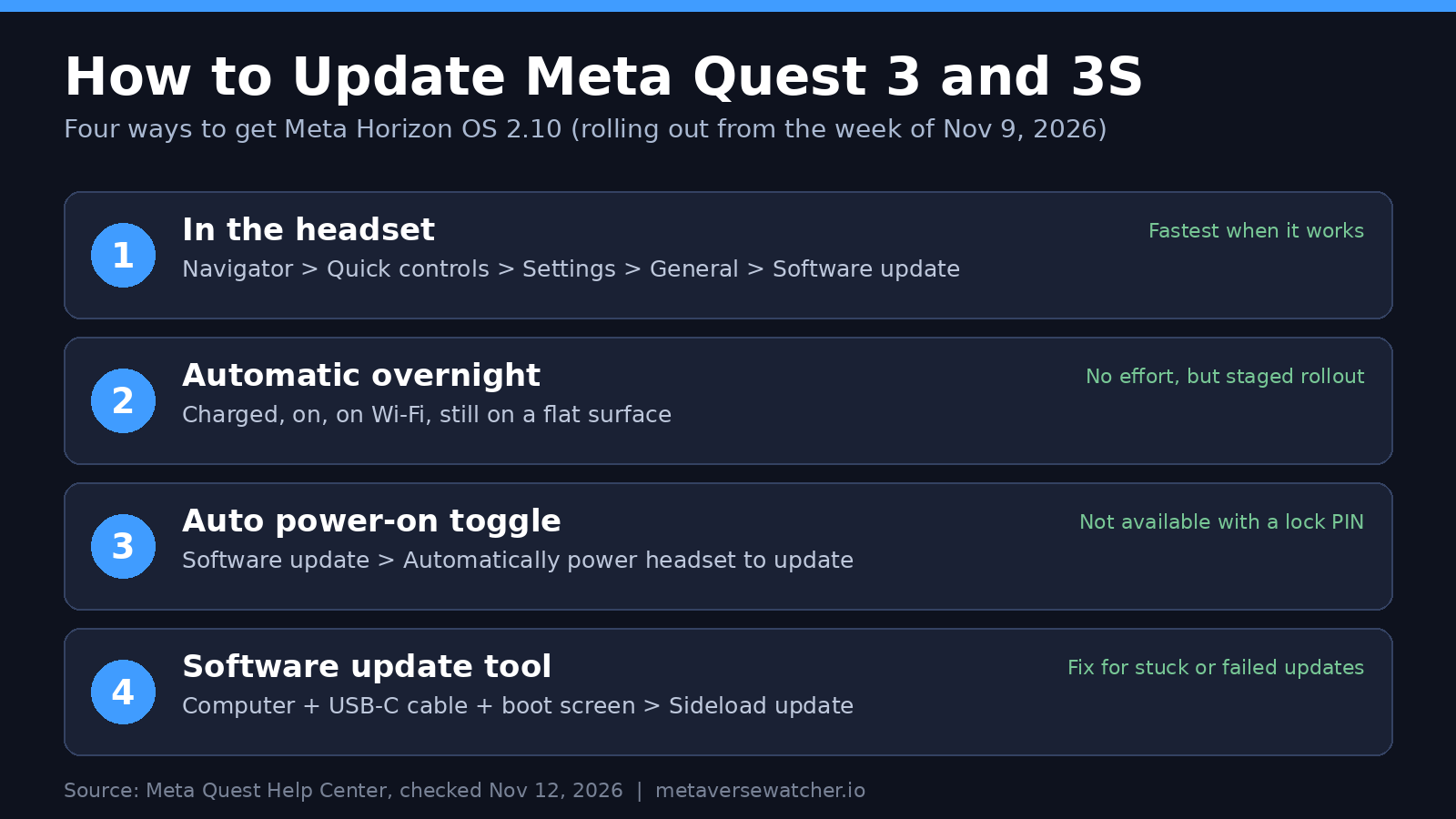
Quick answer
- Press the Meta button on the right controller to open Navigator.
- Select Quick controls, then Settings.
- Select General, then Software update.
- If a new version is available, a download button appears. Keep the headset charged and on Wi-Fi until it finishes.
That is the official path in Meta’s current help article, How to update the software on your Meta Quest. If no button appears, your headset is either already current or has not been offered the release yet.
What’s in Horizon OS 2.10
According to Meta’s Quest release notes, version 2.10 brings:
- Theater: in a supported media app, select More options on the Control bar, then Theater. Video plays on a cinema-scale screen and other windows are hidden. Select it again to exit.
- Avatar video calls in Chats: during a call, select the video icon on the active call bar to switch between an avatar video call and audio only.
- Security updates: improved checks that websites and online services are genuine.
- Simplified Navigator test: some users will see a streamlined system bar, a reworked Library with folders and list view, and a Reset app order option. People moves into Chats, your avatar moves to Profile in Settings, and Meta Horizon+ becomes its own app. Meta says this is a test that rolls out to some people “in the coming weeks.”
Version 2.10 reached the Public Test Channel the week of October 26 and the public channel the week of November 9. Before it, 2.9 (week of October 19) added the Window manager, a built-in QR code scanner on Quest 3 and 3S, and a Troubleshoot controllers option under Settings > Devices > Controllers, which is worth knowing if you are fighting controller drift or tracking problems.
| Version | Public rollout began | Headline changes |
|---|---|---|
| 2.10 | Week of Nov 9, 2026 | Theater mode, avatar video calls, security updates, simplified Navigator test |
| 2.9 | Week of Oct 19, 2026 | Window manager, QR scanner, controller troubleshooting, classic VR Home environments |
| 2.7 | Week of Aug 17, 2026 | Display size setting, controllers as Xbox gamepad, Remote Desktop renamed Virtual Display |
| 2.6 | Week of Jul 20, 2026 | Bug fixes, VR Home follows real head height |
| 2.5 | Week of Jun 22, 2026 | Meta AI on Quest, 3D photos and videos in Gallery |
A note on numbering: Meta dropped the old v-number scheme (v83, v85) with Meta Horizon OS 2.1 in February 2026. There is no v86. If you see “2.10” in Software update, that is the newest release, not an old one.
How automatic updates work
Meta says a Quest installs new system software on its own when it is turned on and connected to Wi-Fi. In practice, four conditions matter:
- The headset is charged (leaving it on the charger or a dock overnight is the easiest way).
- It is turned on, not powered off.
- It is connected to Wi-Fi.
- It sits on a flat surface without being moved, and nothing blocks the proximity sensor inside the headset, for an extended period.
Meta’s help page is explicit that the headset will NOT update automatically while it is turned off or sleeping. That surprises a lot of owners who power the headset down after every session to save battery. See our Meta Quest 3 battery life guide for the trade-offs.
Turn on “Automatically power headset to update”
There is a setting built for exactly this problem. With it on, the headset briefly powers itself on to apply an available update, then powers off again. You may hear the fans. Meta says the microphone and cameras remain off until you put the headset on and press the power button.
- Open Navigator with the Meta button.
- Select Quick controls, then Settings.
- Select General, then Software update.
- Use the toggle next to Automatically power headset to update.
The option is on by default after first setup or a factory reset, and it also appears on the Power off menu. One catch: it is unavailable if you have a lock PIN set, because the headset cannot unlock itself without the PIN. Families who use a PIN as part of their Quest parental controls will need to check for updates manually.
Why you don’t have the update yet
Meta’s release notes say each version “will be gradually pushed” to headsets. A friend on the same model may get 2.10 before you, and that is normal. Some features, such as the simplified Navigator, are also server-side tests: even on 2.10 you may not see them. Installing the newest build does not guarantee every feature listed in the notes.
If you want new builds earlier, the Quest Public Test Channel offers pre-release software, with the caveats that it is first come, first served and that Meta warns Link may not work while you are enrolled. If you play PC VR over Link, read our PC VR on Quest 3 guide before joining.
How to fix a stuck or failed Quest update
Work through these in order. Most stuck downloads clear by step 3.
- Check Wi-Fi. Move closer to the router or switch to a 5GHz network if your router offers one, then retry from Software update.
- Charge it. Plug the headset in and leave it on the charger while it downloads.
- Restart. Hold the power button until the Power off screen appears and select Restart. Then go back to Software update.
- Free up space. A nearly full headset can stall large downloads. Our guide to freeing up Quest 3 storage shows where the space goes.
- Use Meta’s software update tool (below).
Use the Meta Quest software update tool
When the headset cannot update itself, Meta points owners to its web-based software update tool, which installs the latest build over a USB-C cable from a computer or Android phone. It runs in Chromium-based browsers (Chrome, Edge or Opera); Safari is not supported, and an iPhone or iPad will not work. Meta’s support staff and UploadVR’s walkthrough describe the same flow:
- Turn on cloud backup so app progress and settings are saved. UploadVR reports that the tool does not reset the headset or remove apps and data, but a backup is cheap insurance.
- Make sure the computer has at least 2GB of free storage.
- Open the tool in a compatible browser, sign in to your Meta account and select your headset model.
- Power the headset fully off.
- Hold Power and Volume Down together until the boot screen appears, then release.
- Use the volume buttons to highlight Sideload update and press Power to select it.
- Connect the headset to the computer with the USB-C cable that came with it. If you use an Elite Strap with Battery, plug into the headset, not the strap.
- Select Connect device on the web page and follow the prompts.
UploadVR reported when the tool launched that it required the Meta.com site region to be set to the United States. That is a site setting, not a requirement to own a US account. Check it if the tool refuses to load.
If even the update tool fails, the last resort is a factory reset, which DOES erase local data. Follow our Quest 3 and 3S factory reset guide, and if the headset will not boot at all, check your warranty and repair options.
Updating apps and games
System software and apps update separately. Apps generally download updates in the background while the headset is on, charged and connected to Wi-Fi. You can see queued and pending app updates from the Downloads area of your Library, which Meta added to manage downloads and app updates in one place. If you launch a game with a pending update, you will usually be prompted to install it first; multiplayer titles often refuse to connect until you do.
Should you update right away?
For most owners, yes. Release 2.10 includes security changes, and Meta has a history of making new versions mandatory for social features; in 2024 it required v69 for Horizon Worlds and co-presence. The main reason to wait is if you rely on a specific workflow, such as PC VR streaming, and want to see early reports first. Because updates install automatically on a charged, connected headset, the practical choice is usually when to update, not whether.
FAQ
How do I check my Quest software version? Settings > General > Software update shows the current version at the top of the screen.
Does updating delete my games or saves? No. A normal update keeps apps, files and settings. UploadVR reports the USB software update tool keeps apps, files and data as well. Only a factory reset erases it.
Which headsets get Horizon OS 2.10? Meta lists Quest 3, Quest 3S, Quest Pro and Quest 2.
Why does my headset update overnight even when I didn’t ask? That is the Automatically power headset to update setting. Turn it off in Software update if you prefer to install manually.
Is 2.10 older than v85? No. Meta switched to Horizon OS 2.x numbering in February 2026, so 2.10 is newer than every v-numbered release.
Sources
- Meta Quest Help: How to update the software on your Meta Quest (checked Nov 12, 2026)
- Meta Quest Help: Meta Quest release notes, Horizon OS 2.10 (checked Nov 12, 2026)
- UploadVR: Meta Now Lets You Manually Update Your Quest Headset
- UploadVR: Quest’s latest PTC brings streamlined OS interface and Theater environment (Nov 6, 2026)