Last checked: November 14, 2026. Steps below follow Meta’s own Quest Help Center articles for Meta Quest 3 and Quest 3S; menu labels can shift slightly after Horizon OS updates.
A Quest 3 controller that stops working usually fails in one of four ways: it loses tracking (your virtual hand floats, jitters or disappears), its thumbstick drifts (you move without touching it), it won’t pair or connect, or its status light flashes an SOS error. Each has a different fix, and applying the wrong one wastes time. A deadzone change will not cure a tracking problem, and re-pairing will not cure a worn thumbstick.
This guide sorts the symptom first, then walks through Meta’s recommended steps in order, from the free and reversible to the last resorts. It applies to the Meta Quest Touch Plus controllers that ship with Quest 3 and Quest 3S.
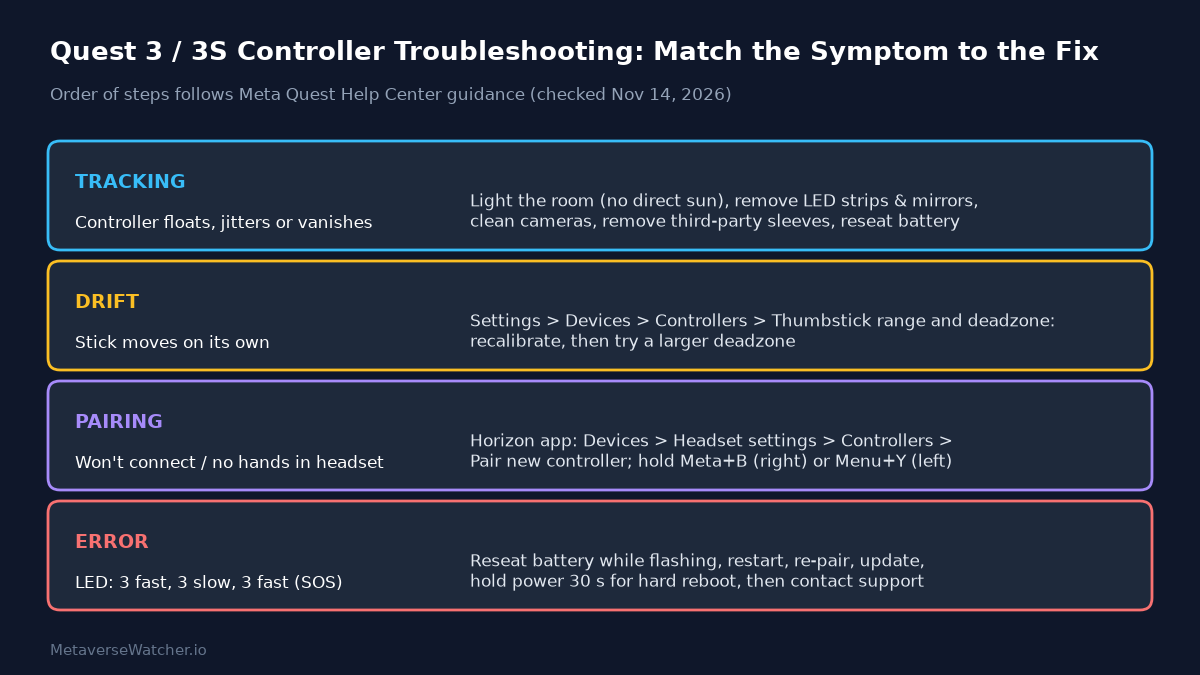
Quick Diagnosis: Which Problem Do You Have?
| What you see | Likely cause | Go to |
|---|---|---|
| Virtual controller floats, shakes, lags or vanishes when moved | Optical tracking problem (lighting, cameras, accessories) | Fix 1 |
| Camera turns or avatar walks with your thumb off the stick | Thumbstick drift | Fix 2 |
| Controller missing in headset, never shows up, or one hand is absent | Pairing / power | Fix 3 |
| Status LED repeats 3 fast, 3 slow, 3 fast blinks | Controller error (SOS) | Fix 4 |
| No LED at all when you press the Meta or Menu button | Dead battery | Fix 3 |
A useful test: swap the controllers between hands, or try the faulty one in the Quest system menu and in a second app. If the fault follows the controller everywhere, it is the controller. If it only happens in one game, check that game’s own control and locomotion settings before touching anything else.
Fix 1: Controller Tracking Is Jumpy or Lost
Touch Plus controllers dropped the tracking ring used on Quest 2. Meta says they rely on AI-based tracking that needs the controllers to be held in-hand and visible to the headset’s cameras. That makes them more sensitive to the room than many owners expect. Meta’s controller tracking help article lists these checks, in this order:
- Check the lighting. The room should be well lit, but out of direct sunlight.
- Remove small light sources. Christmas lights and LED strips confuse the tracking cameras, a point worth remembering through the holiday season.
- Cover or avoid reflective surfaces such as mirrors, glass and polished marble.
- Clean the headset’s tracking cameras using Meta’s care guidance (a dry microfiber cloth, no liquids). Our Quest 3 cleaning guide covers safe materials.
- Keep a clear line of sight between the headset cameras and the controllers.
- Remove third-party sleeves, covers, grips and stickers. Meta states plainly that it does not support third-party controller attachments and that they “may cause tracking issues,” especially ones that push the controller away from your hand. Accessories that worked on Quest 2 controllers may not work on Quest 3.
- Reseat the battery for at least 30 seconds, then restart the headset.
- Unpair and re-pair the controller (see Fix 3).
- As a last resort, factory reset the headset.
Step 6 deserves emphasis. Many popular grip covers sold for Quest 2 were designed around the old ring; on Touch Plus they can block the surfaces the cameras use. If tracking problems began right after you added an accessory, remove it before trying anything else. Our best Quest 3 accessories list is a better starting point for add-ons.
If only a playspace problem is involved, such as the guardian redrawing itself or the floor height being wrong, see our Quest boundary setup guide instead; that is headset tracking, not controller tracking.
Fix 2: Thumbstick Drift
Meta defines controller drift as a thumbstick that “no longer responds accurately to your input or drifts on screen without touching it.” Its drift help article gives one official software fix for Quest 3, Quest 3S, Quest 2 and Quest Pro:
- In the headset, open Settings.
- Select Devices, then Controllers.
- Under Thumbstick range and deadzone, choose the stick that is drifting.
- Follow the on-screen recalibration steps.
- If it still drifts, set a larger deadzone.
Be clear about what step 5 does: a bigger deadzone tells the system to ignore small stick movements, which hides minor drift but slightly reduces fine control. It masks wear; it does not reverse it. Meta’s support staff also advise making sure the headset and controllers are on the latest software, since updates can resolve some input issues. Our Quest 3 update guide shows how to check.
If drift persists after recalibration and a larger deadzone, Meta’s instruction is to contact Meta Store Support. Online forums are full of advice to spray contact cleaner inside the stick or swap the thumbstick module yourself. Those are user modifications, not Meta procedures, and opening the controller can complicate a warranty claim. If your controller is still covered, read our Quest 3 warranty and replacement guide before you pick up a screwdriver.
Fix 3: Controller Won’t Pair or Connect
Controllers can only be paired through the Meta Horizon app on your phone; Meta says it is not possible to pair them any other way. The steps from Meta’s pairing help article:
- Turn on the headset, then open the Meta Horizon app on your phone.
- Tap Menu at the top of the Horizon Feed, then Devices.
- Select your headset, tap Headset settings, then Controllers.
- Tap Pair new controller and pick left or right.
- Hold Meta + B on the right controller, or Menu + Y on the left, until the LED blinks and then stays lit.
To unpair first, use the same Controllers screen in the app, select the controller and choose to unpair it. Once paired, controllers reconnect automatically whenever the headset is on and nearby.
If pairing fails, Meta’s checklist is:
- On a new controller, make sure the battery pull tab has been removed.
- Replace or reseat the battery and confirm the controller has power. No LED at all means the battery is dead.
- Update the Meta Horizon app on your phone.
- Turn on Bluetooth on the phone and put phone and headset on the same Wi-Fi network.
- The headset must be on and unlocked. If you have a passcode but no working controller, use the white dot in the center of the view as a cursor and the headset’s volume buttons to select, or switch to hand tracking to get around the menus.
For a new or replacement controller that still will not pair, Meta says a factory reset may resolve it. Remove the controller batteries during the reset, insert fresh ones when the setup screen appears, and pair during setup. A reset erases the headset, though purchases stay tied to your Meta account and can be downloaded again. Our factory reset guide and Quest 3 setup guide cover both halves of that process.
Fix 4: Reading the Touch Plus Status Light (and the SOS Error)
Each Touch Plus controller has a small status LED on its top edge. Press the Meta or Menu button once to check it. According to Meta’s Touch Plus help article:
| LED pattern | Meaning |
|---|---|
| Two blinks, repeating | Pairing mode |
| Three blinks | Controller is awake |
| One blink | Paired and connected |
| No light | Battery is dead |
| 3 fast, 3 slow, 3 fast, repeating | SOS: controller error |
For the SOS pattern, Meta lists six steps, each to be tried only if the one before fails:
- Remove and reinsert the battery while the SOS is flashing.
- Restart the headset.
- Unpair and re-pair the controller in the Meta Horizon app, with the headset awake and nearby.
- Check for and install software updates.
- Hard reboot: hold the headset’s power button for 30 seconds or until it restarts.
- Contact Meta Store Support.
When It Is Hardware, Not Settings
Meta draws the line clearly: if a controller still will not pair after a factory reset, or shows no LED activity with fresh batteries, it may have a hardware defect, and the next stop is Meta Store Support for warranty help. The same applies to drift that survives recalibration and a larger deadzone. Before you call, note which steps you already tried; Meta’s own community moderators ask for exactly that, and it shortens the exchange.
Owners who move to Quest 3 from older headsets often notice the difference in tracking when the room is set up well, as one new owner coming from a Pico 4 Pro put it:
Just got and tried the Quest 3 and damn, the controller tracking feels so much better than on my Pico 4 Pro.. Now just gonna wait for the FT thing I ordered.
— axel (@cruzaxelb) November 3, 2026
Prevent It Next Time
- Keep spare batteries on hand; a weak battery causes more “broken controller” scares than any defect.
- Use first-party accessories where possible. Meta says only its own accessories guarantee optimal tracking.
- Mind the room: holiday lights, a sunny window or a mirrored wardrobe can all degrade tracking.
- Stay updated. Software updates can fix input and connectivity issues.
- Store the headset with the lenses and cameras covered and out of sunlight.
Frequently Asked Questions
Can I pair a Quest 3 controller without my phone? No. Meta says pairing requires the Meta Horizon app. During a factory reset, controllers can be paired as part of the on-screen setup.
Do Quest 2 controllers work with Quest 3? Meta says Touch Plus controllers work only with Quest 3 and Quest 3S at this time, and that Quest 2-era controller accessories may not work on Quest 3 controllers.
Will a factory reset delete my games? It erases the headset, but purchases are tied to your Meta account and can be downloaded again. Cloud-saved progress depends on each app.
Can I play without controllers while I wait for a fix? Yes, many menus and a growing list of apps support hand tracking. Our best mixed reality games for Quest 3 list notes which picks work well.
Sources
- Meta Quest Help: How to fix tracking issues with your Meta Quest controllers
- Meta Quest Help: How to fix controller drift on Meta Quest Touch controllers
- Meta Quest Help: How to pair and unpair Meta Quest Touch controllers
- Meta Quest Help: How to use Meta Quest Touch Plus controllers (updated November 13, 2026)