Updated October 25, 2026. Steps come from Meta’s own Quest Help Center pages, linked at the end. Menu names change with software updates, so we will revise this guide when Meta moves things around.
A new Meta Quest takes about half an hour to set up properly, and most of that time goes to charging, pairing and updates. Skip a step and you get the classic first-day problems: a blurry image, a headset that will not pair with your phone, or a play area that clips the coffee table. This guide walks through the full setup for the Quest 3 and Quest 3S in order, and flags where the two headsets differ.

Before You Start: What You Need
- A phone running iOS 15.1 or later, or Android 5.0 or later. Meta says the companion app may not work on tablets.
- The Meta Horizon app (formerly the Oculus app and then the Meta Quest app) from the App Store or Google Play.
- A Meta account. You can create one inside the app during setup.
- Wi-Fi and Bluetooth turned on for your phone. Meta lists both as requirements for pairing.
- A clear space. For moving around, Meta recommends at least 6.5 by 6.5 feet (2 by 2 meters). Seated or standing play needs about 3 by 3 feet.
Step 1: Charge the Headset Fully
Meta tells new owners to fully charge the headset with the included adapter and cable before first use. This matters more than it sounds: the first boot usually triggers a system update, and Meta specifically warns to keep the headset on a charger during software updates.
Step 2: Unbox and Power On
- Remove the paper from the head strap and peel the protective films off the lenses.
- Hold the power button on the left side of the headset for about three seconds, until you hear a chime and see the Meta logo.
- Pull the paper battery tab out of each controller.
- Attach the wrist straps, then hold the Menu button (left controller) and the Meta button (right controller) for two seconds. A blinking white light and a vibration mean they are on.
The headset then starts its in-VR tutorial: pick a language, join Wi-Fi and adjust the fit. If you need larger text or other help during setup, Meta says pressing the Meta button three times after the first update opens accessibility settings for vision, mobility and hearing.
Step 3: Get the Fit and Lenses Right
This is the step people rush, and it decides whether VR looks sharp or smeared. Loosen the straps, place the headset against your face, pull the split strap over the back of your head and tighten it, then use the top strap to take weight off your cheeks. Tilting the visor up or down on its arms can also help.
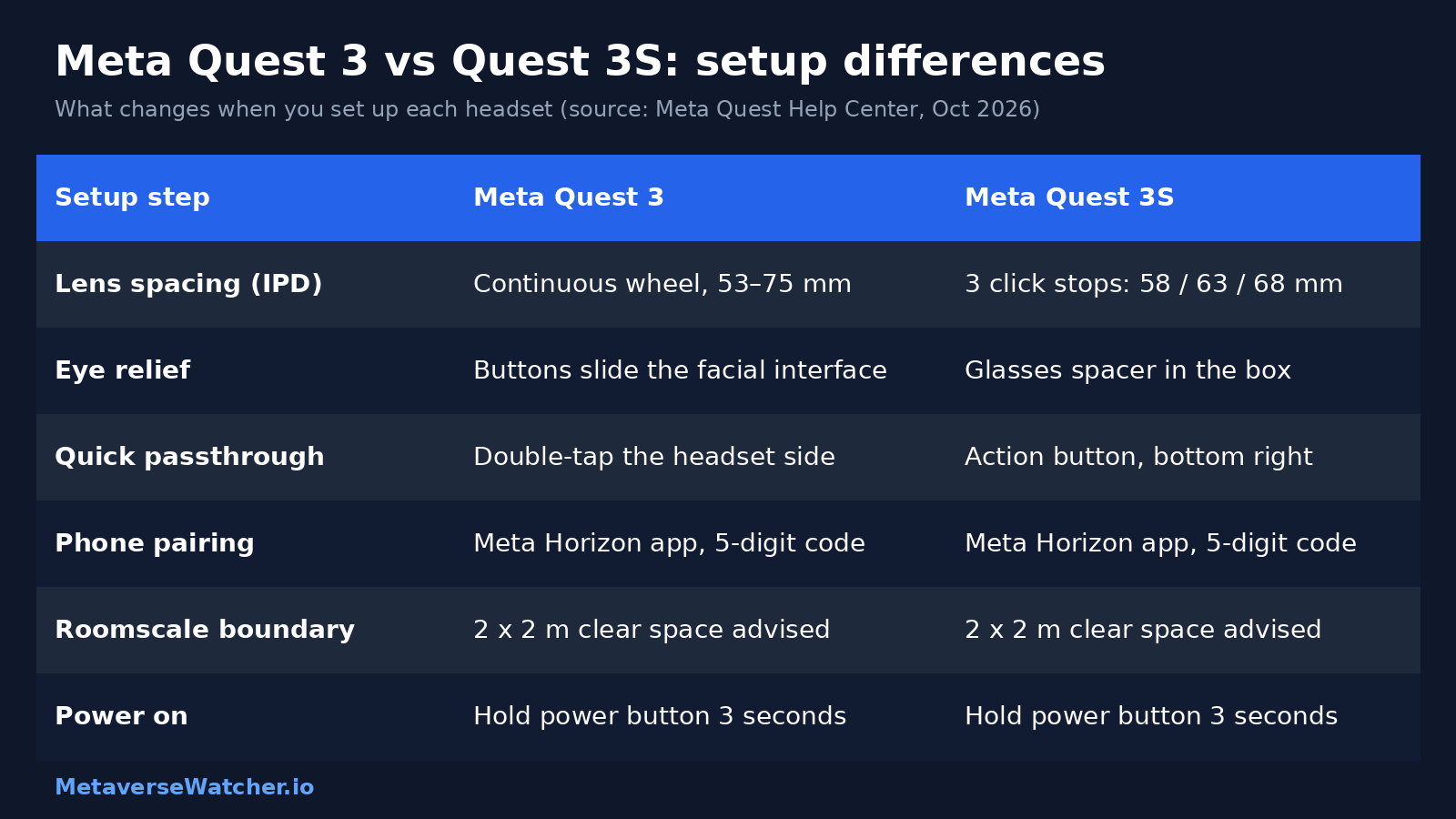
Lens spacing is where the two models really differ. Your IPD (interpupillary distance, the space between your pupils) should line up with the lenses as closely as possible:
- Quest 3: turn the lens spacing wheel on the bottom left of the headset. It adjusts continuously across a 53 to 75 mm range and shows the setting in the headset. Stop when text looks clear.
- Quest 3S: slide the lenses by hand between three positions. Meta’s table suggests position 1 (58 mm) for IPDs of 61 mm or smaller, position 2 (63 mm) for 61 to 66 mm, and position 3 (68 mm) for 66 mm or larger.
Do not know your IPD? An optometrist can measure it. Meta also describes a mirror-and-ruler method: hold a millimeter ruler above your eyes, line zero up with one pupil with the other eye closed, then switch eyes and read the number under the second pupil. Meta says its headsets best fit IPDs between 56 and 70 mm, which covers about 95% of adults.
Glasses wearers have options too. On the Quest 3, eye-relief buttons beside the lenses let you slide the facial interface forward or back. The Quest 3S ships with a glasses spacer instead.
Step 4: Pair the Headset With the Meta Horizon App
You do not need your phone every time you play, but Meta requires the app for the first pairing. Open Meta Horizon and sign in or create an account. New users are guided straight into device setup. If you already have an account, tap Menu at the top of the Horizon Feed, then Devices, then Connect new device (some app versions say Pair new headset or Add device), and choose your headset.
The app may ask for a 5-digit pairing code shown inside the headset. Meta notes that this code stays the same even after a factory reset. If the headset does not show up, Meta’s advice is to update the app, fully close it, reopen it, and make sure Bluetooth and nearby-device sharing are on.
Step 5: Set Up Your Boundary and Space
Boundary is the virtual wall that appears when you get too close to the edge of your play area. There are two modes:
- Stationary creates a 3 by 3 foot (1 by 1 meter) circle around you for seated or standing use. It is the default in the headset’s home space.
- Roomscale lets you draw your own area with a controller, or accept the area the headset suggests from the free space it sees.
To change it later, press the Meta button, open Quick controls, then Settings, Environment setup, Boundary. Mixed reality games also use Space Setup, a quick 3D scan that maps your walls, tables and furniture so virtual objects can bump into or hide behind them. It runs automatically the first time you open an app that needs it.
Lighting affects all of this. Meta says tracking works best in bright, even light, and recommends at least 50 lux for color passthrough. Its rule of thumb: if you can comfortably read a book in the room, you likely have enough light.
Step 6: Learn the Three Settings Worth Changing on Day One
- Passthrough shortcut. On the Quest 3, turn on Double Tap for Passthrough so two taps on the side of the headset show your room. On the Quest 3S, the action button on the bottom right does the same job.
- Hand tracking. Go to Quick controls, Settings, Tracking, and turn on Hand and Body Tracking. You can then point and pinch to select, and look at your palm and pinch to bring up the menu.
- Casting. To show others what you see, put your phone or computer on the same Wi-Fi network and Meta account, then choose Quick controls, Cast. You can also start casting from the Devices page in the Meta Horizon app.

Common Setup Problems and Fixes
- Blurry image: recheck lens spacing first, then move the headset slightly up or down on your face until text is sharp.
- Phone will not pair: update and restart the Meta Horizon app, confirm Bluetooth and Wi-Fi are on, and try away from other Bluetooth devices.
- “Tracking lost” warnings: add light. Dark rooms can drop the headset from full 6DoF tracking to 3DoF, which only follows head rotation.
- Controllers not responding: make sure the battery tabs are fully removed and hold both buttons for the full two seconds.
What to Do Next
Once setup is done, most owners head to the Store or into social apps. If you have a gaming PC, our guide on how to play PC VR games on Quest 3 and 3S covers Link, Air Link and Steam. New to Meta’s social platform? Start with our explainer on Horizon Worlds. Still deciding which headset to buy? Read Quest 3 vs Quest 3S: which Meta headset to buy. And Meta keeps changing the software underneath, as our report on Horizon OS v2.9 bringing Meta AI to more countries shows, so menu names in this guide may shift over time.
Sources
- Meta Quest Help: How to set up your Meta Quest 3
- Meta Quest Help: How to set up your Meta Quest 3S
- Meta Quest Help: Install the Meta Horizon mobile app
- Meta Quest Help: PINs and codes for Meta Horizon and Meta Quest
- Meta Quest Help: IPD and lens spacing
- Meta Quest Help: Set up your boundary
- Meta Quest Help: Suggested boundary and assisted Space Setup
- Meta Quest Help: How to use Passthrough
- Meta Quest Help: Hand and Body Tracking
- Meta Quest Help: How to cast your Meta Quest to a screen
- Meta Quest Help: How headset tracking works