Display glasses such as the XREAL One series and VITURE’s Luma and Beast lines are sold as a “giant screen for any device,” but whether they work with your device comes down to one technical detail: the port has to output video as DisplayPort over USB-C (often called DP Alt Mode). Phones, handhelds and consoles handle that very differently. This guide walks through the exact setup for iPhone, Nintendo Switch and Switch 2, Steam Deck and ROG Ally, and PlayStation or Xbox, using XREAL’s and VITURE’s own support documentation, checked on October 31, 2026.
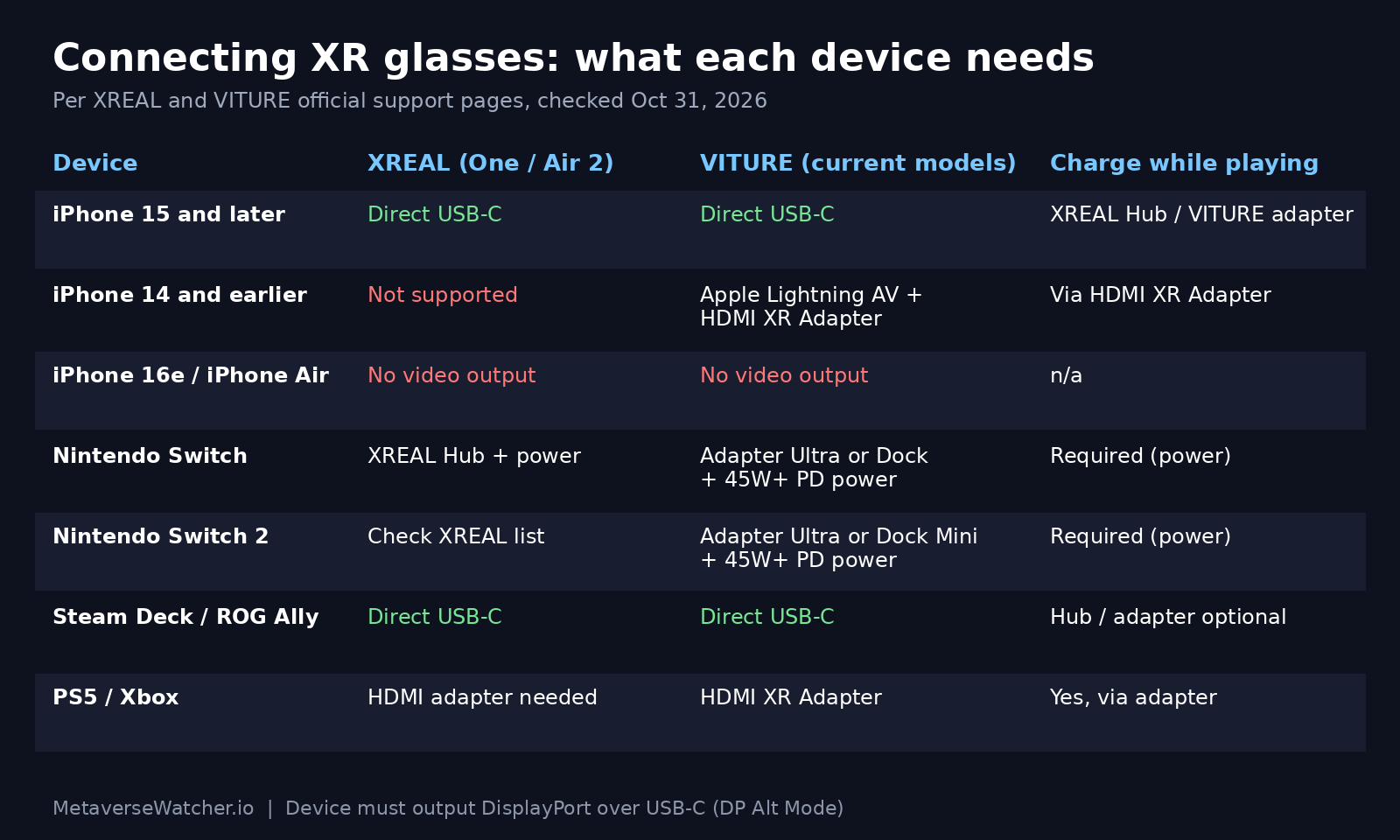
The short answer
| Device | XREAL One / Air 2 series | VITURE glasses |
|---|---|---|
| iPhone 15 and later (USB-C) | Plug in directly | Plug in directly; adapter unlocks SpaceWalker features |
| iPhone 14 and earlier (Lightning) | Not compatible | Apple Lightning Digital AV Adapter + VITURE HDMI XR Adapter |
| iPhone 16e, 17e, iPhone Air | Not compatible | Not compatible (no external video output) |
| Nintendo Switch / Switch OLED | XREAL Hub + power source | Charging Adapter Ultra or Mobile Dock + 45W+ USB-C PD power |
| Nintendo Switch 2 | Check XREAL’s current compatibility list | Charging Adapter Ultra or Mobile Dock Mini + 45W+ PD power |
| Steam Deck / ROG Ally | Plug in directly | Plug in directly |
| PS5 / Xbox | HDMI adapter + HDMI-to-USB cable | VITURE HDMI XR Adapter |
Before you start: why some devices “just work”
XR display glasses are, in practice, external monitors with a USB-C cable. They draw both their video signal and their power from the host device. XREAL’s One series user guide puts the rule plainly: make sure the device’s port “supports DP video output via Type-C.” If it does, the glasses mirror the screen as soon as you plug in. If it does not, no cable trick will fix it, and you need a converter that turns HDMI into a signal the glasses accept.
The second limit is power. Because the glasses run off the host, a phone or handheld drains faster. XREAL estimates 4–6 hours of viewing on a fully charged phone and 4–5 hours of gaming on a Steam Deck or ROG Ally. A pass-through adapter lets you charge the host while you play, and for the Nintendo Switch that adapter is NOT optional.
How to connect XR glasses to an iPhone
iPhone 15 and later
- Unlock the iPhone and plug the glasses’ USB-C cable straight into its port.
- The iPhone screen mirrors to the glasses automatically. Rotate the phone to landscape for full-width video.
- Audio plays through the glasses’ speakers by default on mobile, per XREAL’s guide.
- For long sessions, add a pass-through adapter (XREAL Hub or VITURE USB-C XR Charging Adapter) so you can charge the phone at the same time.
One important exception: Apple’s lower-cost and ultra-thin models. XREAL excludes the iPhone 16e, and VITURE’s adapter page states that the iPhone 16e, iPhone 17e and iPhone Air “do not support external video output and are therefore not compatible with XR glasses.” If you own one of those, no adapter will help, PERIOD.
VITURE owners get an extra layer on iPhone. Plugging in directly gives you a plain mirror, but connecting through the USB-C XR Charging Adapter Ultra unlocks the SpaceWalker app’s multi-screen mode, 3DoF head tracking, one-click 3D and spatial video, according to VITURE Academy. The setup is three steps: connect the adapter to the iPhone, plug the glasses into the port marked with a glasses icon, then open SpaceWalker and wait for the “Connected” notice.
iPhone 14 and earlier (Lightning)
XREAL says Lightning iPhones are not compatible with its Hub. VITURE offers a workaround through its HDMI XR Adapter: plug the iPhone into Apple’s official Lightning Digital AV Adapter, run HDMI from that into VITURE’s adapter, and plug the glasses into the adapter’s glasses port. VITURE notes that third-party Lightning adapters may not work, so buy Apple’s.
How to connect XR glasses to a Nintendo Switch
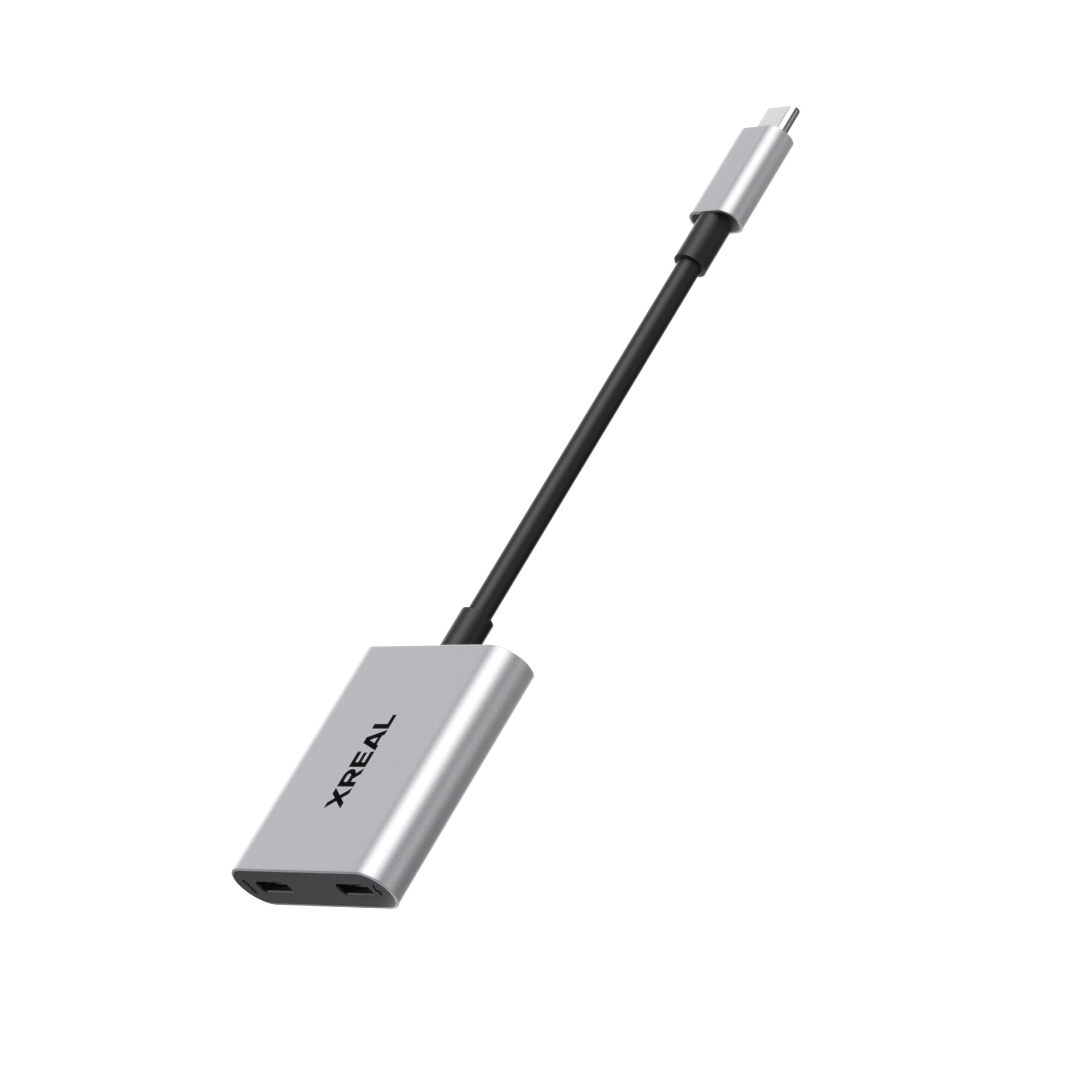
The Switch is the device that trips up the most buyers. Its USB-C port will not output video to glasses on battery alone. XREAL’s guide explains that “due to voltage limitations on the Switch’s Type-C port,” you need the XREAL Hub plus a power supply or power bank, and the Hub page adds that the Switch “needs to stay connected to power when playing.” The XREAL Hub was listed at $39.99 on XREAL’s US store when we checked on October 31, 2026.
- Connect the glasses and your USB-C power source to the adapter first.
- Then plug the adapter into the Switch’s bottom USB-C port. VITURE recommends this order for the most reliable handshake.
- On XREAL One glasses, set the audio protocol to DP mode (double-click the X button, open the Sound menu, choose Audio Protocol, select DP). In DP mode, adjust volume from the glasses’ menu rather than the console.
Nintendo Switch 2
VITURE markets its USB-C XR Charging Adapter Ultra as its first adapter with full Switch 2 support. The Switch 2 draws at least 39W (15V, 2.6A) for its high frame rate mode, so VITURE specifies a USB-C PD power bank rated 45W or higher to power the console and glasses together. The Adapter Ultra was listed at $89 on VITURE’s US store on October 31, 2026. VITURE’s Mobile Dock Mini is a second route that the company says runs every Switch 2 title in XR. XREAL’s support pages we reviewed describe the original Switch and Switch OLED; Switch 2 owners should confirm against XREAL’s current compatibility list before buying.
How to connect XR glasses to a Steam Deck or ROG Ally
PC handhelds are the easiest case. Both XREAL and VITURE list the Steam Deck, Steam Deck OLED, ROG Ally and Legion Go as direct-connect devices: plug the glasses into the USB-C port and the display appears. On Steam Deck, open Settings, then Display, to set the external resolution if the image looks soft or letterboxed. Steam Deck’s Linux-based SteamOS treats the glasses as a standard external monitor, so no driver install is needed.
The trade-off is battery. Expect roughly 4–5 hours on a full charge per XREAL’s estimate, less in demanding games. A pass-through adapter keeps you going, and VITURE says the Adapter Ultra’s 65W PD passthrough is enough to unlock Turbo Mode on the ROG Ally.
How to connect XR glasses to PS5, Xbox or an HDMI PC
Home consoles output HDMI, not USB-C video. XREAL says PlayStation, Xbox and HDMI-only PCs need “an HDMI adapter and an HDMI to USB cable.” VITURE’s HDMI XR Adapter covers the PS5, PS4, Xbox Series X|S and Xbox One. Because consoles are plugged into the wall, battery is not a concern, but you will be tethered to the console’s location by the adapter and cable length. Set XREAL glasses to DP audio mode for console sound.
Troubleshooting: no picture, no sound or a flickering screen
- No image at all: confirm the host supports DP Alt Mode. Many budget Android phones have USB-C ports that charge and transfer data but carry no video.
- Switch shows nothing: it is almost always power. Use a PD power source of 45W or more and connect the glasses and charger to the adapter before the console.
- No sound on a console: on XREAL One glasses, switch the audio protocol to DP. If volume buttons stop working on a phone, switch back to UAC mode.
- Blurry edges or eye strain: adjust IPD in the glasses’ menu. XREAL’s One supports 59.5–70.5mm, and the One Pro comes in M (57–66mm) and L (66–75mm) sizes.
- Streaming apps show a black screen: VITURE notes its HDMI adapter route avoids DRM and HDCP blocks for apps such as Netflix and Disney+ on Lightning iPhones.
Which glasses and accessories to buy
If you mainly game on a Switch 2, VITURE currently has the clearest documented path. If you split time between an iPhone 15 or later and a Steam Deck, both brands work without adapters, and the choice comes down to display quality and fit. For reference, XREAL’s US store listed the XREAL One at $399 (down from $499) and the One Pro at $539 (down from $649) on October 31, 2026. Prices may change ahead of Black Friday on November 27. For a look at what is launching next, including XREAL’s $1,099 Aura, see our upcoming smart glasses tracker and our XREAL Aura launch coverage.
Related Metaverse Watcher guides
- Ray-Ban Meta Setup Guide: Pairing, Controls and Fixes
- How to Cast Meta Quest 3 to a TV, Phone or PC
- RayNeo Air 4 Pro Claims First HDR10 AR Glasses at $299
- Android XR Glasses Phone Pairing Arrives in Play Services
Sources: XREAL One series user guide, XREAL Hub, VITURE USB-C XR Charging Adapter Ultra, VITURE HDMI XR Adapter, VITURE Mobile Dock Mini. Prices checked on retailer pages October 31, 2026.