Thanksgiving week is when many households unbox, borrow or finally dust off a Meta Quest, and the most common question that follows is simple: how do you actually play with friends on Meta Quest when the people you want to play with are in another city? The answer runs through four built-in tools: followers, groups, calls and app invites. This guide walks through each one using the menu paths Meta currently publishes in its Quest Help Center, plus the privacy settings worth checking BEFORE you start inviting people.
If the headset is brand new, finish setup and install the latest system software first. Our Quest 3 software update guide covers that step, since menu names can shift between Horizon OS releases.
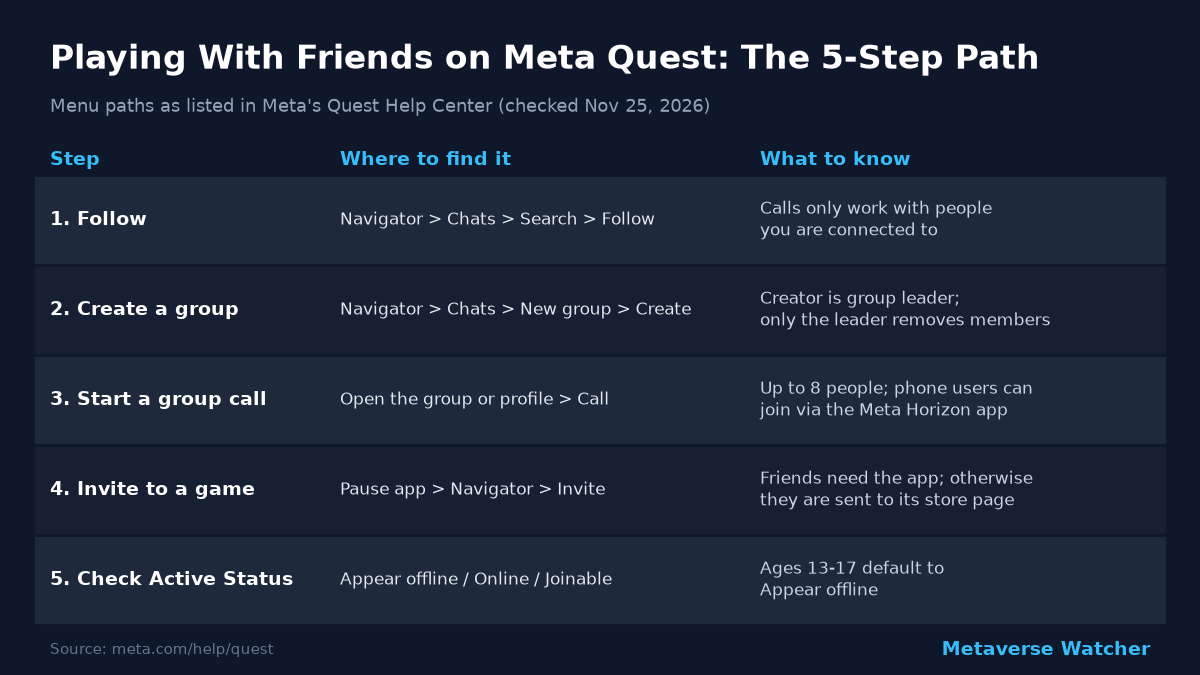
Quick Answer
- Follow the person first: Navigator > Chats > Search > Follow.
- Create a group: Navigator > Chats > New group, pick people, then Create.
- Start a call from the group or a profile. Group calls hold up to 8 people.
- Invite them into a game: pause the app with the Meta button, then select Invite beneath the app icon in the Navigator.
- EVERY player who joins a game needs their own copy of that app.
Step 1: Follow the People You Want to Play With
Meta Horizon uses followers rather than a classic friends list. Meta notes that the old “Oculus friends” are now Horizon followers, and the Friends section you may still see shows mutual followers, meaning people you follow who also follow you back. This matters because Meta says you can only start calls with someone you are connected to.
According to Meta’s Add Meta Horizon followers article, the headset steps are:
- Press the Meta button (or Oculus button) on your right controller to open the Navigator.
- Select Chats, then select Search and enter a username or name.
- Select Follow.
A practical tip: ask relatives for their exact USERNAME rather than their display name, because the two can differ. If someone has a private profile, your follow becomes a request they must approve.
Step 2: Create a Group
Groups are the current replacement for what Quest owners used to call “parties.” Meta says a group lets members take part in group chats and group calls and send and accept destination invites. The person who creates the group becomes the group leader.
From Meta’s groups help article:
- Press the Meta button or Oculus button on your right controller to open the Navigator.
- Select Chats, then select New group.
- Select the people to add, then select Create.
To add someone later, open the group, select the group heading, choose Add people, select the person and choose Add. You can also select Invite link and then Share to send a link to specific people. Anyone in a group can add members, but only the leader can remove them.
Who Can Do What in a Group
| Action | Group leader | Group member |
|---|---|---|
| Add people | Yes | Yes |
| Manage group call volume | Yes | Yes |
| Report or block a member | Yes | Yes |
| Choose a destination for the group | Yes | Yes |
| Manage group join settings | Yes | No |
| Remove a member | Yes | No |
Step 3: Start a Voice Call
A call keeps everyone talking while they move between menus and apps. Meta’s calls help article lists these headset steps:
- Press the Meta button or Oculus button to open the Navigator.
- Select the status bar at the top of the Navigator to open Quick controls.
- Select Chats.
- Choose the person from Followers or Following.
- Select Call next to their name.
You can also call a person or a group from their profile with Start a call. Up to 8 people can join a group call, and each member’s profile picture appears in the group call panel as they connect. To hang up, select Leave.
The holiday-friendly detail is that calls are not limited to headsets. Meta says you can make and receive calls on the Meta Horizon mobile app as well: open the app, tap Chats, select a name or username and tap Call. That means a relative without a Quest can still talk with the person wearing one.
For anyone who is hard of hearing, or for a noisy family room, Quest also supports live captions on calls under Quick controls > Settings > Accessibility > Hearing > Live Captions. Meta notes that other people on the call are notified that their audio is being used for captions, and captions are not available for calls made in the phone app.
Step 4: Invite Friends Into a Game
Once everyone is talking, the next step is getting into the same session. Meta’s “Use apps with other people” article describes the process for apps with a joinable destination:
- Launch an app that has a joinable destination.
- Press the Meta button or Oculus button on your right controller to pause the app and open the Navigator.
- Beneath the active app’s icon, select Invite.
The catch most families run into: invited players must already have the app. Meta says anyone who does not own it is taken to the Meta Horizon Store page to buy or download it before they can join. If you want a cousin in another state to join you in a paid game, our guide on how to gift a Meta Quest game explains how to buy a copy for their account. For low-cost places to start, see our best co-op VR games list.
Not every app supports system invites. Some multiplayer games use their own lobby codes, room names or friend systems, so check the game’s own menu if the Invite option does not appear.
Meeting Up in Horizon Worlds
Meta Horizon Worlds has its own invite path. Meta’s Horizon Worlds invite article says grouping up makes sure everyone travels to the same world at the same time. From Worlds, press the Menu button on your left controller, select People, find the person, select Options and then Invite. Our Horizon Worlds explainer covers what the platform offers.
Step 5: Check Privacy and Active Status
Your profile settings decide who can find you and whether friends can see what you are playing. Per Meta’s privacy settings article, you manage them in the Meta Horizon mobile app by tapping Menu at the top of your Horizon Feed, then Privacy settings.
| Active Status option | What followers see |
|---|---|
| Appear offline | You appear offline anywhere you use your Meta Horizon profile. |
| Online | When you are online or were recently online. |
| Joinable | Online status plus the app or destination you are in; they may be able to join you in some experiences. |
Three details are easy to miss:
- With Joinable, you can limit drop-ins to followers you follow back.
- Accounts for ages 13 to 17 default to a private profile and Appear offline, so a teen who just set up a gifted headset may look offline to everyone until the setting is changed.
- Even on Appear offline, your location inside a specific app is still visible to other people using that same app.
The Hide app activity toggle in the same menu lets you hide individual apps from followers if you would rather not share everything you play.
Rules for Kids’ Accounts
Parent-managed accounts for children aged 10 to 12 (age may vary by region) work differently. Meta says a parent must add someone as an approved contact before the child can call them or invite or join them in a parent-approved app. Those children can ONLY take part in one-on-one calls, not group calls, and their profile is always private. Our Meta Quest parental controls guide explains how to set this up in Family Center.
Blocking Someone Who Causes Problems
If a group member becomes a problem, Meta’s blocking article gives this headset path: Navigator > Chats > Search for the person > Options > Block, then Block again to confirm. Meta says the person is NOT notified, and blocking a follower removes them from your follower list. In an active group activity, Meta notes that blocking mutes both microphones between you and that person, though it does not remove them from the session. Blocked profiles can be reviewed later under Settings > Privacy and Safety > Social connections > Blocked Profiles.
Sharing One Headset in the Same Room
Everything above assumes each player has a headset. If the family is gathered around a single Quest, two other features help more than groups. Casting lets the room watch what the player sees, as covered in our Quest casting guide. Adding extra accounts gives each person their own saves and settings, as explained in our multiple accounts and app sharing guide. Newcomers should start with gentle titles from our best VR games for beginners list.
Troubleshooting Checklist
| Problem | Likely cause | What to try |
|---|---|---|
| Cannot find a friend in Search | Searching a display name | Search their exact username |
| Call button is missing | You are not connected yet | Follow each other first |
| Invite sends them to the Store | They do not own the app | They buy or download it, or you gift it |
| No Invite option in the Navigator | App has no joinable destination | Use the game’s own lobby or code system |
| Teen always shows as offline | Default Active Status for ages 13-17 | Change Active Status in Privacy settings |
| Child cannot call a relative | Contact not approved | Parent adds them as an approved contact in Family Center |
Bottom Line
Playing with friends on Meta Quest is quick to set up once you know the order: follow, group, call, invite. The two things that trip people up are ownership, because every player needs the app, and default privacy settings on teen and child accounts. Sort those out before the holiday and remote family members can drop into the same game with you.
Sources: Meta Quest Help Center articles on followers, groups, calls, app invites, Horizon Worlds invites, privacy settings, approved contacts and blocking, all checked Nov 25, 2026. Menu names can change with Horizon OS updates; we will update this guide when they do.