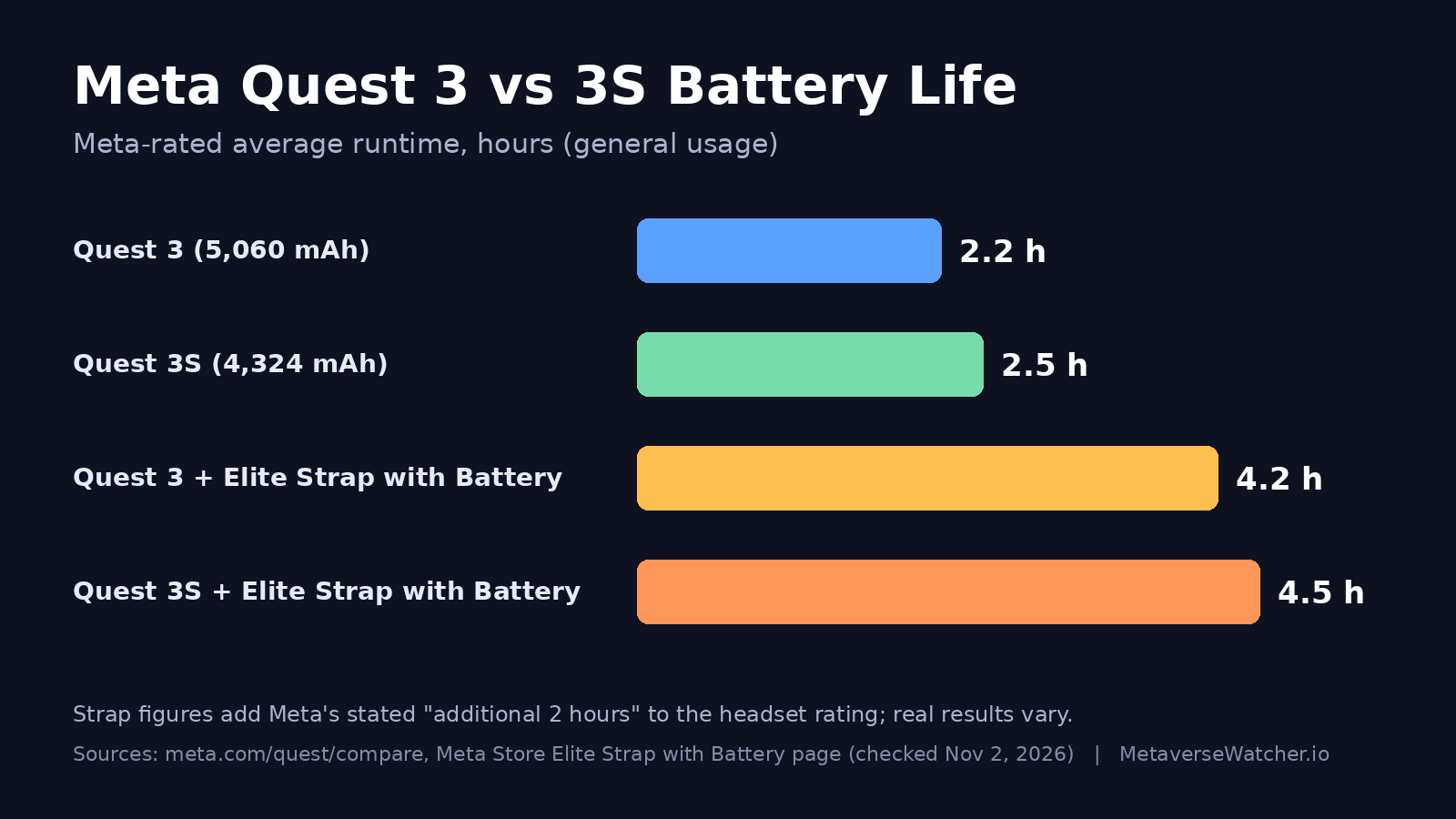
Meta Quest 3 battery life is rated at about 2.2 hours of average use, while the cheaper Quest 3S is rated at 2.5 hours. Those are Meta’s own numbers, and they hide a lot of variation: a mixed reality session or a demanding game can drain the headset faster, while watching video or using Battery Saver can stretch it. This guide explains what the official figures mean, what actually drains the battery, how long charging takes, and the practical ways to get more time per session, including the one accessory that adds real hours.
Quest 3 and Quest 3S Battery Specs at a Glance
Meta lists the following on its official Quest comparison page and in its charging help article, both checked on November 2, 2026.
| Spec | Meta Quest 3 | Meta Quest 3S |
|---|---|---|
| Rated runtime (general usage) | 2.2 hours | 2.5 hours |
| Battery capacity | 5,060 mAh | 4,324 mAh |
| Recommended charger | 18W (included) | 18W (included) |
| Full charge time (wall outlet) | About 2.5 hours | About 2.5 hours |
| Charging port | USB-C, left side | USB-C, left side |
| Official charging dock | Yes (Quest 3 Charging Dock) | Not compatible with the Quest 3 dock |
| Controller power | 1 AA battery per Touch Plus controller | 1 AA battery per Touch Plus controller |
The odd detail is that the Quest 3S lasts longer on paper despite a smaller battery. The likely reason is the display hardware: the 3S uses a single 1832 x 1920 per-eye LCD with Fresnel lenses, while the Quest 3 drives two higher-resolution 2064 x 2208 panels behind pancake lenses, according to Meta’s spec sheet and Road to VR’s spec comparison. More pixels means more work for the same Snapdragon XR2 Gen 2 chip. If battery life matters more to you than sharpness, our Quest 3 vs Quest 3S buying guide covers the full trade-off.
How Long Does the Quest 3 Battery Really Last?
Meta’s 2.2-hour figure is an average “across a variety of activities.” Meta itself warns that mixed reality and more demanding apps may reduce battery life below that level. In practice, expect your sessions to fall into rough bands:
- Lighter use (watching video in a virtual screen, browsing, menus): usually at or above the rated figure, because the GPU is lightly loaded.
- Typical standalone games: close to the rated average.
- Mixed reality apps and graphically heavy games: below the rating, because the passthrough cameras, depth sensing and GPU all run hard at once.
- Wireless PC VR (Air Link, Steam Link, Virtual Desktop): the headset decodes a high-bitrate video stream over Wi-Fi the whole time, which is a sustained load. See our PC VR on Quest guide for the connection options.
Meta’s fine print adds that battery life depends on “device settings, usage, age of battery, Bluetooth usage, and wireless conditions.” That last point matters for streaming: a weak Wi-Fi signal makes the radio work harder.
What Drains the Quest Battery Fastest
| Factor | Why it costs battery | What you can do |
|---|---|---|
| Display brightness | The panels are among the largest power draws | Lower brightness in Quick Settings |
| 120Hz refresh rate | More frames per second means more GPU work | Use 72Hz or 90Hz when an app allows it |
| Mixed reality / passthrough | Cameras and depth sensor run continuously | Use fully virtual modes for long sessions |
| Wireless streaming | Constant Wi-Fi traffic and video decoding | Sit close to a good router, or use a USB-C Link cable |
| Bluetooth audio and accessories | Meta lists Bluetooth usage as a factor | Use the built-in speakers or a wired headset |
| Sleep instead of power off | Sleep mode still drains power, only more slowly | Hold the power button to turn the headset fully off |
| Battery age | All lithium-ion cells lose capacity over time | Follow Meta’s charging advice below |
How to Turn On Battery Saver on Quest 3 and 3S
Battery Saver is the single biggest software lever. Meta’s help center gives two ways to turn it on:
- From Quick controls: press the Meta button on your right controller to open the Navigator, select Quick controls, then select Battery saver.
- From Settings: go to Settings > General > Power and toggle Battery Saver.
Meta’s developer documentation spells out exactly what the mode changes, which is more detail than most guides give:
- Display brightness is gradually reduced to 40%. If you adjust brightness by hand, the reduction stops.
- Fixed foveated rendering is enabled at level 3, which lowers resolution at the edges of your view.
- The display refresh rate drops to 72Hz, which also caps frame rate at 72 FPS. Apps already running at 72Hz are unaffected.
- Certain CPU and GPU frequency boosts are disabled.
The trade-off is visual: edges look softer and motion is less smooth than at 90Hz or 120Hz. For video, social apps and slower games, most people will not notice much. For fast action games, or if you are prone to discomfort at lower refresh rates, you may prefer to leave it off. Our VR motion sickness guide explains why frame rate matters for comfort.
Eight Practical Ways to Get More Time Per Charge
- Use Battery Saver for video, browsing and social apps.
- Lower brightness a few steps. In a dark room you rarely need it at maximum.
- Pick a lower refresh rate in games that offer 72Hz or 90Hz modes.
- Turn the headset fully off between sessions. Meta notes that sleep mode still drains the battery; holding the power button for at least three seconds shuts it down completely.
- Keep the software updated. Meta lists this first in its battery tips, since system updates often include power fixes.
- Improve your Wi-Fi if you stream from a PC, or switch to a USB-C Link cable, which feeds the headset power while you play.
- Skip Bluetooth headphones during long sessions and use the built-in speakers or a wired headset instead.
- Add a battery strap or power bank (see below) if you regularly play longer than two hours.
Accessories That Extend Quest Battery Life
Software tweaks buy minutes. Extra hours require extra battery. These are the main official options, with prices checked on Meta’s US store on November 2, 2026, where a price was listed.
| Accessory | What it adds | Price (Meta Store, Nov 2, 2026) | Works with |
|---|---|---|---|
| Meta Quest Elite Strap with Battery | About 2 additional hours, per Meta, plus a rigid, more balanced strap | $129.99 | Quest 3 and Quest 3S |
| Meta Quest 3 Charging Dock | No extra runtime, but keeps the headset topped up and includes rechargeable controller batteries | No price listed on the US page when checked (launched at $129.99) | Quest 3 only, not Quest 3S |
| USB-C power bank | Runtime depends on the pack; plugs into the headset’s USB-C port | Varies | Quest 3 and Quest 3S |
The Elite Strap with Battery is the cleanest option because the battery sits at the back of your head, which also counterweights the headset. Meta notes one quirk in its help center: the strap has to confirm the headset is not on your head before it charges to 100%, and it can only do that while plugged into the headset. To fully charge it, leave the strap’s cable plugged into the headset and connect the headset to an 18W or stronger adapter.
The official Quest 3 Charging Dock does not add runtime, but it solves the more common problem of picking up a headset that is already half empty. Meta says it needs a USB Power Delivery adapter of at least 18W, with 45W recommended for the fastest charging, and that it does not work with Quest 3S. Launch pricing of $129.99 comes from The Verge’s 2023 report; Meta’s US page showed no price when we checked.
A power bank is the cheapest route. Choose one with USB-C Power Delivery rated at 18W or more, since Meta says lower-wattage sources charge the headset more slowly, and use a short cable so it can sit in a pocket or clip to the strap.

How Long Does It Take to Charge a Quest 3?
With the included 18W adapter and USB-C cable plugged into a wall outlet, Meta says the Quest 3 and Quest 3S fully charge in about 2.5 hours. The LED on the side of the headset glows orange while charging and turns green when it is full.
Charging slows down in three common cases, according to Meta:
- The wall adapter is rated below 18W.
- The headset is plugged into a laptop or PC USB port that does not support USB Power Delivery at 18W or more.
- A third-party cable is used instead of the included USB-C PD cable. Meta warns this can cause poor charging performance or damage.
Why Your Quest Drains While Plugged In
This is one of the most common complaints, and Meta’s explanation is straightforward. When you charge while playing, the headset may lower the charging rate based on temperature. If it gets too warm, it may not fully charge at all until you stop using it and it cools down. In heavy games, the headset can use power faster than a slow charger supplies it. A genuine 18W or better USB-C PD source helps; a weak laptop port often will not keep up.
How to Keep the Battery Healthy for Years
Like every lithium-ion battery, the Quest’s cell loses capacity with age and use. Meta’s guidance for long-term health is specific:
- Use the headset until the battery is below 50% before recharging, rather than topping up constantly.
- For long-term storage, leave it at about 50% charge and keep it at room temperature.
- Avoid hot or cold places, such as a car in summer or winter, or a sunny windowsill.
- Use the charger that came in the box.
- Keep the magnetic charging pins on the dock dry; wipe moisture off with a dry cloth.
Meta also says the headset may use software and hardware systems to manage charging, including limiting the charge to less than full capacity, to slow battery wear. If your headset occasionally stops short of 100%, that can be by design rather than a fault. Sunlight is a separate risk: direct sun through the lenses can damage the displays, so never leave the headset facing a window.
What About the Controllers?
The Touch Plus controllers for Quest 3 and Quest 3S each run on one AA battery, and Meta includes two in the box. Rechargeable AA batteries are a sensible swap for heavy users. The Quest 3 Charging Dock ships with its own rechargeable controller batteries; Meta notes the dock shows an error if a standard AA battery is left in a controller. If your controllers start tracking poorly, a low battery is one of the first things to rule out, as covered in our Quest 3 controller drift and tracking fix guide.
Quick Answers
Is Quest 3 battery life better than Quest 3S? No. Meta rates the Quest 3S at 2.5 hours and the Quest 3 at 2.2 hours, even though the Quest 3 has the larger battery.
Can I play while charging? Yes. Plugging in a USB-C cable works, but the headset may slow charging when warm, and a weak power source may not keep up with demanding games.
Can I replace the Quest 3 battery myself? Not practically. iFixit’s teardown, reported by Road to VR, found the battery sandwiched between the displays and the mainboard deep inside the headset. Contact Meta support if your battery has degraded badly.
Does Battery Saver hurt gameplay? It caps refresh rate at 72Hz and softens the edges of the image, so fast games look less smooth. It is best for video and slower apps.
Related Quest Guides
- How to Set Up Meta Quest 3 and 3S: Step-by-Step Guide
- Quest 3 vs Quest 3S: Which Meta Headset to Buy in 2026
- How to Cast Meta Quest 3 to a TV, Phone or PC
- Best Co-op VR Games (2026): 12 Picks Ranked
Sources: Meta Quest Help Center (charging, battery tips, power off, charging docks, Elite Straps), Meta Store compare and accessory pages, Meta developer documentation on Battery Saver, Road to VR, The Verge. Specifications and prices checked November 2, 2026.