By the Metaverse Watcher newsroom. Published Monday, November 23, 2026. Settings paths and feature details were checked against Valve’s release notes, support pages and Steamworks documentation on November 23, 2026. Features marked BETA may change before they reach the stable channel.
Steam Frame eye tracking is the feature behind Valve’s best-reviewed trick: wireless PC VR that looks sharper than the link bandwidth should allow. Two cameras inside the headset watch where you are looking, and the system spends its image quality there. Valve calls the streaming version of this foveated streaming. Games can also use the same gaze data for foveated rendering, which is a different technique with a different payoff.
This guide explains how both work and which settings matter. It also covers what has changed in SteamOS and SteamVR since launch, how to share eye-tracking data with PC games, and what that sharing means for privacy. If your headset is still in the box, start with our Steam Frame setup guide, and see our Steam Frame specs and price guide for the hardware basics.
The Short Answer
- What it is: two interior eye-tracking cameras. Valve’s Steam Frame Feature and Troubleshooting Guide says eye tracking “is used primarily for foveated rendering” and is “primarily used during VR gameplay (local or streaming).”
- Foveated streaming works at the streaming layer for every PC VR game you stream through Steam Link. Developers do NOT need to add support.
- Foveated rendering has to be built into each game. It reduces the GPU work needed to draw a frame. Foveated streaming does not.
- Where to check: on the headset, VR Settings > General > Eye Tracking. On the PC, sharing with apps is a separate Steam Link setting.
- Privacy: sharing gaze data with PC apps is a separate opt-in. The SteamVR 2.19 BETA now asks you when an eye-tracking headset connects.
How Steam Frame Foveated Streaming Works
Your eyes only see fine detail in a small central area, the fovea. Vision outside that area is much less detailed. A normal VR stream ignores this and spends the same bitrate across the whole field of view. Foveated streaming moves the bitrate to the part of the image you are actually looking at.
Valve engineer Jeremy Selan described the method to PC Gamer in November 2025. VR streams usually carry two views, one per eye. The Frame’s stream carries four: two low-resolution views covering the full field of view, and two high-resolution patches centered on each eye’s gaze point. Selan’s example was that if the foveated area is about 10% of the field of view, the result is roughly a “10x multiplication factor in bandwidth, in latency, in robustness.” Valve software developer Jeff Leinbaugh gave Tom’s Hardware a similar explanation: the area you look at gets a much higher effective bitrate, and the periphery gets what is left.
Timing is what makes this work. Gamers Nexus reported that Valve’s eye tracking updates every 8 to 12 milliseconds. Valve gave a 10 to 20 ms target for end-to-end streaming latency (encode, transmit and decode) and a 250 Mbps target bandwidth for both wireless and wired streaming. Selan’s claim is that the tracker is fast enough to send high-detail pixels to where your eyes are going before they land there.
Foveated streaming is NOT locked to Valve’s hardware. Selan told The Verge that it can work with “any headset that supports eye tracking” and is compatible with the Steam Link app. The Frame is the headset it was tuned for.
Foveated Streaming vs Foveated Rendering
The two terms are often mixed up, but they solve different problems. PC Gamer puts the limit plainly: foveated streaming “doesn’t lower the performance requirements” for the PC rendering the game. If your graphics card struggles in VR, foveated streaming will not fix that. Foveated rendering can.
| Technique | What it saves | Who enables it | Example on Steam Frame |
|---|---|---|---|
| Foveated streaming | Stream bitrate, encode and decode load, latency | System-level; no game changes | Any PC VR game streamed over Steam Link |
| Eye-tracked foveated rendering | GPU rendering cost per frame | The game developer | Half-Life: Alyx (standalone and PC), engine plugins |
| Fixed foveated rendering | GPU cost, with a fixed sharp center | The game developer | Half-Life: Alyx PC on headsets without eye tracking |
| SGSR (foveated) sharpening | Applies sharpening to the foveated area | SteamOS setting | Centered by default when eye tracking is off |
Half-Life: Alyx is the clearest example of foveated rendering. Valve added a desktop setting on October 26 under Options > Performance > Advanced Performance. It requires an NVIDIA GTX 16-series or RTX 20-series card or newer on DirectX, or launching with -vulkan on AMD RX 6000-series cards. Valve linked a Steam Community guide that explains the regions. The center renders at full resolution, a middle band at one quarter, and the periphery at one quarter or one sixteenth. There are four presets: lo, med, hi (the default) and ultra. Without eye tracking, each preset drops one step and the sharp area stays fixed in the center. Our Half-Life: Alyx foveated rendering report lists the 13 headset families the guide covers.
Steam Frame Eye Tracking Settings to Check
Most owners never need to touch these settings. Check them if images look soft or a PC app cannot see your gaze.
| Setting | Where | What it does | Source |
|---|---|---|---|
| Eye Tracking | Headset: VR Settings > General > Eye Tracking | Turns gaze tracking on for foveation and apps | Valve-linked Alyx guide |
| Share eye tracking data to other apps on this PC | PC: Settings > Steam Link | Lets PC games and tools read gaze data | Valve-linked Alyx guide; SteamVR 2.19.1 beta |
| Dominant Eye | Headset: VR Settings | Picks the eye used for spectator view and screenshots | SteamOS 0.4 |
| Track Dominant Eye Only | Headset: VR Settings > General (enable “show advanced settings”) | Accessibility option that limits tracking to one eye | SteamOS 0.4 |
| Display Sharpness | Headset: VR Settings > Display > Display Sharpness | Global sharpening, ON by default | SteamOS 0.5.10 beta |
| Preferred Foveated Sharpness (System UI) | PC: Steam Link settings | Narrower, sharper or wider sharp area for the SteamVR interface | SteamVR 2.19.1 beta |
Two notes on these settings. SteamOS 0.5.7 made foveated sharpening independent of eye tracking. With tracking OFF, it now defaults to the center of the view instead of switching off. In 0.5.10, Valve renamed it SGSR Sharpening. For the wireless adapter, Wi-Fi and the third-party vrOS 3 option, which has its own Off, Gentle and Strong foveation choices, see our Steam Frame streaming guide.
What Valve Has Changed Since Launch
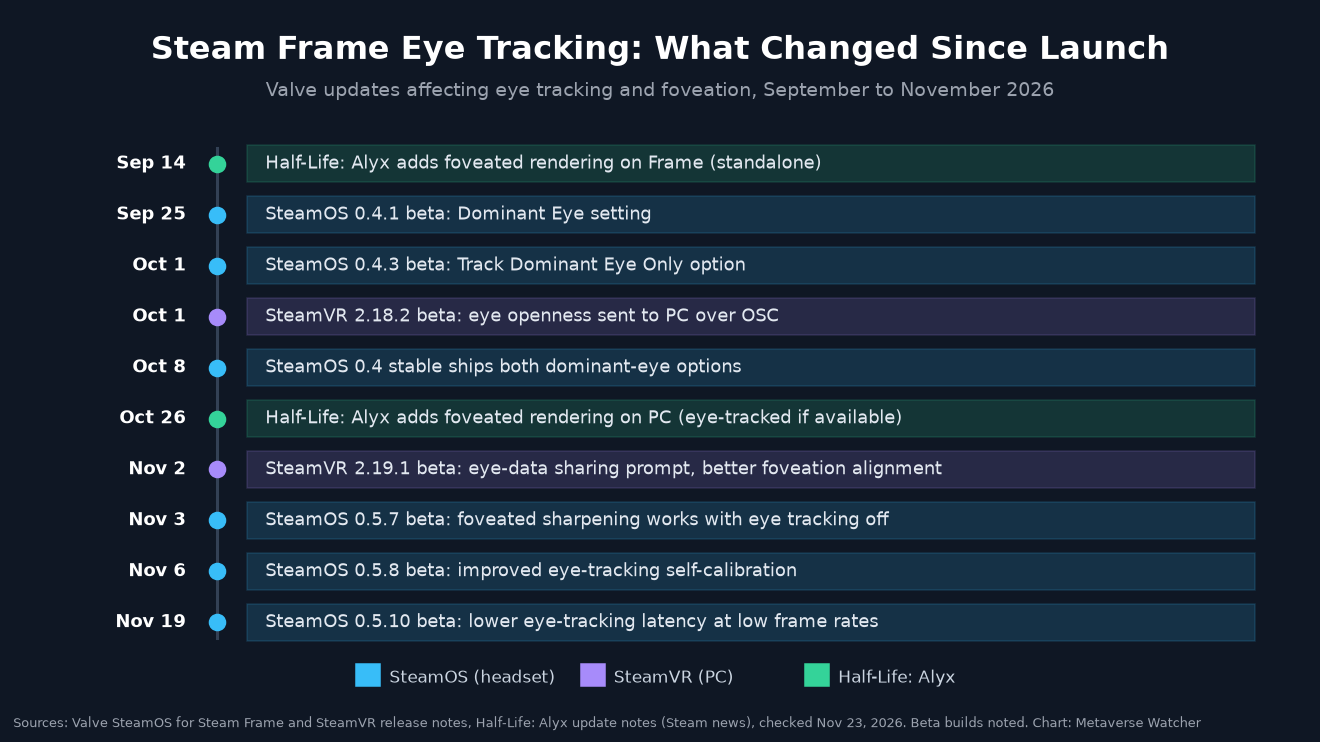
Valve has changed eye tracking often since the Frame shipped. The chart above shows the timeline. These changes matter most day to day:
- Calibration: SteamOS 0.5.8 beta (November 6) “improved eye tracking self-calibration.” Valve’s public troubleshooting guide does not describe a manual calibration step.
- Latency: SteamOS 0.5.10 beta (November 19) “improved eye-tracking latency, particularly under lower framerates,” and raised default streaming resolution through faster decoding.
- Alignment: SteamVR 2.19.1 beta (November 2) “improved eye-tracked foveation alignment during rapid head movement” and gave a sharper image outside the foveated region through better downscaling.
- Eye openness: SteamVR 2.18.2 began sending eye openness (blinks, not gaze direction) to PC apps over OSC when streaming from a Frame. It requires SteamOS 0.4.3 or later. See our report on eye openness over OSC.
Analyst Joshua Keith’s read on the 0.5.10 beta matches the release notes:
SteamOS 0.5.10 beta for Steam Frame is a PC streaming update.
— Joshua Keith (@joshuakeith) November 19, 2026
Decode got faster, so the Frame now streams at a higher resolution by default. There's a new display sharpness setting, on by default, so if it looks crunchy that's the first slider to check.
Eye tracking latency is better at low framerates, which is exactly when foveated streaming needs it.
Using Eye Tracking in PC Games and Social VR
Foveated streaming works without any setup, but PC apps that use your gaze need the data passed through. The Valve-linked Alyx guide lists two steps for Frame owners. First, enable eye tracking on the headset. Second, on the PC, turn on Settings > Steam Link > Share eye tracking data to other apps on this PC. Since SteamVR 2.19.1 beta, SteamVR also asks whether to share eye-tracking data when an eye-tracking headset connects.
Support in apps is growing. Resonite reads Frame gaze through Steam Link and can take more detailed data from the community Babble Frame Runtime, as covered in our Resonite eye tracking report. For games that run well on the headset, see our best Steam Frame games list.
Eye Tracking Privacy: What Sharing Means
Gaze data is sensitive. It shows what draws your attention and how long you look at it. Eye-openness data adds blinks and squints. The headset uses this data for its own foveation. Valve’s setup steps treat sharing it with other PC applications as a separate opt-in, and the new SteamVR prompt makes that an explicit choice instead of a setting you might never find.
Our advice: allow sharing when a specific app needs it, such as a social VR platform with eye animation or a game with eye-tracked foveated rendering. Turn it off again when you no longer use that app. The sharing setting covers other apps on your PC; Valve describes foveated streaming as part of its own streaming layer. For the wider debate over eye cameras in head-worn devices, read our analysis of eye tracking and privacy.
For Developers: Eye Tracking and Foveation APIs
Valve’s Steamworks Steam Frame documentation sets out the supported routes:
| Route | Eye tracking | Foveated rendering |
|---|---|---|
| OpenXR (custom engines) | XR_EXT_eye_gaze_interaction | XR_FB_foveation, XR_FB_foveation_configuration, XR_FB_foveation_vulkan, XR_META_foveation_eye_tracked and related extensions |
| OpenVR | GetEyeTrackingDataRelativeToNow and GetEyeTrackingDataForNextFrame with an “eyetracking” action | n/a |
| Unity | Eye Gaze Interaction (OpenXR plugin) | Valve Utils for Unity’s Foveated Rendering: Unity 2022.3+, OpenXR Plugin 1.9.1+, URP, Vulkan |
| Unreal Engine | See the Input page (OpenXR eye gaze) | Eye-tracked Variable Rate Shading; Valve recommends runtime-provided VRS |
| Godot | Eye Gaze Interaction extension in Project Settings | Godot OpenXR Vendors plugin 4.2.x or later (5.x recommended) |
Valve’s Unreal page includes one warning. Unreal’s default VRS provider is not compatible with multiview VR rendering, and enabling both “will result in a black screen.” Valve also notes that because of how the density map is binned, the effect of gaze-tracked foveation “can be hard to see.” Developers targeting Linux on the headset should also read our Steam Frame Linux guide.
Troubleshooting Steam Frame Eye Tracking
- The image looks soft or “crunchy” when streaming: check Display Sharpness on 0.5.10 or later first, then make sure Steam Link’s encoded video size and render resolution are set to Auto. Valve says manually changed values are preserved, so set them back to Auto to get the new defaults.
- A PC game ignores your gaze: confirm eye tracking is on in the headset and that sharing is enabled in Steam Link on the PC. Compatibility layers such as OpenComposite or xrizer may not pass eye tracking to Half-Life: Alyx, according to the Valve-linked guide.
- Tracking seems off for one eye: try Track Dominant Eye Only (advanced settings), which Valve added as an accessibility option.
- The sharp area lags behind your eyes: update. The 0.5.10 beta targets latency at low frame rates and SteamVR 2.19.1 beta targets alignment during fast head movement. Opt in through Settings > System > System Update Channel.
- Glasses or fit problems: the Frame’s spec sheet lists a 140 mm maximum eyeglasses width. If your frames do not fit, see our VR prescription lens inserts guide.
The Bottom Line
Eye tracking is central to how the Steam Frame works, not an extra. Foveated streaming uses it in every streamed PC VR game, with no developer work and no settings to change. Foveated rendering uses it to cut GPU load, but only in games that support it, and Half-Life: Alyx is the reference case today. Keep eye tracking on, share gaze data with PC apps only when one needs it, and use the beta channel if you want the latest latency and calibration fixes. Weighing the Frame against Meta’s headset, which has no eye tracking? Read our Steam Frame vs Quest 3 comparison.
Sources: Valve Steam Frame Feature and Troubleshooting Guide; SteamOS for Steam Frame release notes 0.4.1 through 0.5.10; SteamVR 2.18.2 and 2.19.1 beta notes; Half-Life: Alyx October 26 update notes and the linked Steam Community foveated rendering guide; Steamworks Steam Frame documentation; interviews with Valve staff by PC Gamer, Tom’s Hardware, Gamers Nexus and The Verge. All checked November 23, 2026.